Access Request Configuration
You can configure and manage the Access Request feature from the Access Request Configuration page. Only Hire2Retire Admins and Editors can configure the Access Request feature.
From this page, you can enable or disable access requests, link an Identity Provider (IdP), integrate access requests with ServiceNow, set up the email server used for request notifications, define approvers, and manage the request catalog.
Linking an Identity Provider
Before configuring access requests, you must link your Identity Provider. You can select any of the existing IdP connections on Hire2Retire.
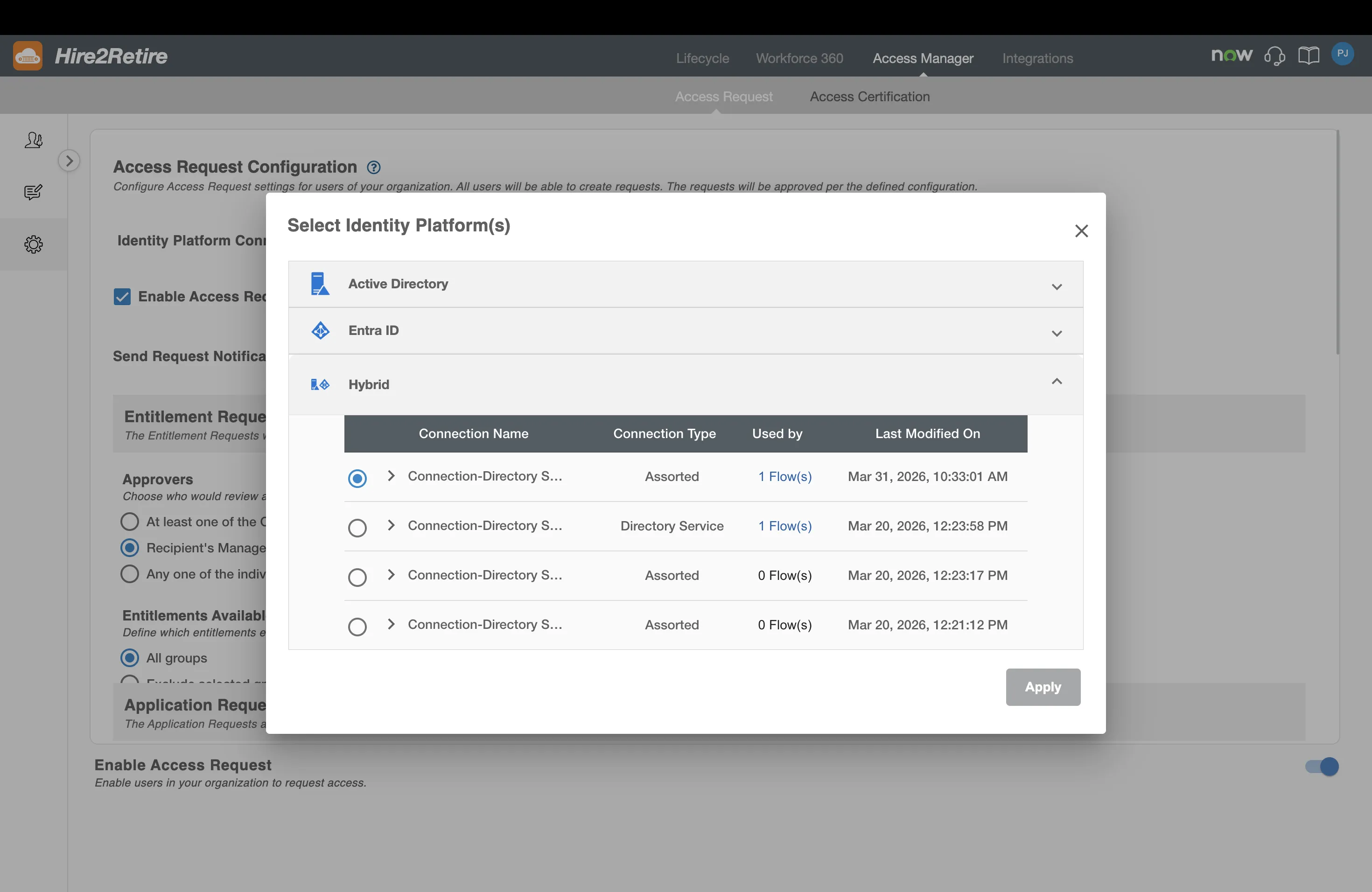
The selected IdP connection will be used to:
- Fetch groups available for requesting
- Identify group owners
- Fetch approvers and user details for recipients
RoboMQ follows strict security and privacy standards. See our Security and Privacy Policies to learn more about how RoboMQ handles your account access.
Enable Access Request on ServiceNow
You can expand the scope of the Access Request feature by allowing users to view, create, and review requests directly within ServiceNow.
-
Enable Toggle: Switch the "Enable Access Request on ServiceNow" toggle to the ON position to activate the integration.
-
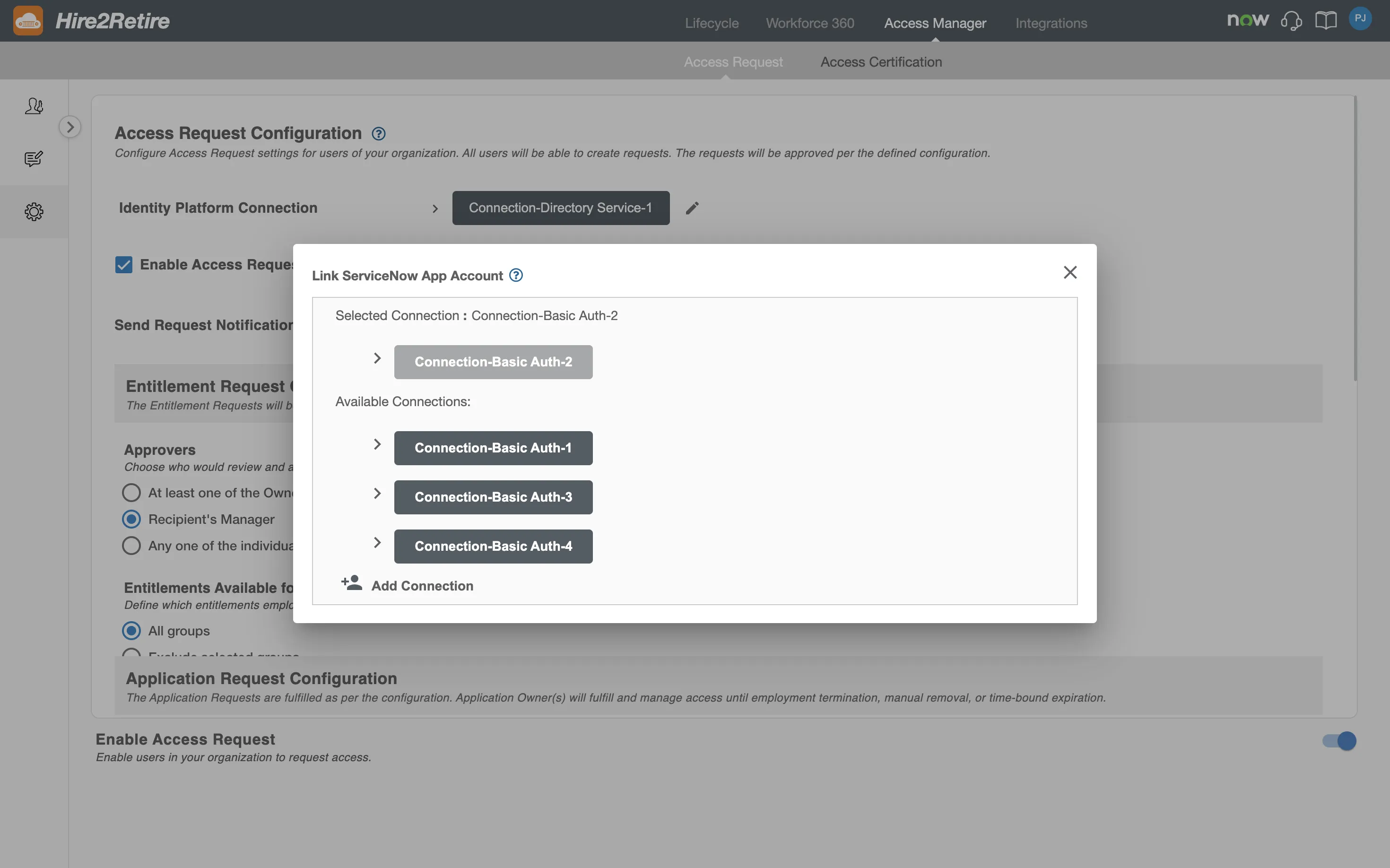
ServiceNow Connection: Select an existing ServiceNow connection or create a new one. This allows Hire2Retire to sync requests and install the Hire2Retire IGA application on your ServiceNow instance.
-
Bi-directional Sync: Once enabled, requests created in ServiceNow are available on Hire2Retire and vice versa.
Configuration and Setup
To enable this feature, a Hire2Retire Admin must perform the following steps on the Access Request Configuration page:
-
Enable the Integration: Select the "Enable Access Request on ServiceNow" checkbox.
-
Establish Connection: Click the edit icon to create or select a ServiceNow connection. You can connect using one of the following methods:
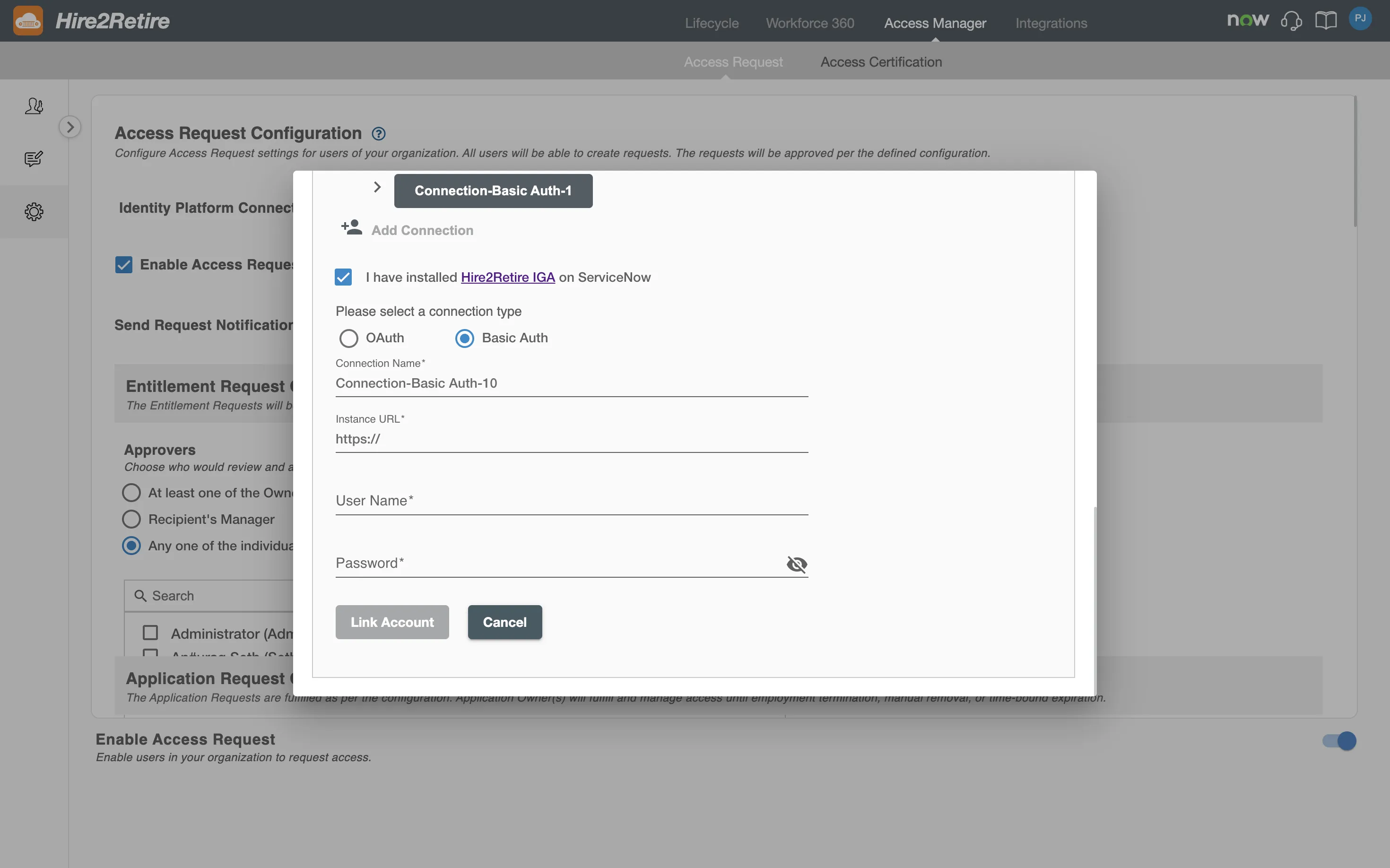
Create a Basic Authentication Connection
Step 1
Install the Hire2Retire IGA application in your ServiceNow instance and select the checkbox on Connection form. You can follow these steps to install the application. If you cannot find the application on the ServiceNow Store, reach out to RoboMQ support.
Step 2
Specify your ServiceNow Instance URL. When you visit ServiceNow, you can find the ServiceNow Instance URL in the URL bar. It is of the format https://abc.service-now.com.

Step 3
Add the username and password of a user with the Integration admin persona.
Create an OAuth Connection
To link your Hire2Retire IGA account using OAuth, you have to specify your ServiceNow Instance URL, Client ID, Client Secret. To get the Client ID and Client Secret, you have to set up an OAuth application on the ServiceNow platform.
Send Request Notification From (Email Server Configuration)
Access Request email notifications are sent using an email sender configured at the organization level.
By default, notifications are sent using the Hire2Retire sender. Organizations can optionally configure a custom email sender to control the “From” address used for all Access Request notifications. Email Server connections are created to their Mail servers on the configuration page.
Create an Email Server connection
-
To create a new connection or view the list of available connections, open the dropdown menu under Notification Settings on the Configuration page.
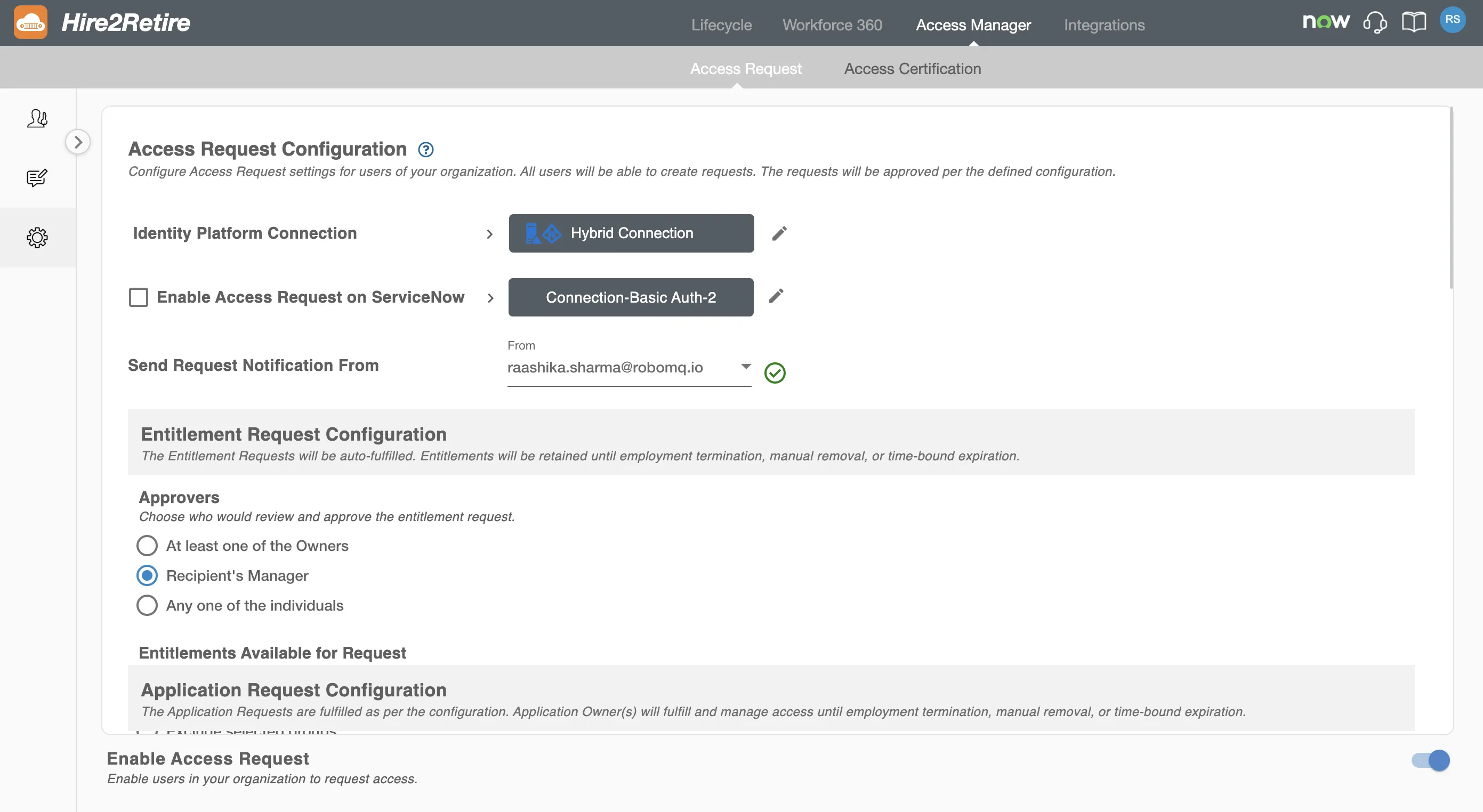
-
To add a new connection, click on
Add New Sender, or the user can select an available connection.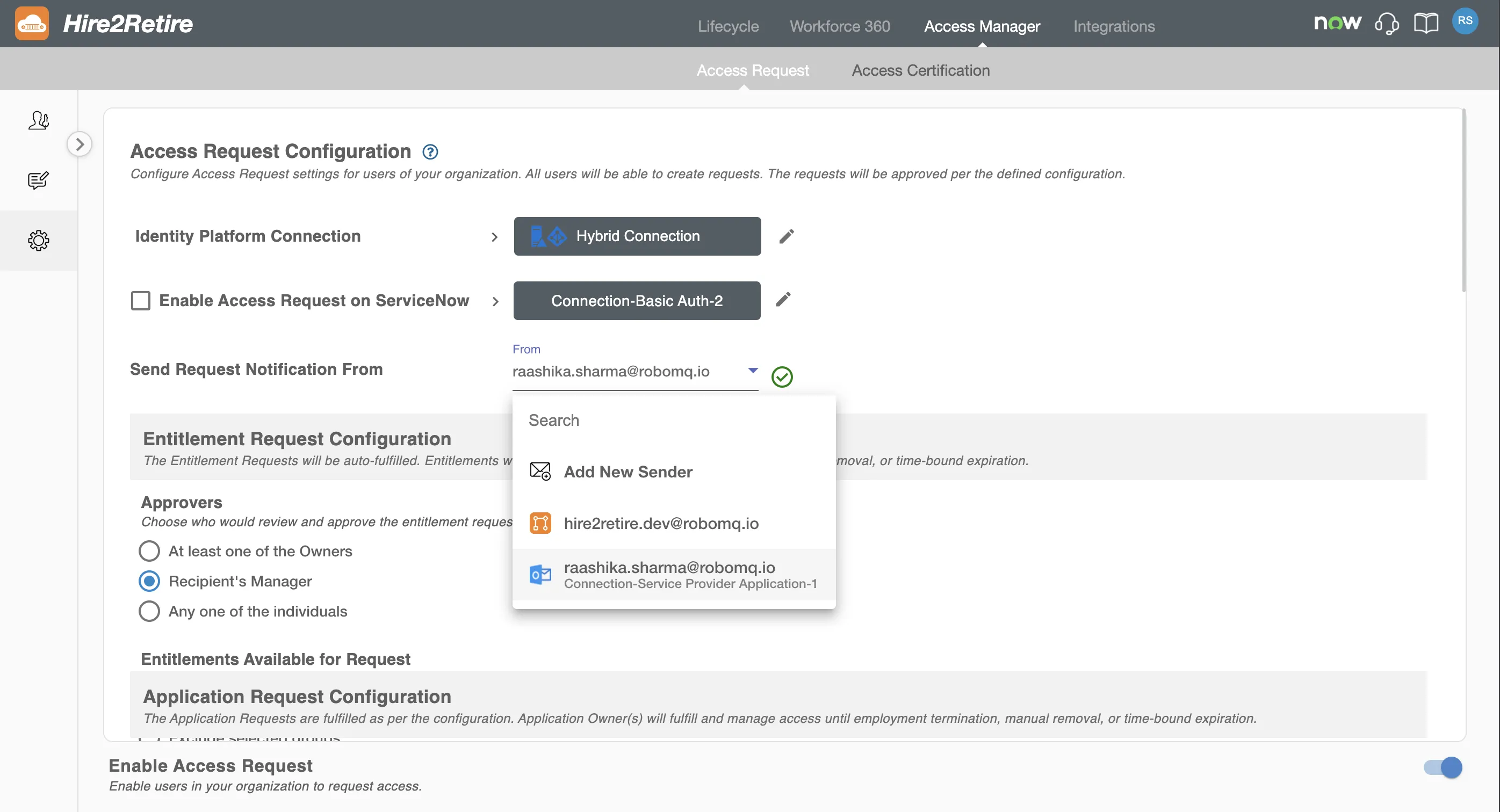
Hire2Retire Access Request supports two mailing ecosystems: Outlook and Gmail.
To create an Outlook connection, refer to send mail through outlook.
To create a Gmail connection, refer to send mail through gmail.
Entitlement Request Configuration
This section allows configuration for the Entitlement Requests. The Entitlement Request allows employees to request group memberships. These requests are automatically fulfilled after approval.
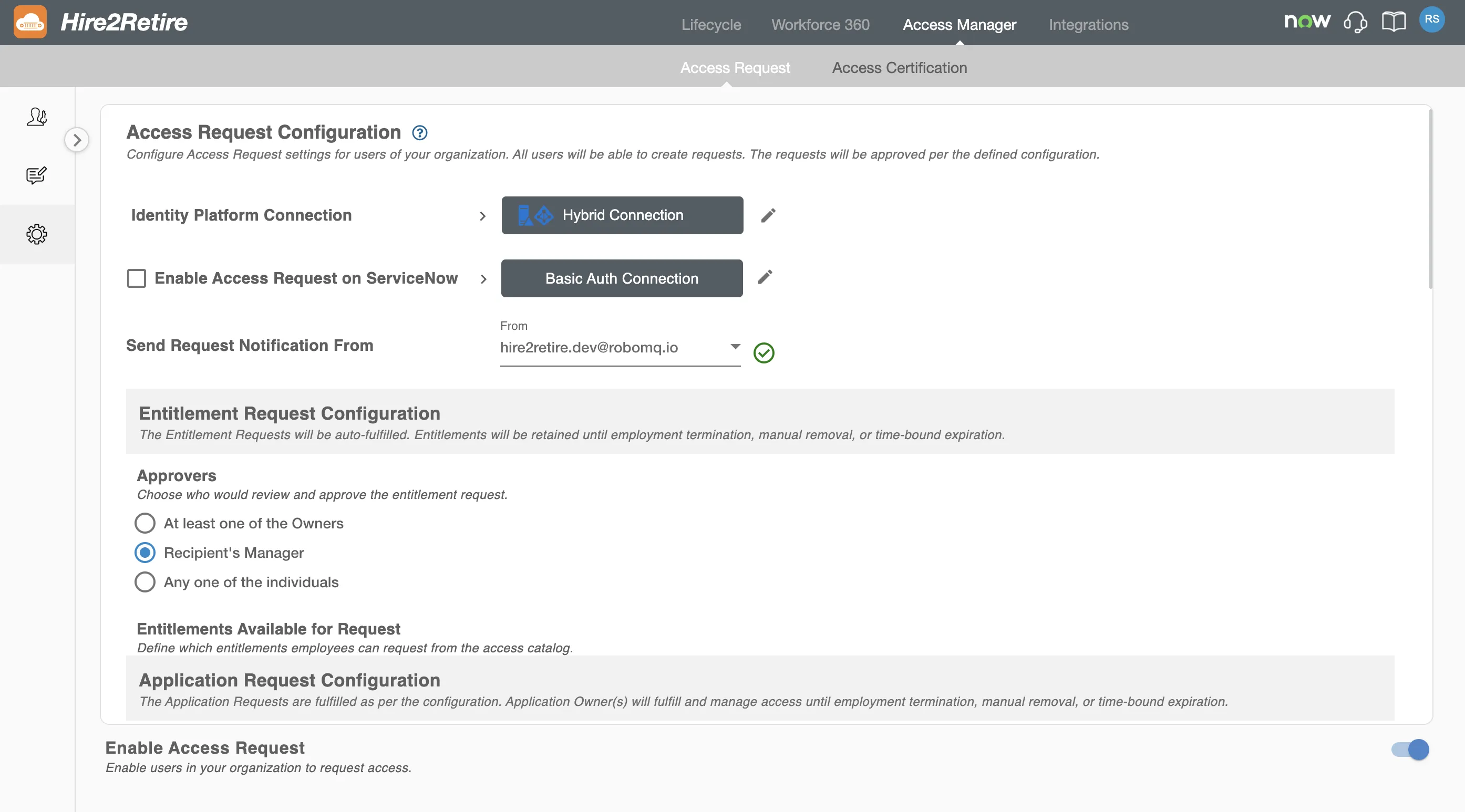
Entitlement Request Approvers
You can configure who can approve an Entitlement Request. The available approver options are:
- Any one of the Owners – Any one of the group owners of the requested group as defined in the IdP.
- Recipient's Manager – Manager of the recipient can approve the request.
- Individuals – Any of the specified individuals can approve the request.
Entitlement Catalog
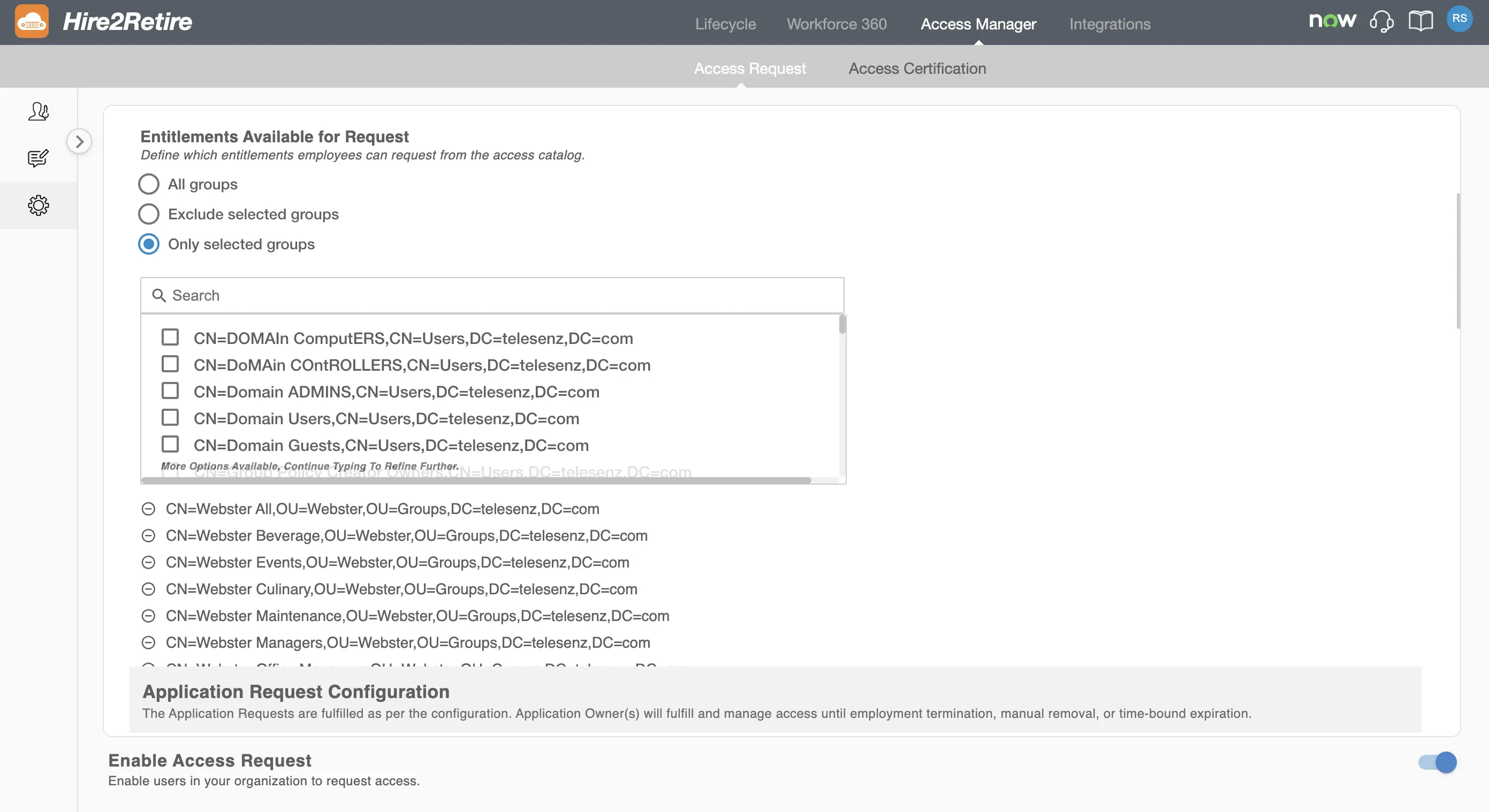
You can control which groups are visible and available for requesting. For MDC connections, groups displayed in the catalog are aggregated from all configured domain controllers.
You can choose one of the following options:
- All Groups: All groups are available for requesting
- Exclude Selected Groups: Selected groups are hidden from the access catalog
- Only Selected Groups: Only selected groups are available for requesting
This allows you to prevent users from requesting sensitive groups or to allow requests only for a specified list of groups.
All approved entitlement requests are automatically fulfilled by Hire2Retire. Access is retained until one of the following occurs:
- Employment termination
- Manual access removal
- Time-bound expiration (if a time limit is defined)
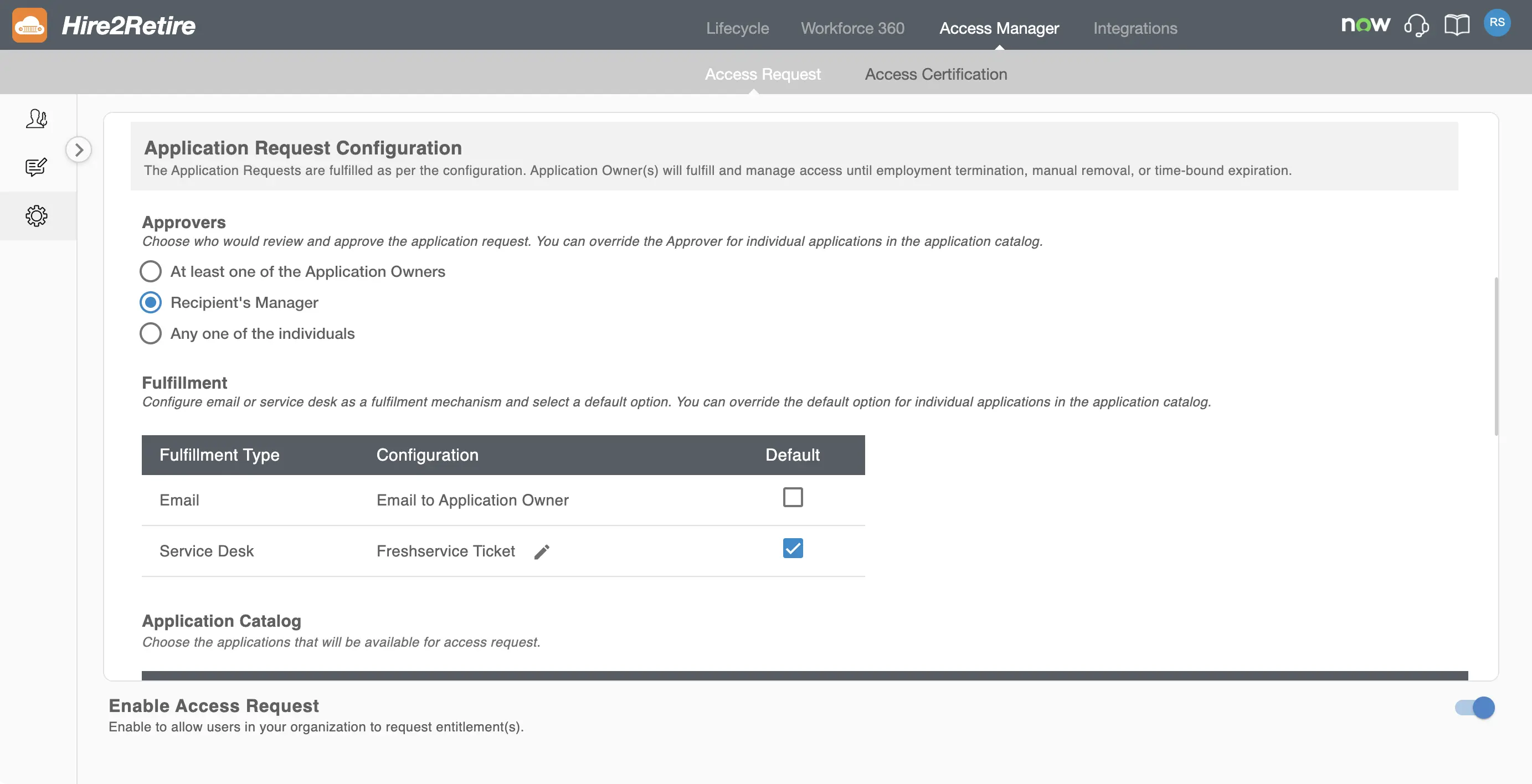
Application Request Configuration
The Application Request feature enables employees to request access to applications listed in the application catalog.
How Application Access is Managed Using Entitlements
Application access granted through an Access Request is managed via an entitlement (security group) in the connected Identity Provider (IdP).
- Each entitlement represents specific application access
- When a request is approved, Users is added to the corresponding entitlement
- Access remains active until employment termination, manual revocation, or a defined expiration period
For MDC (Multi-Domain Controller) connections, an additional dropdown is available to select the resident Domain Controller (DC) where the entitlement will be created.
For Hybrid connections, Hire2Retire creates and manages entitlement groups in both Active Directory and Entra ID. These groups follow the naming convention Hire2Retire_{IdP Name}_{Application Name}.
This model enables centralized, consistent, and automated management of application access across systems.
Application Request Approvers
Admins can choose who can approve application requests. This configuration applies globally to all applications. The global configuration can be overridden while configuring individual applications in the catalog. Available approver options include:
- At least one Owner – At least one application owner has to approve the request
- Recipient’s Manager – The manager of the recipient has to approve the request
- Any one of the individuals – One approver from a defined list can approve
Fulfillment options
Application requests can be fulfilled using one or more fulfillment mechanisms:
- Email – Sends an email notification to the application owner
- Service Desk – Creates a ticket in the configured service desk system. The following service desk applications are available:
Admins can select a default fulfillment method, which can be overridden for individual applications if needed.
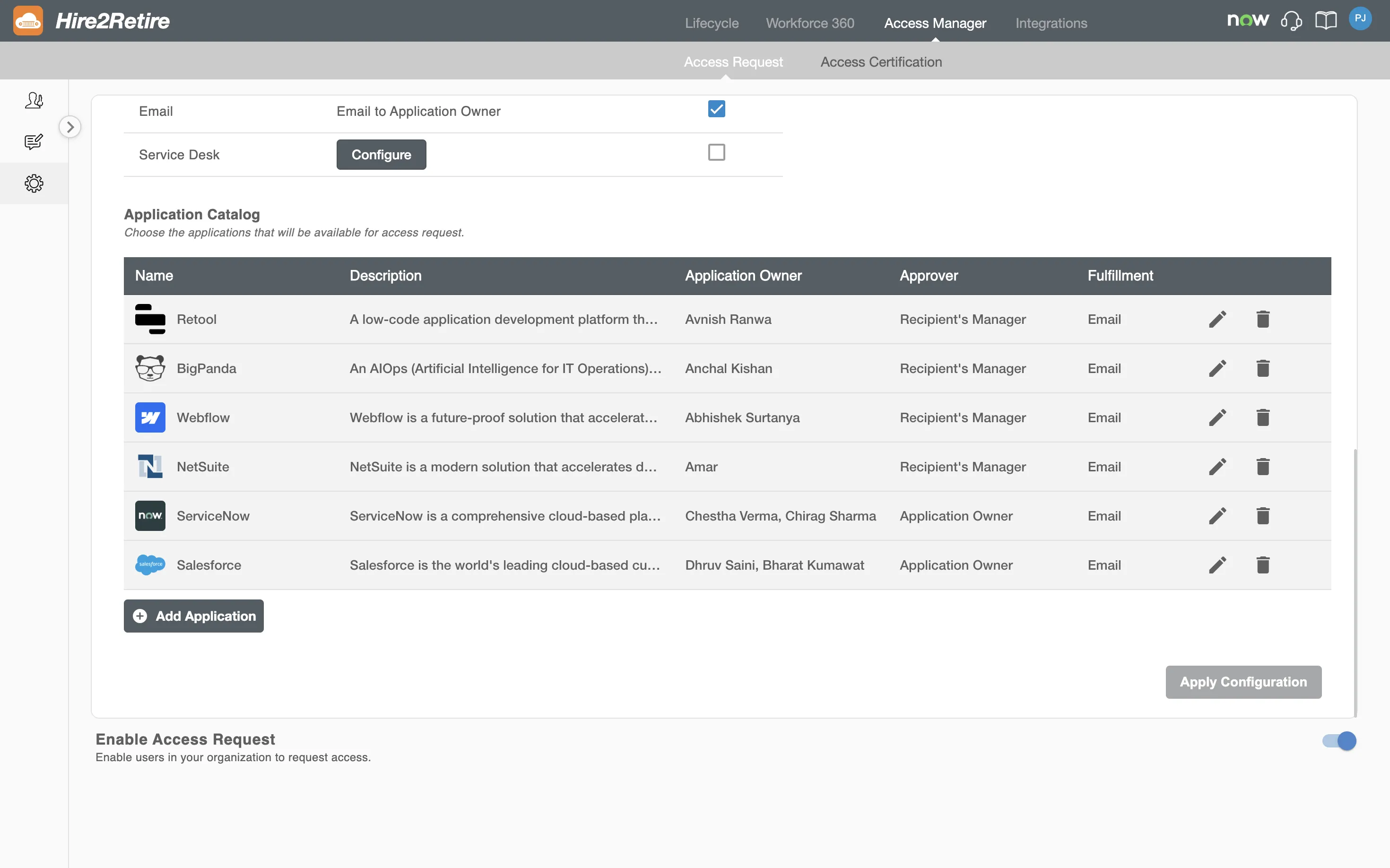
Application Catalog
Admins can define which applications appear in the application catalog and are available for users to request. This ensures controlled and auditable access to business applications. Existing applications can be edited or deleted.
You can also add more applications to this list using the Add Application button.
For detailed instructions on configuring an application, see the Configure Application documentation.
Enable or Disable Access Requests
You can enable or disable the Access Request feature for your organization.
If you disable the Access Request feature, users in the organization will not be able to create new requests. Approvers will not be able to approve or reject requests, but can still view all existing requests.
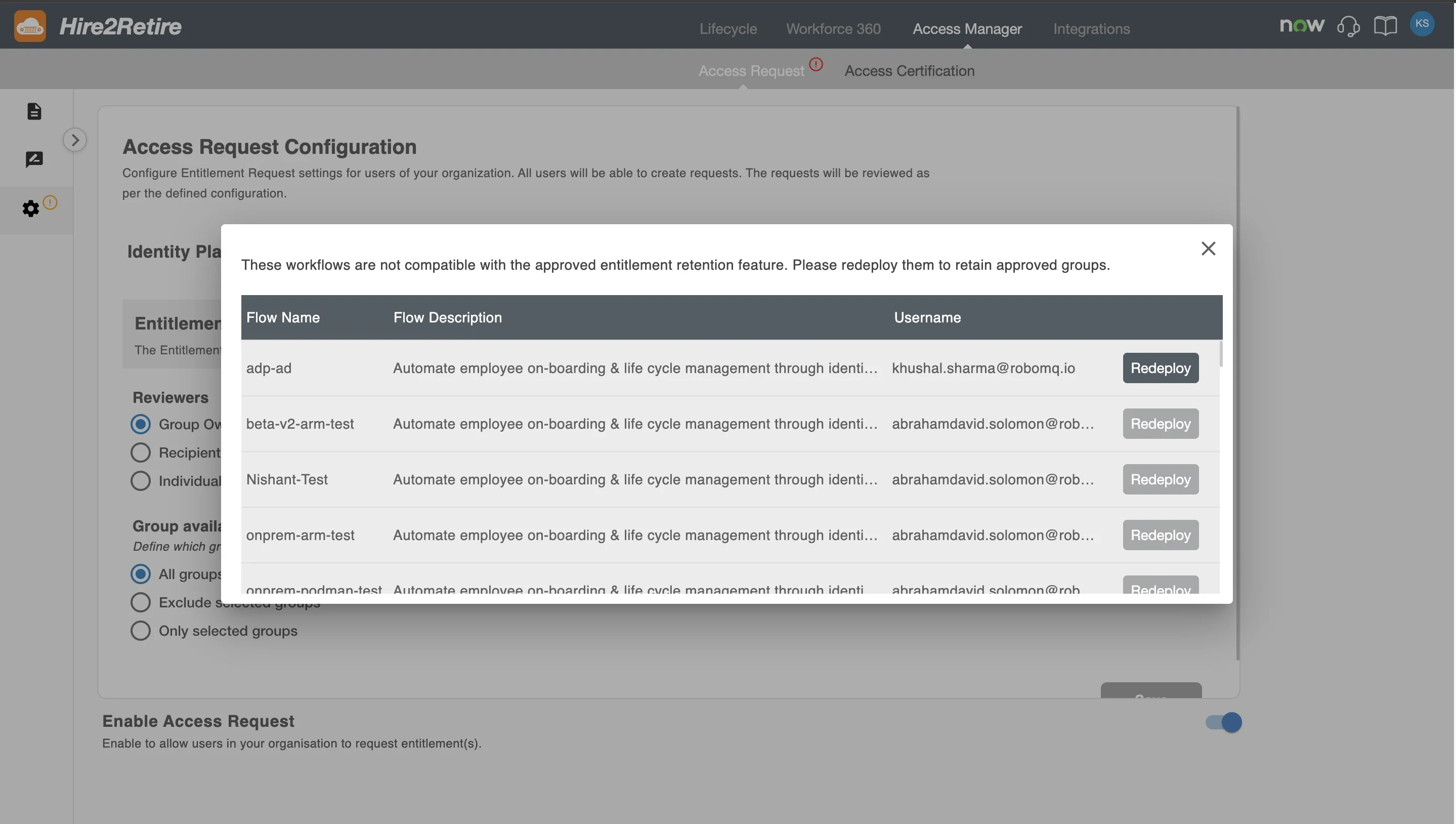
Workflow Compatibility Check
When enabling or updating the Access Request configuration, Hire2Retire validates existing workflows to ensure compatibility with approved access retention policies.
If one or more workflows are not compatible, you will see a warning message listing the affected workflows for that domain. You must redeploy these workflows to ensure approved access is retained correctly.