Access Request - My Requests
You can view, track, and create new requests on the My Requests page. If the administrator of your organization has enabled Access Request on Hire2Retire, this page will be available to all users in the organization.
Viewing Requests
On this page, you can view all requests created by you as a requester or created for you as a recipient.
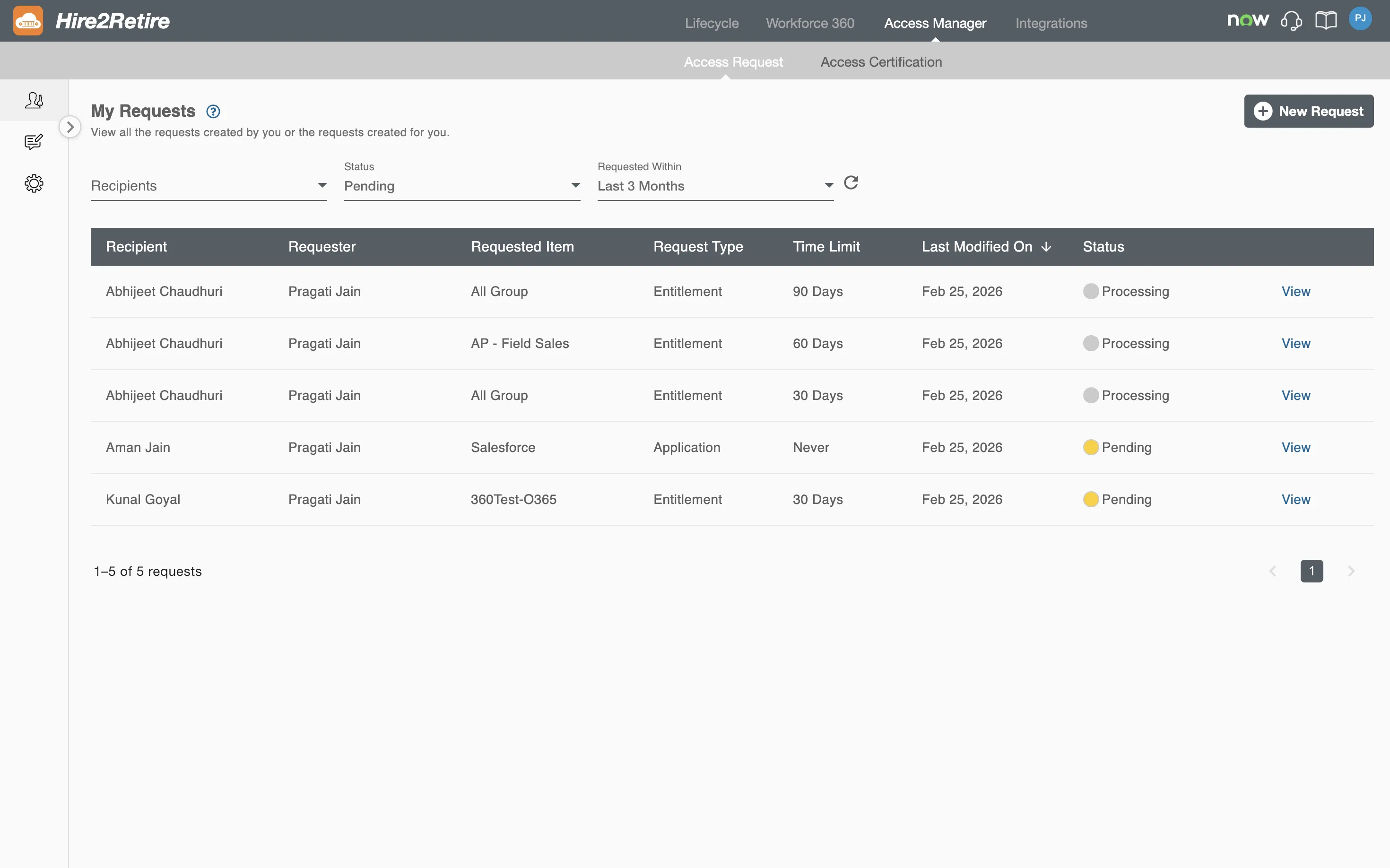
Request List Details
You can see the following information for each request:
- Recipient – The user for whom access is requested
- Requester – The user who created the request
- Requested Item – The entitlement or application being requested
- Request Type – Entitlement or Application
- Time Limit - The duration for which the requested access is valid.
- Last Modified On – Date when the request was last modified or submitted.
- Status – Current state of the request, shown using a colored indicator
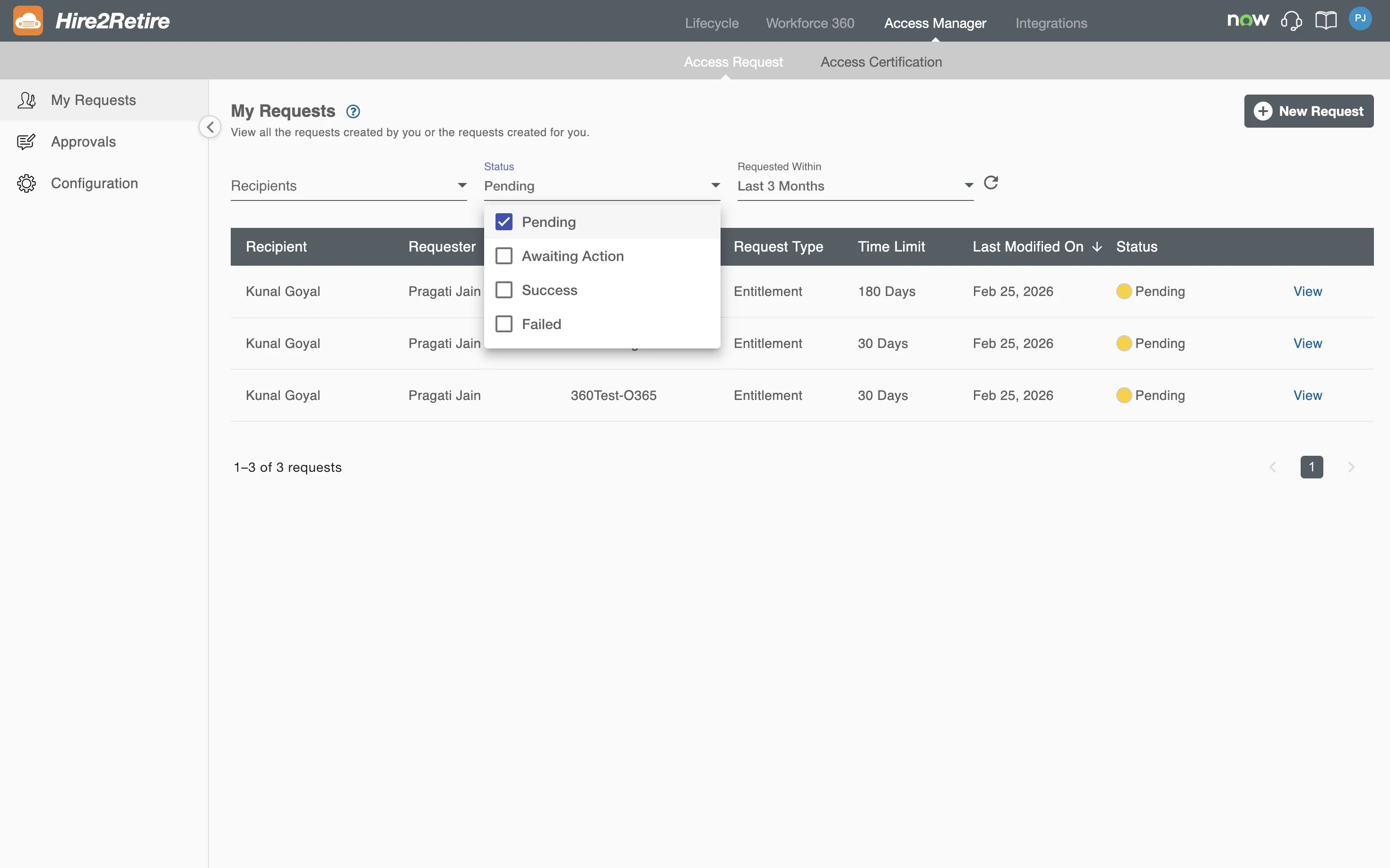
You can filter requests based on recipient, status, or Last Modified On using a predefined or custom date range. By default, all requests created within the last three months are displayed.
You can delete requests that are in the Processing or Pending status. Requests that are already approved, rejected, fulfilled, or revoked cannot be deleted.
A request can have one of the following statuses:
-
Pending – The request is awaiting approval.
-
Awaiting Action – The request is being processed, including Awaiting Fulfillment and Awaiting Revocation.
-
Success – The request has been approved, rejected, revoked, or successfully fulfilled.
-
Failed – The request could not be fulfilled or access could not be revoked due to an error (Fulfillment Failed, Revocation Failed).
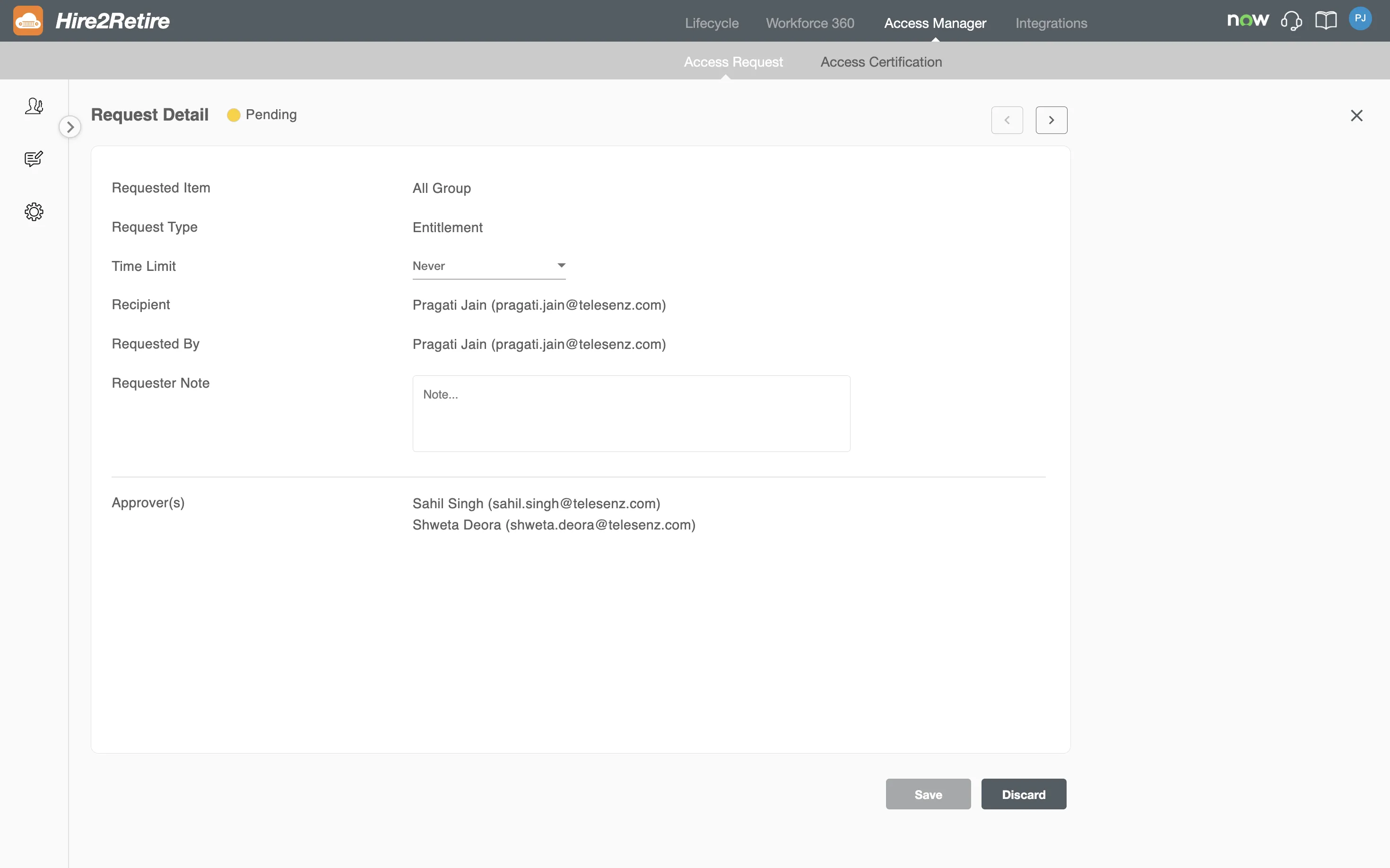
You can view the request details by clicking the View button.

You can edit the request via the Edit icon to change the time limit and requester note. Editing is allowed only for Pending or Processing requests.
Creating New Request(s)
You can create a new access request by clicking the New Request button.
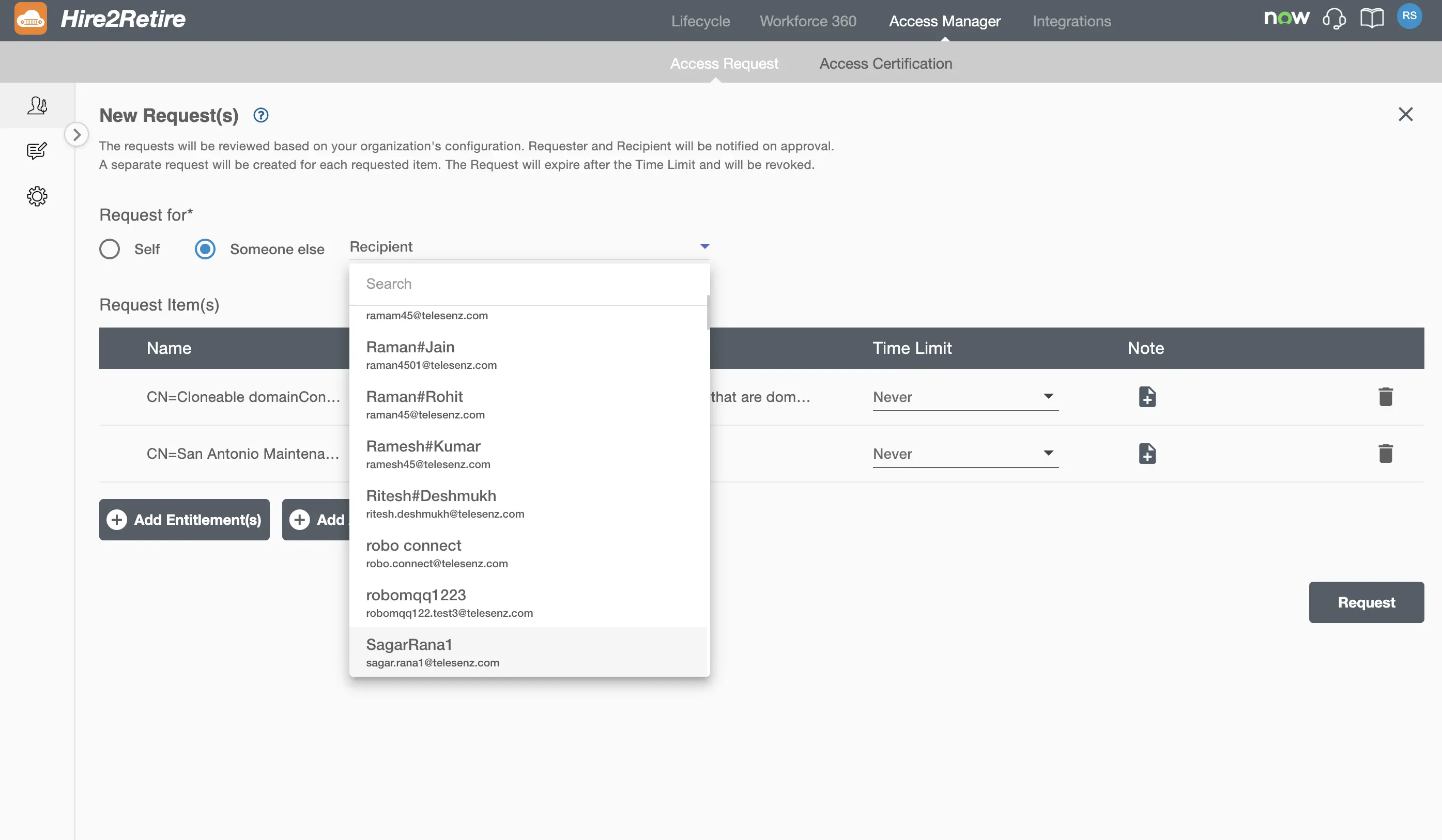
Step 1: Define the Recipient
You can create the request either for yourself or any other user in your tenant by selecting the user from the dropdown. Only one recipient can be selected per request.
Step 2: Select Requested Items
When creating a request, you can add multiple entitlements or applications, each of which will be created as a separate request.
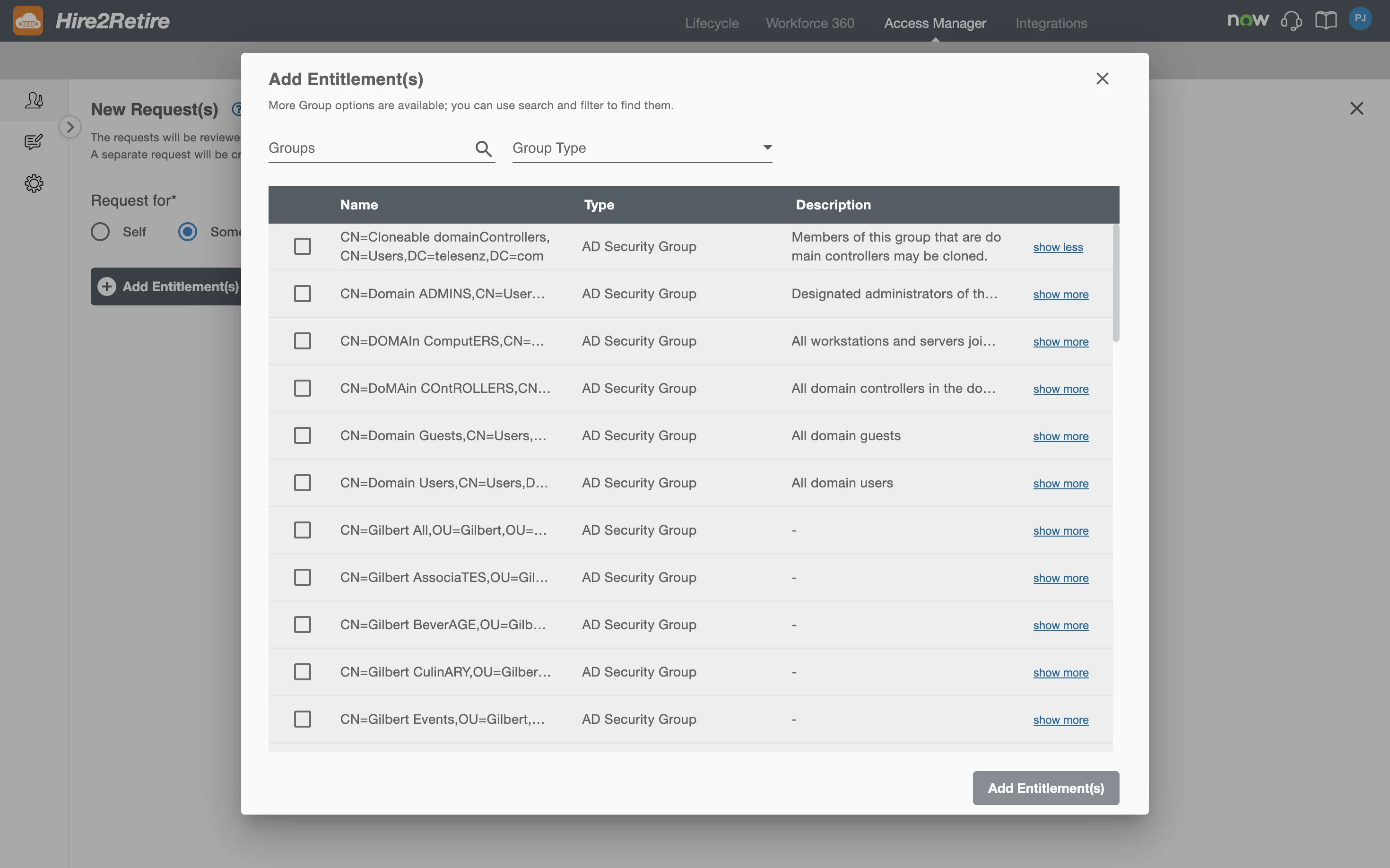
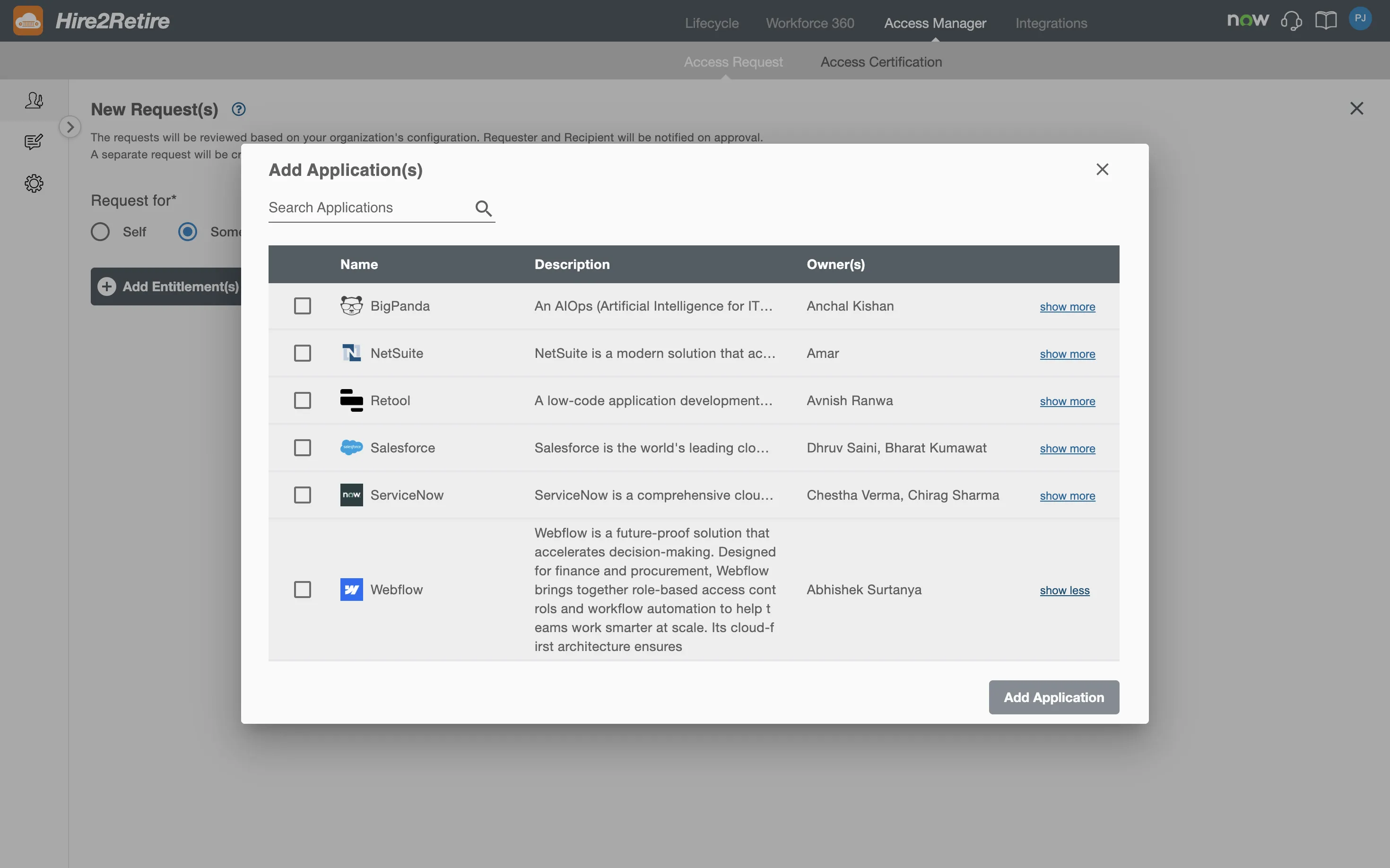
You can click on Add Entitlement or Add Application to select the entitlements or applications that you want to request. You will be able to search and filter for the items that are enabled for requesting by your organization admin.
Step 3: Review the added items and add details to the Request
After selecting entitlements, you can approve and update the request details in the summary table:
- Add a
Noteto provide additional details to the approvers. - You can set a
Time Limitto request the access for a specific period of time. You can select a pre-defined duration for the request, this duration starts from the request approval. You can also request the item for up to a specific date. When the time limit of the request expires, the request will be revoked as per your organization's configuration. - When an approver is approving the request, they can override the time limit requested by you.
Step 4: Submit the Request
Once you have reviewed all the details, you can submit the request by clicking the Request button. You will see this request in the Processing status on the My Requests page. Once Hire2Retire finishes assigning approvers to your request, it moves to Pending status and the designated approvers are notified. If you have created this request for someone else, the recipient will also be notified.