Access Request on ServiceNow Service Portal
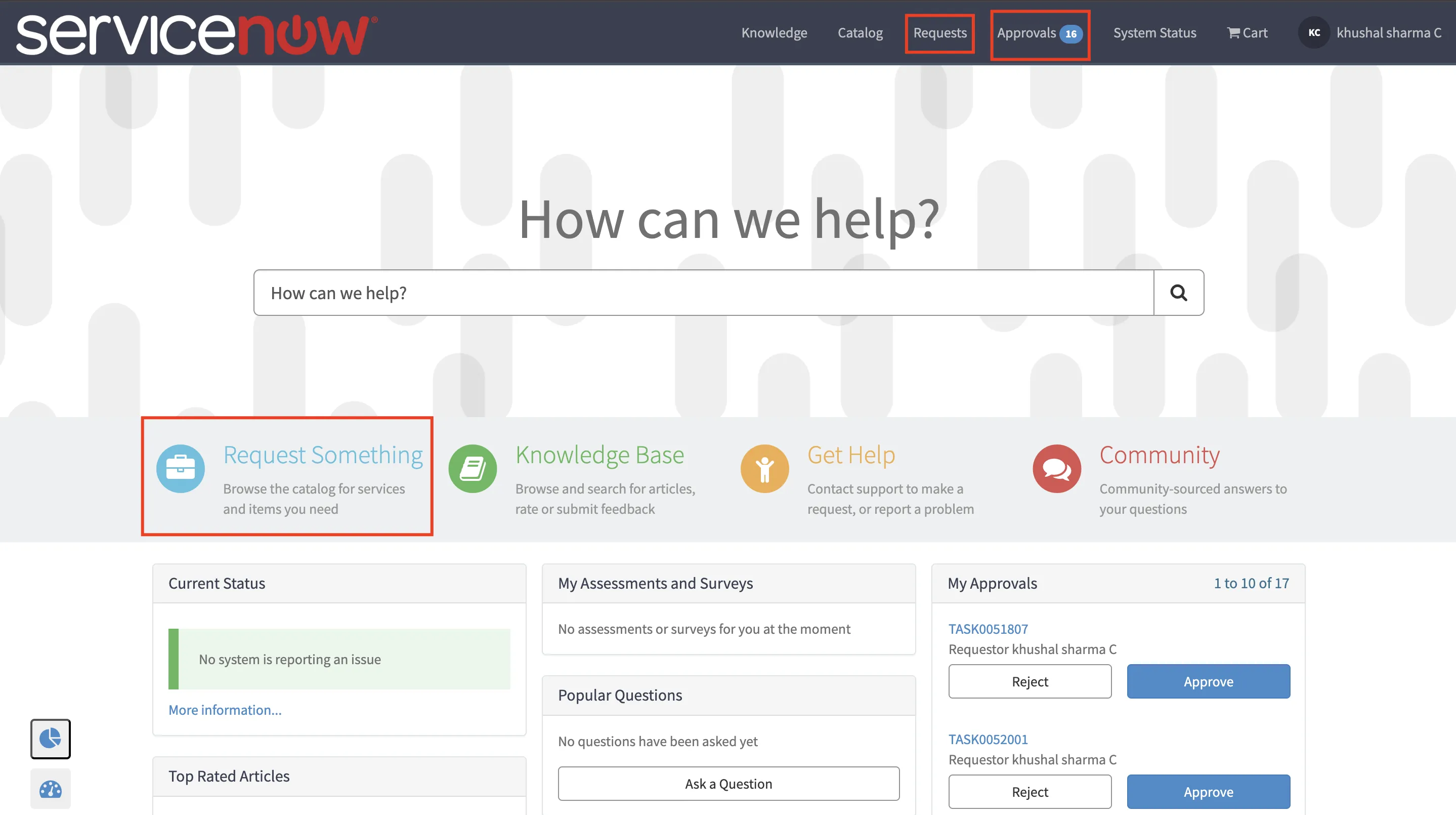
When the Enable Access Request on ServiceNow option is enabled in the Access Request Configuration, users can interact with Hire2Retire Access Requests directly from the native ServiceNow Service Portal, in addition to the Hire2Retire IGA portal.
This means users can view their requests, submit new ones, and approve pending requests without leaving the ServiceNow interface they are already familiar with.
Restrictions and Limitations
Before using the Service Portal for Access Requests, be aware of the following limitations:
- Mark as Fulfilled / Revoked: Users cannot mark requests as
FulfilledorRevokedfrom the Service Portal. This action must be performed on the Hire2Retire IGA portal or Hire2Retire Access Request. - Group Limit: If an organization has more than 1,000 groups of a specific group type, groups beyond that limit will not be available for requesting on the Service Portal.
Viewing Requests
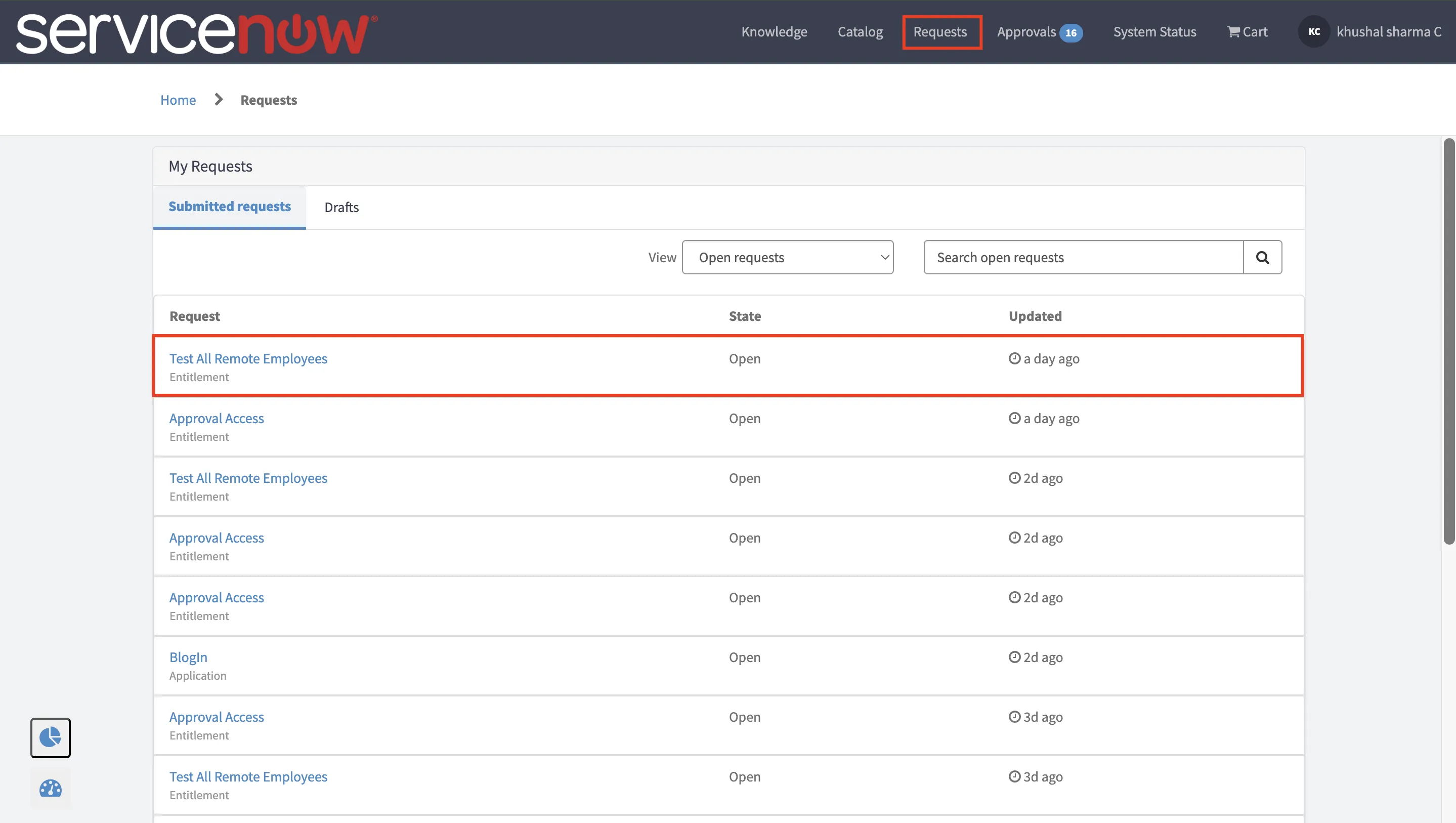
Users can view all their Hire2Retire Access Requests from the Requests section of the Service Portal, alongside their other ServiceNow requests.
Each request in the list displays the following information:
- Request – The name of the requested item (entitlement or application)
- Request Type – Entitlement or Application (shown below the request name)
- State – The current state of the request
- Updated – When the request was last updated
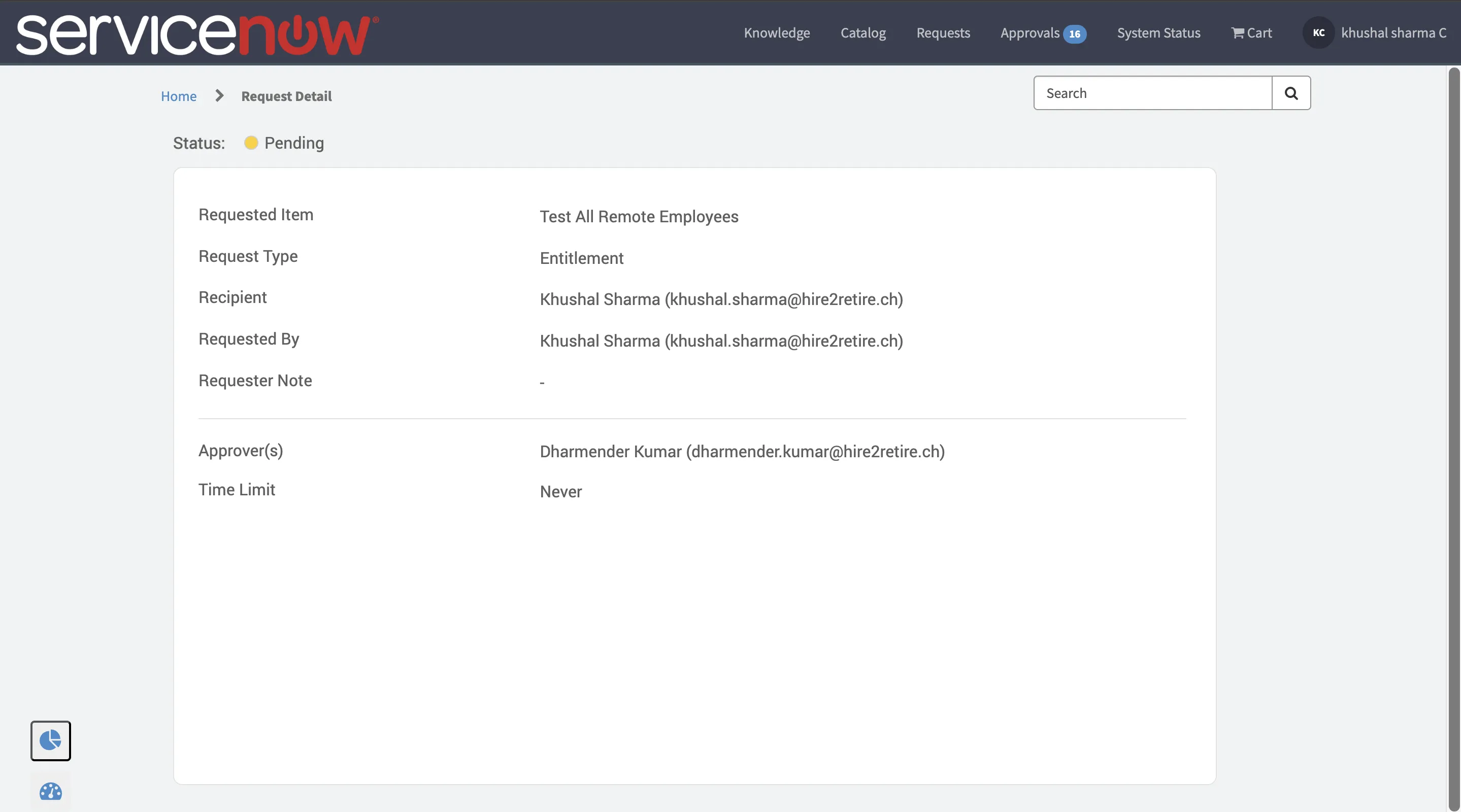
To view full details of a request, click on the request name. The details page shows the requested item, request type, recipient, requester, requester note, approver note, and time limit.
Creating a New Request
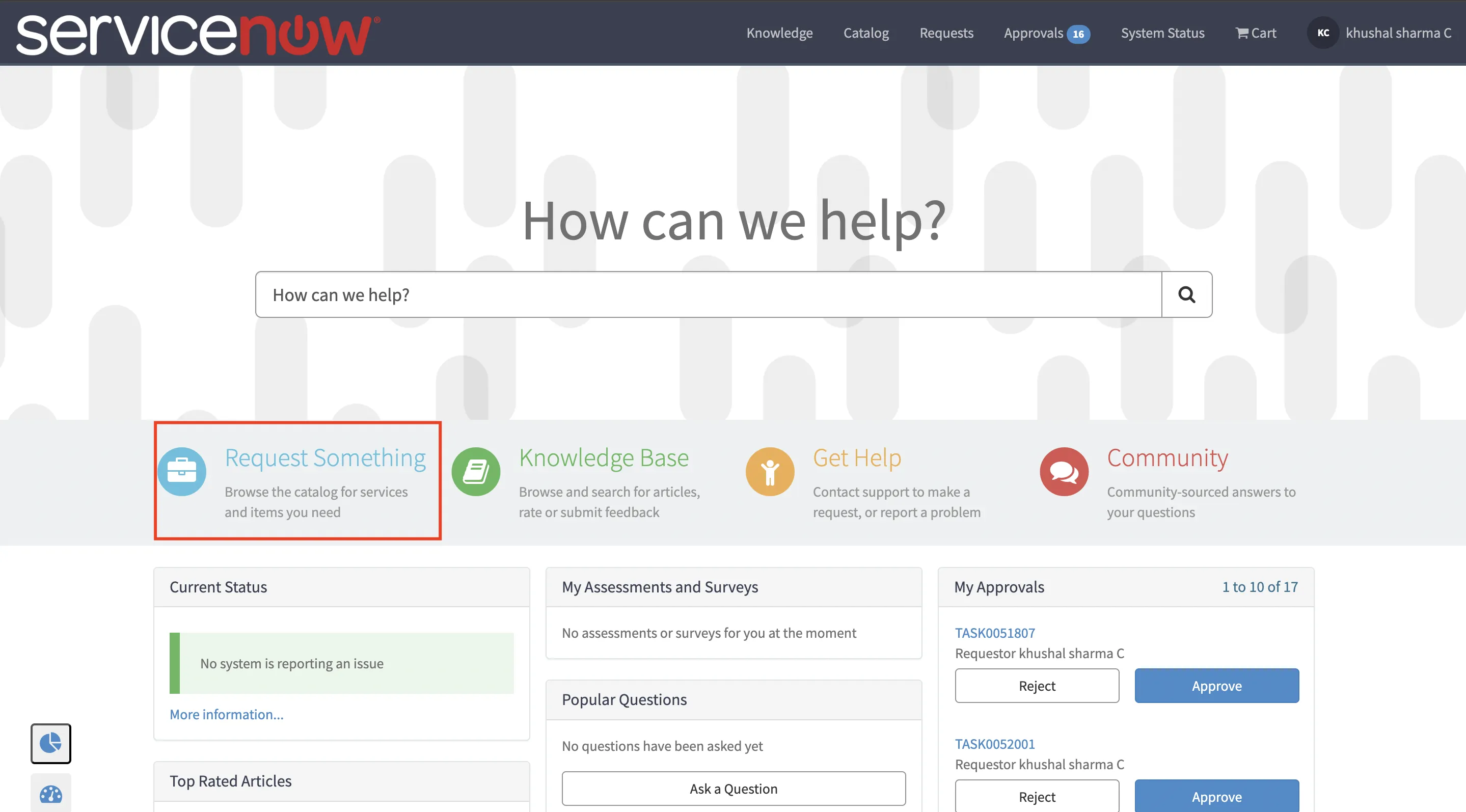
Users can submit new Access Requests from the Request Something option in the Service Portal Catalog.
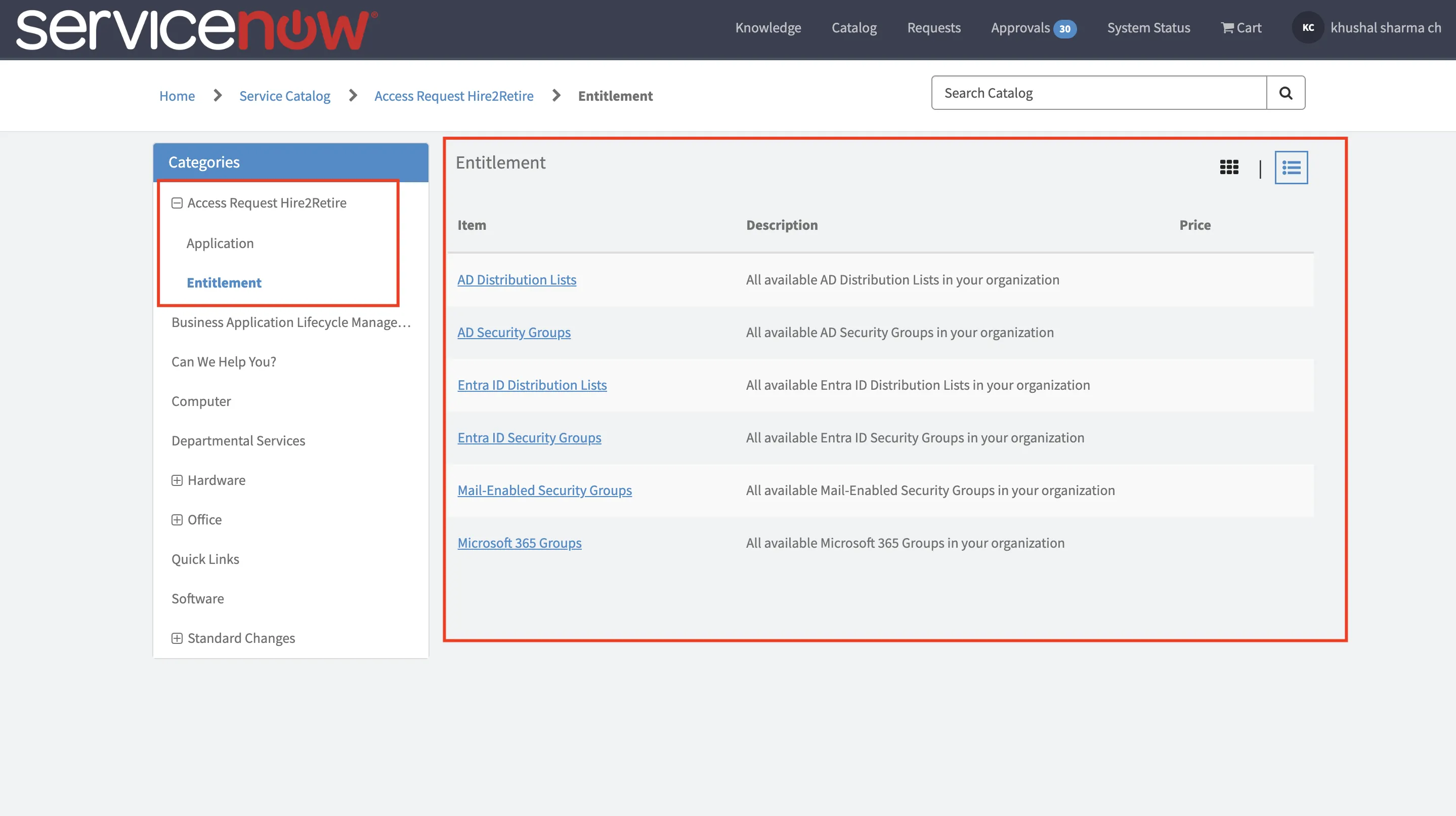
Open the Service Portal and navigate to Catalog → Request Something. If the Hire2Retire IGA application is installed in your ServiceNow tenant, you will see an Access Request Hire2Retire category.
This category contains two subcategories:
- Entitlements – Request membership in identity groups. Catalog items are organized by group type (e.g., Security Groups, Distribution Lists).
- Applications – Request access to applications available in the Hire2Retire application catalog.
Submitting a Request
Step 1: Select a Category
Choose Entitlements or Applications under the Access Request Hire2Retire catalog category.
Step 2: Select Items
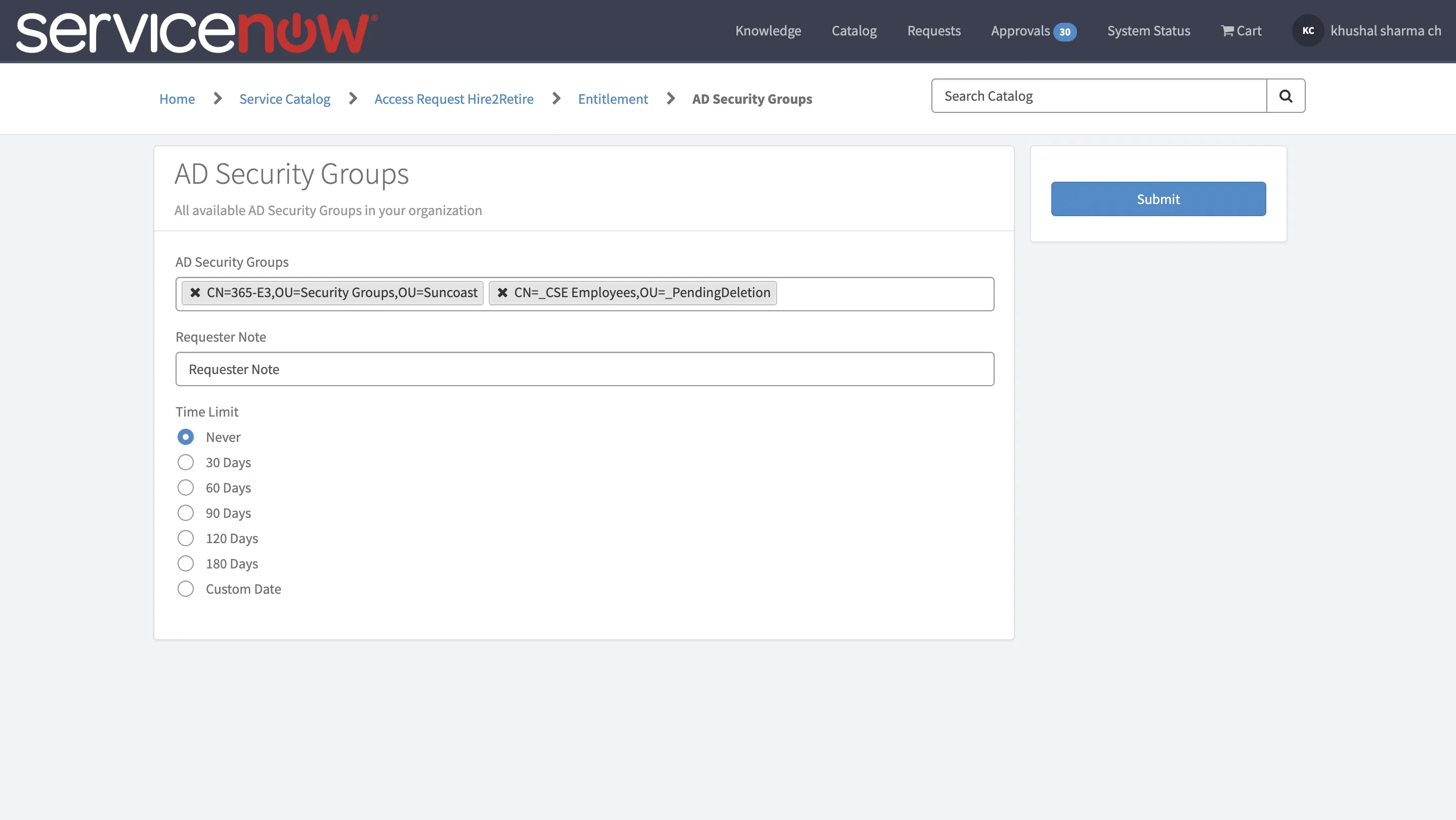
For entitlements, select the group type (e.g., Security Groups). A dropdown will display all available groups of that type in your organization. For applications, select from the available applications listed in the catalog.
Step 3: Add Request Details
Set a Time Limit to specify how long access should be granted. You can choose a predefined duration or a specific end date. Add a Request Note to provide additional context for the approvers.
Step 4: Submit
Submit the request. It will appear in your My Requests list and will follow the standard Hire2Retire request lifecycle.
Note - On the Service Portal, the requester and recipient must be the same user. To create a request on behalf of another user, use the Hire2Retire Access Request or the Hire2Retire IGA portal.
Approving Requests
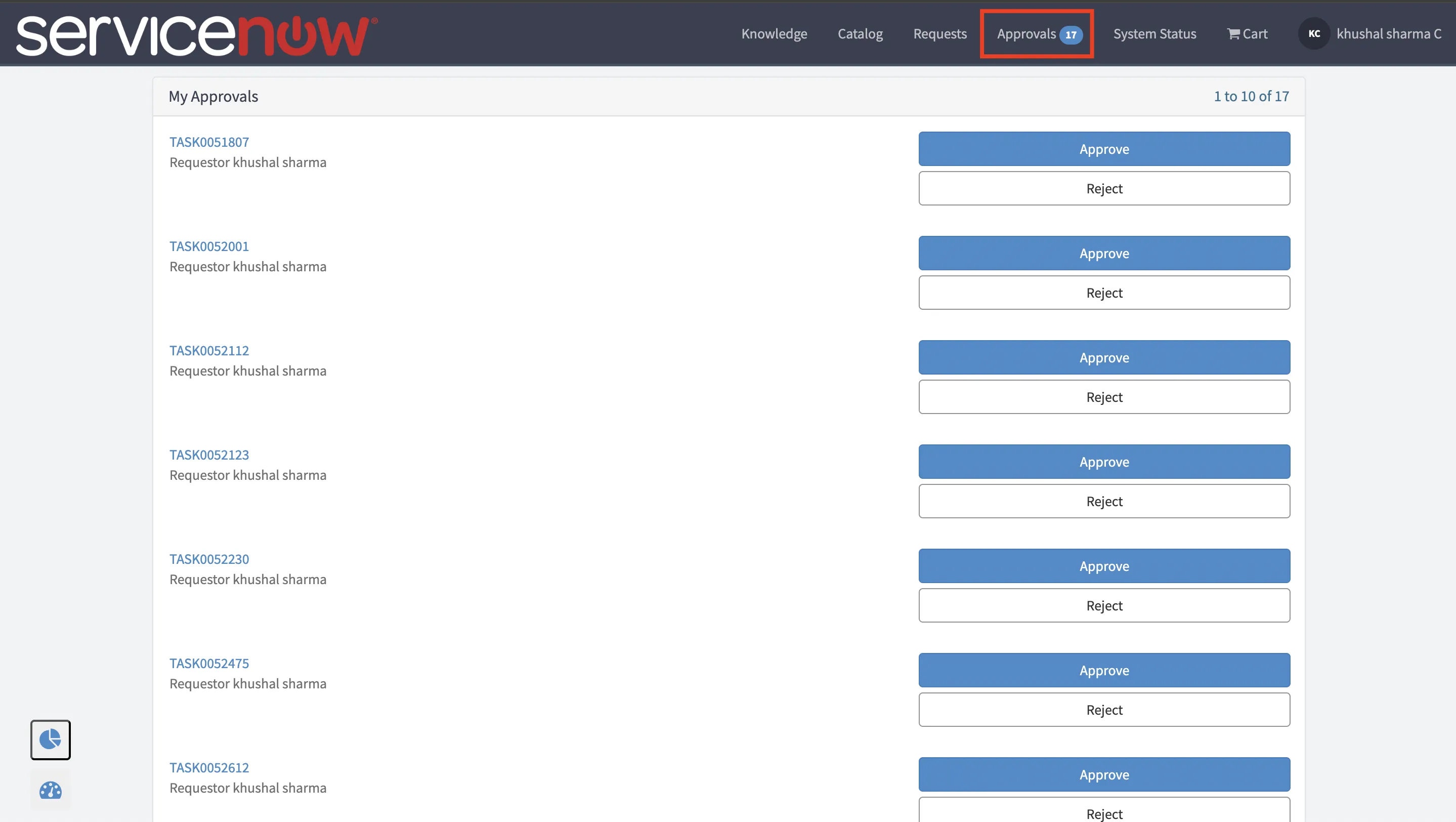
Users can see all Access Requests pending their approval in the Approvals section of the Service Portal. Hire2Retire Access Requests appear alongside other ServiceNow approvals awaiting your action.
Navigate to Approvals in the top navigation bar to access this list.
Reviewing an Approval
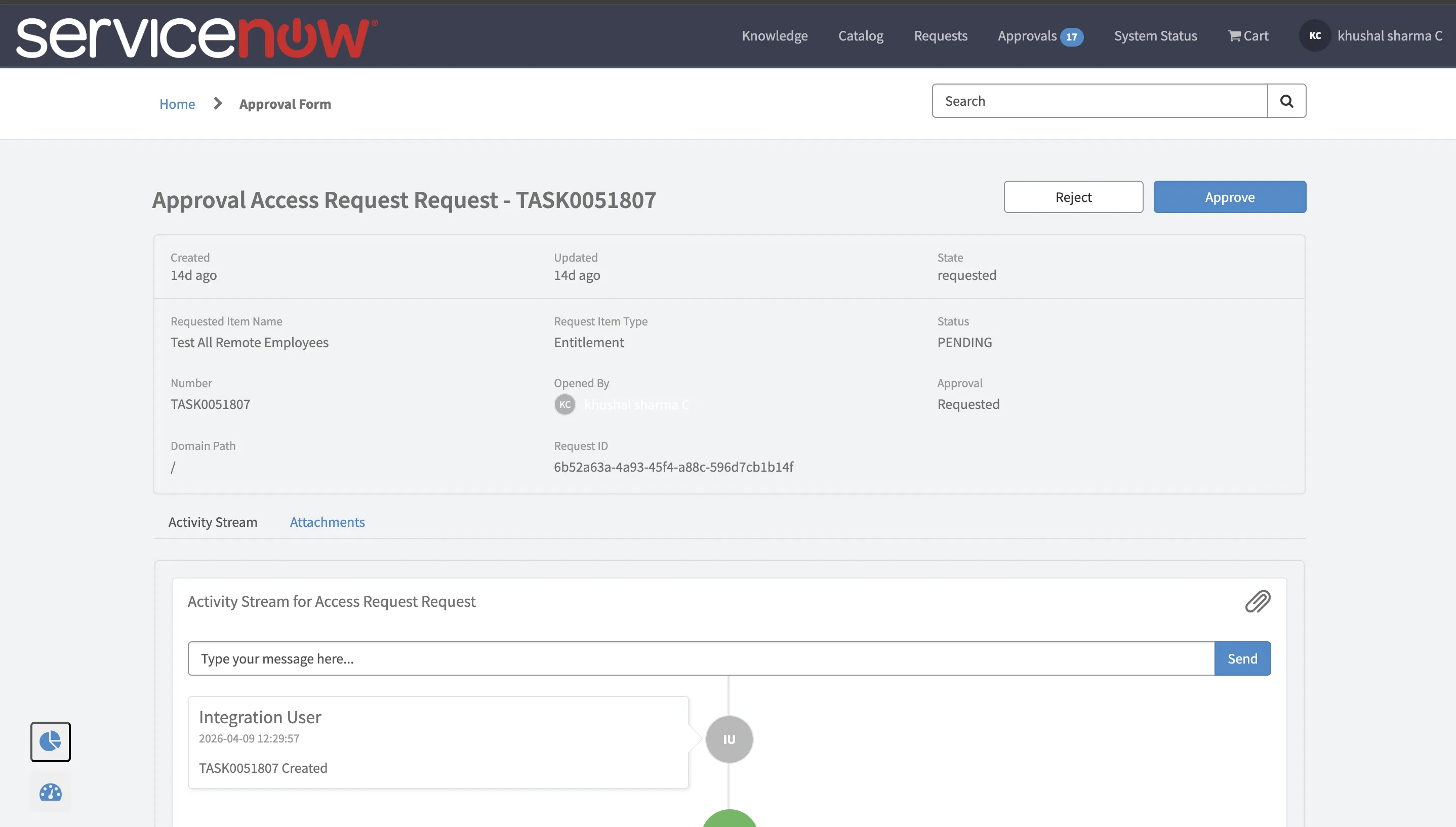
Click on a specific approval to open the Approval Details page. By default, ServiceNow uses the Approval Info Record widget for the approval detail view, which displays standard ServiceNow approval information.
Configuring a Custom Approval View
To display Hire2Retire-specific details on the Approval Details page, you can replace the default widget with the H2R Approval Info widget. Follow the steps below to configure this.
Step 1: Open Service Portal Pages
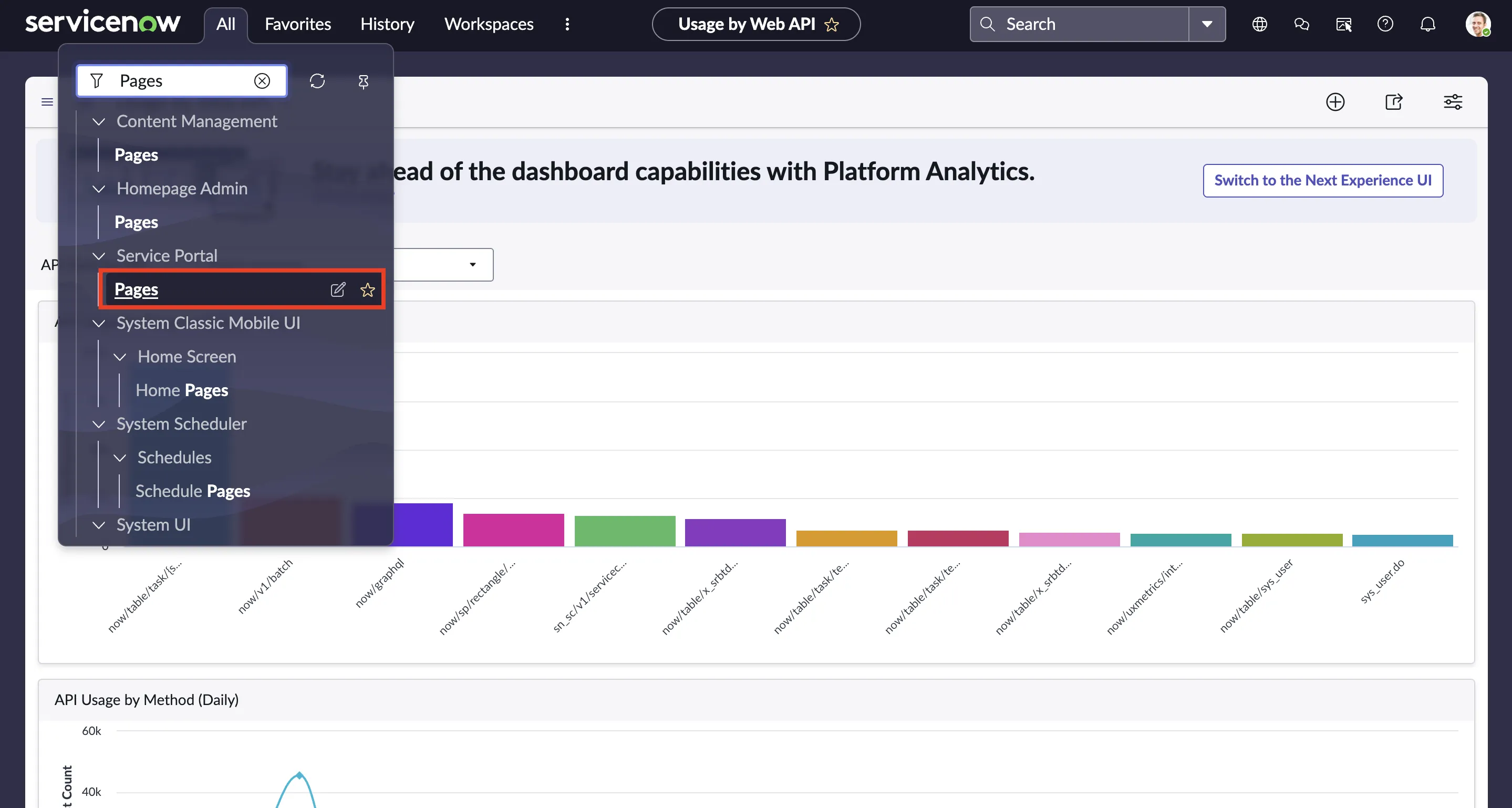
On your ServiceNow instance, use the navigation search bar to find Pages and click on it under Service Portal.
Step 2: Find the Approval Form Page
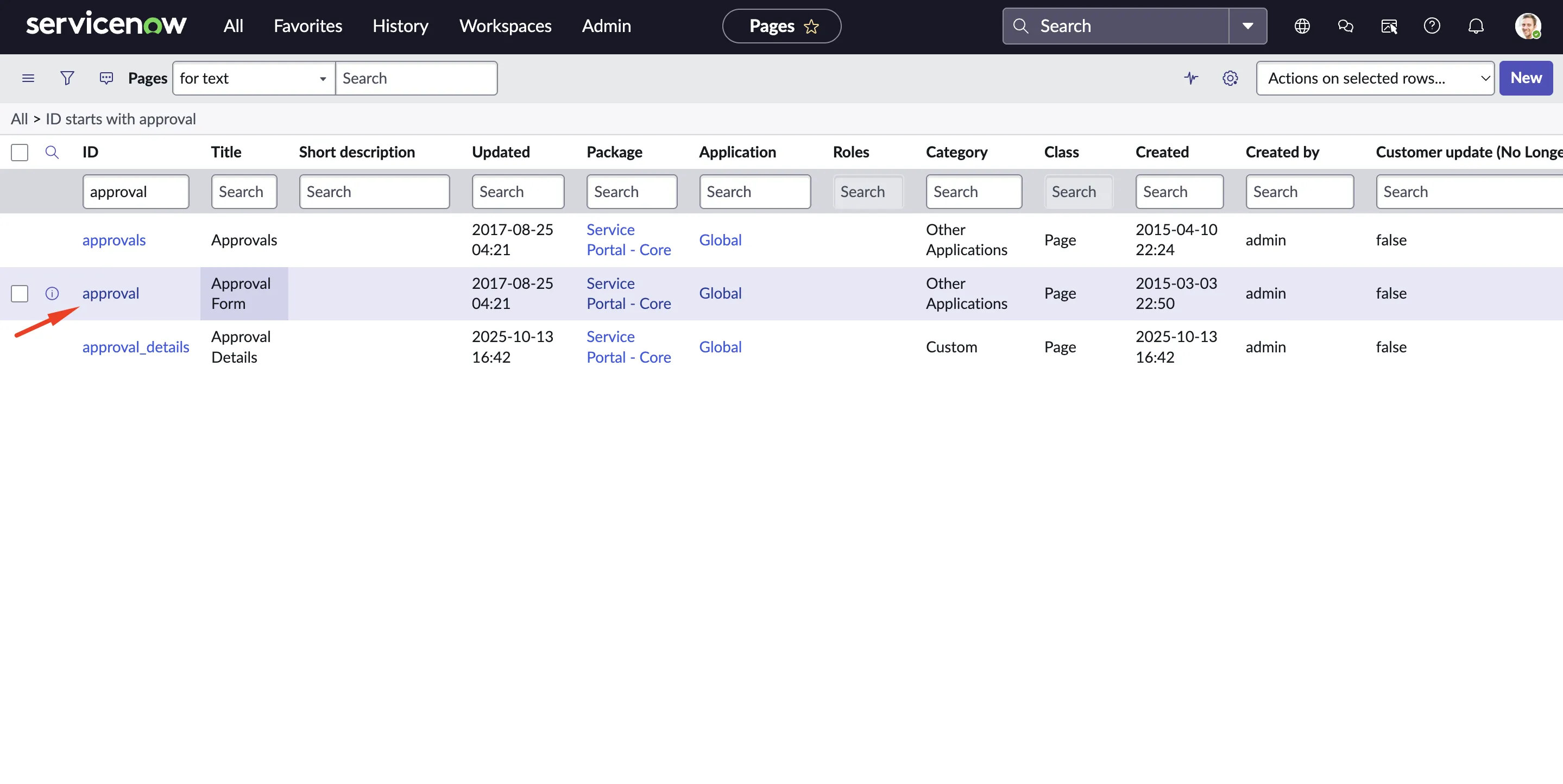
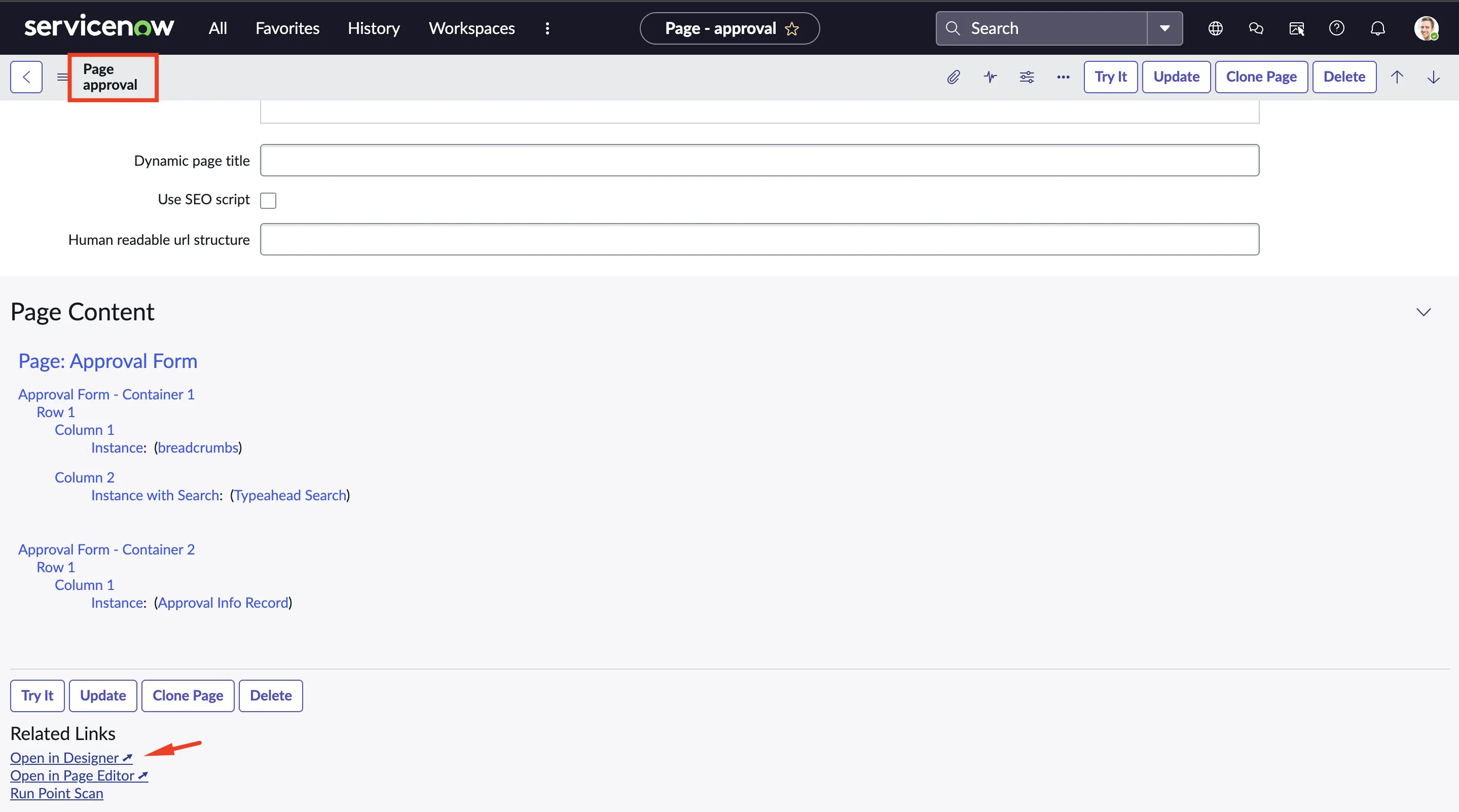
On the Service Portal Pages list, filter the records by Approval ID. Click on the Approval Form record from the list, then scroll down and click the Open in Designer link under Related Links.
Step 3: Replace the Widget
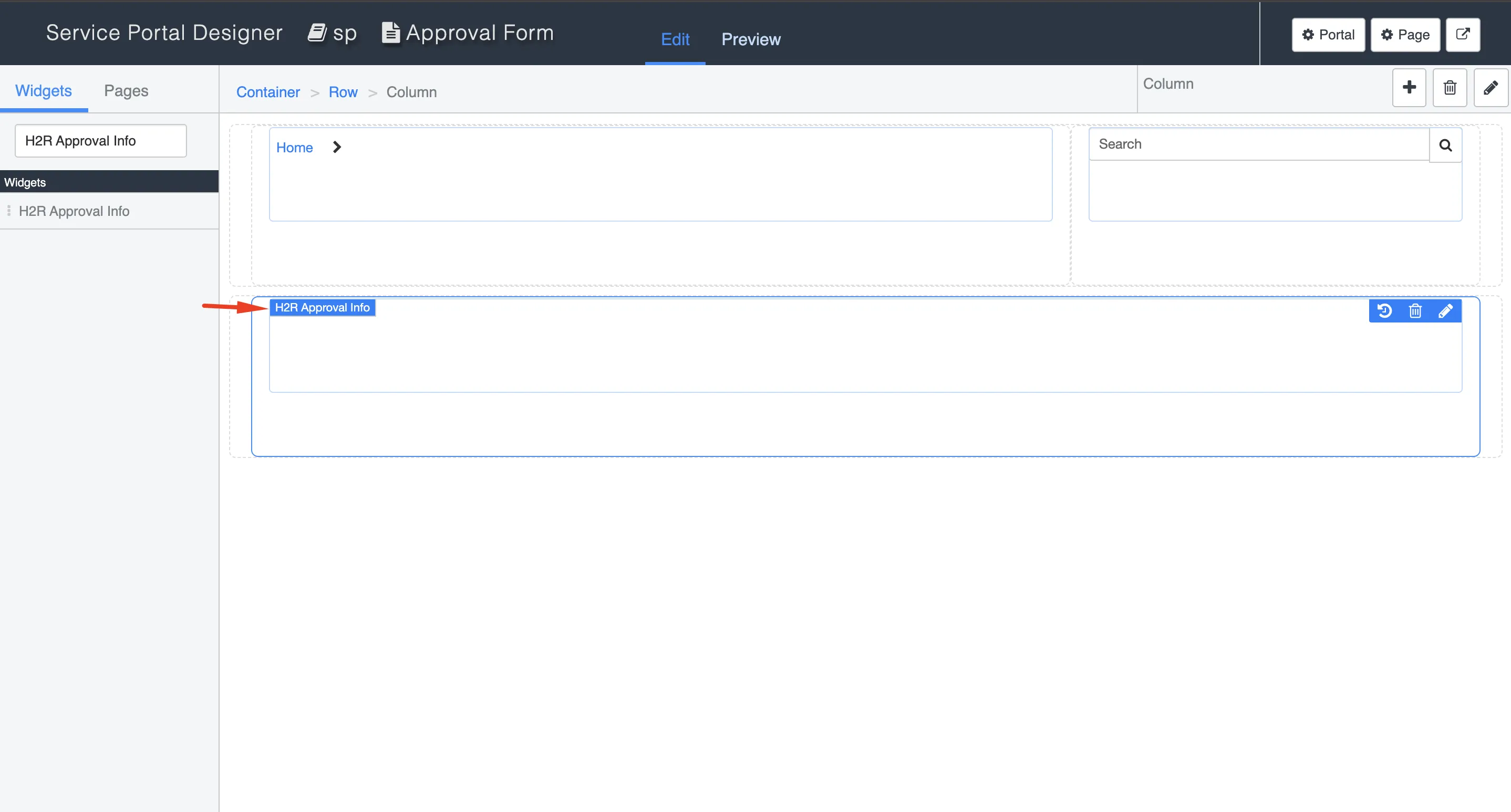
In the Service Portal Designer, replace the existing approval widget with the H2R Approval Info widget.
Step 4: Verify the New View
Navigate back to the Approval Details page and refresh it. The updated view will now display Hire2Retire-specific details, including:
- Requested Item and Request Type
- Recipient and Requester
- Requester Note
- Time Limit
- Approver Note field
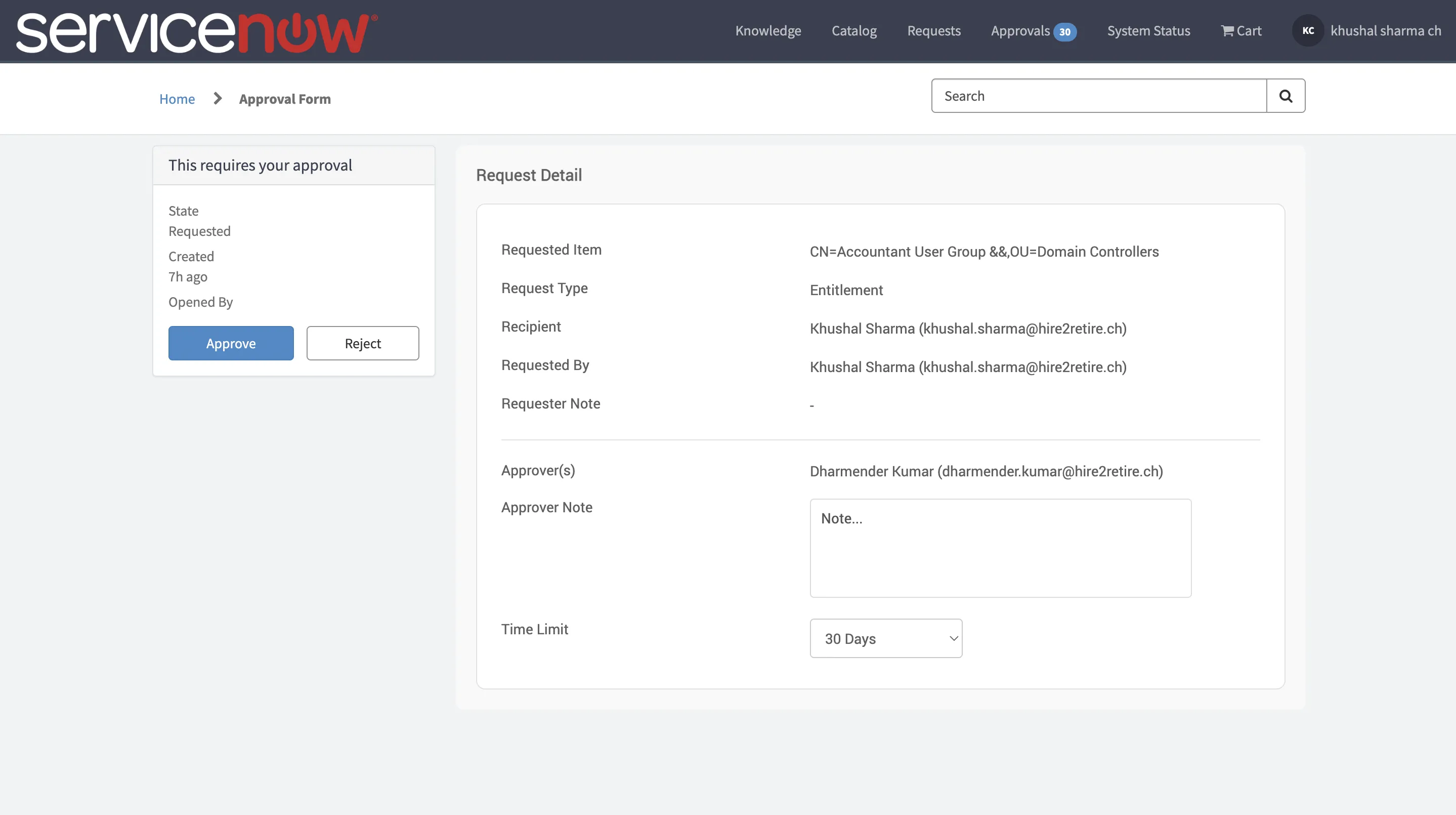
Approving or Rejecting
From the Approval Details page or directly from the approvals list, you can Approve or Reject the request.
- For entitlement requests, approval triggers automatic fulfillment by Hire2Retire — the recipient is added to the requested group immediately.
- For application requests, the request moves to the
Awaiting Fulfillmentstate and follows the fulfillment process configured for that application.