Overview
Hire2Retire allows you to automatically create NinjaOne tickets for key employee lifecycle events, helping IT teams streamline onboarding, role changes, and offboarding
Configuring Tickets to be created on NinjaOne
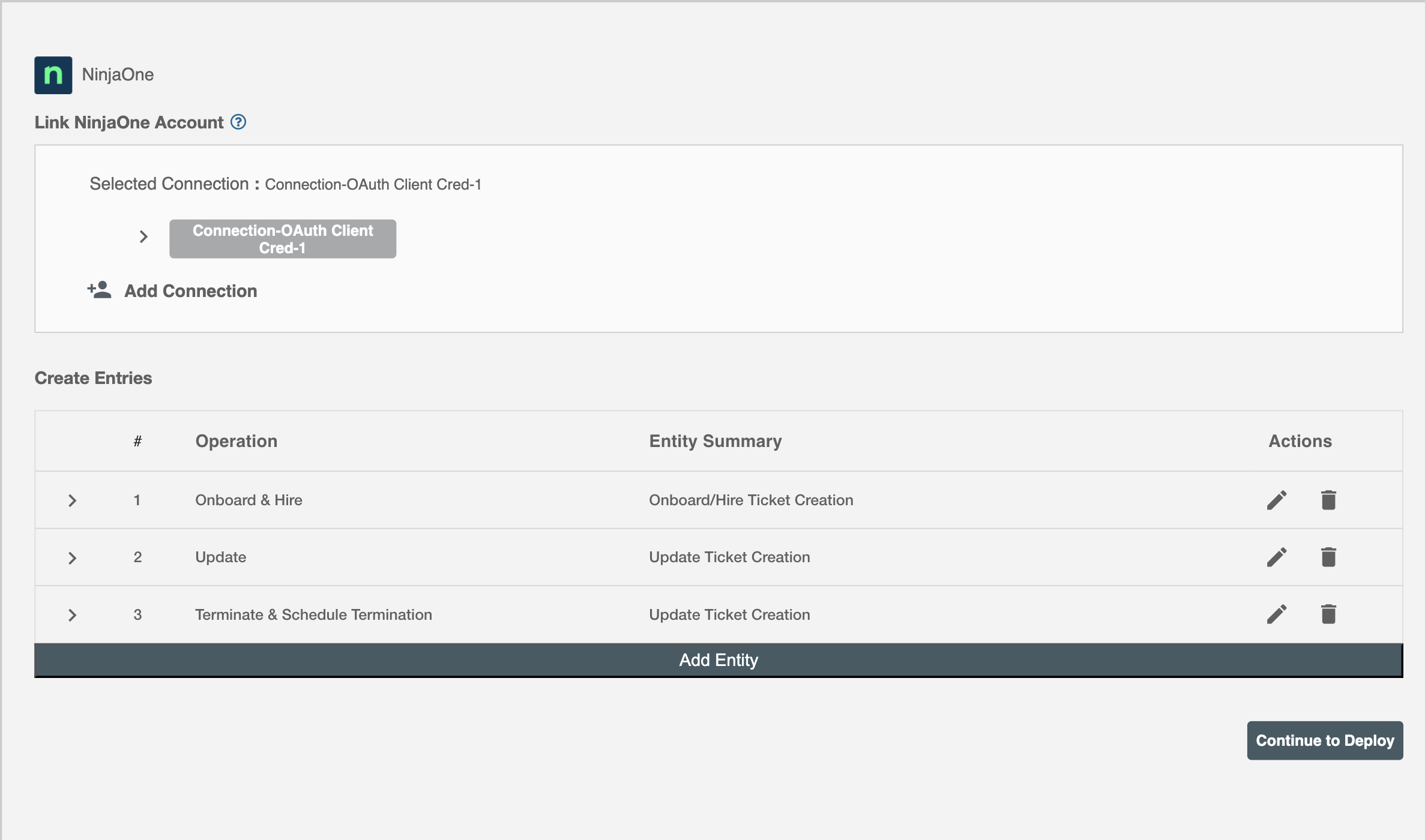
Create Tickets
You can configure one or more tickets to be created for each employee lifecycle event. All configured tickets appear in the summary table along with their associated operations.
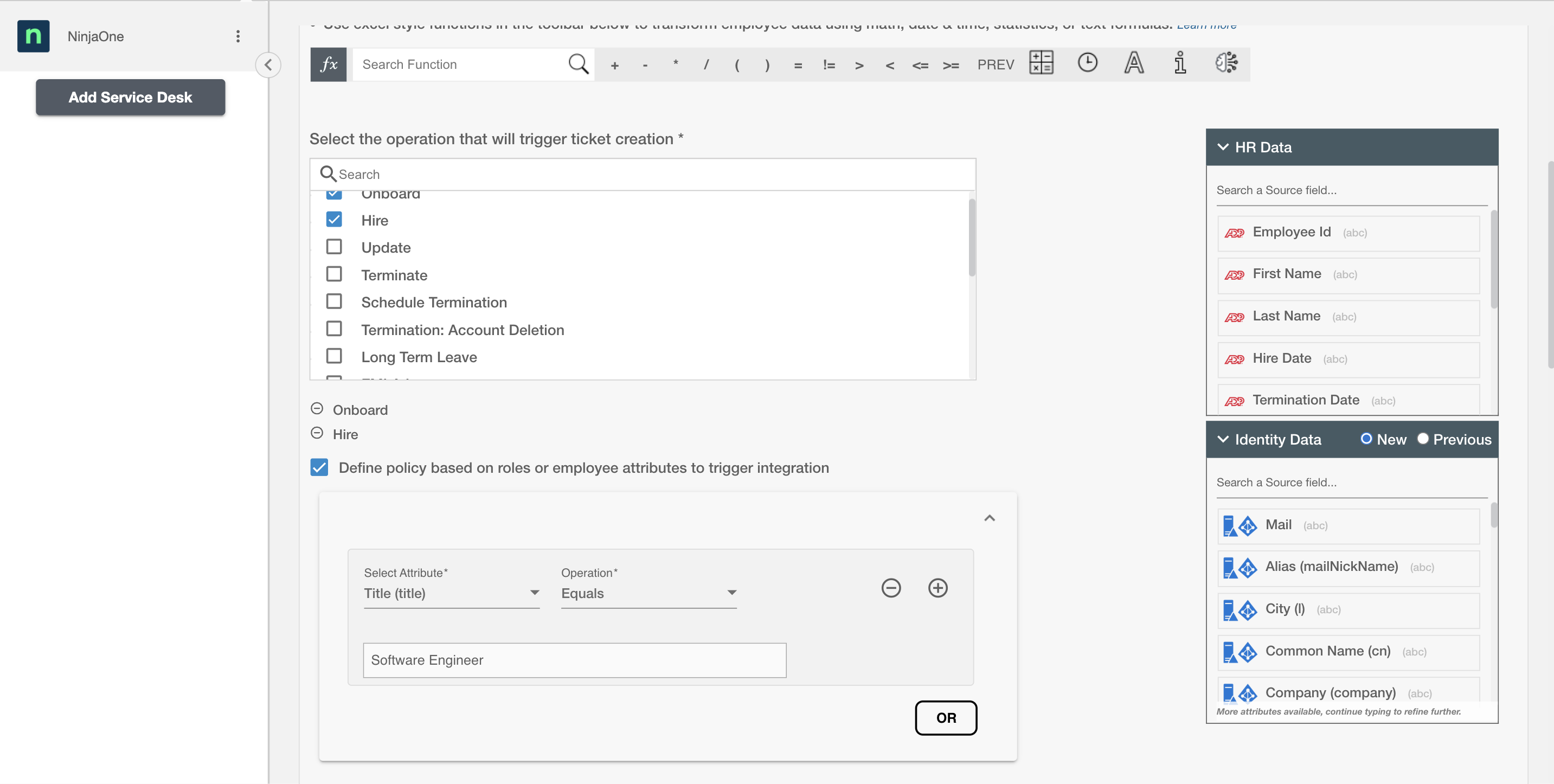
Conditional Service Desk
You can give specific condition(s) based on attribute(s) and group(s) membership to process integration. The ticket(s) will be processed if the user has been added or removed from the specified group(s) or if certain attribute(s) matches the given condition(s).
For example, if the employee is promoted to the position of senior software developer, then the integration ticket can be made to assign them a new MacBook Pro.
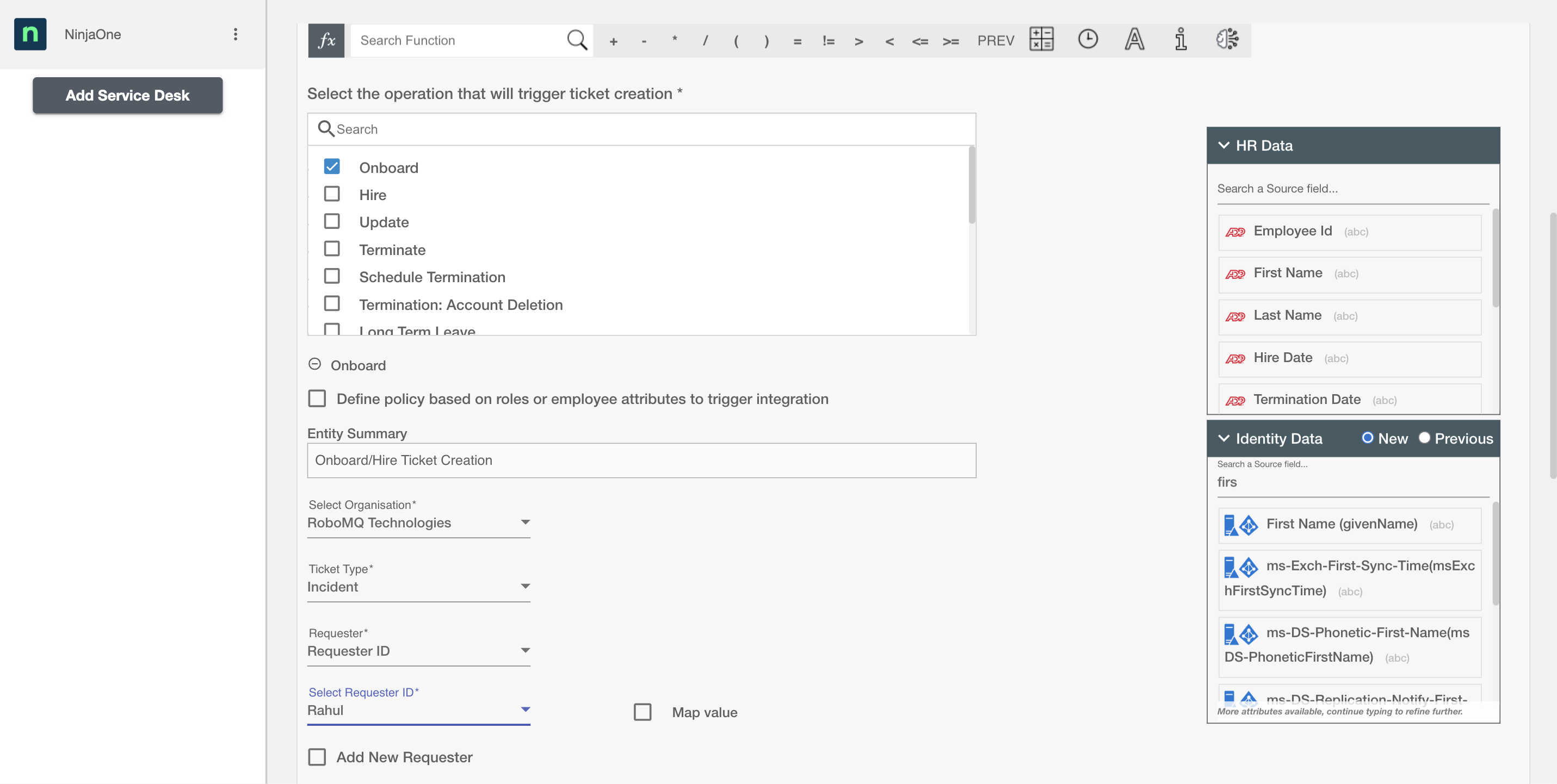
Choose Operation(s)
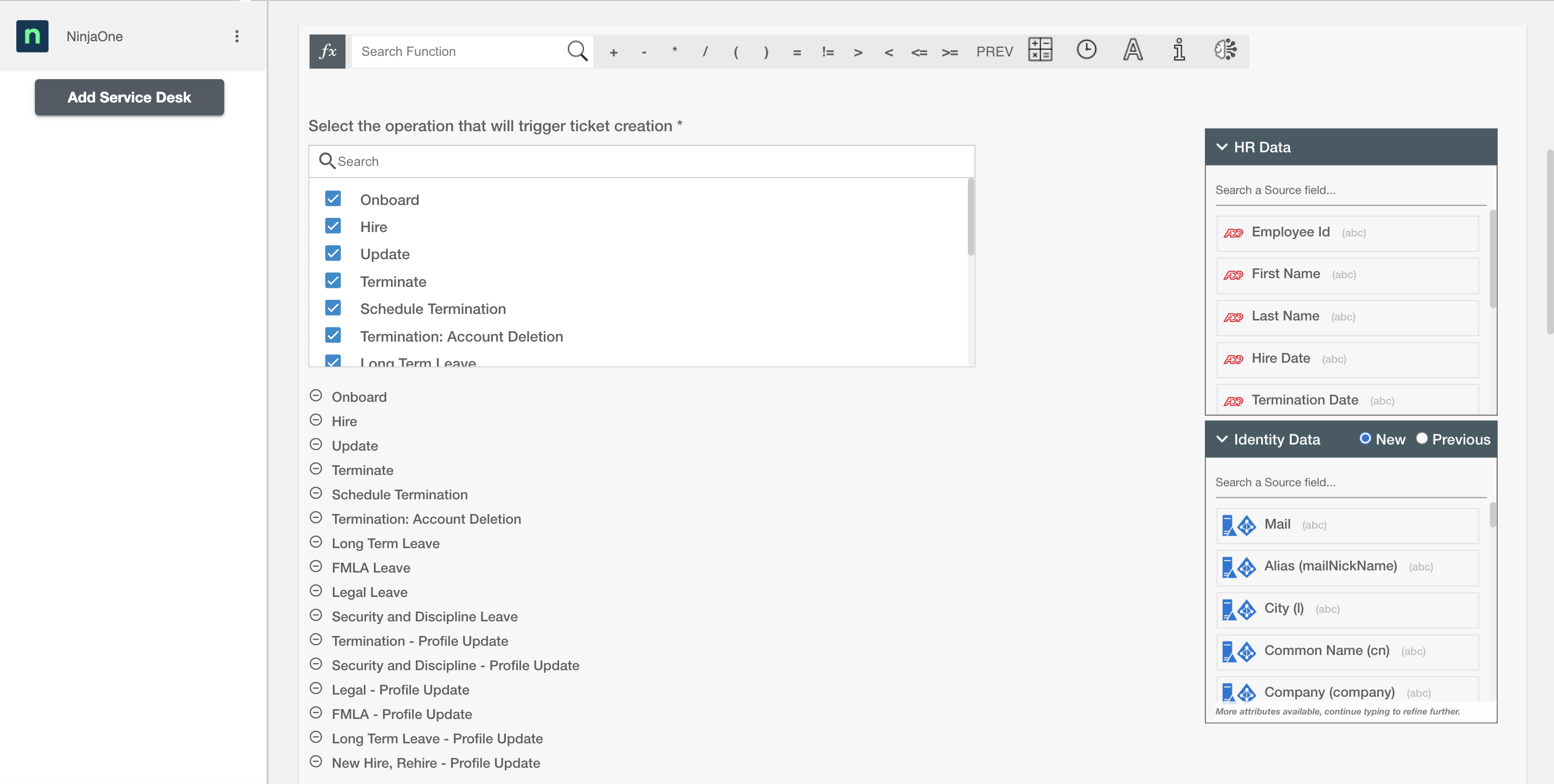
You can create Entities in NinjaOne on the following Employee Lifecycle operations:
- Hire
- Onboard
- Update
- Termination
- Schedule Termination
- Termination: Account Deletion
- All type of Leaves ( Long Term, FMLA, Security Discipline, Legal )
Ticket Attributes
Ticket Summary
Ticket Summary serves as the primary headline or title of the Ticket, providing a snapshot of its content or issue. You can provide a summary for each Ticket you are configuring, the summary will be visible along with operations on the summary table. This field is not sent to NinjaOne.
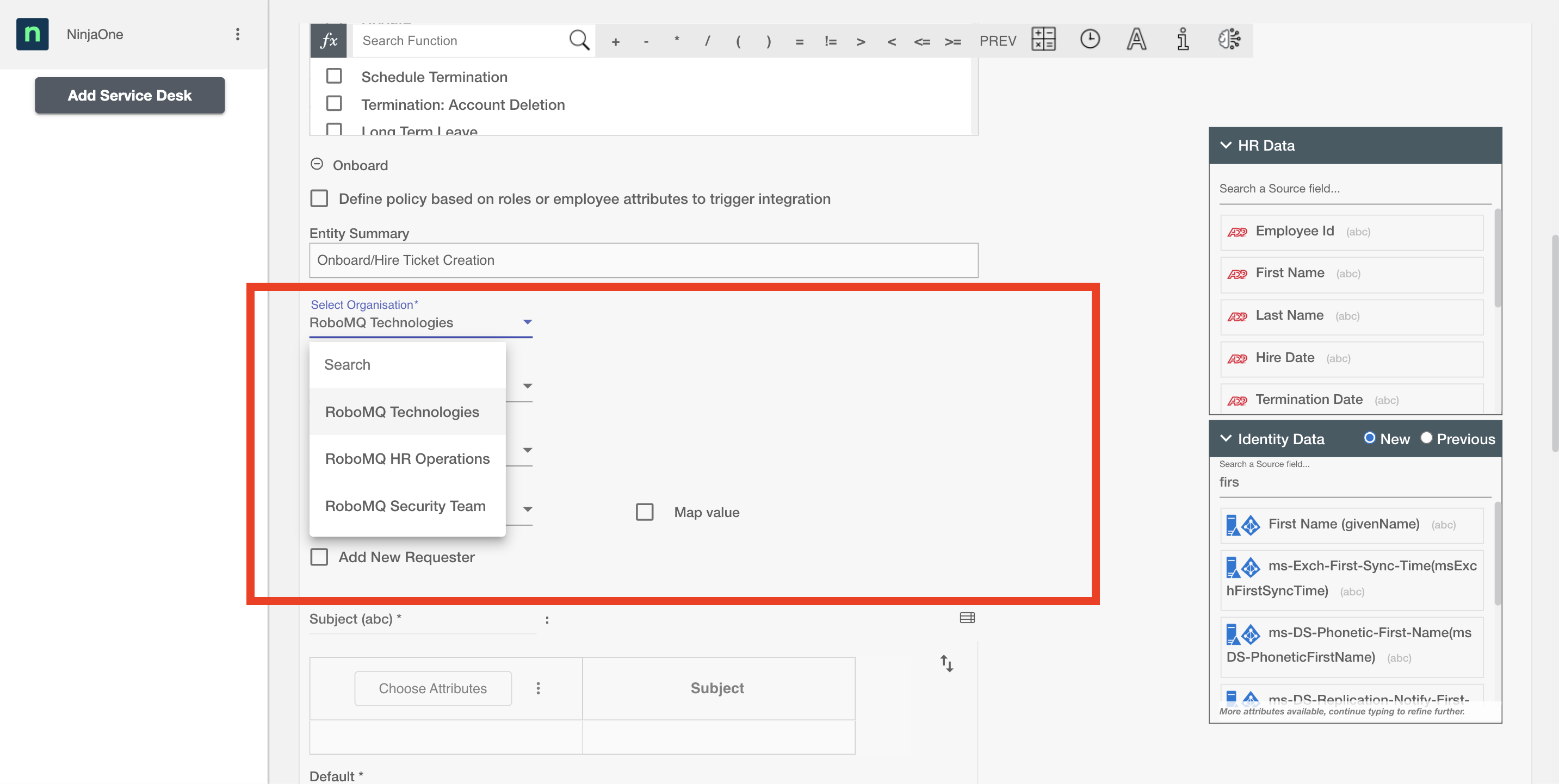
Select Organization
You can select the Organization. A single tenant can have multiple organizations, and all available organizations will be displayed in a dropdown. The selected organization will be associated with the ticket creation.
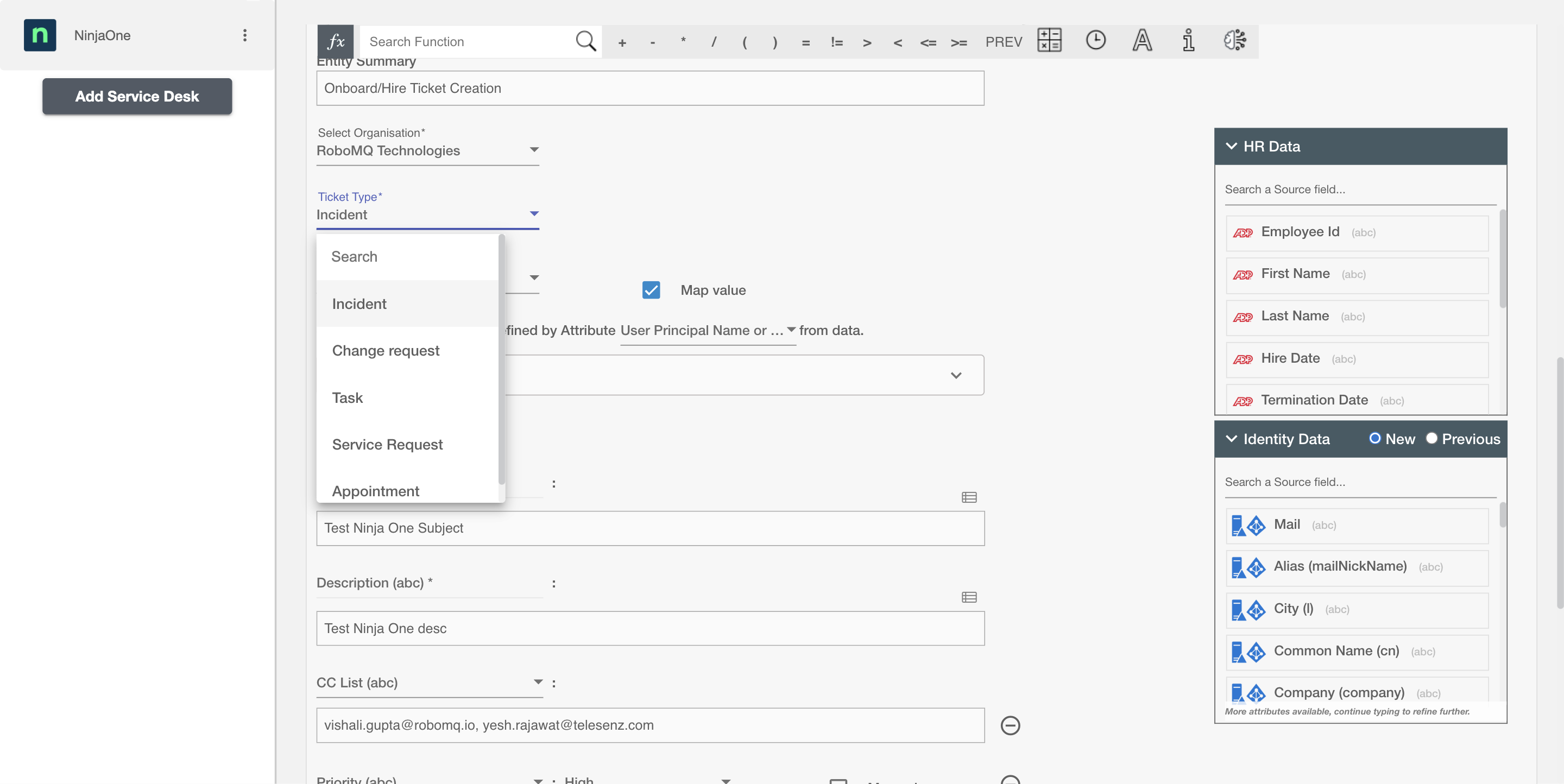
Select Ticket Type
You can select the Ticket Type to create among the following:
- Incident
- Change Request
- Task
- Service Request
- Appointment
Requester
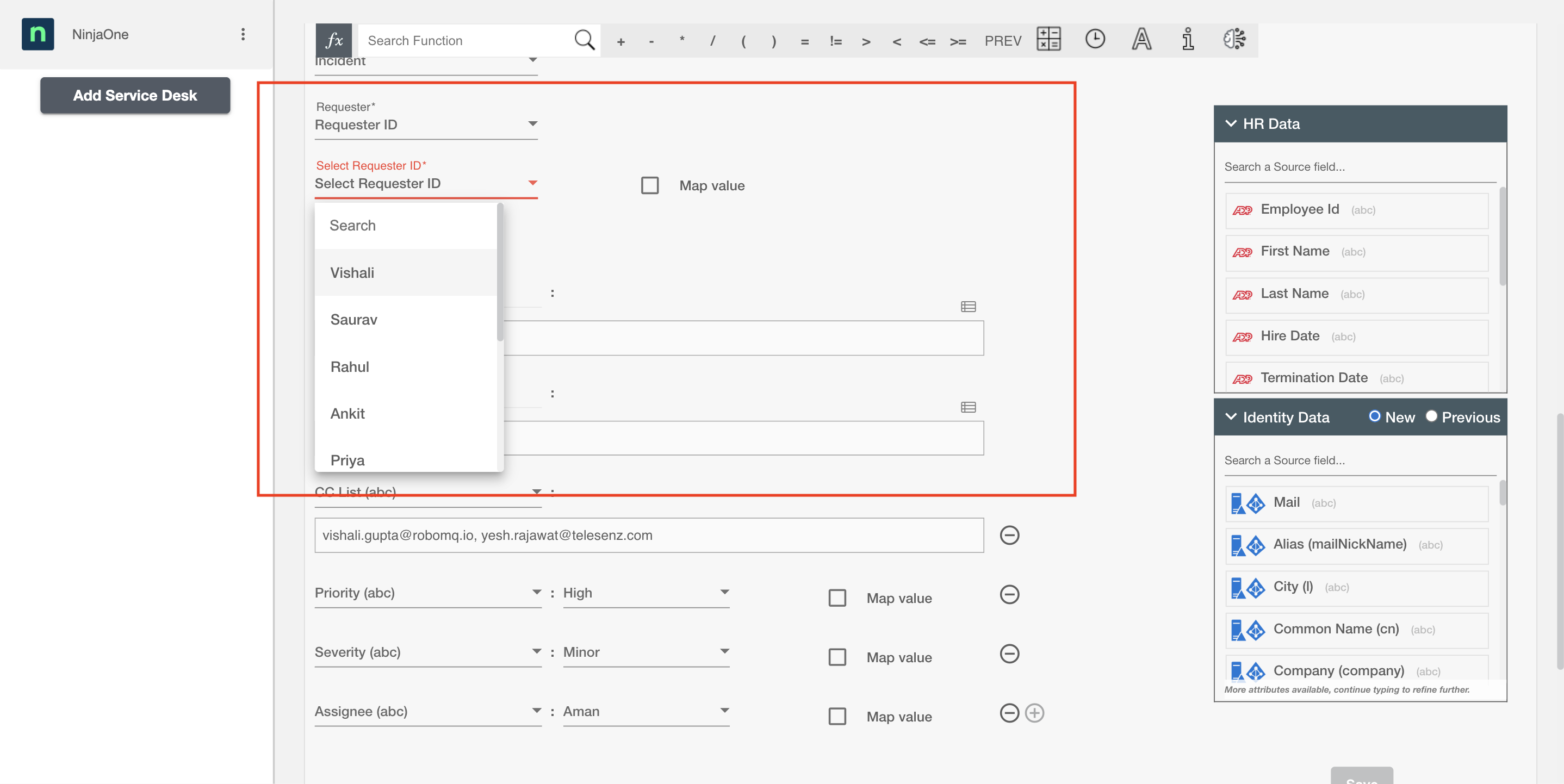
NinjaOne requires a 'Requester' for ticket creation. You can select a requester using:
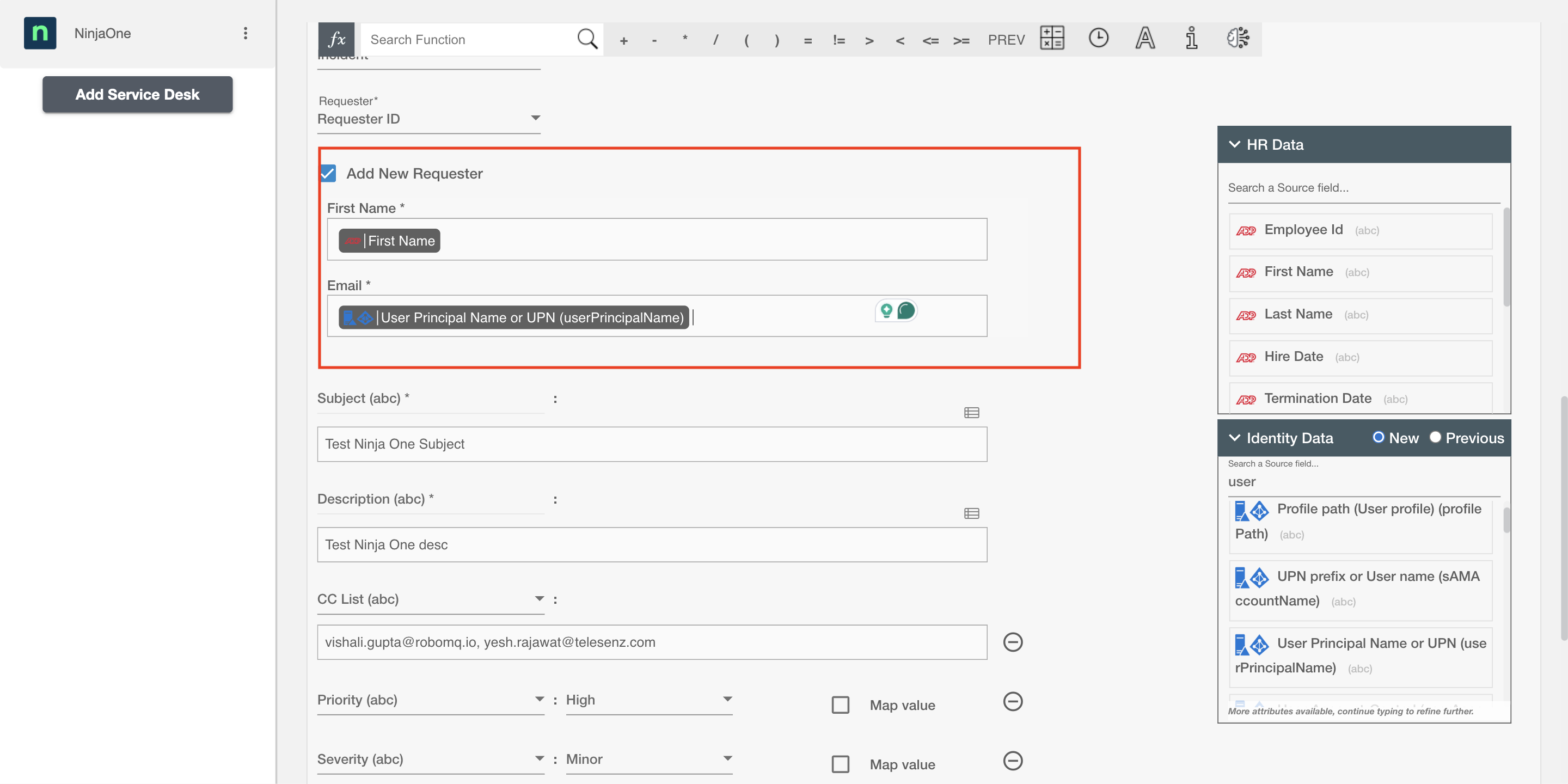
Requester ID You can select any of the requesters currently present on the NinjaOne. You can also 'Add new Requester' using the checkbox. You can map the email of incoming employee and create them as a requester.
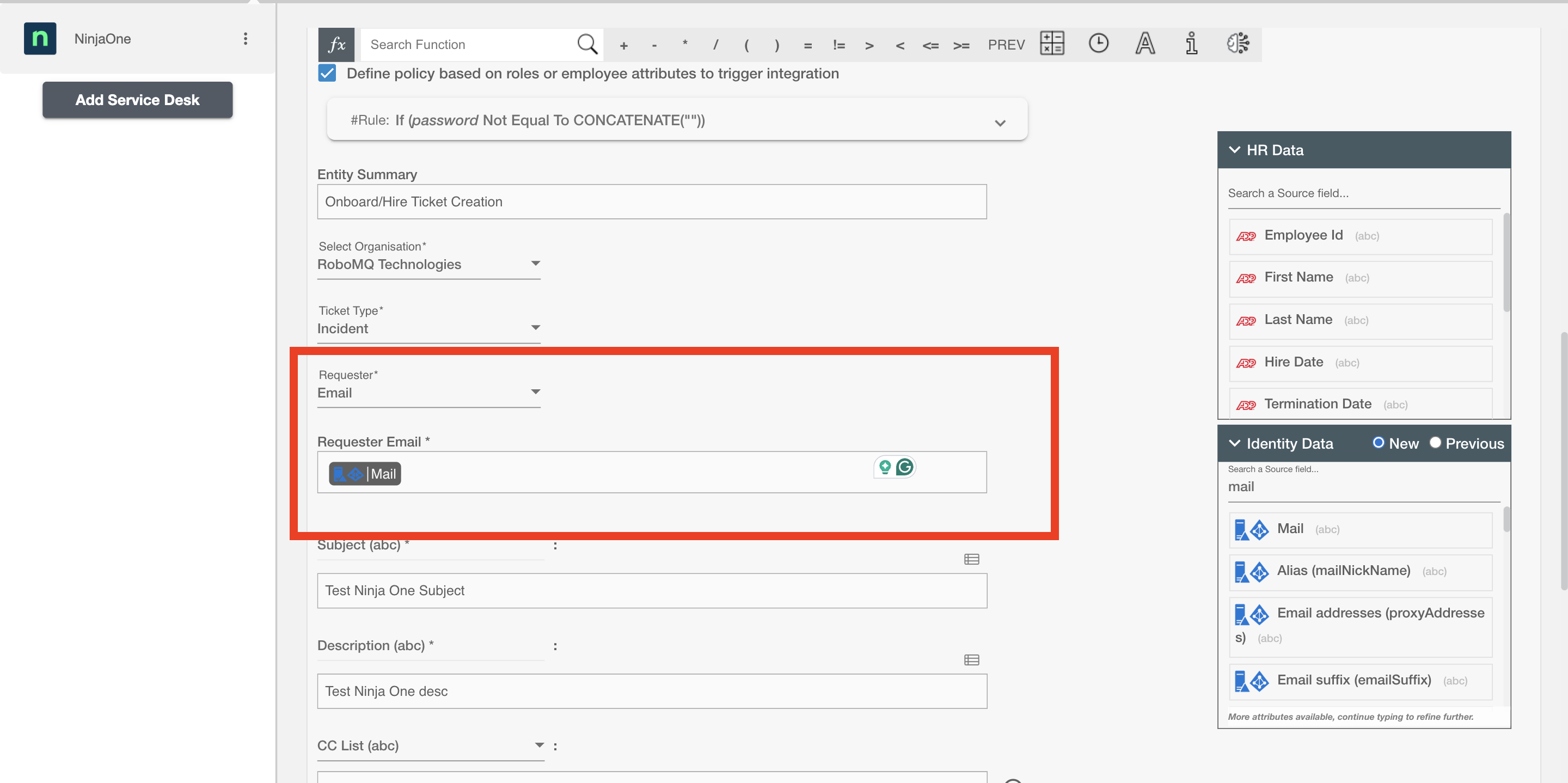
Email You can provide Email Id of the requester. You can use this option to map the email of the manager to add the manager of an employee as the requester. You can also add a new requester on NinjaOne by providing a new email Address.
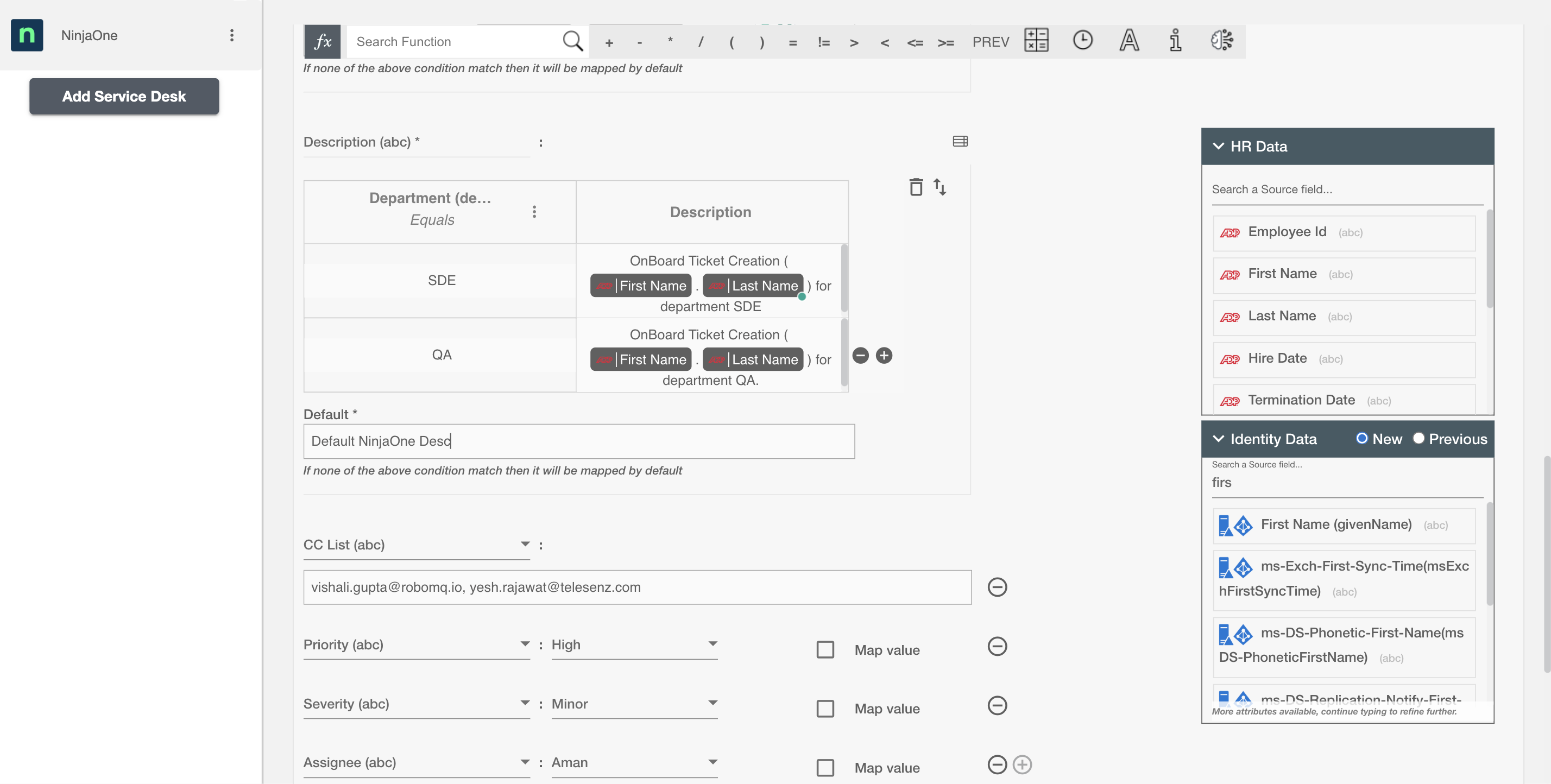
Select attributes
You can select the attributes of the entity(s) that you want to populate. You can map values from the AD to populate these attributes. You can also use Hire2Retire's powerful data transformation capabilities using Excel Style functions. Apart from the default attributes visible on Hire2Retire, if you add any other custom attribute(s) on the NinjaOne portal, it will be visible on the Hire2Retire and you can populate it accordingly.
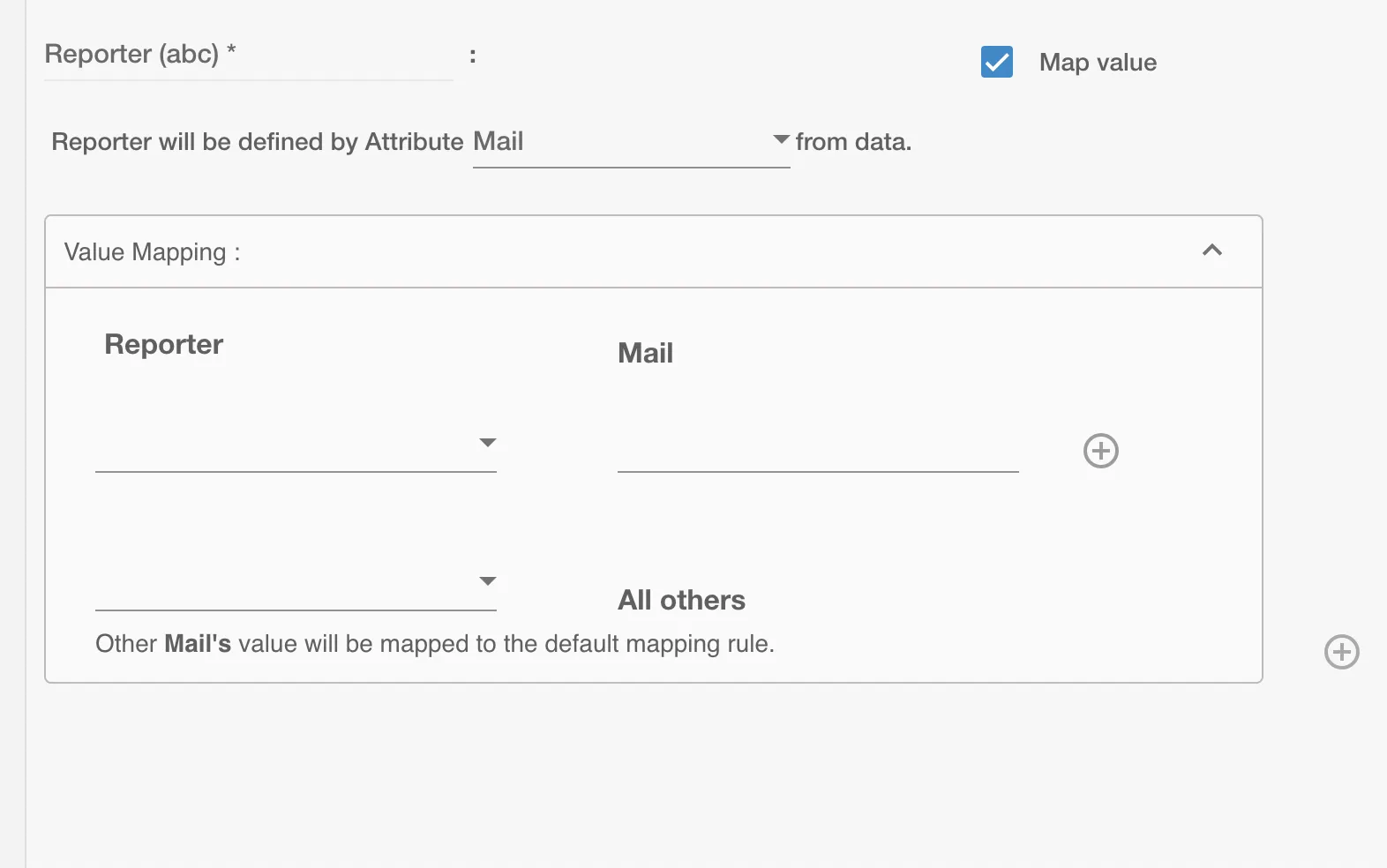
Map Value
You can select Map Value checkbox to map attributes from your Identity Management System to your Service Desk application.
Example
Given below is an example to create ticket on NinjaOne using Hire2Retire. In this example, whenever a new employee is onboarded a Request Service is created on NinjaOne to provision them with the necessary hardware essential to perform their job, hence the Hire operation is selected.
You can provide the entity summary and select the available attributes. You can also add custom attribute on NinjaOne portal and it will be available on Hire2Retire. Here, a custom dropdown attribute named Priority is added on the NinjaOne portal and is populated on Hire2Retire.
The 'Request for someone else' checkbox allows to make this request service for any other existing employee. You can also add any additional attributes apart from the default attributes using '+' sign. Refer to the example workflow images available below.