Identity
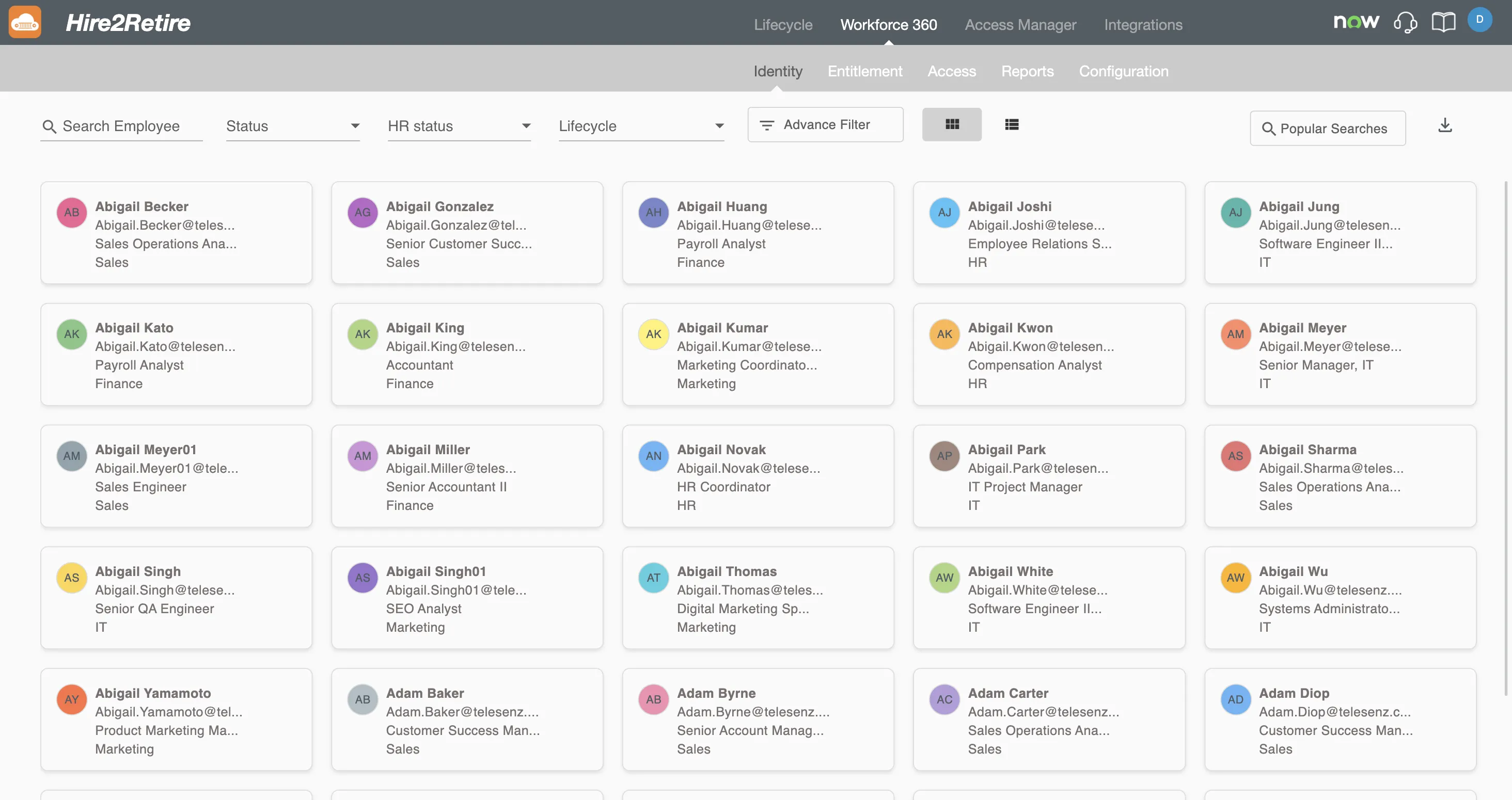
The Identity Homepage is the central directory of Workforce 360, listing all employees in the organization, both active and inactive. Each employee profile is represented by a summary card that gives a quick snapshot of their key information. The page is designed for efficient navigation, offering multiple ways to search, filter, and browse the employee directory. Clicking on any employee profile opens the Employee Detail page for that individual.
Employee Profile
Each employee is represented by a profile card that displays a summary of their information:
- Display Name - The Employee's full display name present in IDP system.
- User Principal Name - The employee's email address.
- Job Title - The employee's role within the organization
- Department - The department the employee belongs to
Cards for disabled employees are highlighted in dark grey, making it easy to visually distinguish them from active employees at a glance.
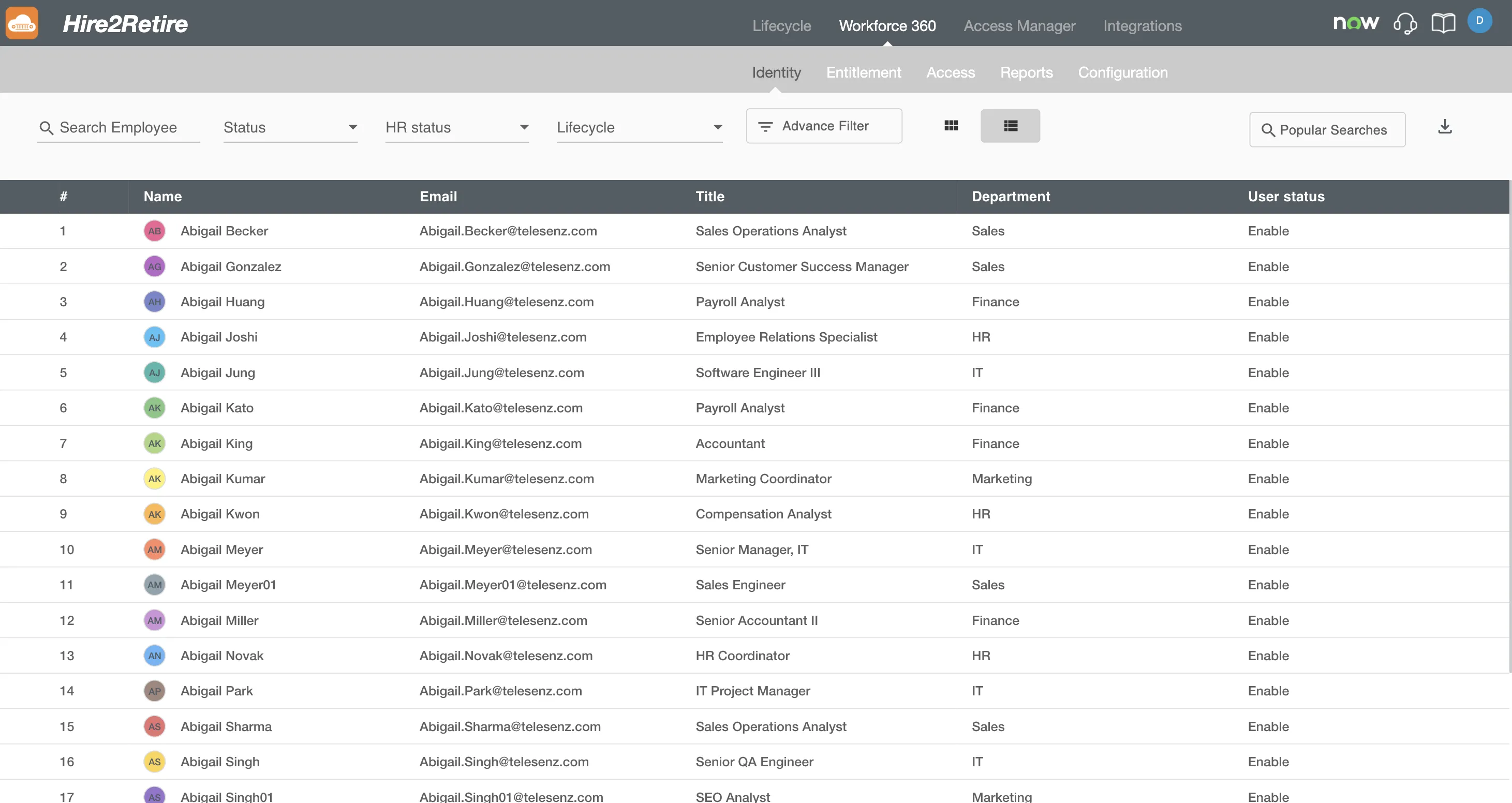
The employee directory can be viewed in two formats, toggled using the icons in the top-right corner of the page:
- Grid View - Displays employees as cards arranged in a multi-column layout. This is the default view and is best suited for quickly scanning through employees.
- List View - Displays employees in a tabular row-by-row format, useful for comparing attributes across multiple employees.
Searching and Filtering
Search Bar
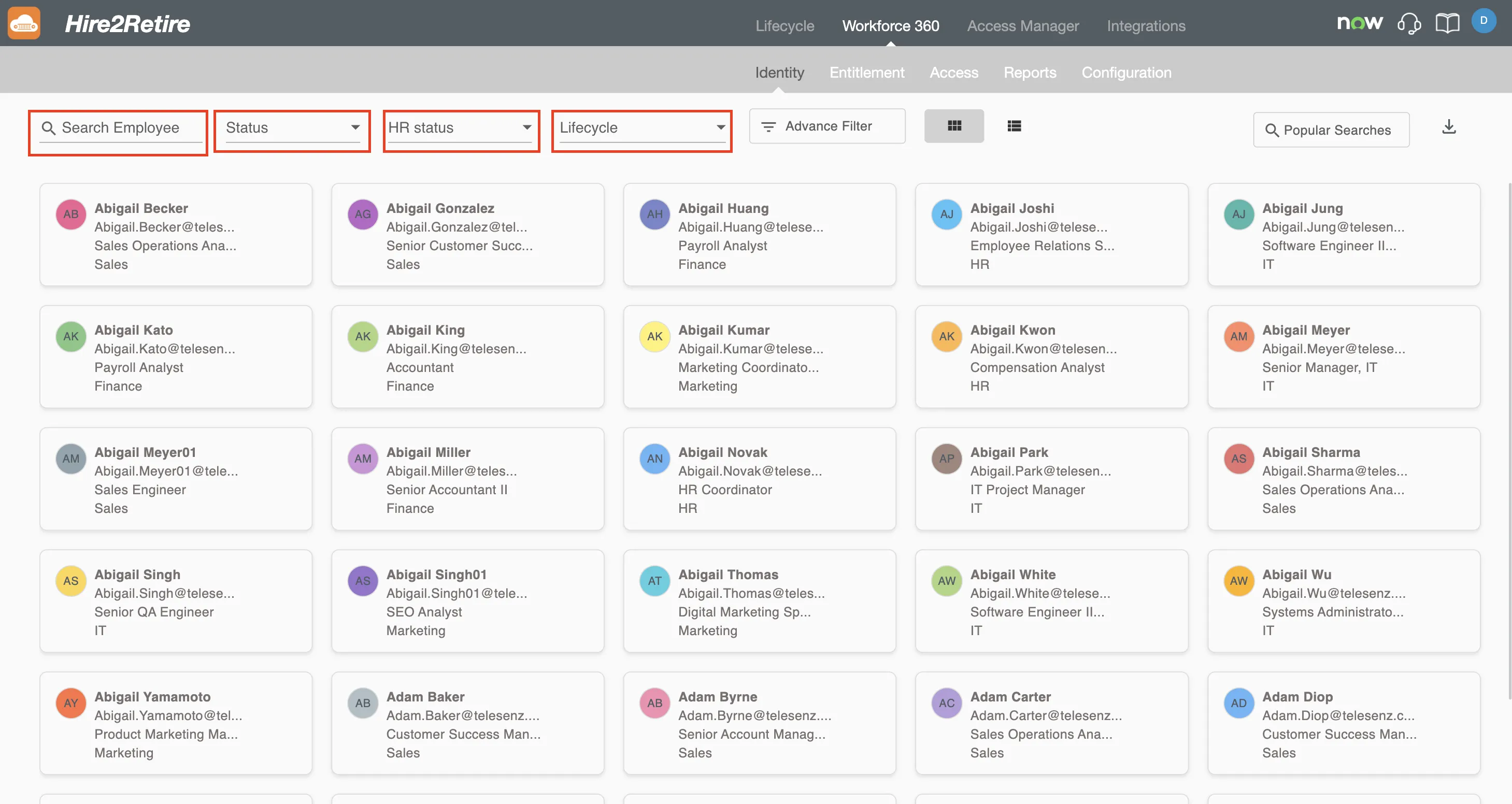
The Search Employee bar at the top of the page allows users to search for an employee by their display name. Results are filtered in real time as text is entered.
Quick Filters
Three quick filters are available to narrow down the employee list:
| Filter | Description | Options |
|---|---|---|
| Status | Filter by the employee's account status in the Identity System | Enabled, Disabled |
| HR Status | Filter by the employee's HR-reported employment status | Active, Terminated, Leave |
| Lifecycle | Filter by the employee's lifecycle stage | Hire, Rehire, Terminated, Leave, Update |
Advance Filter
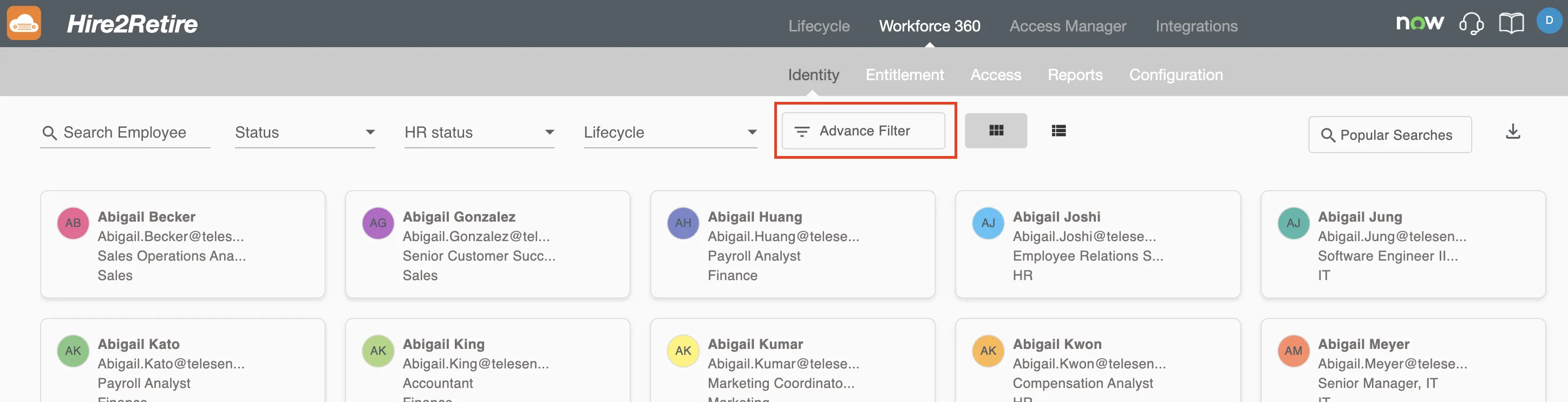
For more targeted searches, the Advance Filter option provides additional filtering criteria beyond what the quick filters offer.
Popular Searches
The Popular Searches shortcut in the top-right provides a set of preset filters for the most commonly used queries:
- All Active Users - Filters all employees with an active status
- All Inactive Users - Filters all employees with an inactive or disabled status
- New Hires In Last 30 Days - Filters employees who joined within the past 30 days
- Terminated Employees In Last 30 Days - Filters employees terminated within the past 30 days
Exporting Results
The filtered or full employee list can be exported using the download icon located in the top-right corner of the page.