Policy Management
Hire2Retire enables you to assign and manage Microsoft Intune and Conditional Access policies for users and groups directly from your workflows. Using the Policy Management tab, administrators can automate policy assignments based on employee attributes or group memberships, ensuring consistent policy enforcement across the organization without manual efforts.
Policy Management is supported in Entra ID and Hybrid AD flows.
Application Scope
| Scopes | Explanation |
|---|---|
| DeviceManagementConfiguration.ReadWrite.All | Read and write Intune device configuration and compliance policies |
| DeviceManagementApps.ReadWrite.All | Read and write Intune application management and app protection policies |
Microsoft Entra ID Roles
One of the following roles is required:
| Roles | Explanation |
|---|---|
| Intune Administrator | Full access to manage and read Microsoft Intune configurations and policies |
| Global Administrator | Full administrative access across Microsoft Entra ID and Intune |
Attribute Based Policy Enforcement
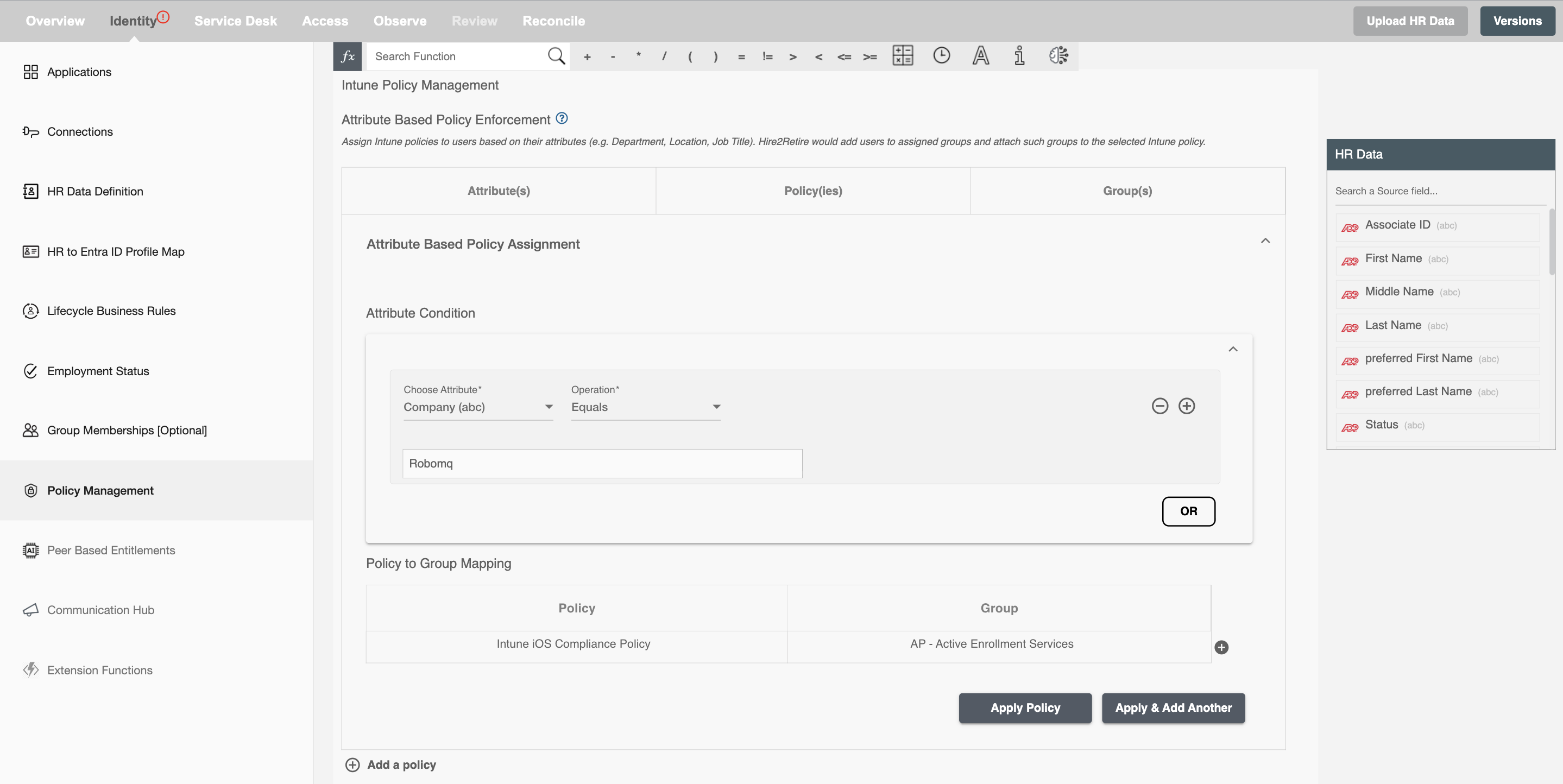
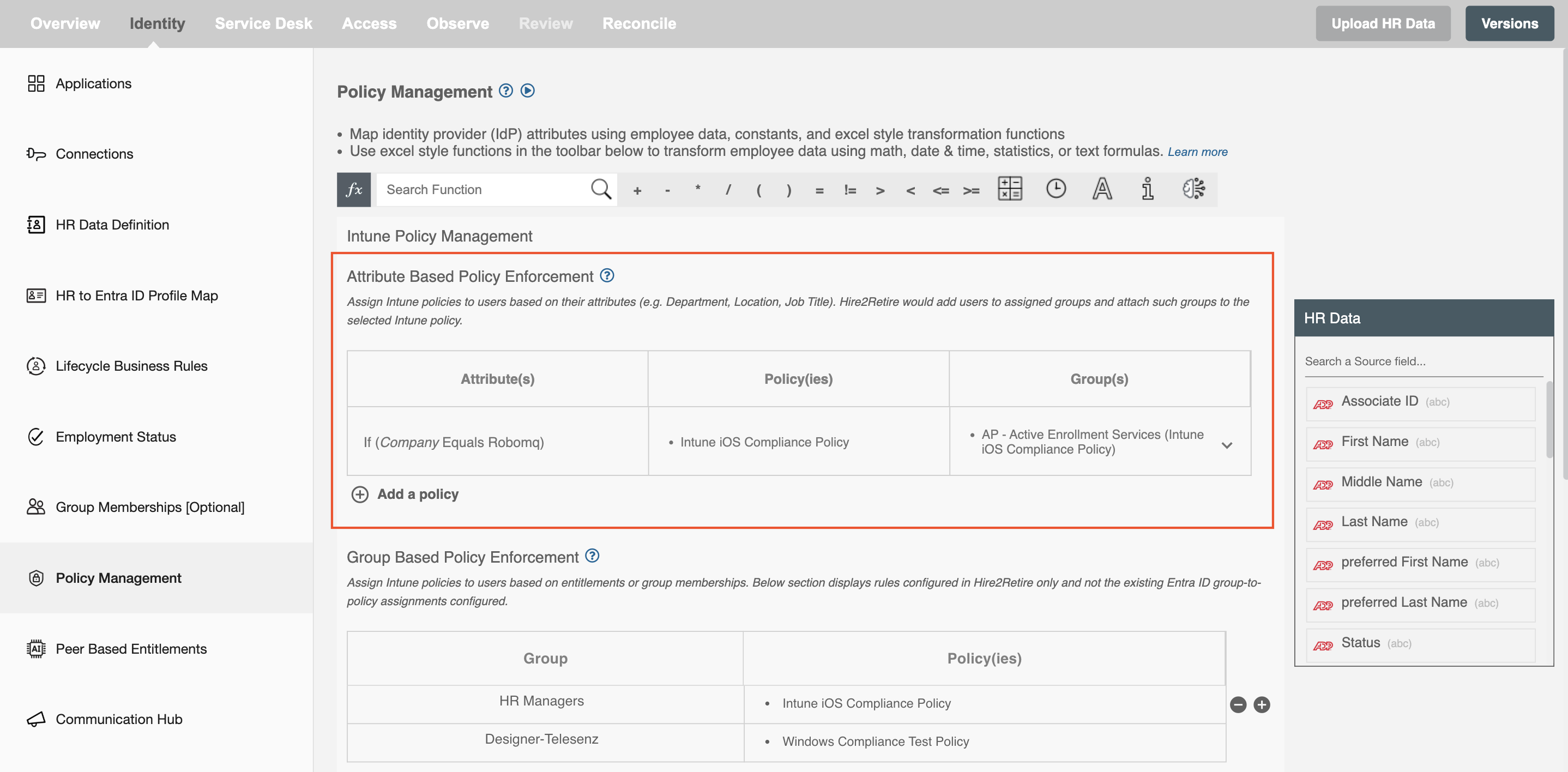
Attribute Based Policy Enforcement allows administrators to dynamically assign policies based on employee attributes such as Department, Location, Designation, Employment Type. This helps organizations automatically enforce appropriate policies for different categories of users without manual intervention.
To set this up, define attribute conditions and map matching users to specific Intune policies and groups. During workflow execution, Hire2Retire evaluates the configured conditions, adds users to the mapped groups, and assigns the associated policies automatically.
Group Based Policy Enforcement
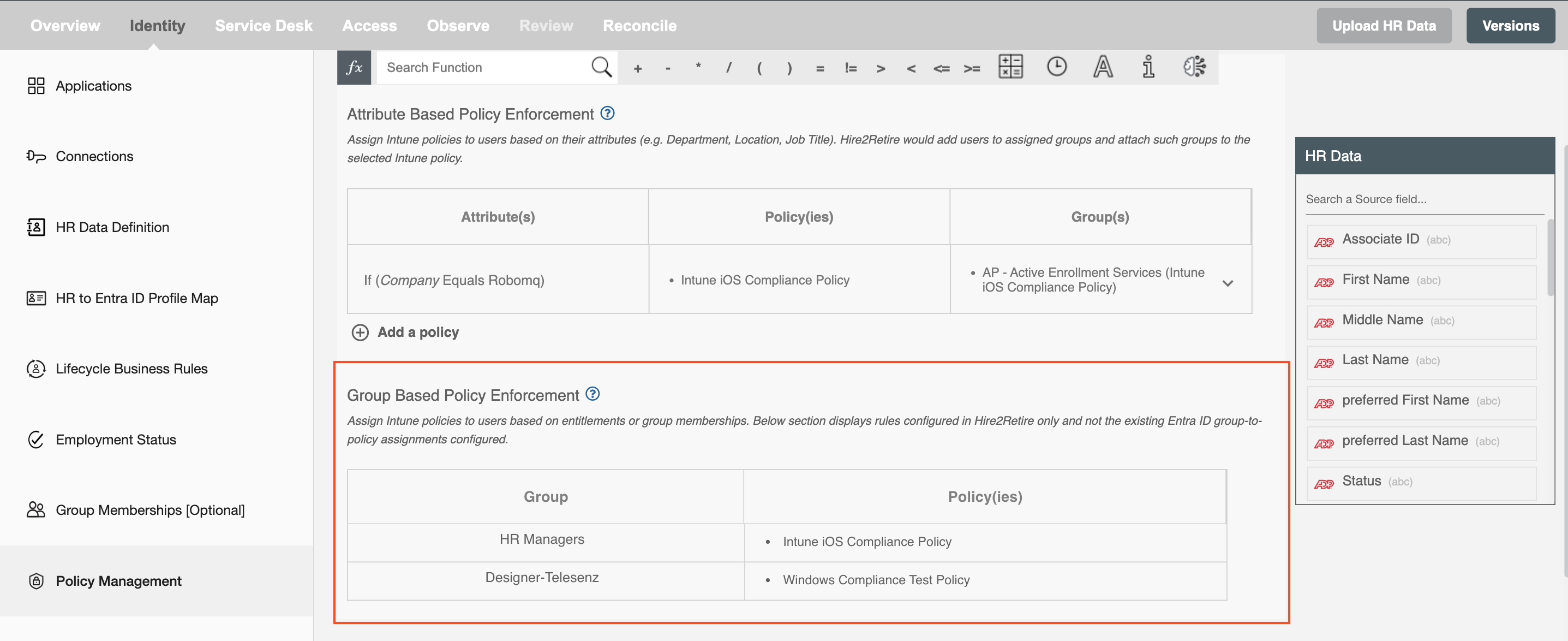
Group Based Policy Enforcement allows administrators to assign policies based on group memberships. Policies are mapped to security groups. When a user becomes a member of the mapped group, the configured policies are automatically assigned.
Note: Policies shown on Intune Admin Portal may include additional policies assigned directly to groups outside of H2R configuration. H2R only manages policies explicitly configured in the Policy Management page.
MFA Policy Enforcement
To secure user sign-in events in Microsoft Entra ID, you can configure Microsoft Entra multifactor authentication (MFA). Hire2Retire enables you to configure multi-factor authentication (MFA) settings for users. You can also define MFA configuration based on user attributes.
Ability to assign MFA status based on user attributes (Conditional Access) is a Microsoft Entra ID P1 or P2 feature. Hire2Retire offers this capability without the need for any Entra ID plan.
MFA Policy Enforcement is supported in Entra ID and Hybrid AD flows.
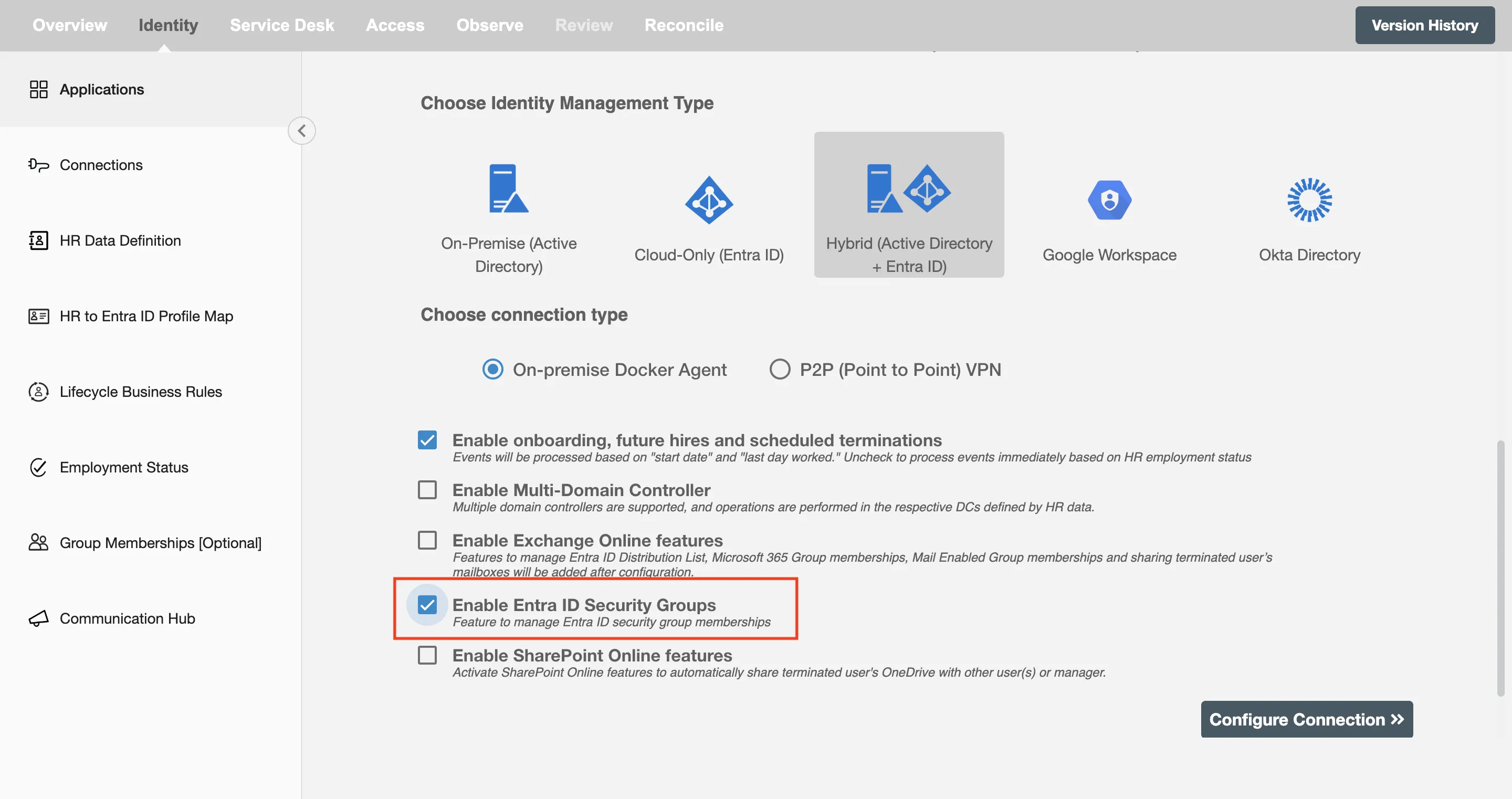
The MFA Policy Enforcement dropdown will be disabled if your Entra ID connection does not have the required privilege to edit MFA policy. To assign the required privilege to the connection follow the steps below:
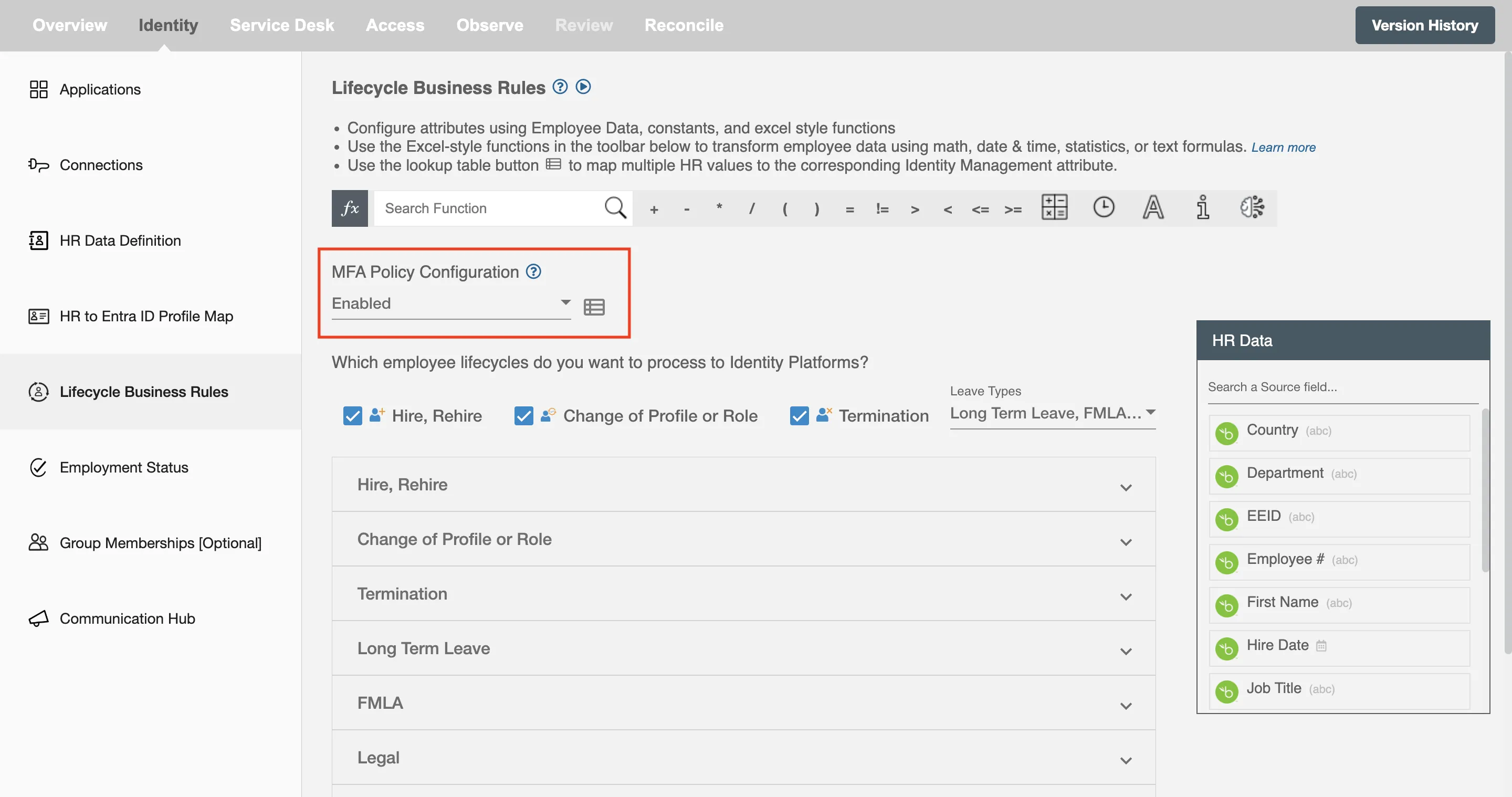
You can select the desired MFA state from the drop-down menu for the users.
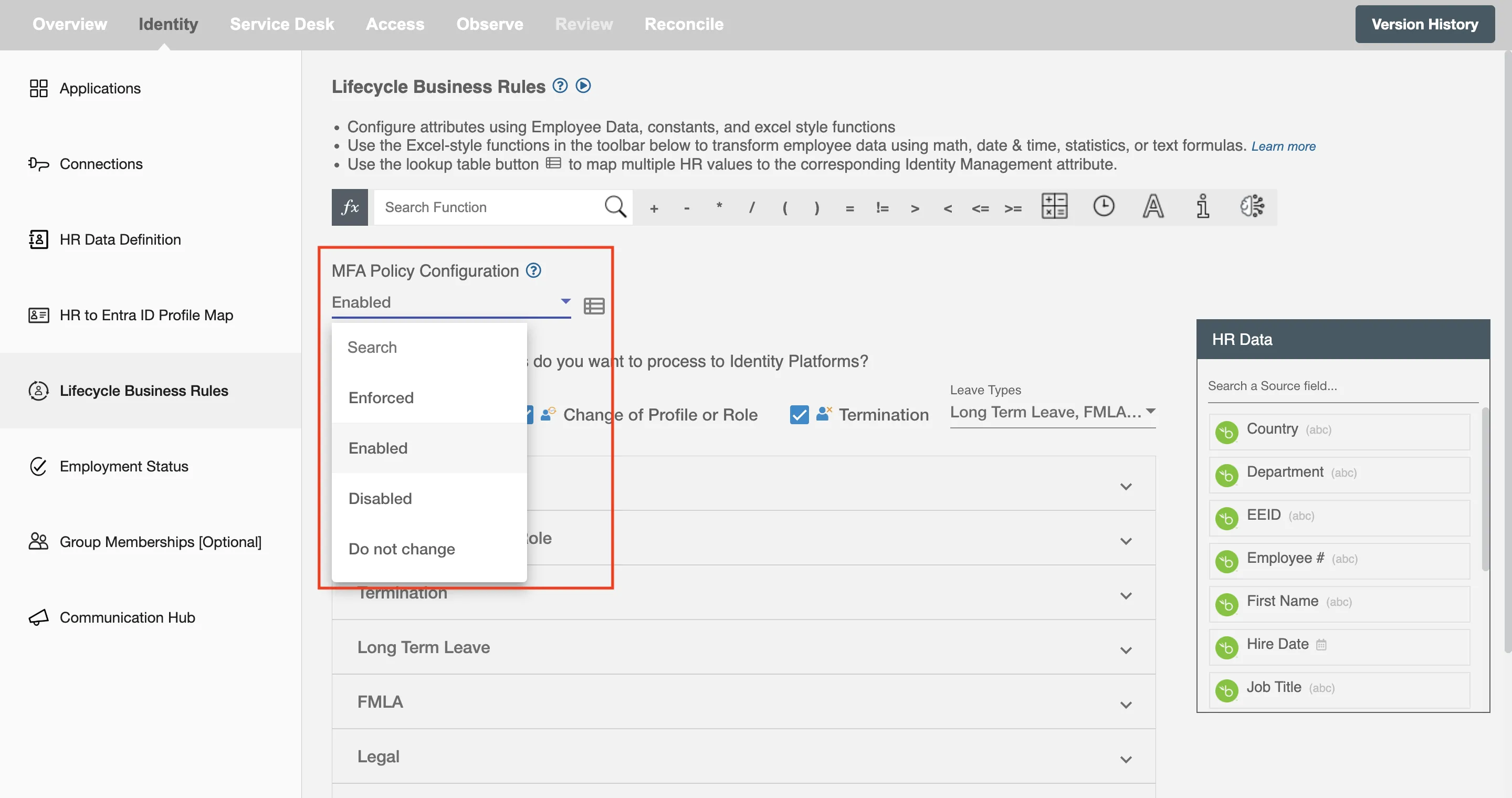
-
Enforced: Multi-Factor Authentication (MFA) is mandatory, and the user cannot access Microsoft services without configuring it.
-
Enabled: MFA is activated, and the user will be prompted to set it up. However, it can be skipped for a period, depending on the Azure administrator’s policy.
-
Disabled: MFA is not active and does not require setup.
-
Do Not Change: Hire2Retire will not change the MFA state.
You can define rules based on employee attributes like Department to assign different MFA states to different users.