Lifecycle Business Rules(Contact)
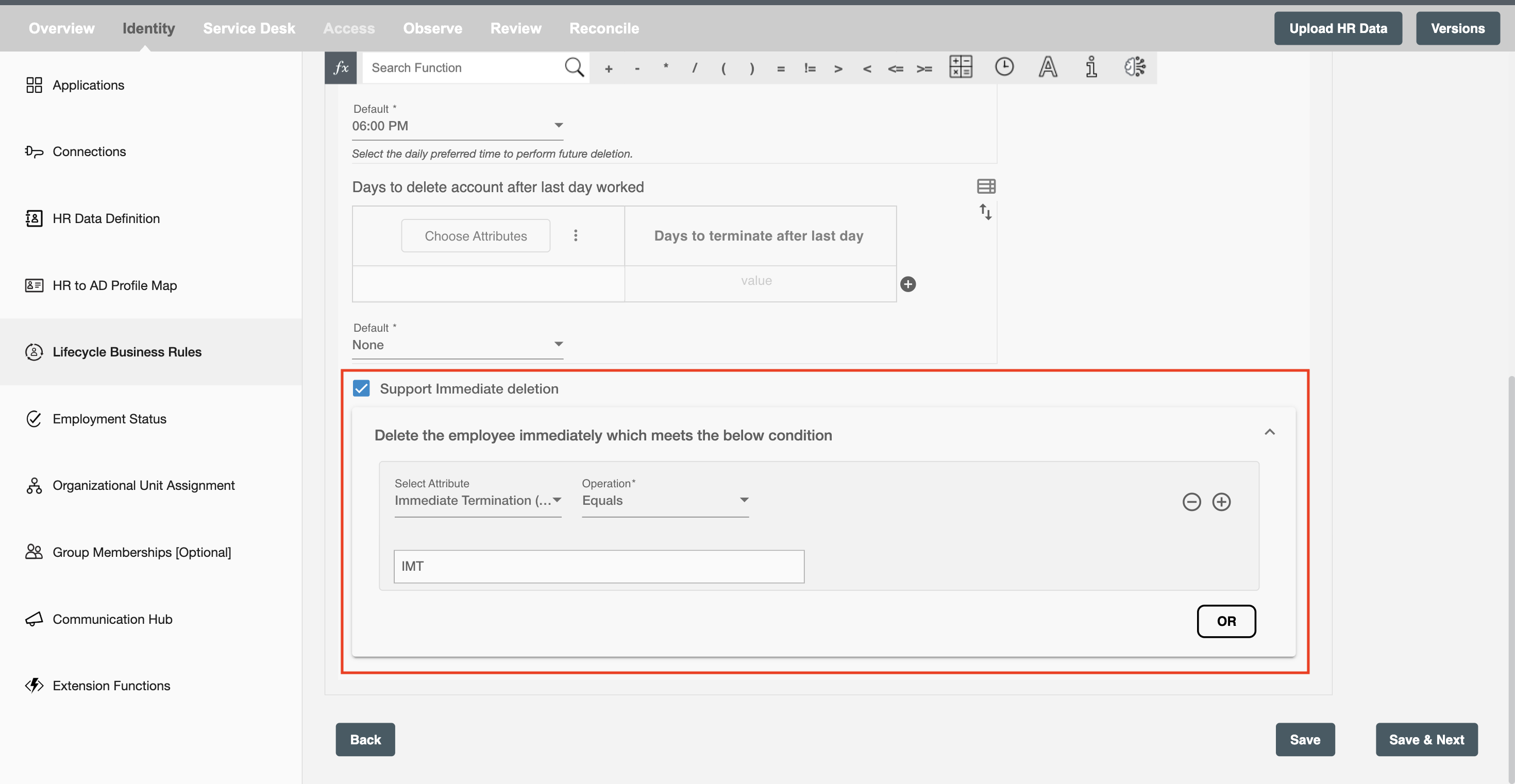
Lifecycle Business is an HR model that defines the various stages in which a worker progresses within an organization. Lifecycle Business Rules include the following three stages:
- Create Contact
- Update Contact
- Delete Contact
You can select the lifecycle stages required for your business use case. At runtime, the workflow processes only employees who match the selected stages.
Create Contact
Using this operation, you can create a Contact profile in the Identity Platform when an employee record is created in the HR system.
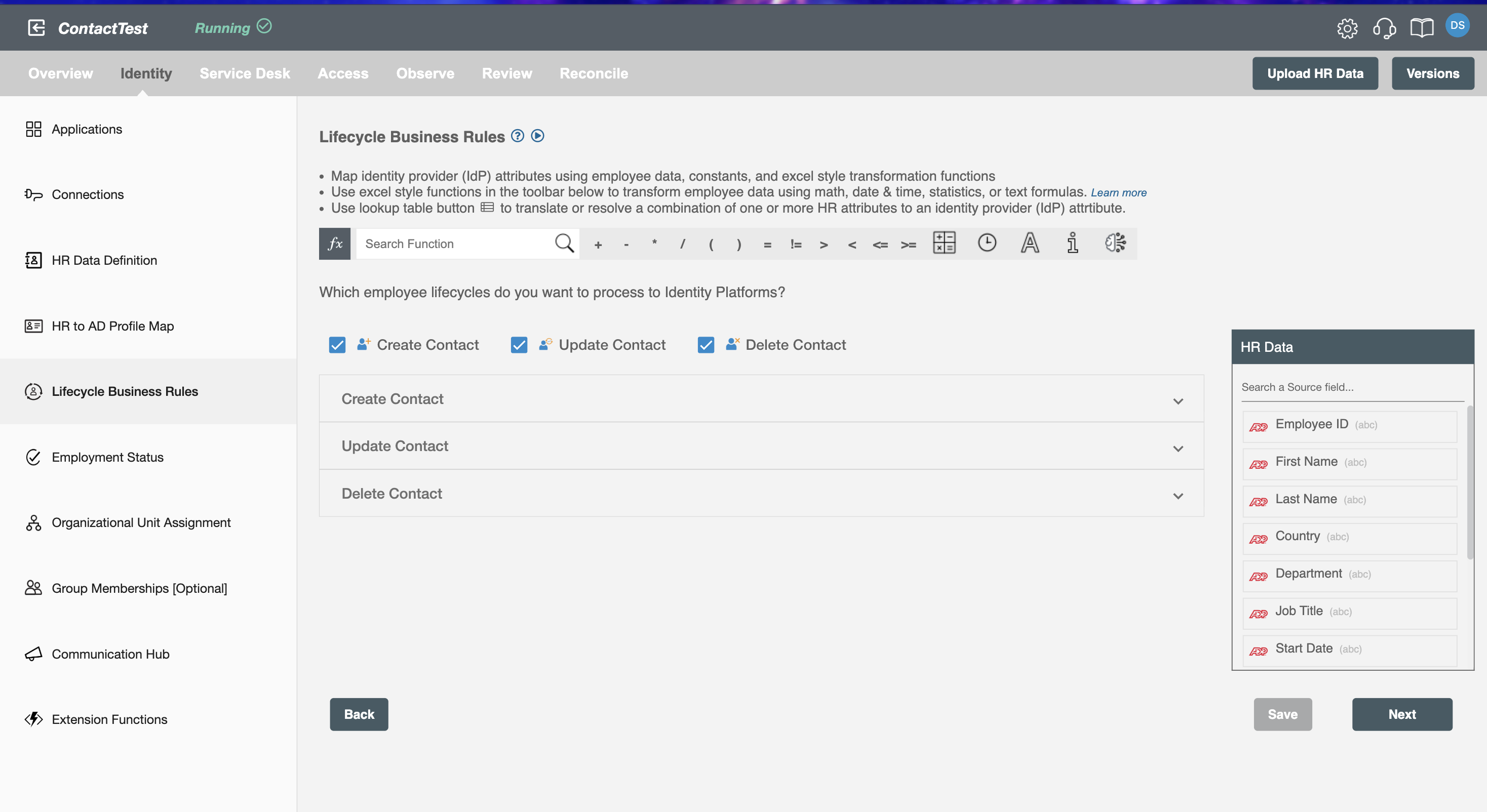
Select the time to execute creation - This field allows you to select when the Create Contact event should occur. You can use the lookup table (highlighted in red) to define conditional logic based on employee attributes. If the conditions are met, the chosen timestamp will be applied. If not, the event will default to the pre-set timestamp.

Time in advance of start date to create contact - This field is used to enhance the onboard experience for the IT team. Select the number of days before the employee start date when you want Hire2Retire to create the contact. If this duration depends on details like 'Department' or 'Location,' you can use the lookup table icon to define conditional logic and set different rules for different values.
Update Contact
Update the contact profile in the Identity Platform when the employee records are updated in the HR system.
Group Membership Handling During Contact Update
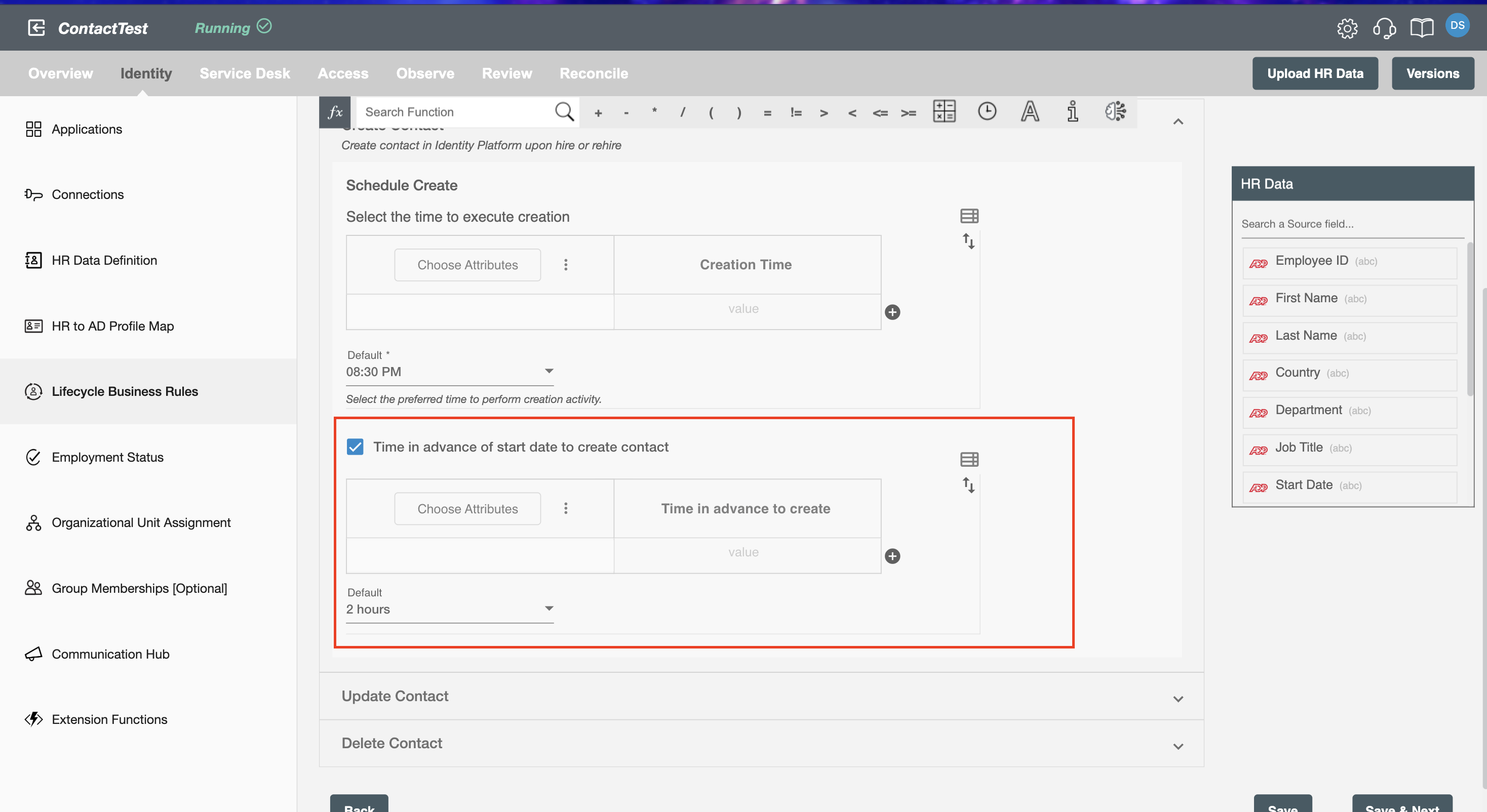
This setting controls how group memberships are updated when a contact profile is updated.
Retain all groups NOT defined in group mapping automation - Groups that are added manually (not with H2R) to the contact will be preserved, only the one mapped in the group membership step will be added/removed according to the condition specified in that step.
Retain ALL existing groups - None of the existing group memberships will be removed and only new group memberships will be added.
Do not retain any existing groups - All the existing group memberships will be removed and new group memberships will be added.
Retain below selected groups - The selected group memberships will not be removed, rest will be removed along with the addition of new group memberships.
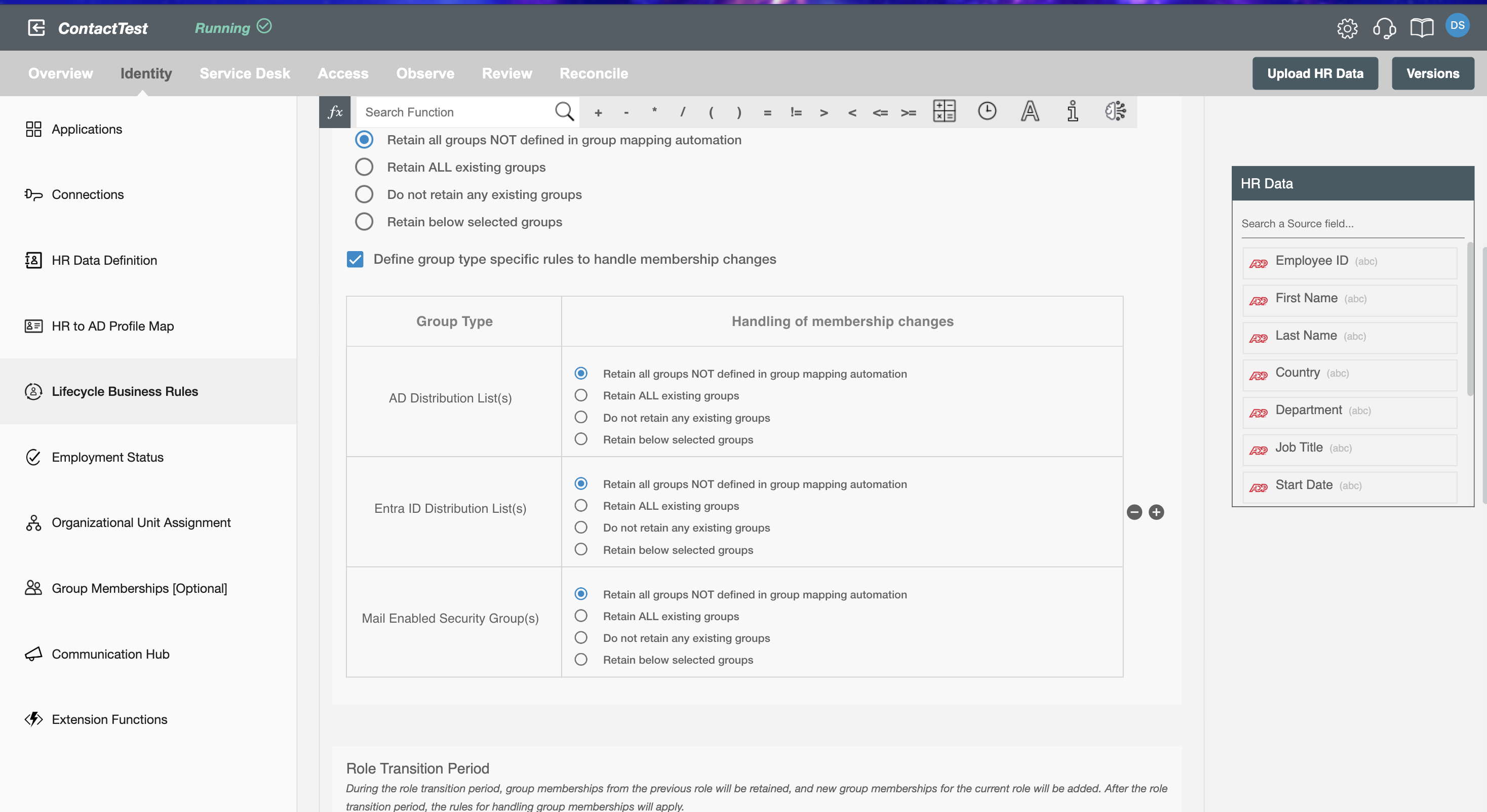
Handle group type specific membership
It allows users to define individual rules for each group, enabling more precise control over group membership handling. Instead of applying one common rule, users can configure specific retention logic per group type. This is especially useful during contact update operations, where different groups may require different treatment. It ensures flexibility and better alignment with organizational policies.
When both common and group type–specific rules are configured, the group type–specific rule will take precedence over common whitelist group membership.
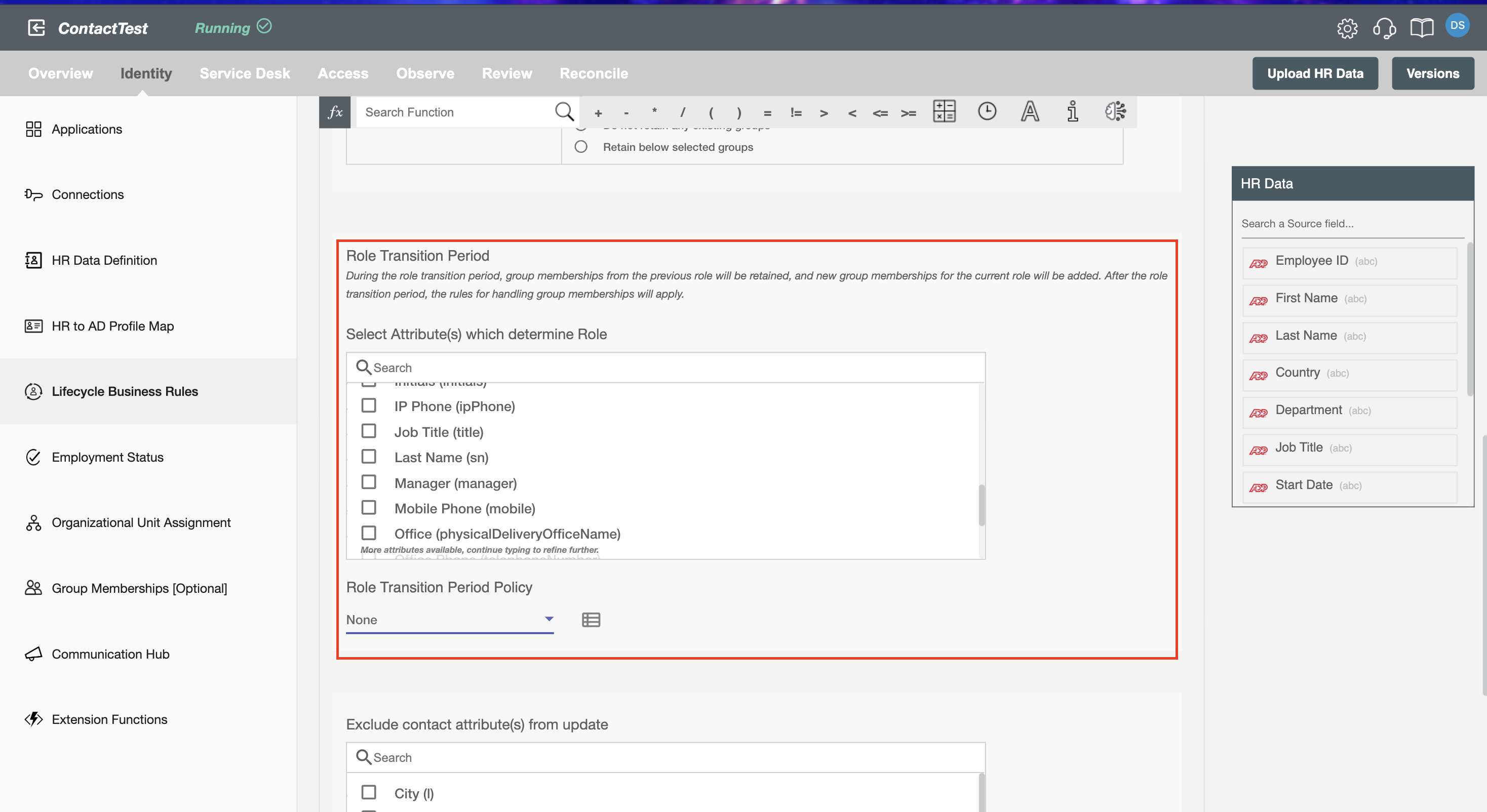
Transition Period
The transition period defines how long a contact’s existing group memberships from their previous role will be retained after a role change. When the role change event occurs, Hire2Retire immediately assigns any new groups required for the contact’s updated role. Once the transition period expires, Hire2Retire applies standard group membership rules and removes any groups that no longer apply. To configure a transition period, first select the attributes that determine the contact’s role. After selecting the attributes, you can set the transition duration and define how group memberships should be managed during this period.
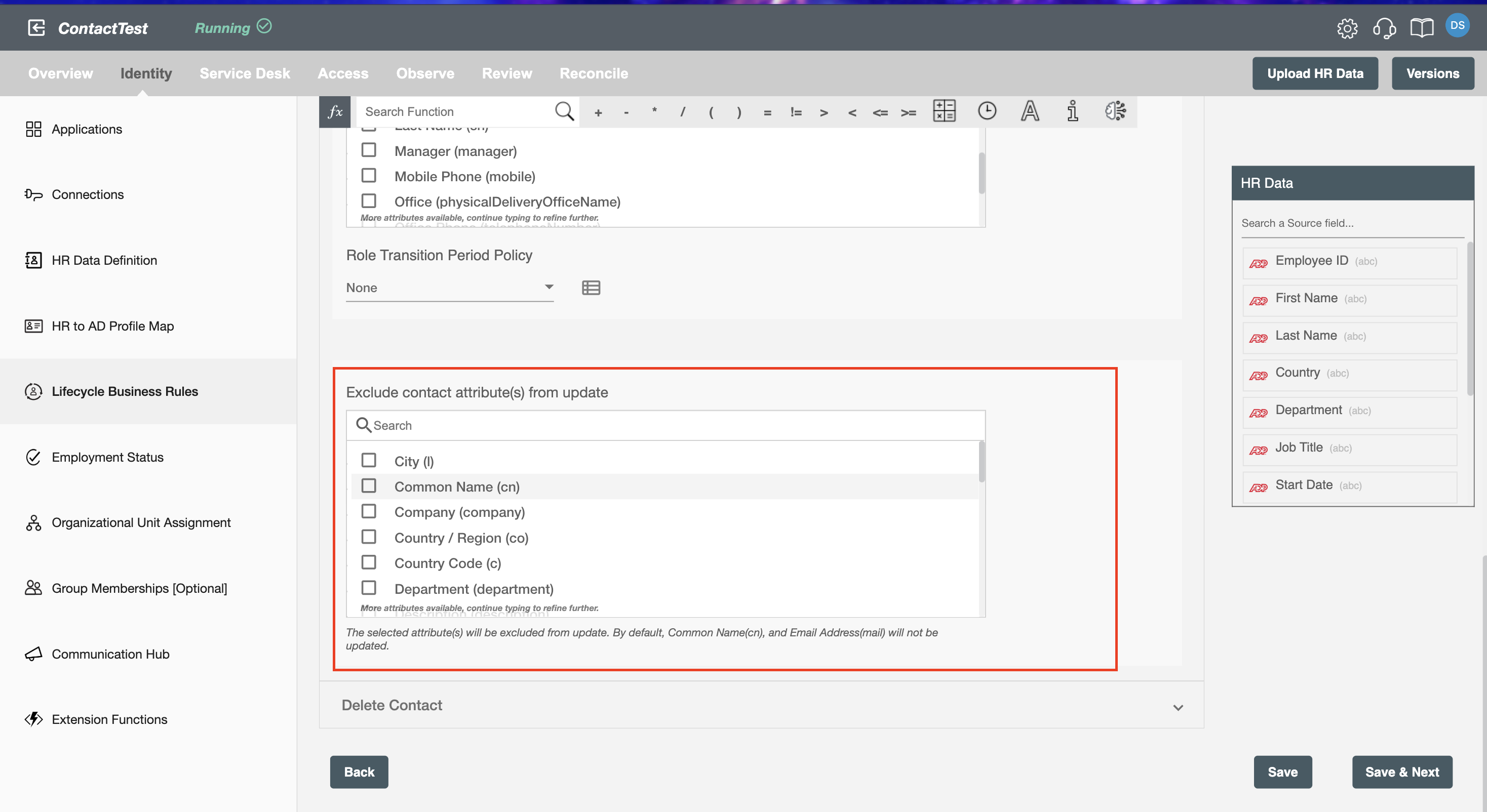
Exclude Contact Attributes on Updating - The selected attributes will not be considered when updating a contact profile.
Delete Contact
Using this operation, you can delete a contact account in the Identity Platform when an employee is deleted in the HR system.
Schedule Deletions
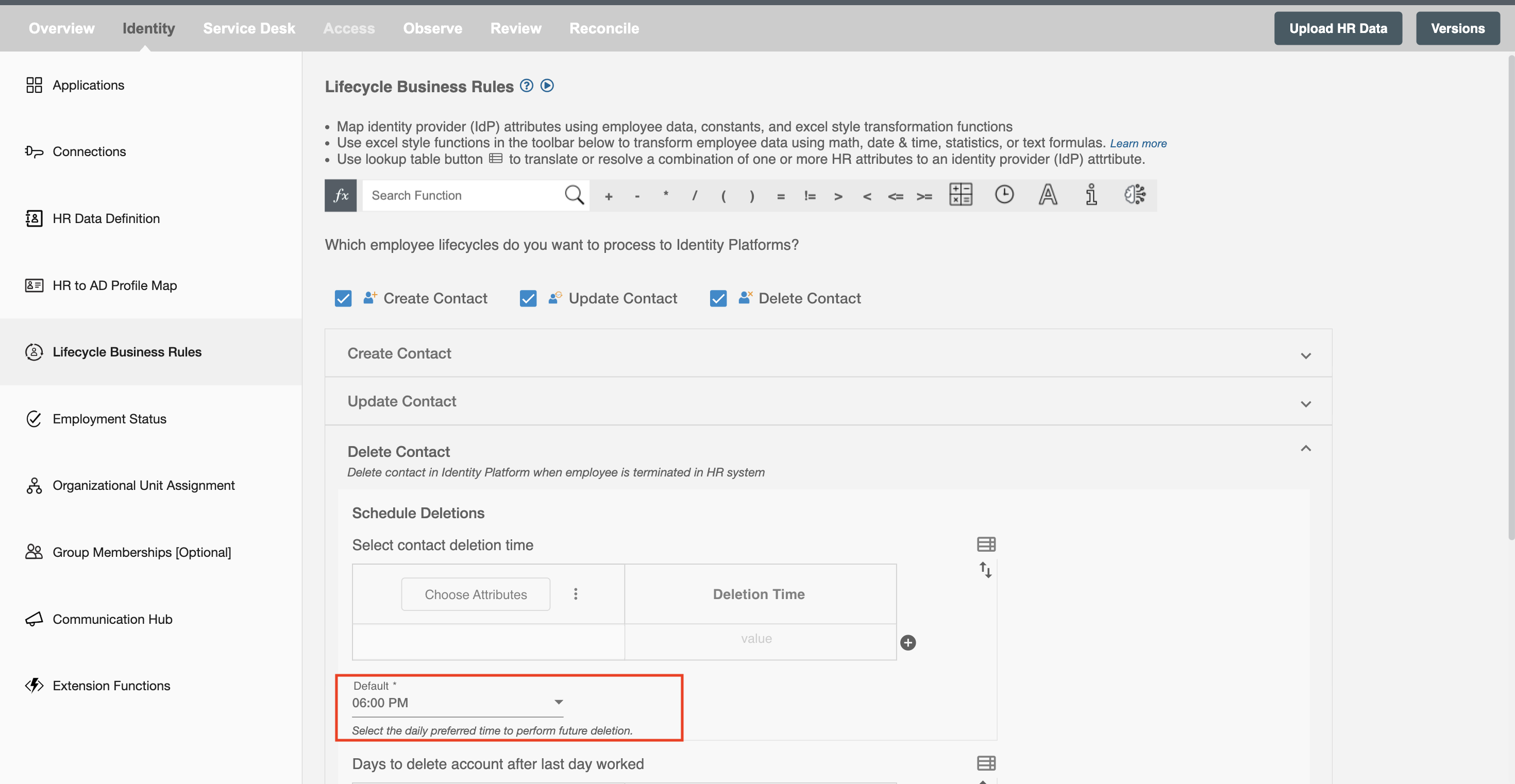
Contact Deletion time
- Choose a preferred time to schedule the deletion of the contact. The deletion event will take place at the scheduled time.
With the lookup table (highlighted in red), you can define conditional logic based on employee attributes. If the conditions are satisfied, the specified timestamp is applied. Otherwise, the default timestamp is used.
Day(s) to delete after the last day worked
- Select the number of days by which you want to delay the deletion of the contact after the specified date. By default, the none option is selected, you can modify it as required.
Using the lookup table (highlighted in red), you can set conditions based on attribute values. If the conditions are satisfied, the specified number of days is applied. Otherwise, the default value is used.
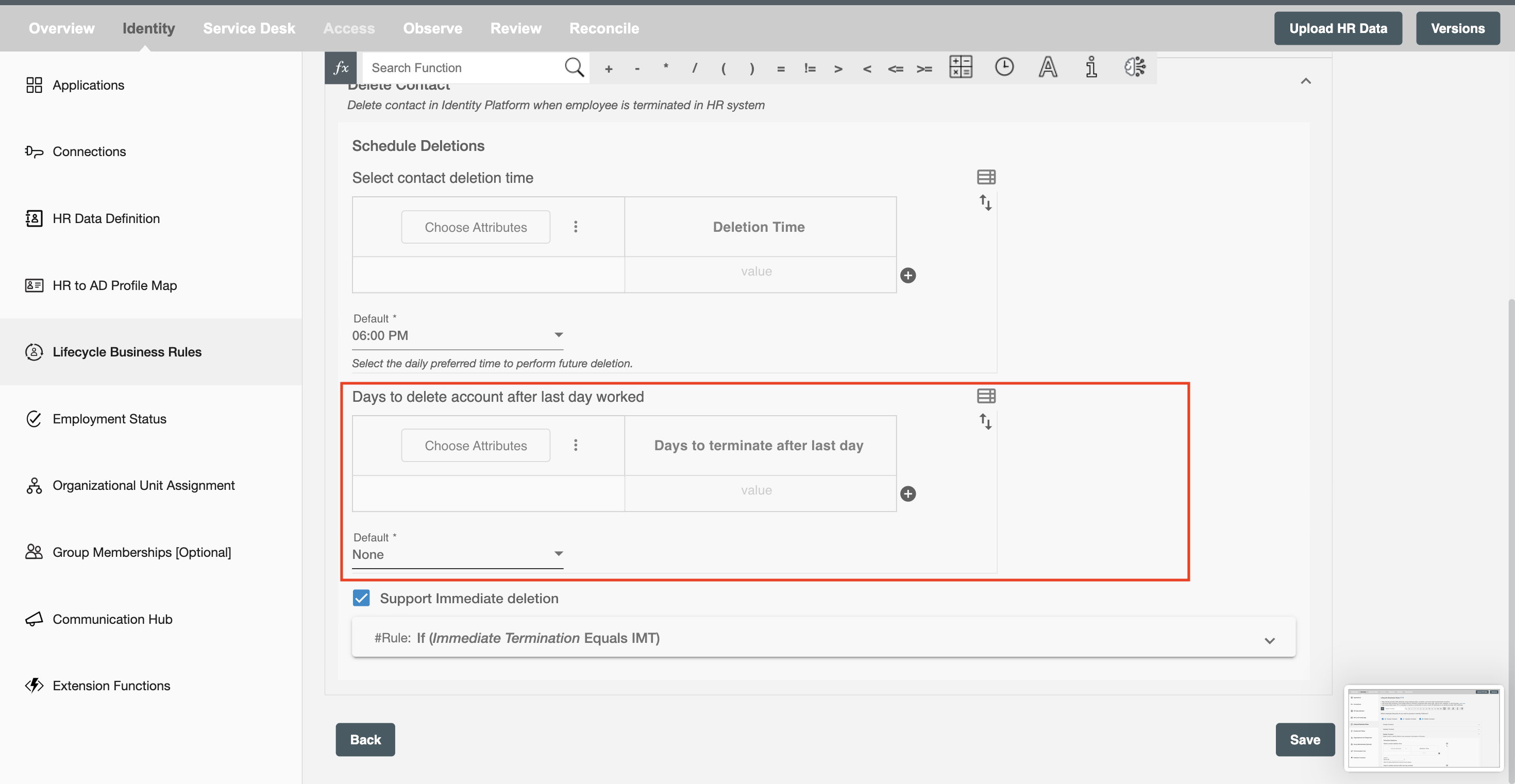
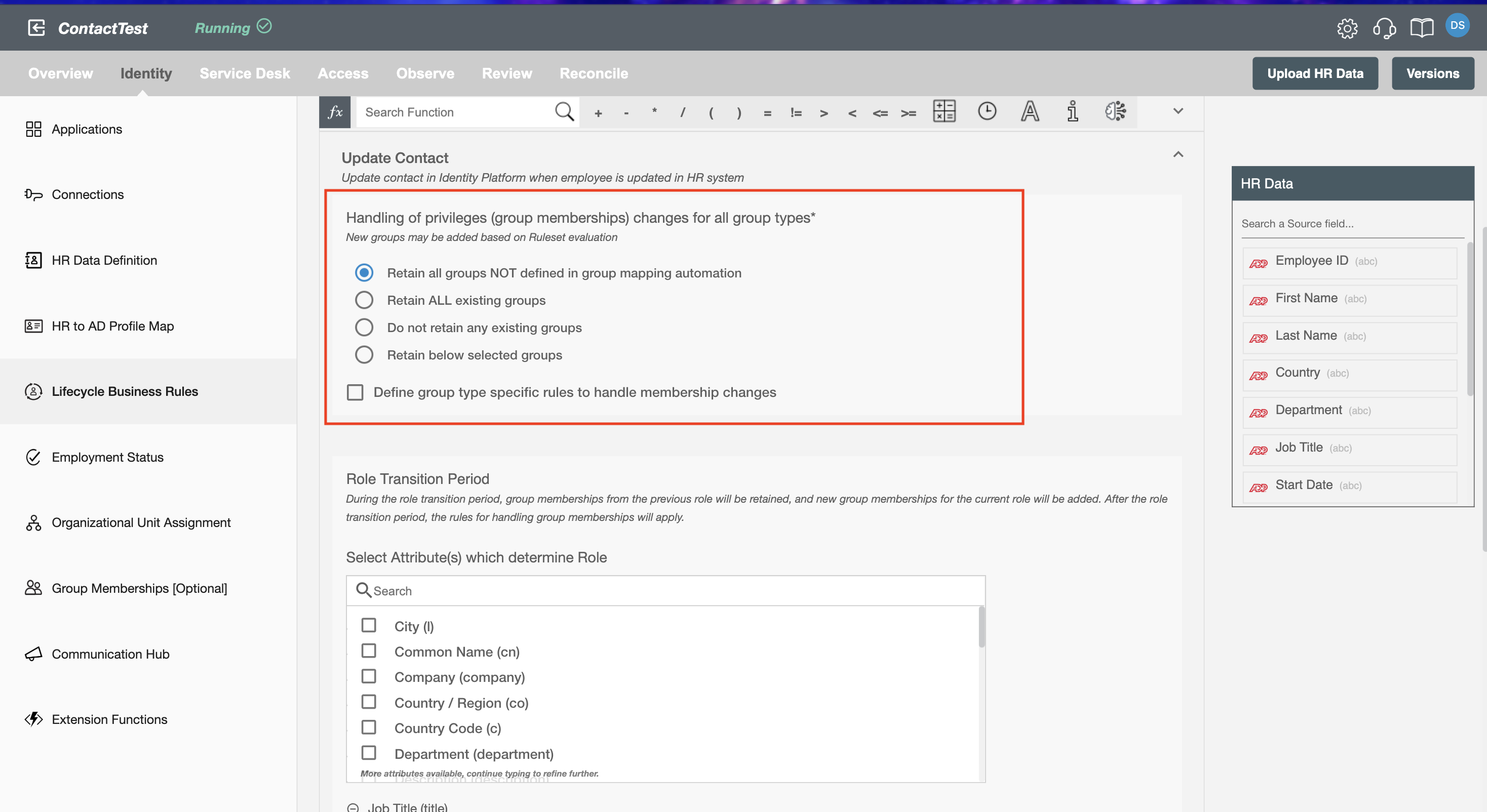
Support Immediate Deletion - Based on the provided condition, the contact will be deleted effectively irrespective of the last working day (if provided).