Configuration
The Workforce 360 Configuration page is the central place to enable the Workforce 360 feature and control how employee data is ingested, harmonized, and kept in sync with your HR and identity systems.
From this page, company administrators can:
- Enable or disable the Workforce 360 feature.
- Map HR application attributes to standardized semantic data definitions.
- Select identity system connections to sync employee data from on a recurring schedule.
- Configure Access Applications to sync data
Enabling Workforce 360
The Workforce 360 toggle is fixed at the bottom of the configuration page and remains visible at all times as you scroll through the settings.
When Workforce 360 is enabled, any configuration changes require clicking Apply to take effect. Applying changes redeploys Workforce 360 with the updated settings.
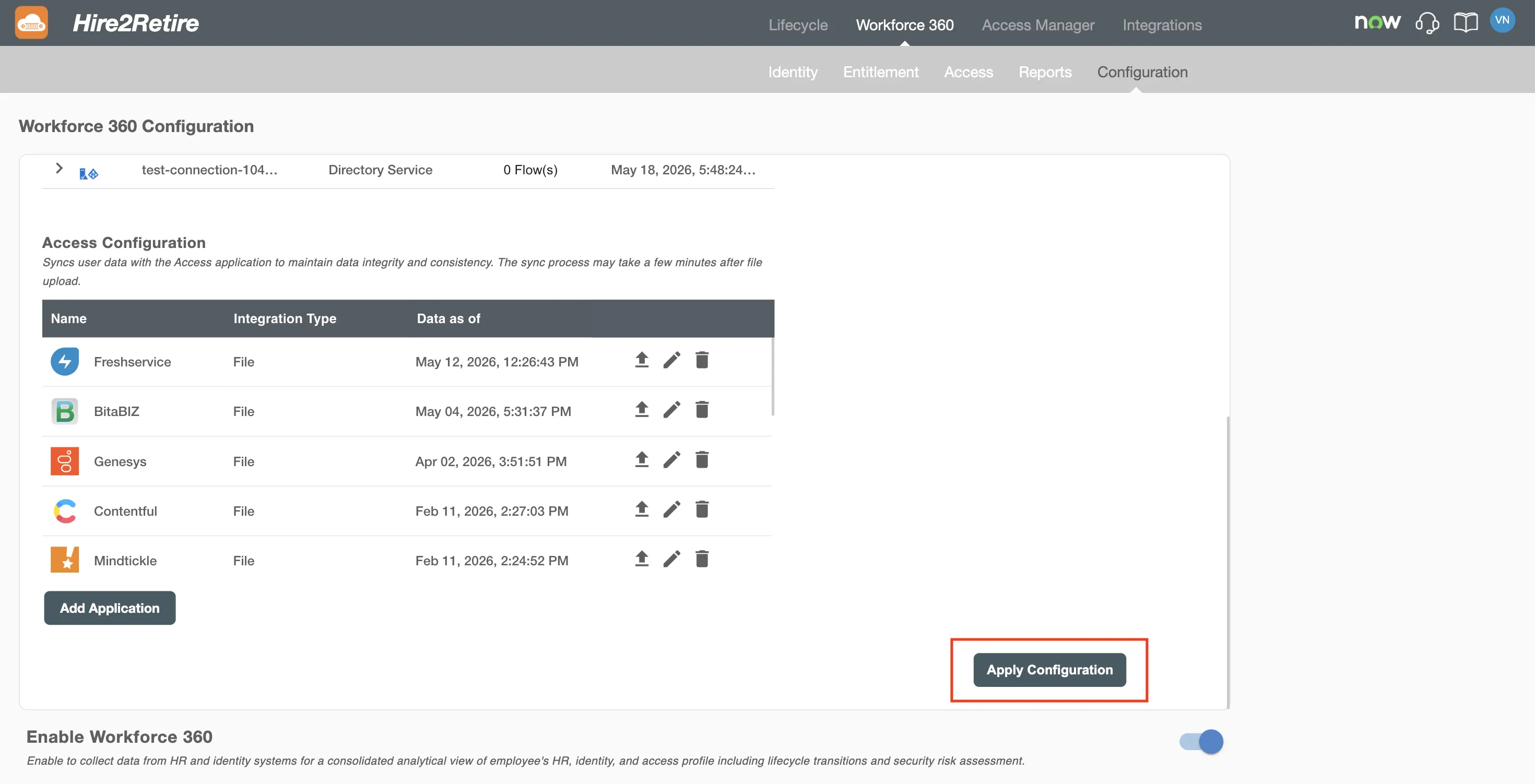
When Workforce 360 is disabled, use the Save button to persist configuration changes. You must save before the toggle can be turned on.
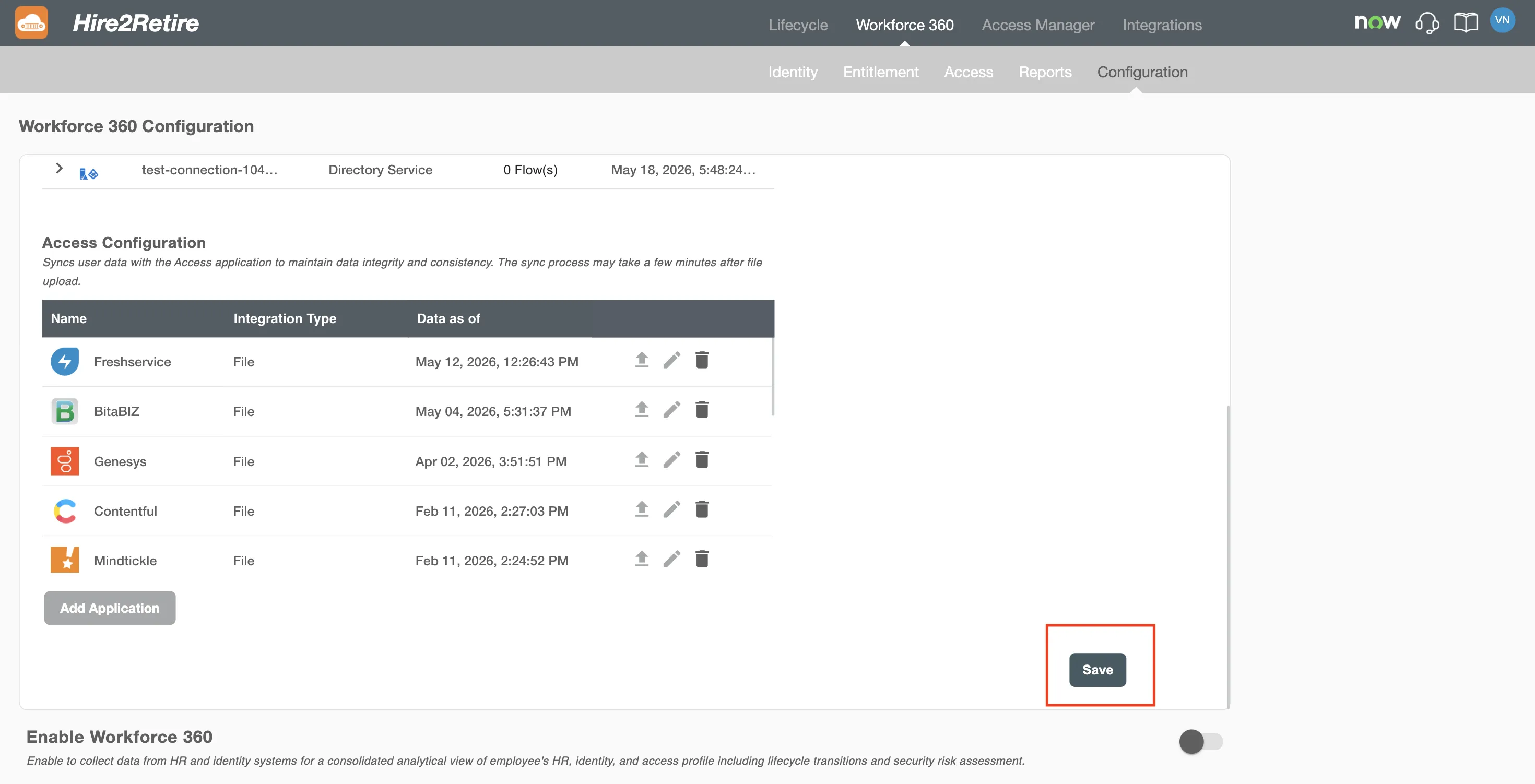
In both states, navigating away without saving prompts a warning to either save or discard your changes.
HR Applications Semantic Data Mapping
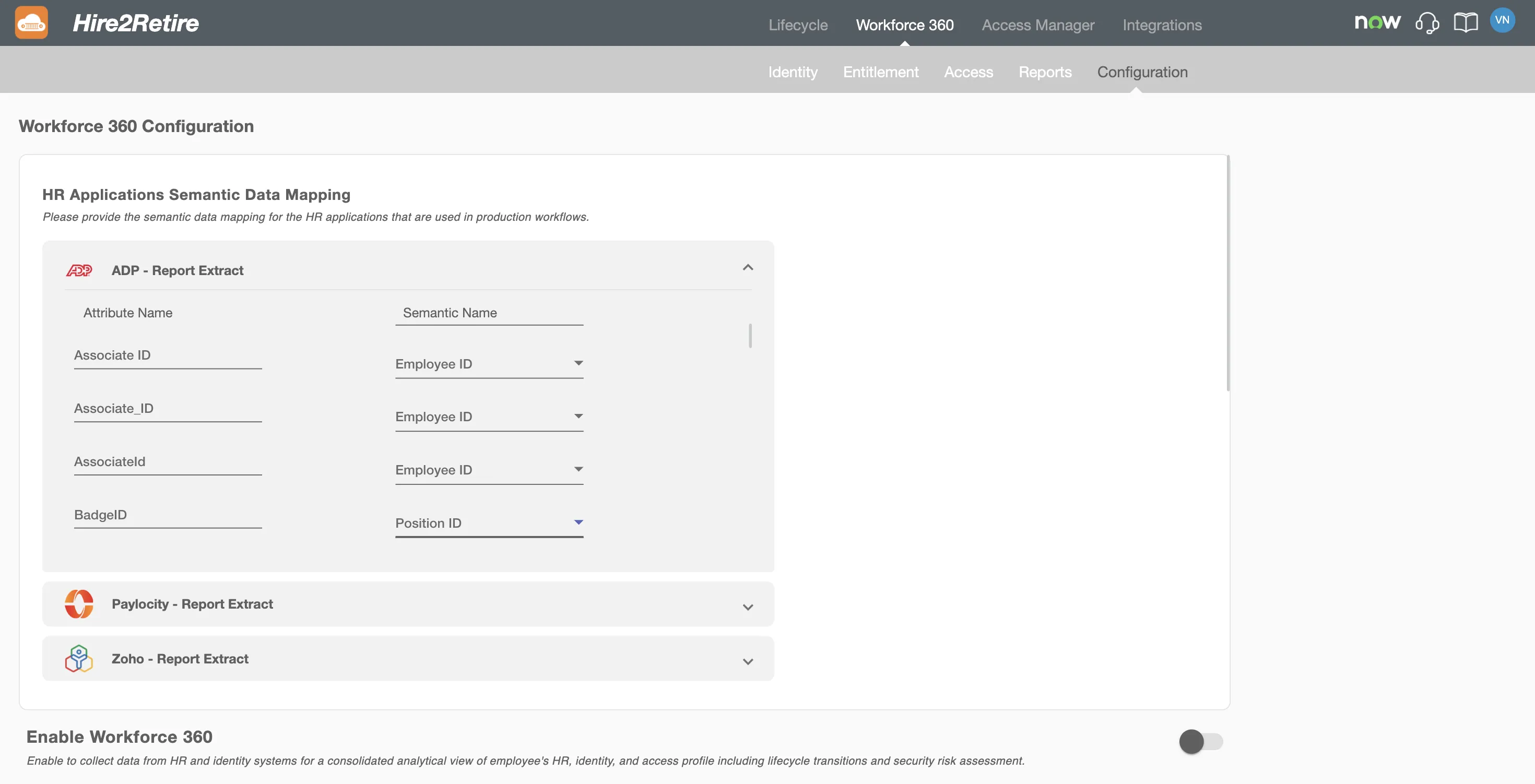
Different HRIS systems use varying attribute names and definitions. The HR Applications Semantic Data Mapping section lets you map the raw HR attributes from your connected applications to standardized semantic names, ensuring consistent data across all Workforce 360 features.
Workforce 360 automatically identifies all HRIS applications used in your organization's running production workflows and displays their attributes here.
How Mapping Works
- Only attributes from HRIS applications used in Prod tagged and running workflows are shown. If an application appears in multiple such workflows with different attribute sets, the union of all attributes is displayed, with each attribute appearing only once.
- Hire2Retire intelligently suggests a semantic data value for each HR attribute based on common definitions. Review these suggestions and update any that do not match your organization's needs.
- The semantic name dropdown is organized by category and supports search to quickly find a specific semantic name.
Mapping Multiple Attributes to the Same Semantic Name
For organizations with multiple workflows and varied attribute sets, Workforce 360 supports mapping two or more synonym attributes to the same semantic name. Simply select the same semantic name for multiple attributes in the mapping table.
Semantic data for Identity Provider (IdP) and Privilege systems is predefined by Hire2Retire and is not displayed or editable on this page.
Identity Systems Data Sync
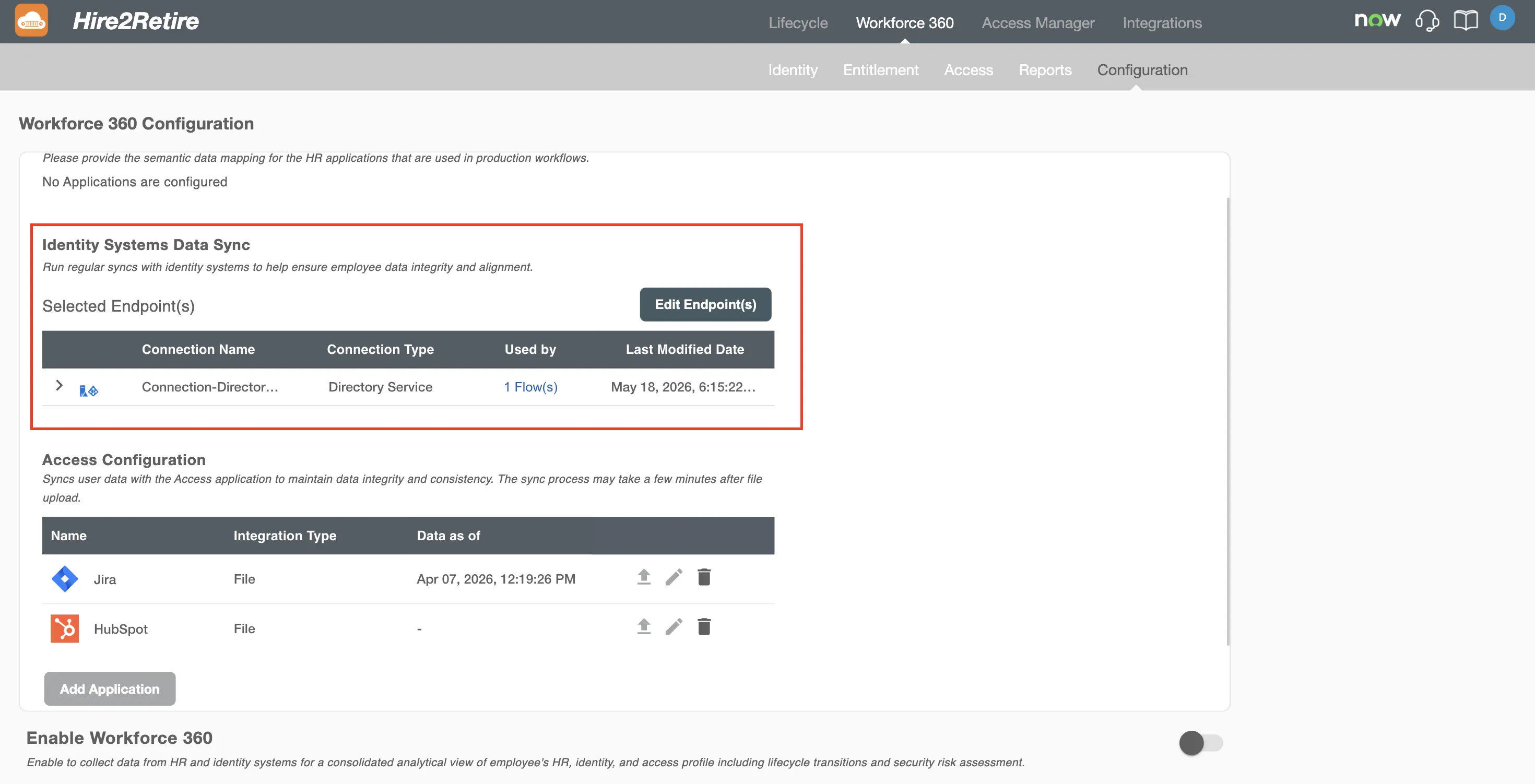
Workforce 360 periodically syncs employee data directly from your identity systems (such as Active Directory or Entra ID) to capture manual changes made outside of Hire2Retire workflows.
The Identity Systems Data Sync section displays all identity connections configured in your Hire2Retire environment. By default, connections that are part of active production-tagged workflows are pre-selected.
Selecting Endpoints
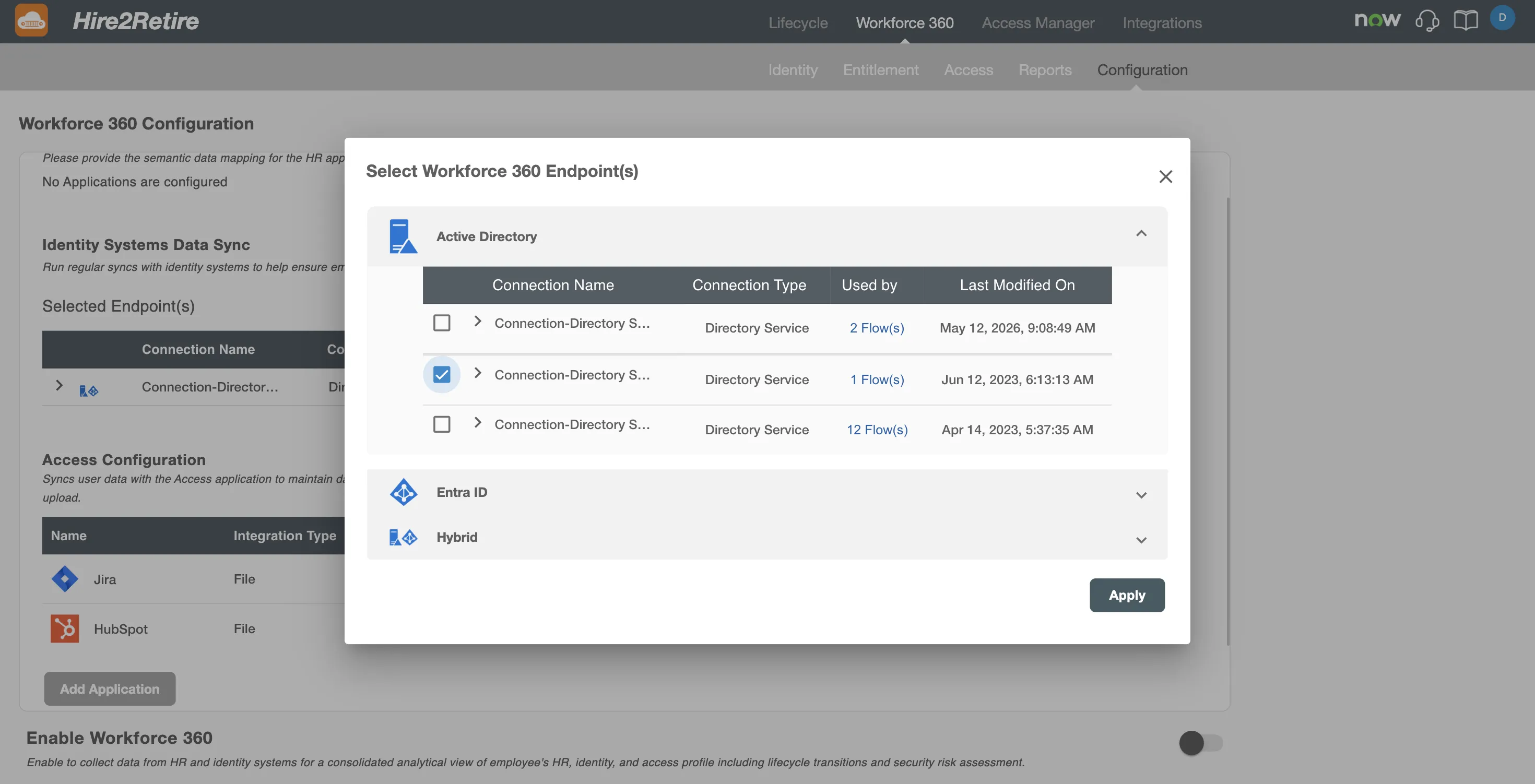
- Click the Edit Endpoint(s) button to open the endpoint selection page.
- Connections are grouped by identity application. For each connection, you can see:
- Connection name and connection type.
- A count of Hire2Retire workflows using that connection — click the count to view the names and descriptions of those workflows.
- Connection details for the endpoint.
- Select one or more connections to include in the sync.
- Click Apply to apply your selections.
Sync Interval
Workforce 360 syncs data from selected identity system connections every 24 hours by default. This interval is fixed and cannot be configured.
Endpoint selections take effect once you click the Apply (or Save) button on the main configuration page.
Access Configuration
The Access Configuration section of the Workforce 360 configuration page provides a centralized place to integrate third-party applications for user access data ingestion. Administrators can add new applications, update existing configurations, upload access data files, and remove integrations they no longer need.
Access data can be imported via flat-file (CSV) upload. This method is flexible — nearly every application can export user data to a CSV — making it available even when a direct API integration does not yet exist.
All configured access applications are listed in a table showing:
| Column | Description |
|---|---|
| Name | The name of the configured application |
| Integration Type | The method used to import data (e.g., File) |
| Data as of | Timestamp of the most recent successful data sync |
| Actions | Edit, Delete, and Upload File (for file-based integrations) |
Adding a New File-Based Access Integration
Click the Add Application button to open a full-page form for configuring a new application.
1. Select the Application
Use the Select App from List dropdown to choose an application. The list includes all SCIM applications supported by Hire2Retire, each shown with its logo. You can search within the list to find your application quickly.
- Selecting an application from the list auto-fills the application name and logo, which cannot be overridden.
2. Fill in Application Details
- Application Name (required) — pre-filled when selecting from the list.
- Application Logo (optional) — pre-filled when selecting from the list.
- Application Owner - Multi-select dropdown listing up to 30 active AD/Entra ID identities. Use the search field to find specific users. Assigning owners establishes accountability for the integration — owners are the designated contacts responsible for maintaining the application's access data, uploading updated files, and ensuring the integration remains accurate over time.
- Integration Type - Shown as File, indicating that access data will be collected through file upload.
3. Define the Access Data Structure
Under Access Data Definition:
- Select the field delimiter used in your export file (e.g., comma, tab).
- Upload a sample CSV file to populate the attribute list. Once uploaded, an expandable panel displays all detected attributes.
- Set the date format used by the application for date fields.
- Map attributes to semantic names — Workforce 360 uses an LLM to suggest semantic mappings automatically. Review the suggestions and override any that do not fit. Attributes left unmapped will not be available for filtering in Workforce 360.
4. Set Identifier and Correlation Fields
- Unique Identifier - The attribute in the report that uniquely identifies each record.
- Account Correlation - The attribute used to match a record to an existing identity in Workforce 360. This links the application account (e.g., a Salesforce account) to a known AD/Entra ID identity based on a shared attribute.
Click Save to complete the configuration. The new application will appear in the access applications table with Edit, Delete, and Upload File actions.
Editing an Access Integration
Click Edit next to an existing access application to open a full-screen form pre-filled with its current settings. You can update:
- Application name and owners
- Sample file (re-upload to refresh detected attributes)
- Semantic attribute mappings
- Unique identifier and account correlation fields
When you click Save, a warning dialog highlights the impact of your changes. For example, updating semantic attribute mappings displays:
"Updating attribute mapping may introduce inconsistencies in historical data."
Confirm to apply the changes.
Uploading Access Data
Access data files can be uploaded from two locations:
- Configuration tab - Click the Upload File button in the actions column for the relevant application. A dialog prompts you to select and submit the file.
In both cases, Workforce 360 validates that the uploaded file's headers match the configured attribute definition. If validation fails, an error is shown indicating which columns are missing or unexpected. On success, the Last Sync timestamp is updated on both the overview page and the configuration table.
Deleting an Access Integration
Click Delete next to an application in the configuration table. A confirmation dialog appears before any changes are made.
- Confirm - The application is removed from the configuration table and from the Access tab in Workforce 360. Subsequent file uploads for that application are blocked until a new integration is configured.