Freshservice Connection
Freshservice integration in Hire2Retire lets you connect your Freshservice account using API Key Authentication. Please refer to the document Freshservice API documentation to know more about API Key Authentication in Freshservice.
RoboMQ follows strict security and privacy standards to protect your account. See our Security and Privacy Policies to understand how your account access is protected.
Link Freshservice Account
You can either set up a new connection to Freshservice, or you can use any existing connection created under the Lifecycle (ServiceDesk) section available to all Hire2Retire accounts in your Organization.
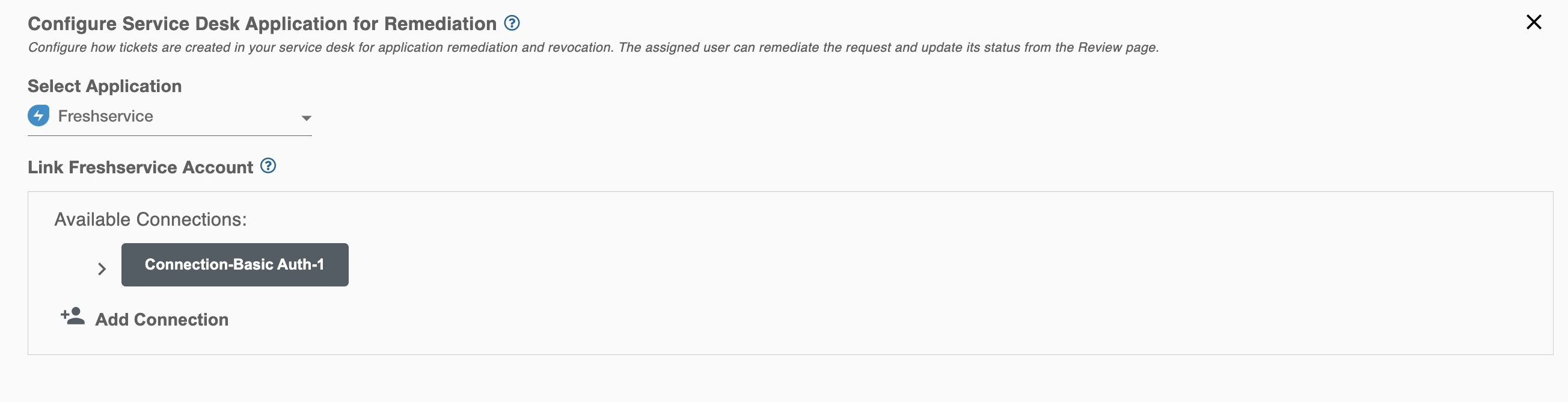
Add Connection
Step 1. Specify your Freshservice Instance URL. When you open your Freshservice account in the browser, you can find the Site URL as https://Subdomain.freshservice.com.
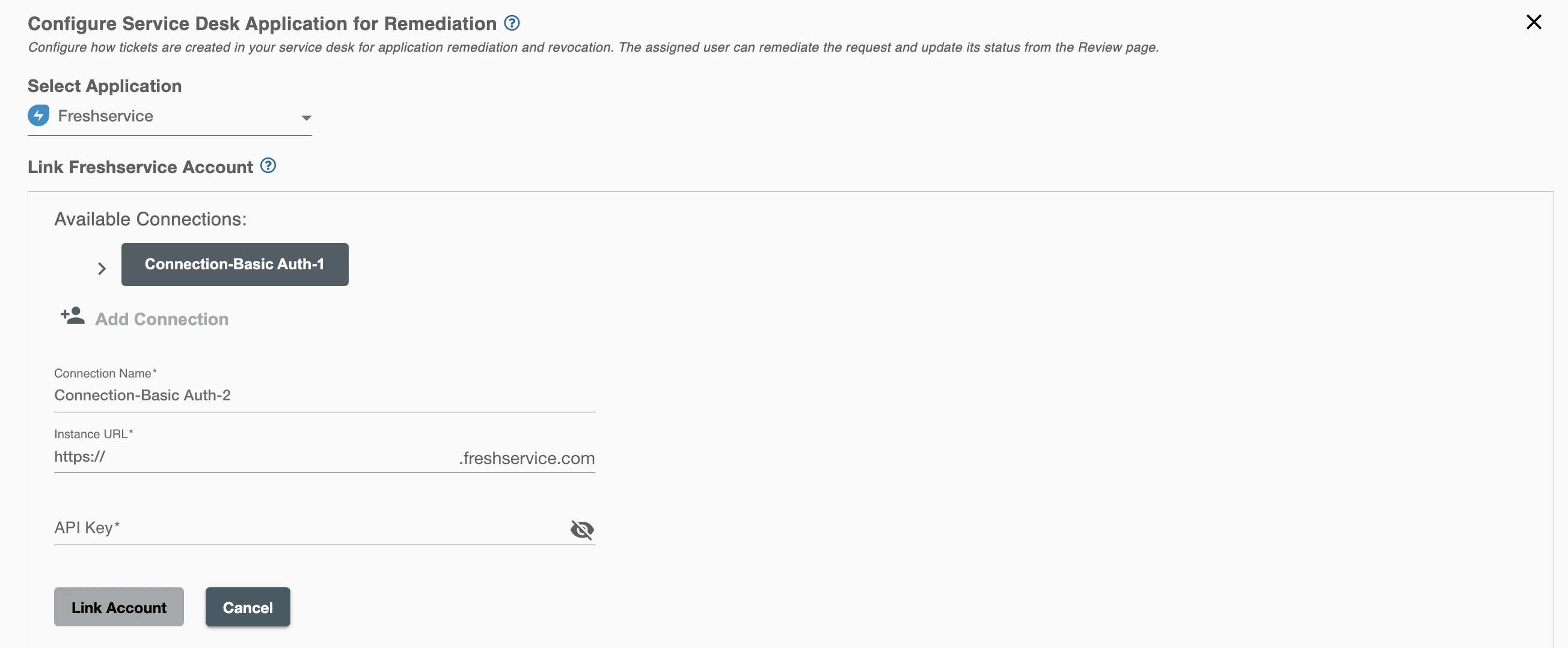
Step 2. Enter your Freshservice API Key to allow Hire2Retire to access your Freshservice account.
How to get API key?
-
Login to your Freshservice Console with administrator privileges.
-
Click on your
profile picturein the top right corner of your portal and openProfile Settingspage.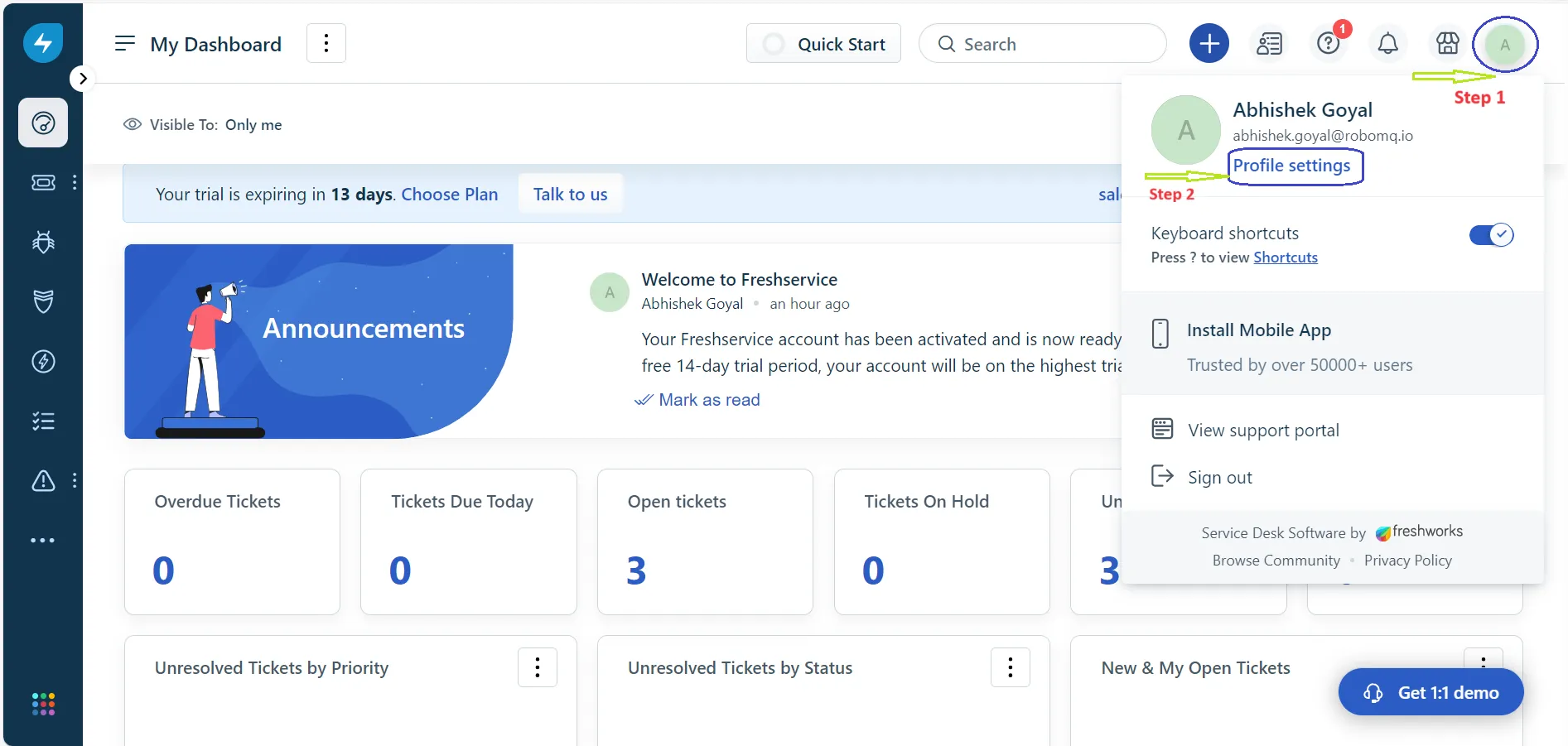 Figure 3. API key generation for Freshservice
-
Click on the
I'm not a robotcheckbox in theDelegate Approvalssection.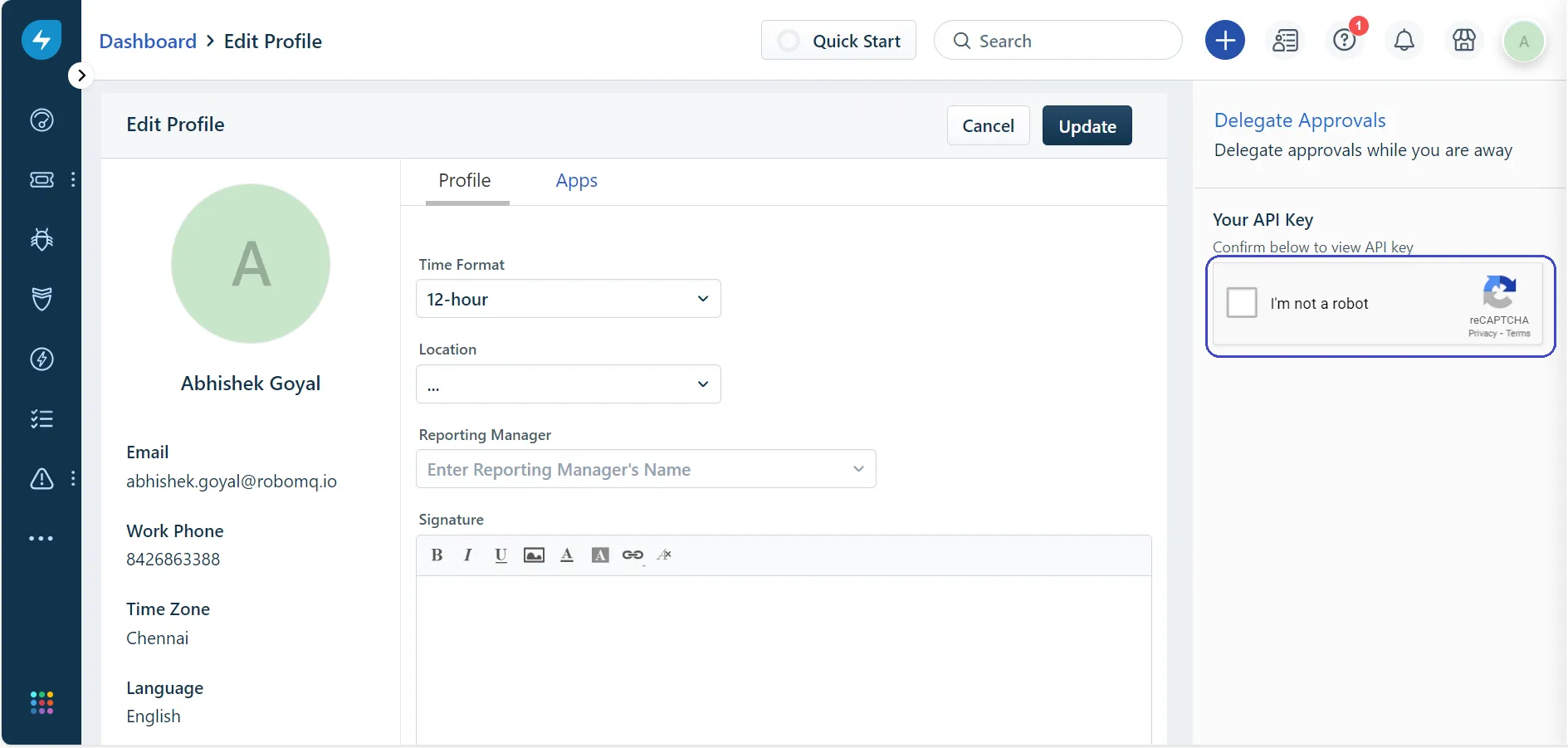 Figure 4. API key generation for Freshservice
-
Copy the API key and paste it into the Hire2Retire connection form in Access Certification. If you
Reset API keyin Freshservice, the existing Hire2Retire or Access Certification connection will stop working. A new connection must be created using the updated API key.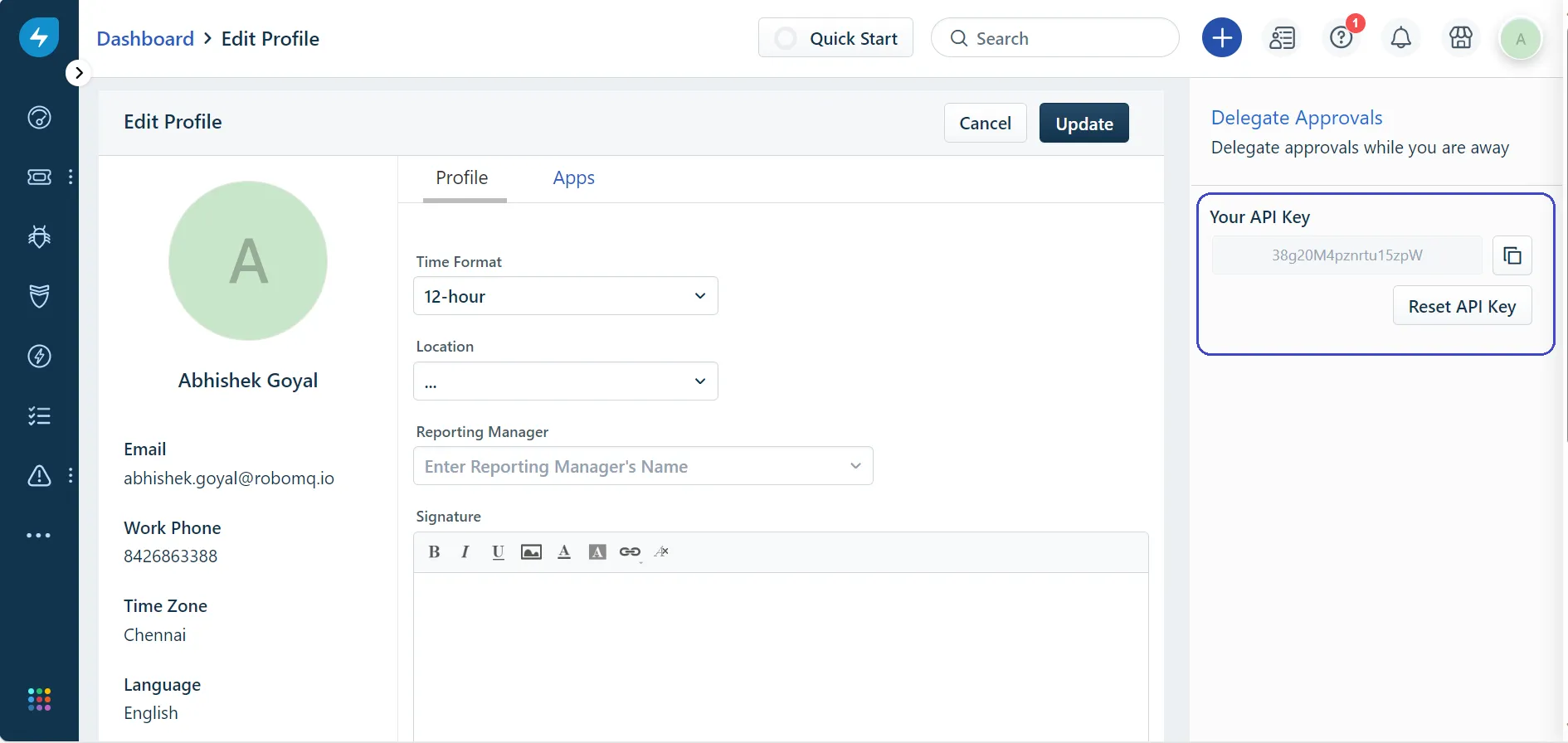 Figure 5. API key for Freshservice
-
Click Link Account to connect your Freshservice account and complete the setup.
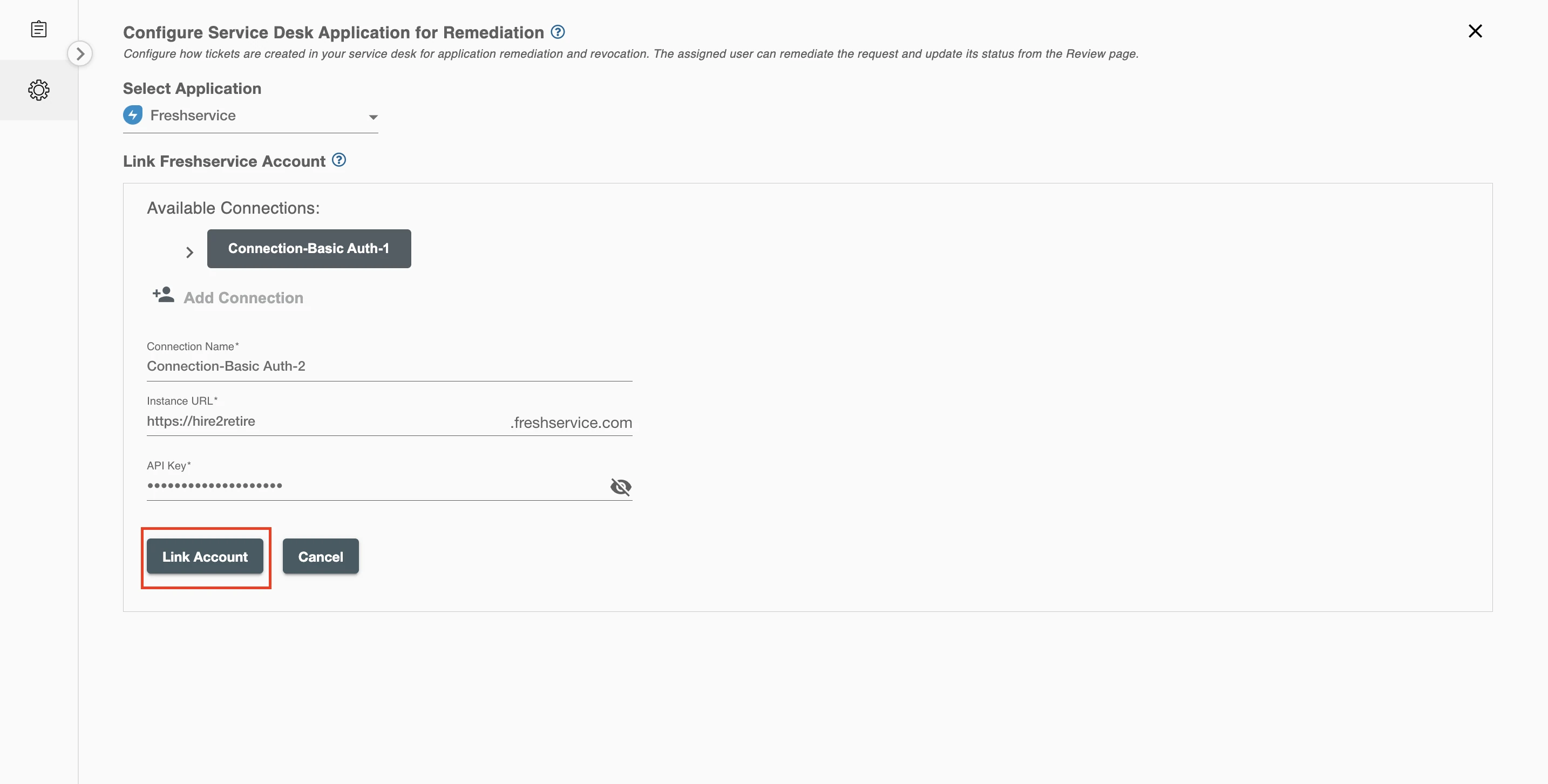 Figure 6. Establishing the Connection for Freshservice on Access Certification