Employee Detail
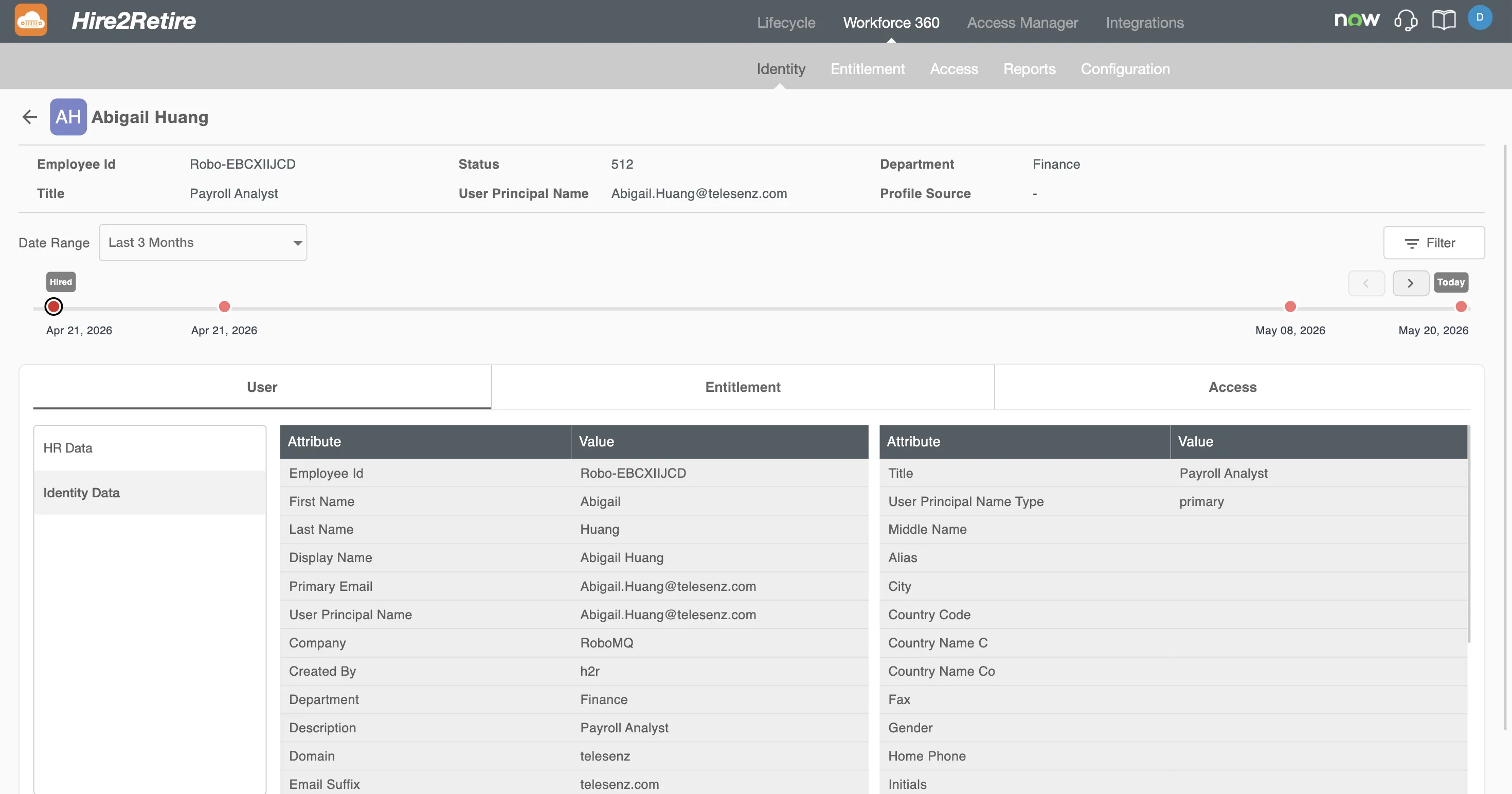
The Employee Detail page provides a comprehensive view of an individual employee. It brings together the employee's profile summary, a timeline of lifecycle events and attribute changes over time, and detailed HR, Identity, and Access data. The timeline makes it easy to track how an employee's information has evolved — from their initial hire through any subsequent updates, leaves, or terminations.
Employee Summary
The top of the page displays the employee's avatar (with initials), display name, and a back arrow to return to the Homepage.
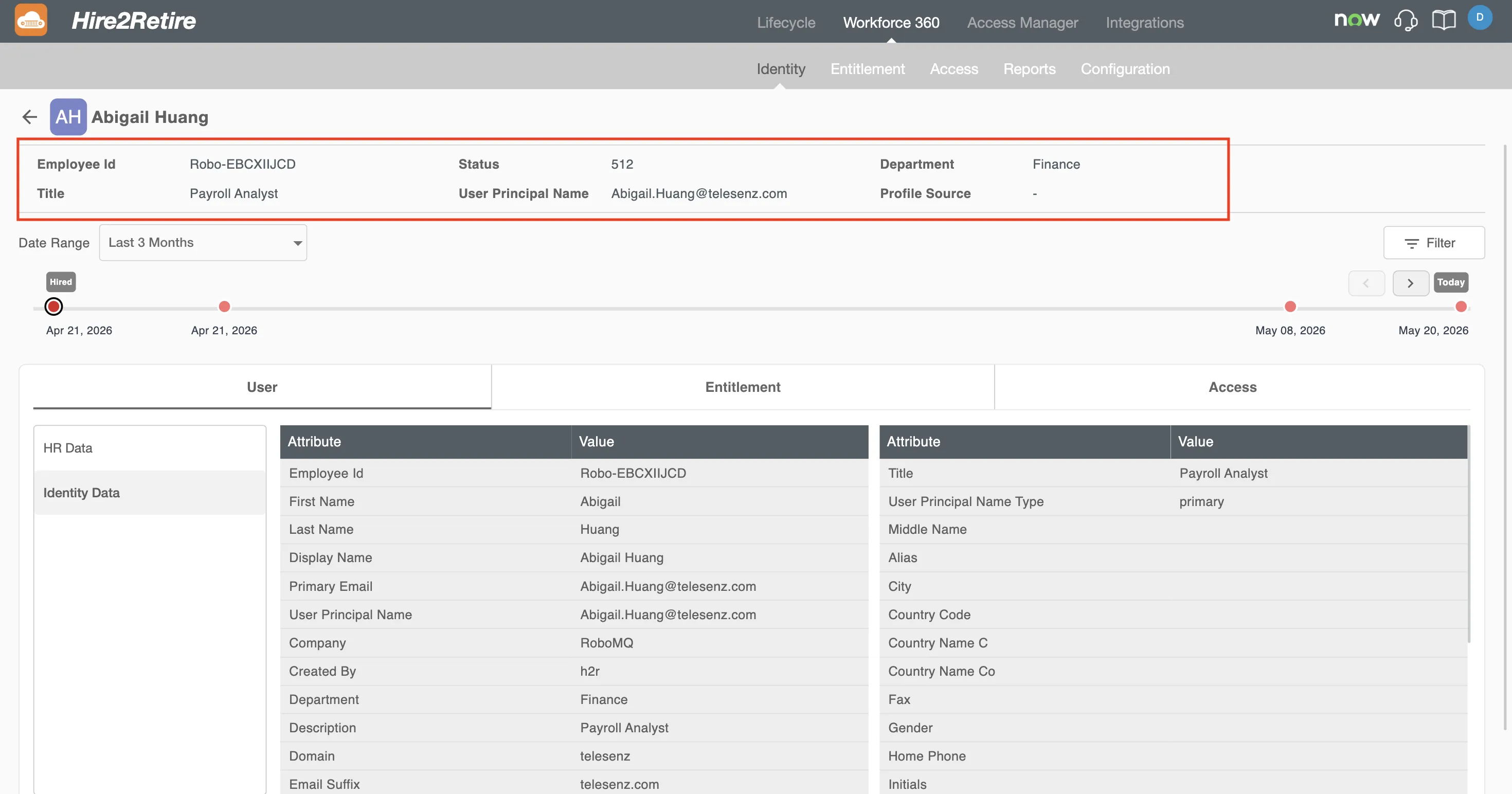
Below the avatar, the following summary fields are shown:
-
Employee Id - The unique identifier assigned to the employee in the HR system. This ID is used to correlate the employee's record across HR, identity, and access data sources within Workforce 360.
-
Title - The employee's current job title as sourced from the IDP system. This reflects their role within the organization and may update over time as promotions or transfers are processed.
-
Status - The current account status of the employee, derived from the identity system. Common values include Active, Disabled, or Inactive, and indicate whether the employee currently has an active identity in the organization.
-
User Principal Name - The employee's primary identifier in the identity system, typically their organizational email address (e.g., jane.doe@company.com). This is the attribute most commonly used for account correlation across connected systems.
-
Department - The department the employee belongs to as recorded in the IDP system. This is useful for scoping searches and filters to a specific organizational unit.
-
Profile Source - Indicates the system from which the employee's profile was originally ingested into Workforce 360. This helps administrators trace data provenance and understand which source of record drives the employee's profile information.
Timeline
The timeline provides a chronological view of all recorded lifecycle events for the employee. The Date Range dropdown (default: Last 1 Year) controls the span of the timeline, and navigation arrows along with a Today button allow moving forward and backward along it.
Each point on the timeline represents a discrete change in the employee's record, captured from one of four sources:
- HR Profile Change — an update to the employee's HR data, such as a job title change, department transfer, or status update in the HR system.
- IDP Profile Change — a modification to the employee's identity profile, such as an attribute update in Active Directory or Entra ID.
- Group Membership Change — an addition or removal from a group or entitlement in the identity system, reflecting changes to the employee's privileges or roles.
- Access Data Change — a change in the employee's provisioned access across connected SCIM or file-based applications.
Clicking on an event reveals the full state of the employee's profile at that specific point in time, showing a snapshot across HR, IDP, and access systems. This makes it possible to reconstruct exactly what the employee's record looked like at any moment — useful for audits, compliance reviews, and investigating unexpected changes.
A Filter option is available on the right to narrow the timeline to specific event types.
Tabs
The detail page is organized into three tabs, each providing a focused view of a different dimension of the employee's data:
User
Displays the employee's current attribute values, split into two sections in the left sidebar:
- HR Data — attributes sourced from the HR system, such as employee ID, job title, department, and employment status.
- Identity Data — attributes sourced from the identity system, such as the user principal name, account status, and group memberships in Active Directory or Entra ID.
Entitlement
Displays all entitlements currently assigned to the employee — the groups and roles they hold within the identity system. Each entitlement shows its display name, group type, and how it was assigned. Use this tab to verify that the employee's entitlements align with their current role and employment status.
Access
Displays the access provisioned to the employee across all connected applications. Each entry shows the application name, the employee's membership or access status within that application, and when the access was last synced. Use this tab to audit whether the employee's active access matches their entitlements and current role.