Decline and cancel future calendar events
On Termination
When an employee is terminated, their scheduled meetings or meetings they were invited to often continue to appear on attendees' calendars, blocking time and causing confusion. In some cases, attendees may not be aware that the employee has left and may continue joining or following up on meetings. This issue becomes more critical for recurring meetings, where future occurrences continue to appear on attendees' calendars.
Hire2Retire provides the option to automatically cancel meetings organized by the terminated employee and decline meetings they were invited to, clearing their calendar footprint as part of the termination workflow.
Required Roles and Permissions
Hire2Retire requires following roles and permissions to successfully Cancel Calendar Events.
Customer Owned Application
Application Permission
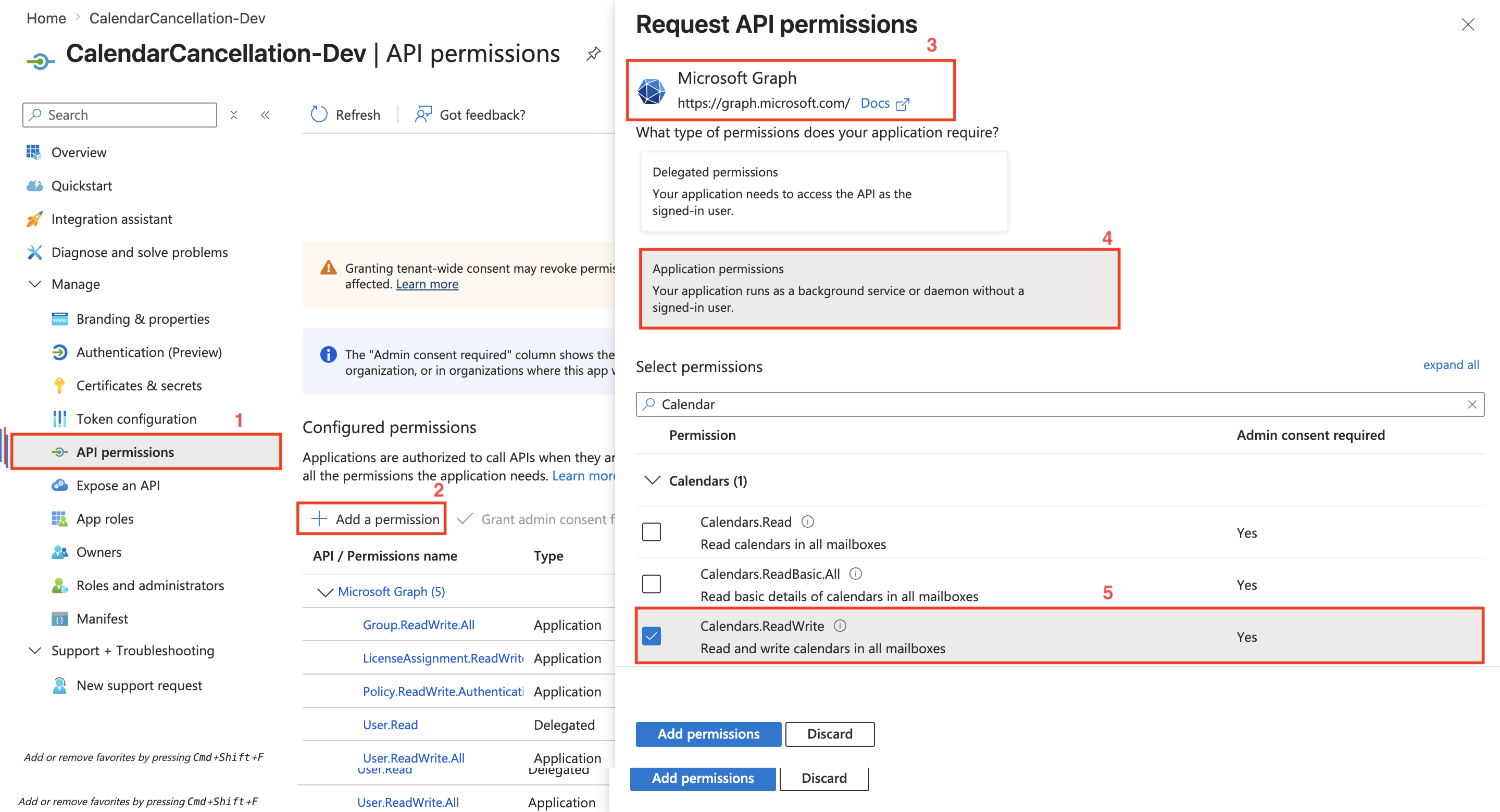
Set up application permissions for any application that needs to authenticate without user's interaction. To authorize a registered application to access the Microsoft Graph API, navigate to API permissions > Add a permission > Microsoft APIs > Microsoft Graph > Calendar permissions.
RoboMQ requires the following permission on your registered application to provide a seamless integration experience:
| Permission | Explanation |
|---|---|
| Calendars.ReadWrite | Read and write all users' Calendars |
Configure Calendar Event Clean up
This option is available as a checkbox under the termination lifecycle on the Lifecycle Business Rules page. When enabled:
-
Future meetings organized by the terminated employee, including recurring meetings, will be cancelled.
-
Meetings where terminated employee was invited will be automatically declined.
-
A cancellation message is sent for both cancelled and declined meetings. You can customize this message in the provided text box.
The Calendars.ReadWrite Microsoft Graph permission is required for this feature to function.
Lifecycle Business Rules page
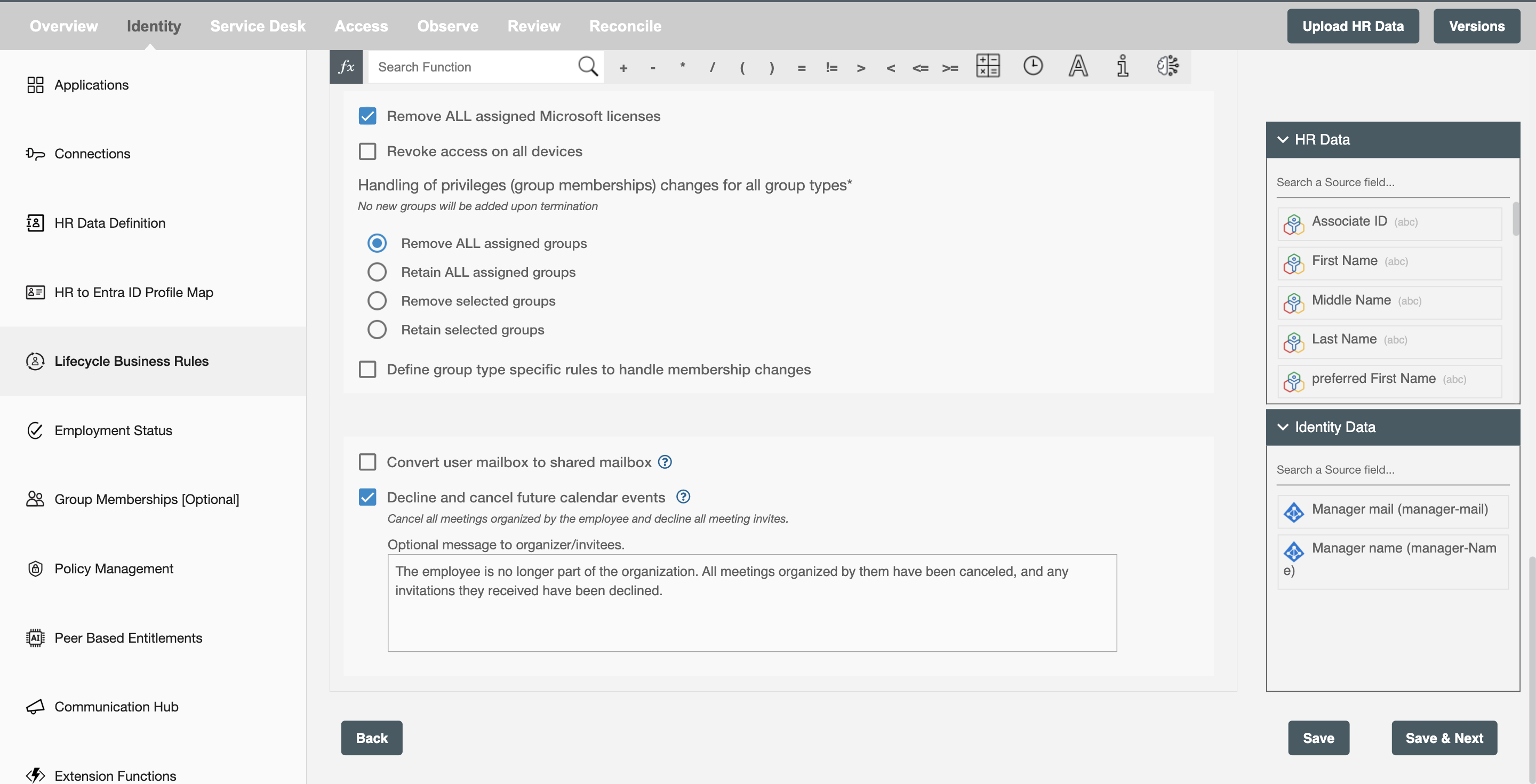
- On the Lifecycle Business Rules page, under the termination lifecycle business rule, select the checkbox titled Decline and cancel future calendar events.
- The cancellation reason textbox will have a pre-filled message as displayed.