Reports
The Reports page provides a set of canned (pre-built) reports designed to give administrators ready-to-use insights into their workforce without requiring any custom query building. In the context of Workforce 360, canned reports are structured around common HR and identity governance use cases — such as tracking new hires, monitoring terminated accounts, auditing privilege assignments, and reviewing organizational structure. Reports can be run on a schedule or as a one-time export, and results can be delivered via email and downloaded in multiple formats.
The Reports page is built around two core components: Scheduled Reports and Report Results.
Scheduled Reports
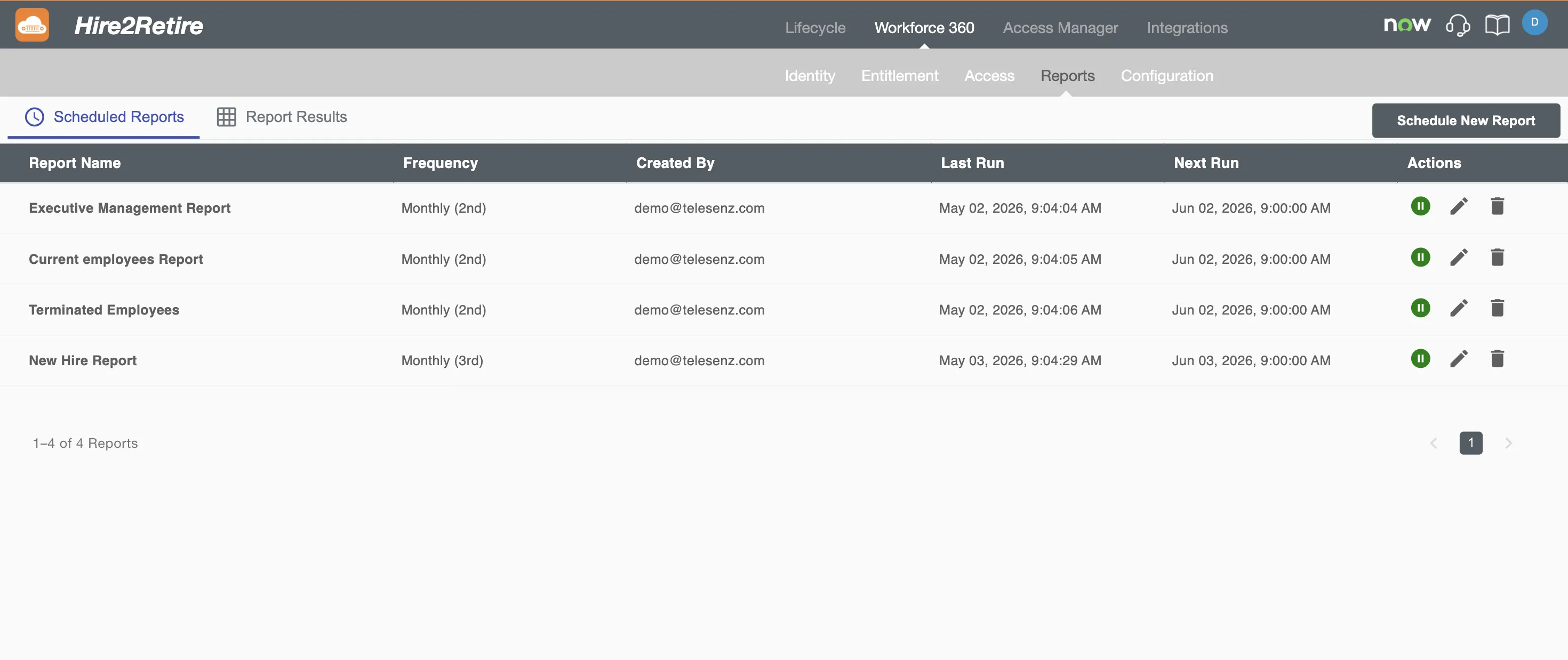
The Scheduled Reports tab lists all reports that have been configured to run automatically on a recurring basis. Each row in the list displays:
-
Report Name - The name assigned to the scheduled report when it was configured.
-
Frequency - Indicates how often the report is set to run, such as daily, weekly, or monthly. This reflects the recurrence interval defined during report setup.
-
Created By - The name of the administrator who originally created and scheduled the report. Useful for tracking ownership and accountability across multiple scheduled reports in larger teams.
-
Last Run - The timestamp of the most recent execution of this report. If the report has never run, this field will be empty. Use this to verify that reports are running as expected and to catch any missed executions.
-
Next Run - The timestamp of the next scheduled execution. This helps administrators anticipate when fresh data will be available and plan any downstream actions accordingly.
-
Actions - A set of controls to manage the scheduled report:
- Pause - Temporarily suspends the schedule without deleting it. The report can be resumed at any time.
- Edit - Opens the report configuration form to update the schedule, recipients, fields, or output format.
- Delete - Permanently removes the scheduled report. This action cannot be undone.

Report Results
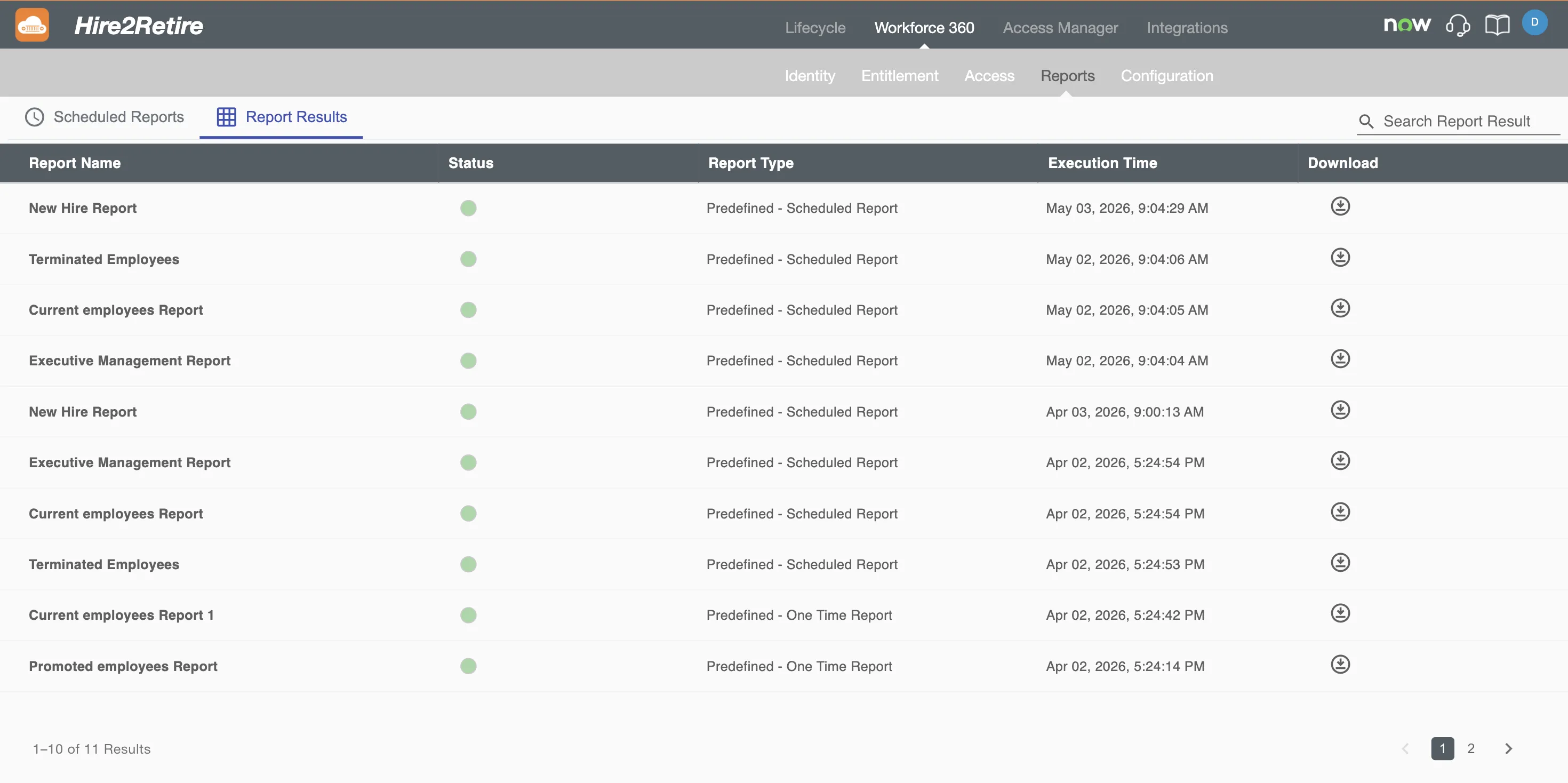
The Report Results tab lists all generated report outputs — both from scheduled runs and One time reports. Each row displays:
-
Report Name - The name of the report template used to generate the output. This corresponds to one of the pre-built templates selected during scheduling or One time report creation.
-
Status - Indicates whether the report is currently Active or Disabled. Disabled reports remain visible in the list but will not generate new outputs until re-enabled.
-
Report Type - Describes how the report was triggered. Possible values are:
- Predefined - A system-defined report run outside of a custom schedule.
- Scheduled - A report generated automatically as part of a recurring schedule.
- One Time Report - A report run manually as a single, non-recurring execution.
-
Execution Time - The date and time when the report was generated. For scheduled reports, this reflects when the most recent run completed. For one-time reports, it captures the moment the report was triggered. Use this to correlate report data with a specific point in time, particularly when auditing workforce state or reviewing historical snapshots.
-
Download - A direct link to download the generated report output in the format selected at configuration time (PDF, HTML, or CSV).
Scheduling a New Report
Clicking the Schedule New Report button opens a template selection screen. Administrators can choose from the following pre-built report templates organized by category:
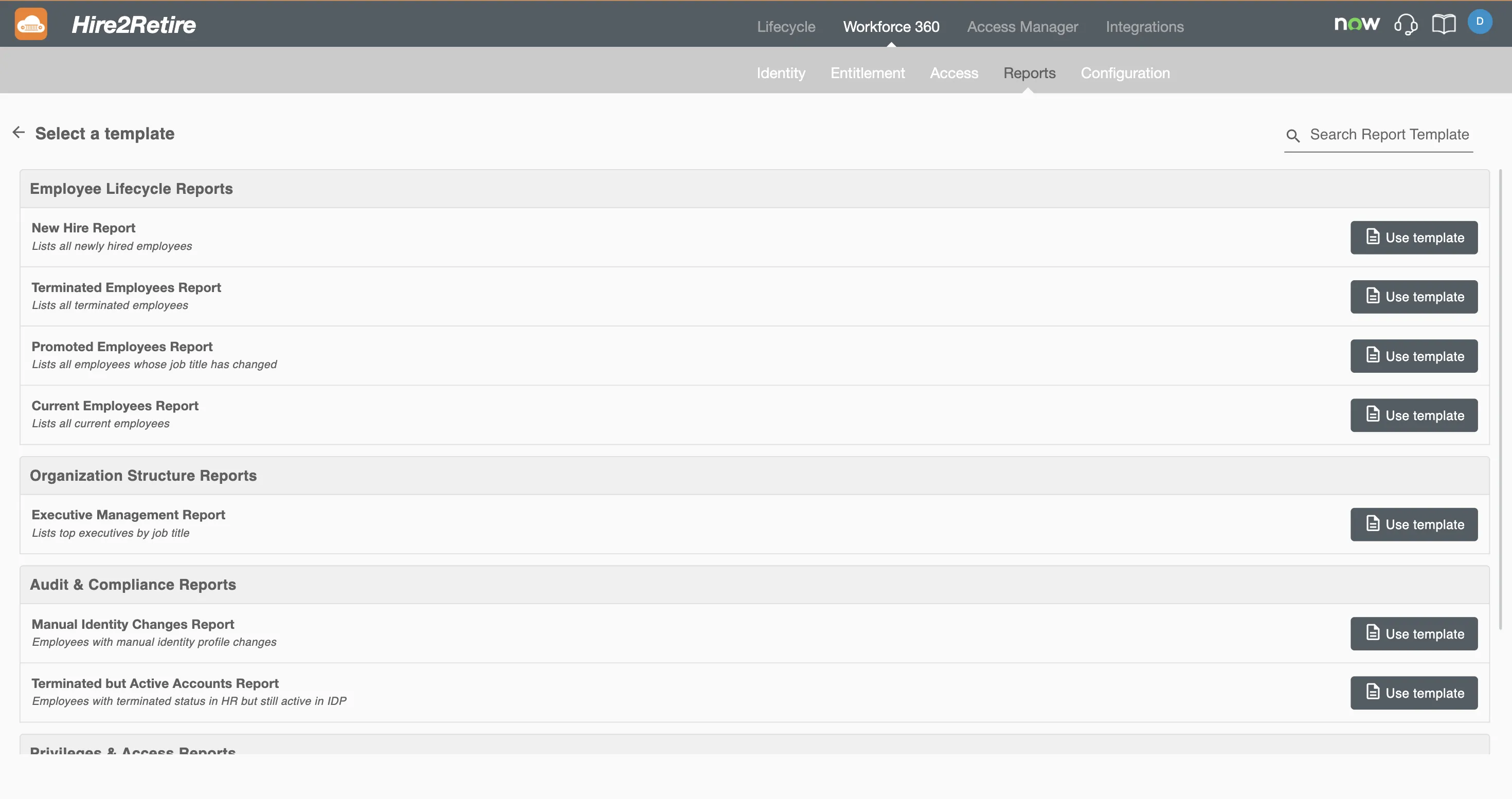
Employee Lifecycle Reports
| Template | Description |
|---|---|
| New Hire Report | Lists all newly hired employees |
| Terminated Employees Report | Lists all terminated employees |
| Promoted Employees Report | Lists all employees whose job title has changed |
| Current Employees Report | Lists all currently active employees |
Organization Structure Reports
| Template | Description |
|---|---|
| Executive Management Report | Lists top executives filtered by job title |
Audit & Compliance Reports
| Template | Description |
|---|---|
| Manual Identity Changes Report | Lists employees whose identity profiles have been manually modified |
| Terminated but Active Accounts Report | Lists employees who are marked as terminated in the HR system but still have active accounts in the IDP |
Privileges & Access Reports
| Template | Description |
|---|---|
| Employee Privilege or Entitlement Report | Lists employees who hold a specific privilege or entitlement |
| Privileged Account List Report | Lists all privileged employee accounts |
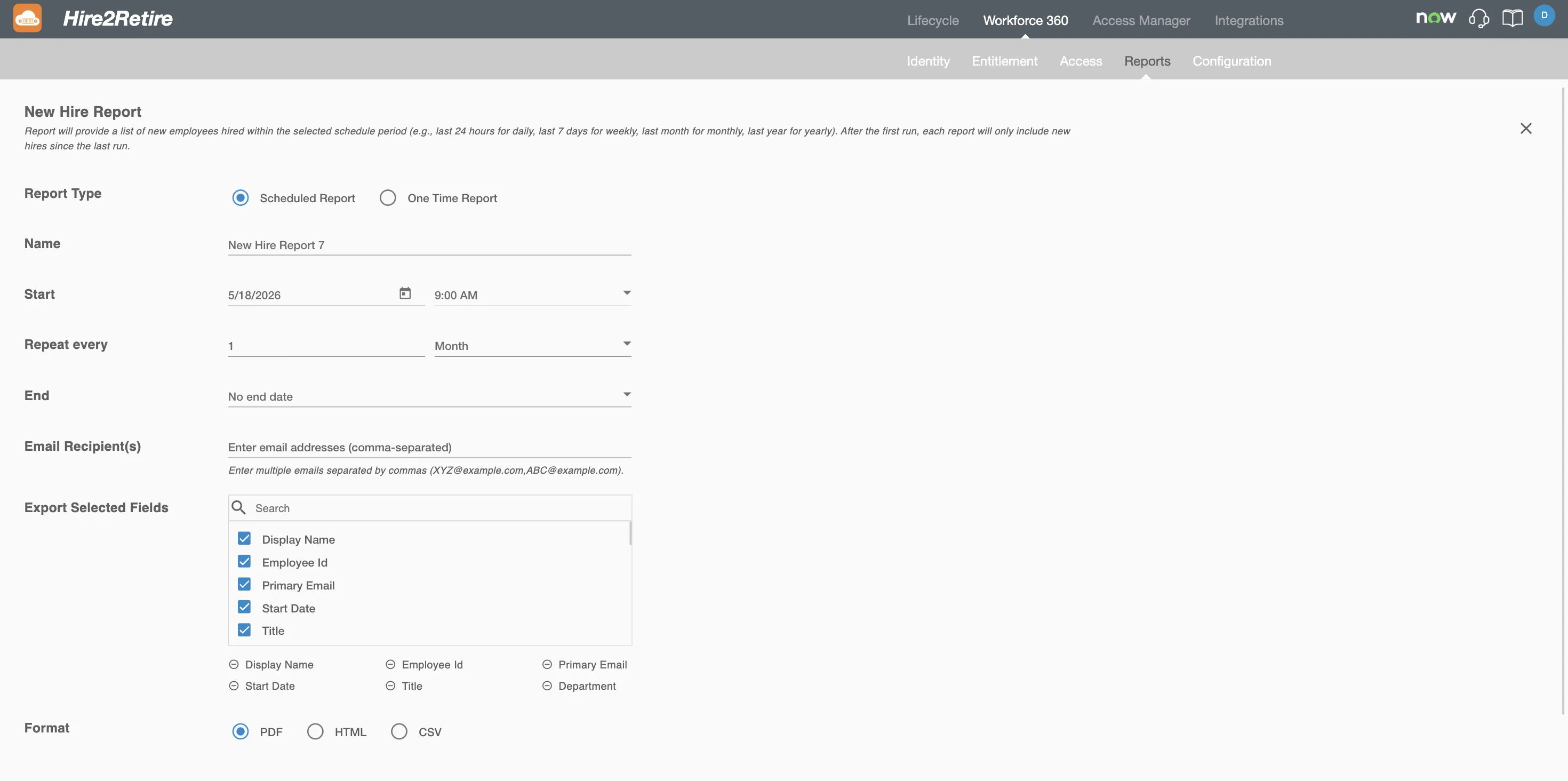
Report Configuration Form
After selecting a template and clicking Use Template, a configuration form is presented with the following fields:
-
Report Type - Determines how the report will be executed. Choose Scheduled to set up a recurring run on a defined cadence, or One Time Report to generate the report once without creating an ongoing schedule.
-
Name - A custom label to identify this report in the Scheduled Reports and Report Results lists. Use a descriptive name that reflects the report's scope or audience (e.g., "Monthly New Hires - HR Team").
-
Start Date and Time - The date and time when the report should first run. For scheduled reports, this also anchors the recurrence pattern - subsequent runs are calculated from this point.
-
Repeat Every - Defines the recurrence interval for scheduled reports. Specify a numeric value and a unit of time: Day, Week, Month, or Year. For example, setting this to 2 Weeks will run the report every two weeks starting from the configured start date.
-
End Date - Controls when the schedule stops. Select No End Date to keep the report running indefinitely, or choose End By and specify a date to automatically stop the schedule after that point.
-
Email Recipients - A comma-separated list of email addresses that will receive the report output after each run. Recipients do not need to be Hire2Retire users.
-
Export Selected Fields - A multi-select list of IDP attributes to include as columns in the exported report. Only the attributes selected here will appear in the output, allowing you to tailor the report to a specific audience or use case.
-
Format - The file format for the generated report output. Choose from PDF for a print-ready layout, HTML for a web-viewable version, or CSV for raw data that can be imported into spreadsheets or other tools.