Set Up H2R On-Prem Agent for Integration
Pre-Requisites
Recommended Specifications
Linux
| Supported Platform | CPU | RAM | Disk Space |
|---|---|---|---|
| Debian Fedora Red Hat Enterprise Linux (RHEL) Ubuntu |
2 Core CPU | 4 GB | 32 GB |
Windows
| Supported Version | CPU | RAM | Disk Space |
|---|---|---|---|
| Server 2019/2022 | 2 Core CPU | > 4 GB | 32 GB |
| Windows 10/11 | 2 Core CPU | > 4 GB | 64 GB |
- To ensure uninterrupted processing of user records by Hire2Retire, we recommend configuring the service account password used by the on-premise agent with Never Expire password policy.
- Outbound Port 443 (HTTPS) should be open on your firewall or network. Your server must be able to reach pod3.robomq.io over HTTPS to communicate with Hire2Retire and export on-premise agent logs.
- Ensure a valid SSL certificate is installed on your Active Directory server. If the SSL certificate is not present, follow this guide to create and install one.
How to install on Linux?
Using APT/YUM/etc. to install and verify OpenSSL and Docker
Before you start the installation, ensure Docker and OpenSSL are installed on your server.
To check whether docker is installed, open command line interface of your server and try running:
docker info
If docker is installed, you should get an error free response. If not, you can follow below mentioned steps to install it.
Docker Installation Guide for Linux
Docker helps run the agent on your server in an isolated environment, to avoid conflicts.
- Step 1: Update the package index
sudo apt-get update
- Step 2: Install required packages
sudo apt-get install apt-transport-https ca-certificates curl software-properties-common
For Red Hat-based distributions (e.g., CentOS, Fedora):
sudo yum install -y yum-utils device-mapper-persistent-data lvm2
- Step 3: Add the Docker GPG key to the system
curl -fsSL https://download.docker.com/linux/ubuntu/gpg | sudo apt-key add -
- Step 4: Add the Docker repository to the system
sudo add-apt-repository "deb [arch=amd64] https://download.docker.com/linux/ubuntu $(lsb_release -cs) stable"
For Red Hat-based distributions (e.g., CentOS, Fedora):
sudo yum-config-manager --add-repo https://download.docker.com/linux/centos/docker-ce.repo
- Step 5: Update the list of packages and then install Docker
sudo apt-get update
sudo apt-get install docker-ce
For Red Hat-based distributions (e.g., CentOS, Fedora):
sudo yum install docker-ce
- Step 6: Start the Docker service
sudo systemctl start docker
- Step 7: Verify Docker Installation
sudo docker run hello-world
- Step 8: To be able to carry out Docker commands without using sudo, add your user to the docker group
sudo usermod -aG docker $USER
OpenSSL Setup Guide for Linux
OpenSSL ensures your data stays safe by encrypting and decrypting files, keeping your information private.
To verify that OpenSSL is installed on your system, open a terminal or command prompt and run:
openssl version
If OpenSSL is installed, you should see output showing the installed version. If not, you can follow below mentioned steps to install it.
Download OpenSSL
You can download the latest version of OpenSSL from the official website: OpenSSL Downloads. Ensure you download the appropriate version for your operating system.
Installation
- Step 1: Update the package list
sudo apt-get update
- Step 2: Install OpenSSL
sudo apt-get install openssl
For Red Hat-based distributions (e.g., CentOS, Fedora):
sudo yum install openssl
Starting the Hire2Retire On-Prem Docker Agent
- Start Docker on your server. This is necessary for the installation process.
-
After filling up the connection information for your OnPremise Active Directory, download the On-Premise installation package from the connection page as shown below, which contains the setup files needed to install and run the agent.
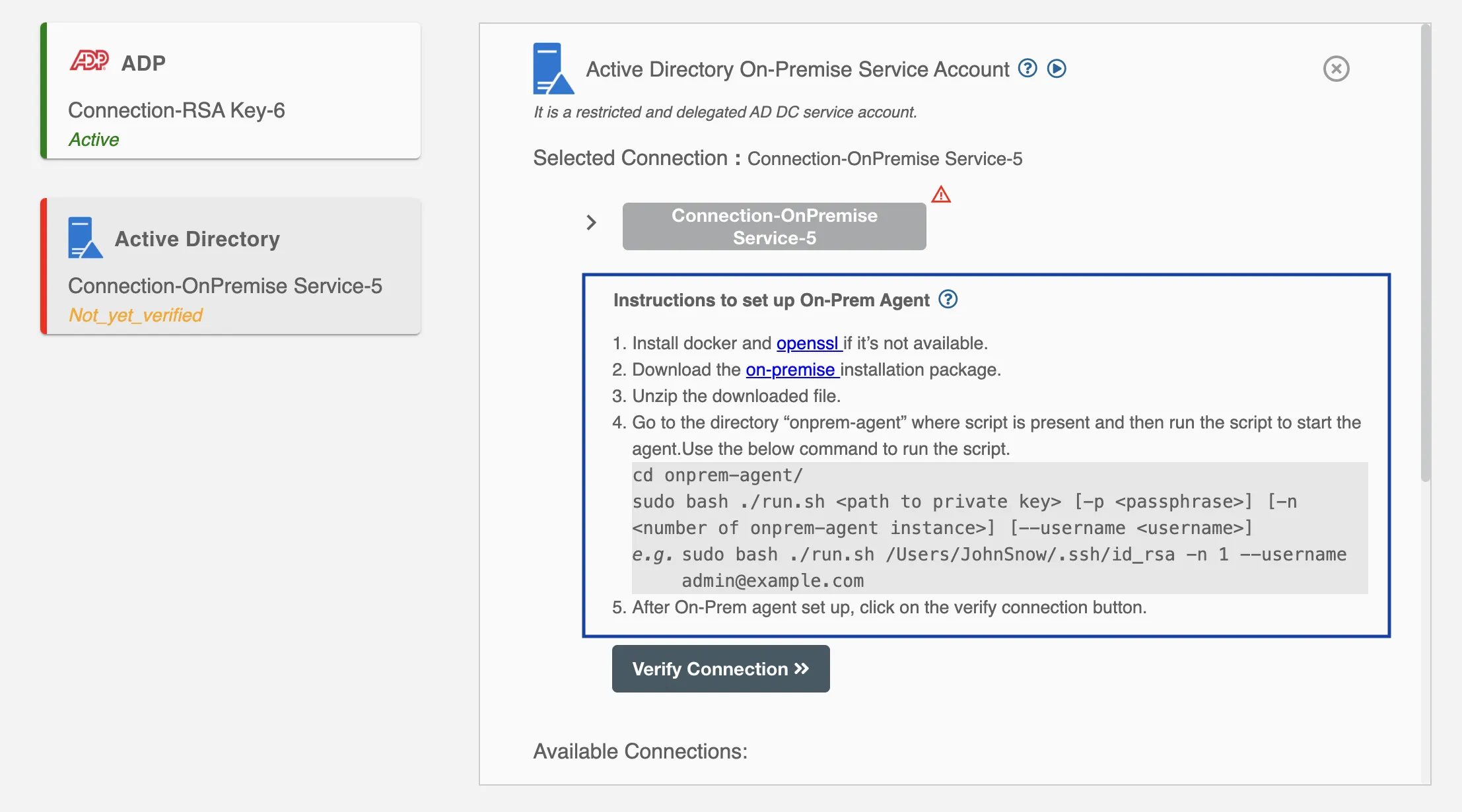
-
Unzip the installation package after it's downloaded. Inside, you'll find three files:
- config.enc
- run.sh
- secrets.enc
Before running any commands, make sure you're in the folder where you extracted the installation files.
-
Open the command line interface with admin privileges on your server. On Windows, this is Command Prompt. On macOS and Linux, use the Terminal.
-
Run sudo bash ./run.sh [ path to private key ] [ -p passphrase ] [ --username username]
Make sure to provide all the options to the command in the order they are mentioned.
Example:
sudo bash ./run.sh /Users/JohnSnow/.ssh/id_rsa --username [email protected]
'username' here refers to your AD Service Account/ Bind Account
To list all the available options that the run.sh script supports, run the following command:
sudo bash ./run.sh --help
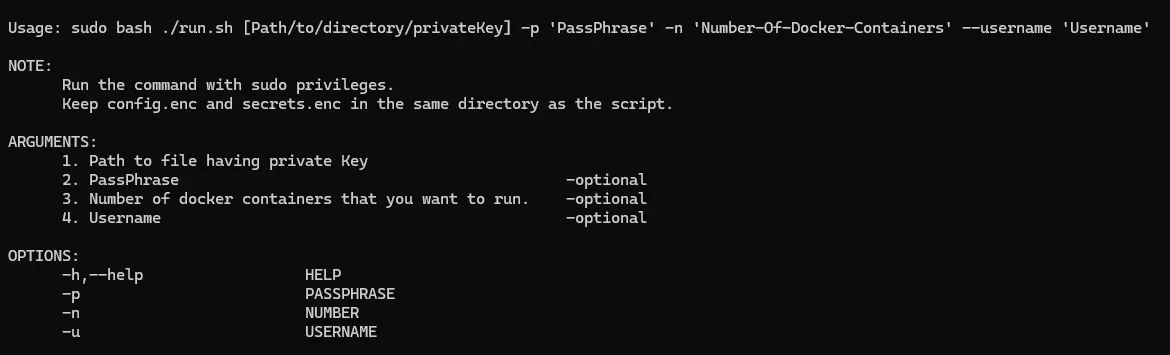
For '-p': If you have configured passphrase while generating rsa key pair, it will be REQUIRED here.
If the bash command runs successfully, the output will look like the following:
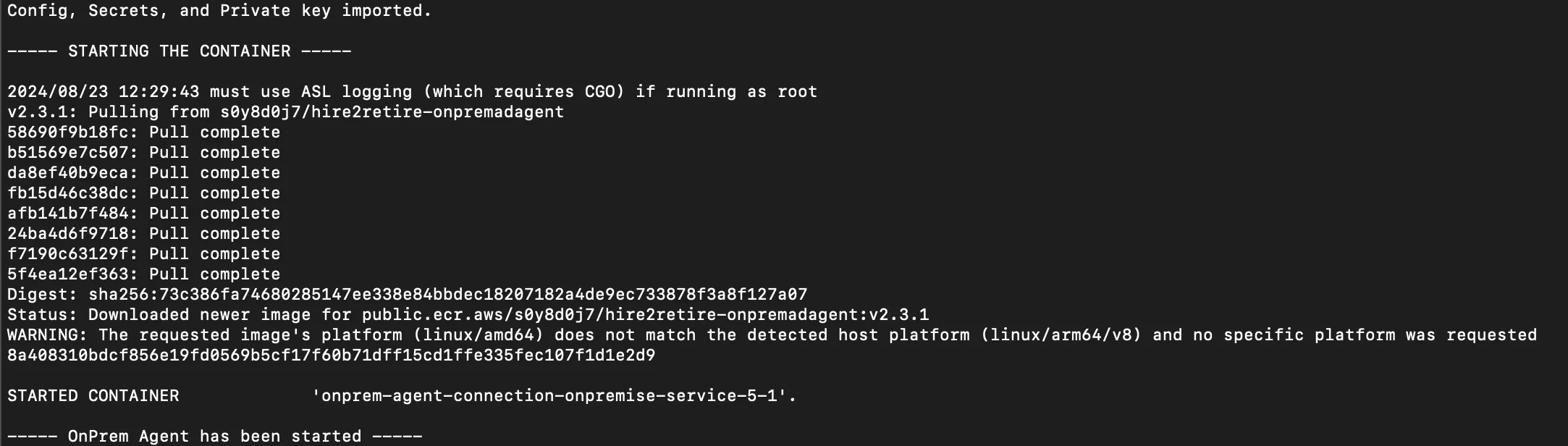
To check if the agent is up and running on your server, run:
docker ps
If the agent is running, the result to above command must look like following:

To verify the connection, follow the instructions.
How to install on Windows?
-
Download the On-Premise installation package from the connection page as shown below, which contains the setup files needed to install and run the agent.
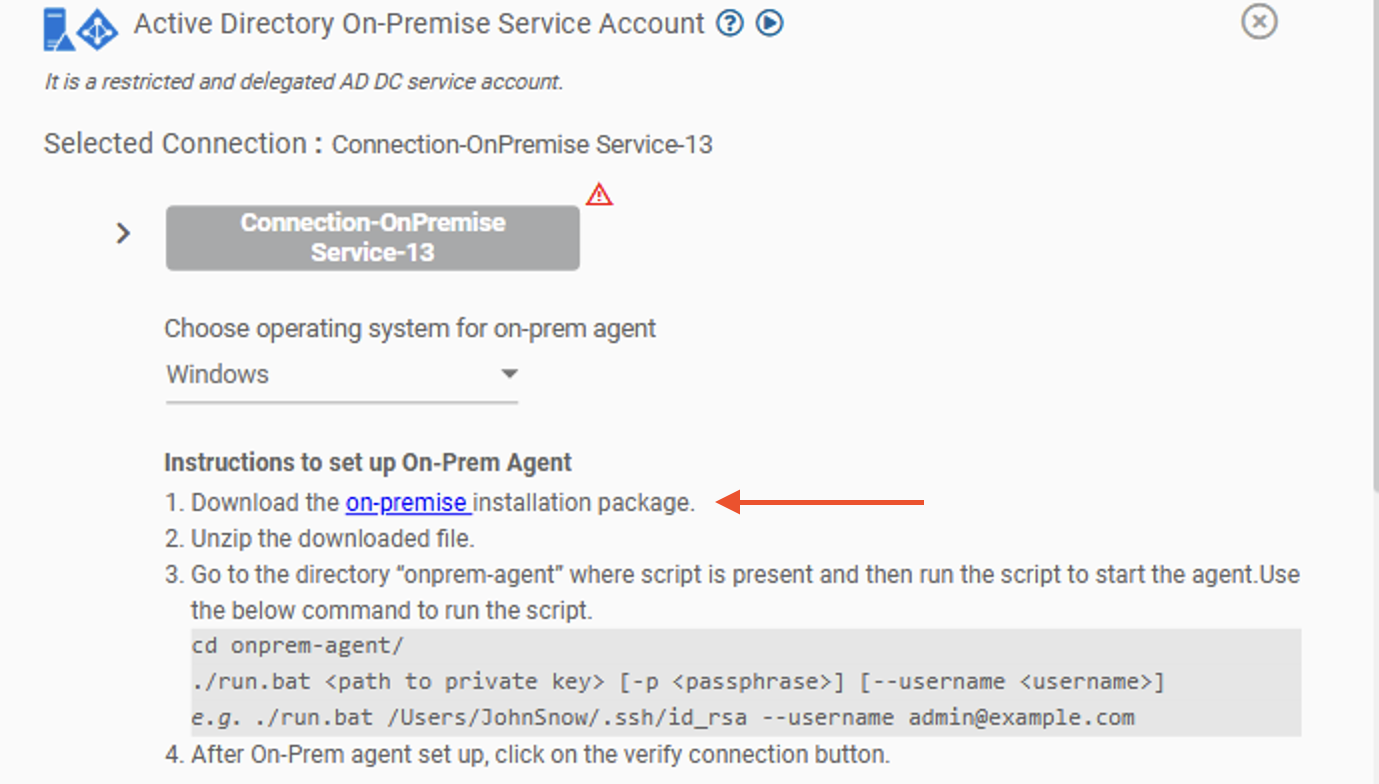
-
Unzip the installation package after it's downloaded. Inside, you'll find six files:
- config.enc
- run.bat
- secrets.enc
- decrypt.bat
- stop.bat
- setup-log-exporter.bat
Before running any commands, make sure you're in the folder where you extracted the installation files.
-
Open powershell terminal with admin priviliges on your windows server.
-
Run ./run.bat [ path to private key ] [ -p passphrase ] [ --username username]
Make sure to provide all the options to the command in the order they are mentioned.- path to private key (REQUIRED) -- Path to user's private key. It should always be provided in the first position.
- -p (OPTIONAL) : Passphrase provides an additional layer of security by encrypting your RSA private key.
- --username (REQUIRED) : Admin username to access the Active Directory server.
-
-h or --help : When provided, it will display the help text for the script.
Example:
-
./run.bat \Users\JohnSnow\.ssh\id_rsa --username [email protected] -
With passphrase :
./run.bat \Users\JohnSnow\.ssh\id_rsa -p secret@16548 --username [email protected]
-
Run 'Get-Service -Name "onprem*"' on your server to check if the agent is up and running.
On-Premise Agent Log Exporter
To help the Hire2Retire Customer Success team troubleshoot issues with your on-premise agent quickly and efficiently, the agent automatically sets up a background log exporter service on your Windows server. This service securely forwards agent activity logs to Hire2Retire, eliminating the need for you to manually collect and share log files when support is needed. The log exporter is set up automatically as part of the run.bat installation and no additional steps are required on your end.
Verifying Connection is visible on Hire2Retire
-
After setting up the installation package, click the "Verify Connection" button.
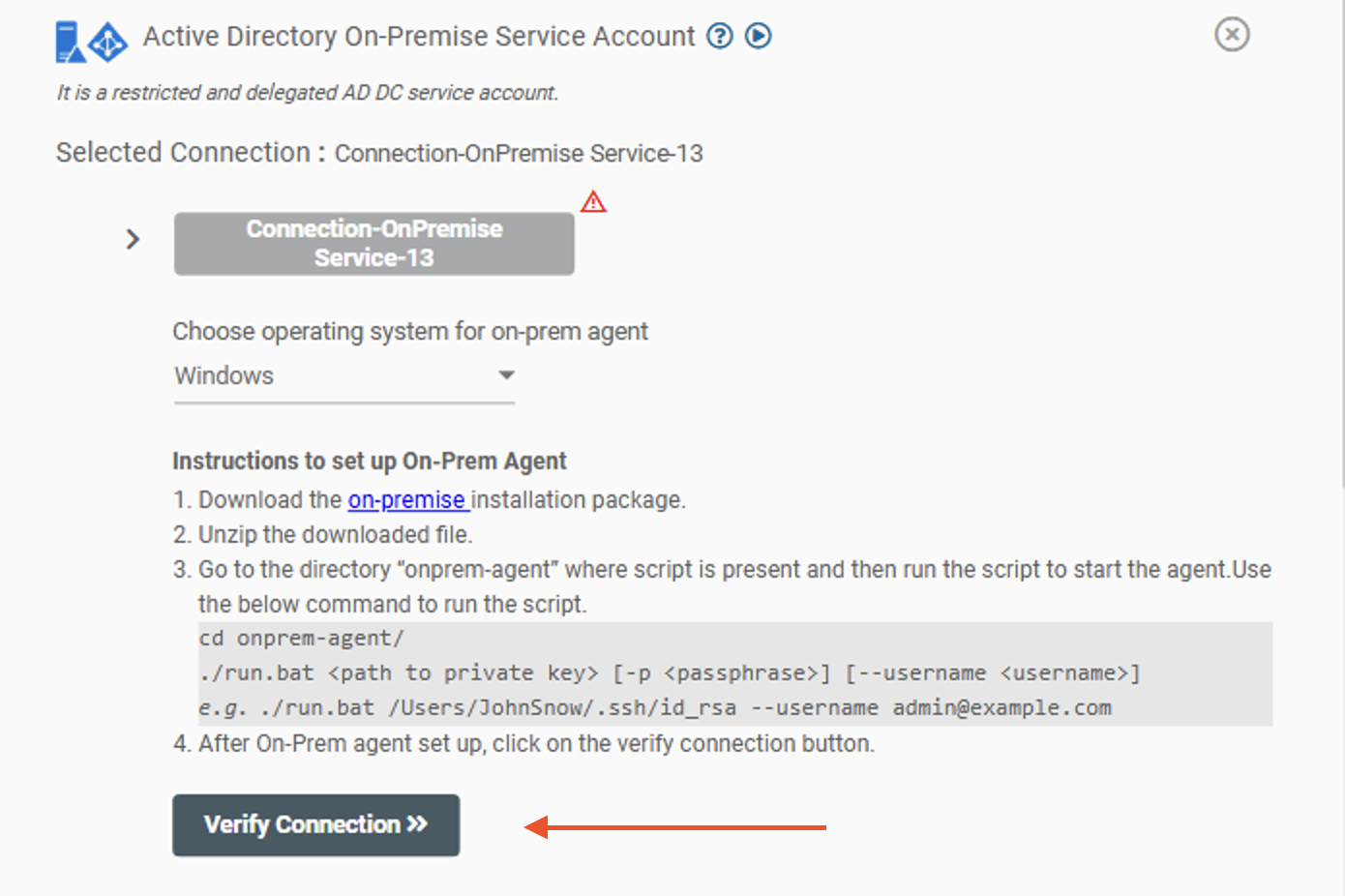 Figure 4. Verify Connection button
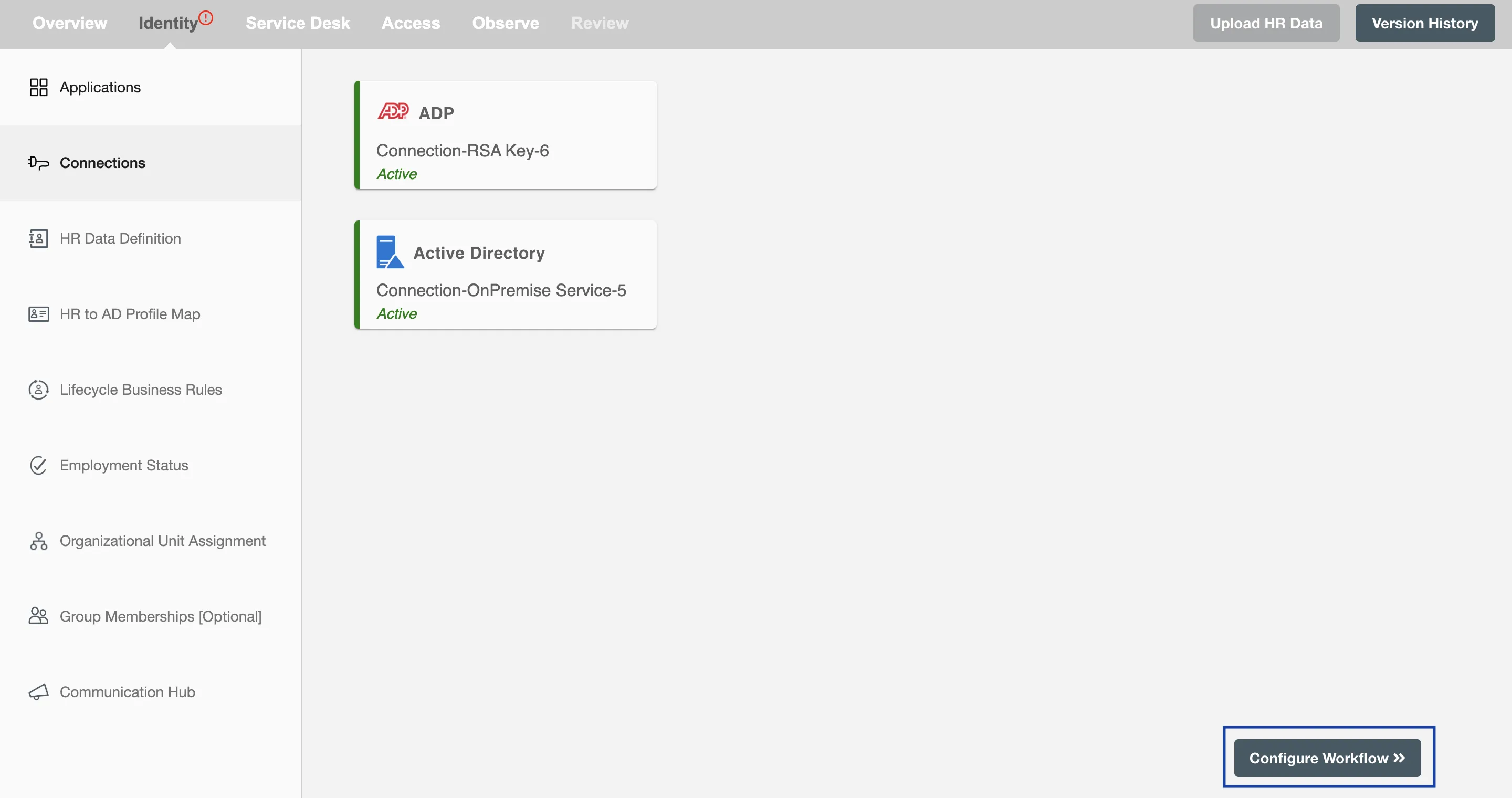
Once the On-Premise Agent is running and the connection is verified, you can continue configuring the workflow by clicking the "Configure Workflow" button.
How to stop the running On-Premise agent
When the flow is paused or deleted, the agent can be stopped by running the stop.bat script present in the same package. Run the below command in the powershell terminal opened in the downloaded on-prem package directory.
./stop.bat