Create Campaign
Admins and Editors can create new access certification campaigns from the Campaign Home page. A campaign defines the scope, ownership, review assignments, and timeline for an access review. Hire2Retire supports two types of campaigns: Group Audit to review group memberships and Application Audit to review user access to third-party applications.
To create a new campaign, click the New Campaign button on the Campaign Home page. This opens the Campaign Configuration form.
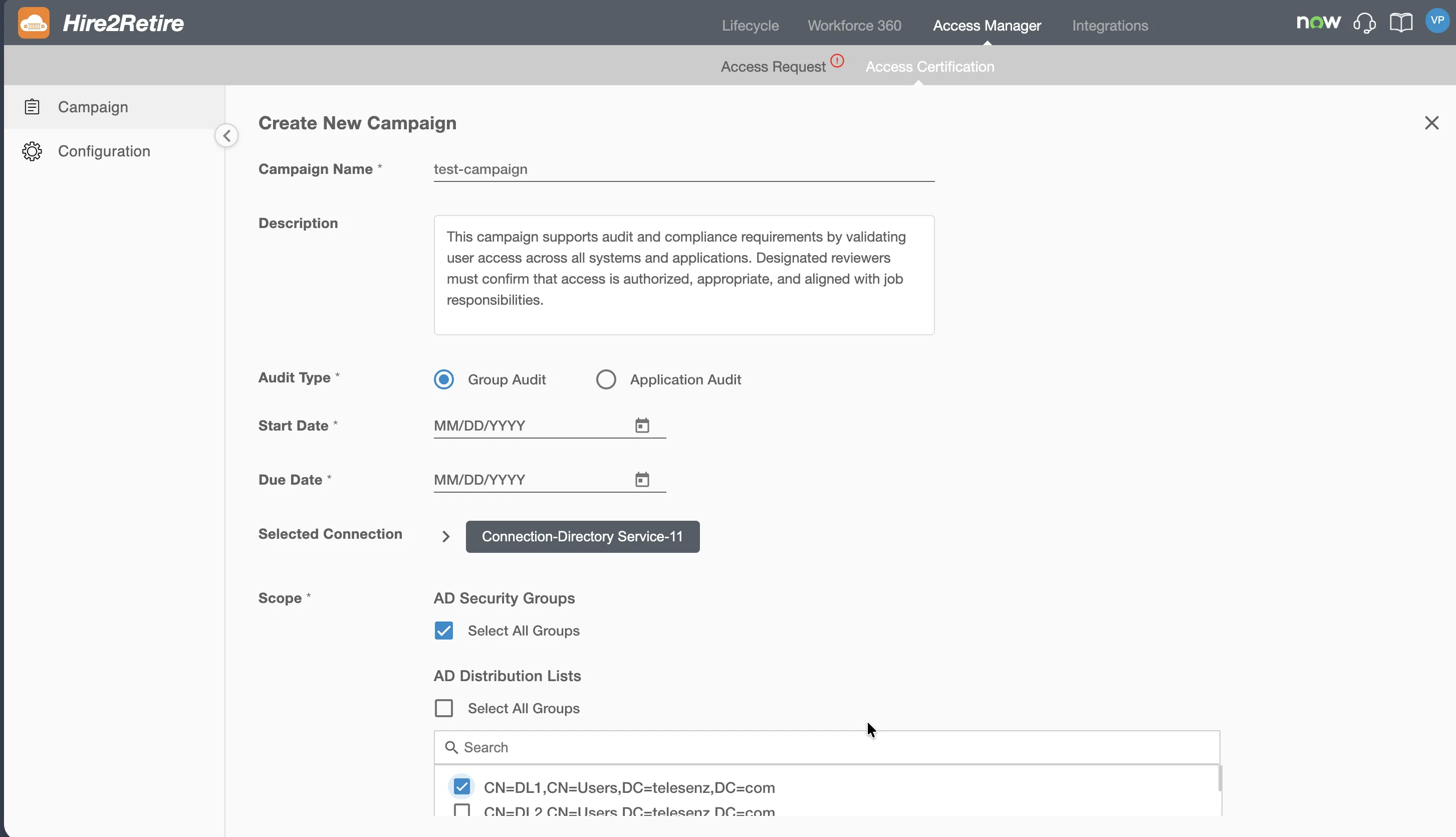
Campaign Configuration Fields
The following fields are available when creating a new campaign. Some fields may vary depending on the selected audit type.
Campaign Name and Description
Provide a campaign name and an optional description. The campaign name will be displayed on the Campaign Home page and at the top of the Campaign Review page. Use a clear and descriptive name that helps reviewers understand the purpose of the campaign (for example, "Q1 2026 IT Security Group Review" or "Annual Salesforce Access Audit").
Audit Type
Select the audit type for the campaign. This selection determines how review data is collected and how the certification scope is configured.
-
Group Audit: Review employee memberships in one or more identity provider groups. Membership data is automatically retrieved from the connected IDP system.
-
Application Audit: Review employee access to one or more third-party applications. Access data is uploaded manually using file extracts.
The audit type cannot be changed after the campaign is created.
Owners
Select one or more users who will serve as owners of this campaign. Owners have full read and write access to all review items within the campaign and are responsible for monitoring the review process, making final decisions on rejected items, and ensuring required access changes are enforced.
The list of users is fetched from the IDP system. Each item in the list displays the user's display name along with their email address in brackets (for example, "Alice Johnson (alice@company.com)").
The campaign creator is automatically assigned as an owner.
Scope Definition
The scope determines which groups or applications are included in the certification review. Scope configuration depends on the selected audit type.
Group Audit Scope
For Group Audit campaigns, the scope section displays a list of groups retrieved from the connected IDP system, organized by group type.
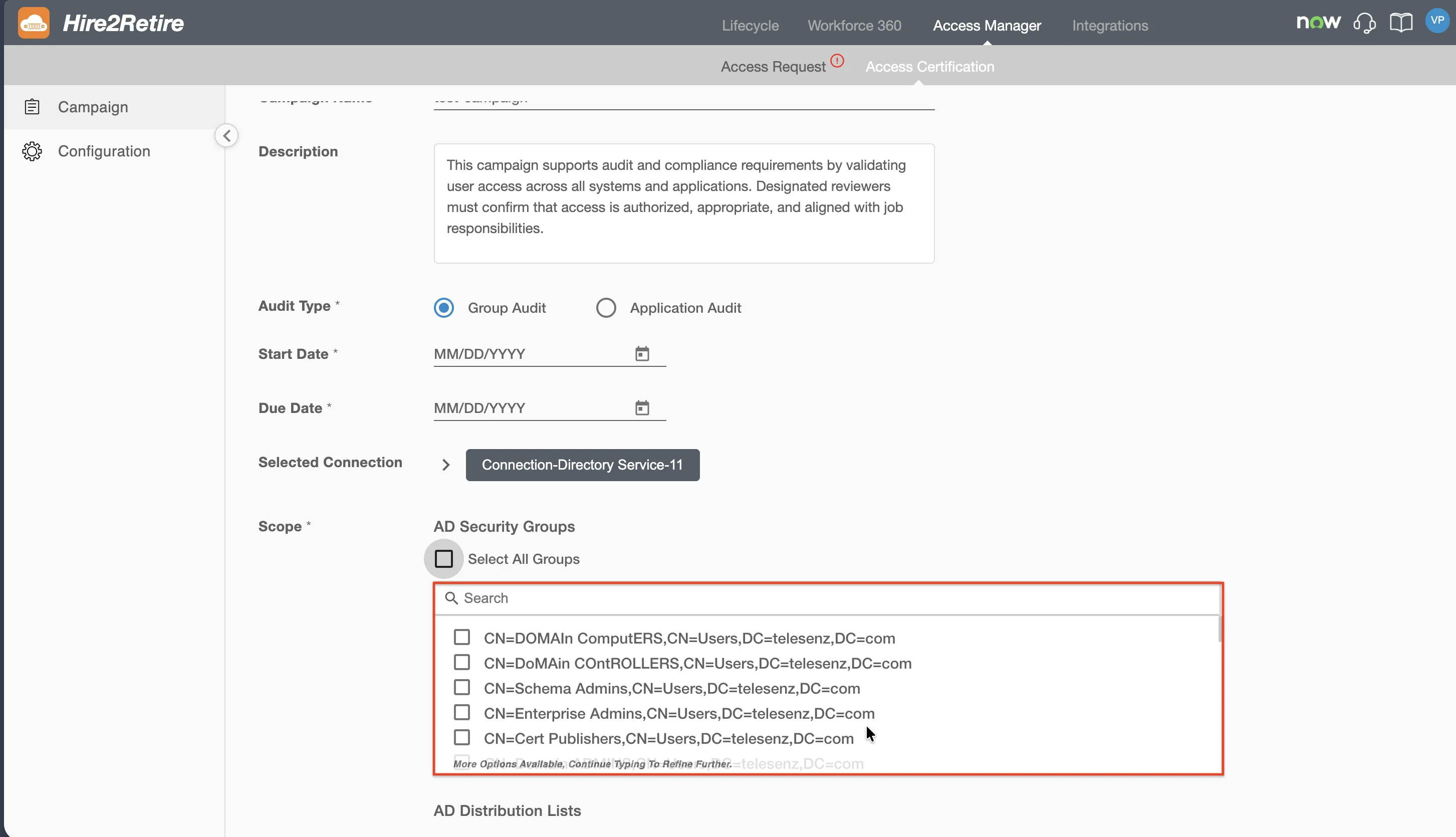
- Groups are organized under their respective group types (for example, Security Groups and Distribution Lists for Active Directory connections, or Entra ID Groups for Entra ID connections, or both for Hybrid connections).
- A search bar is available under each group type to locate specific groups.
- A Select all groups checkbox is available alongside each group type heading to select all groups within a category.
Application Audit Scope
For Application Audit campaigns, the scope section displays a list of applications from the Application Catalog.
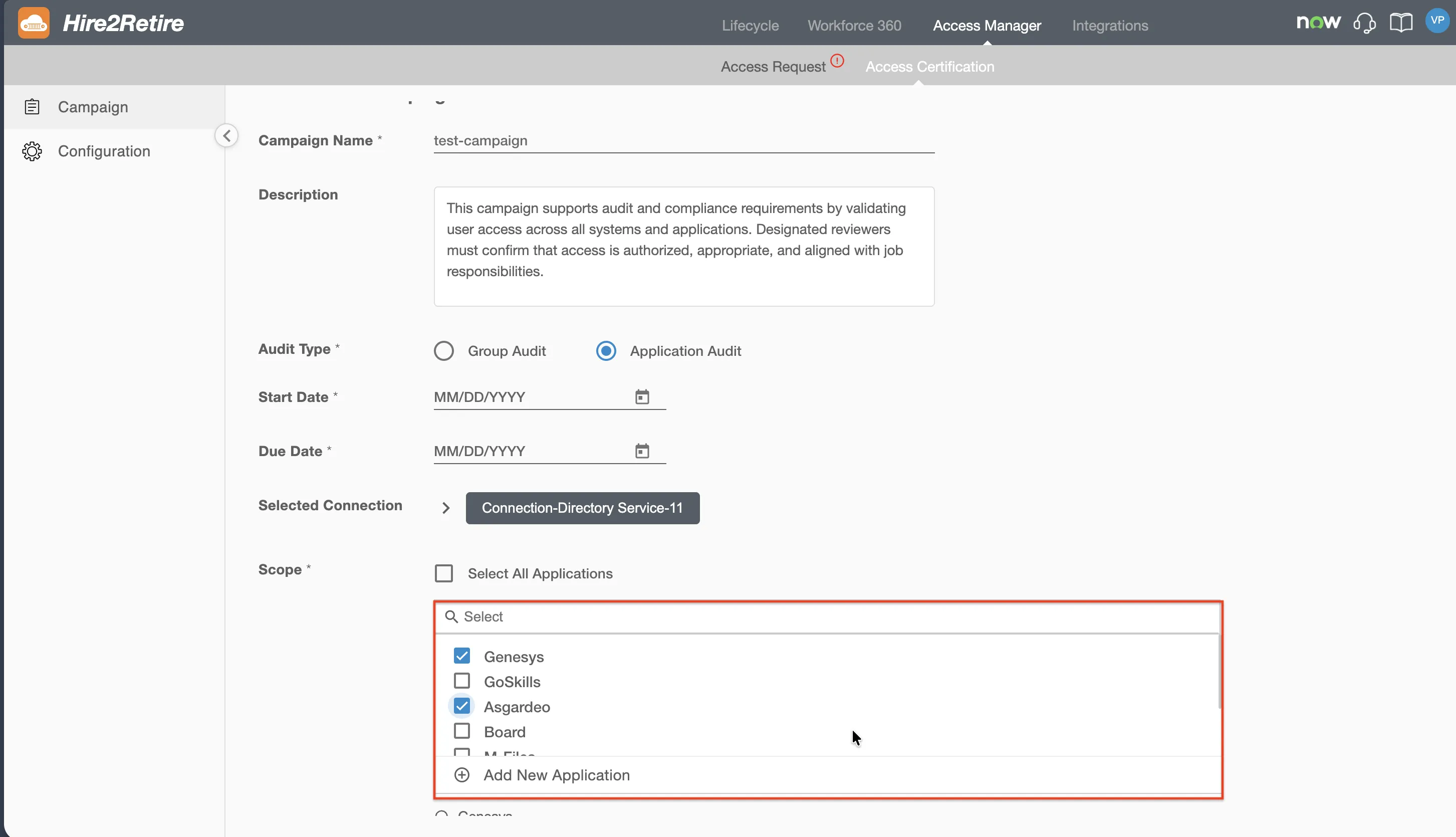
- Applications are listed with selection checkboxes. You can select one or more applications.
- A search bar is available to locate applications by name.
- A Select all applications checkbox is available to select all listed applications at once.
Adding a New Application
If you cannot find the required application in the scope list, you can add a new application from the Access Application configuration page. Once added, the application will appear in the scope selection list for future campaigns.
Reviewers
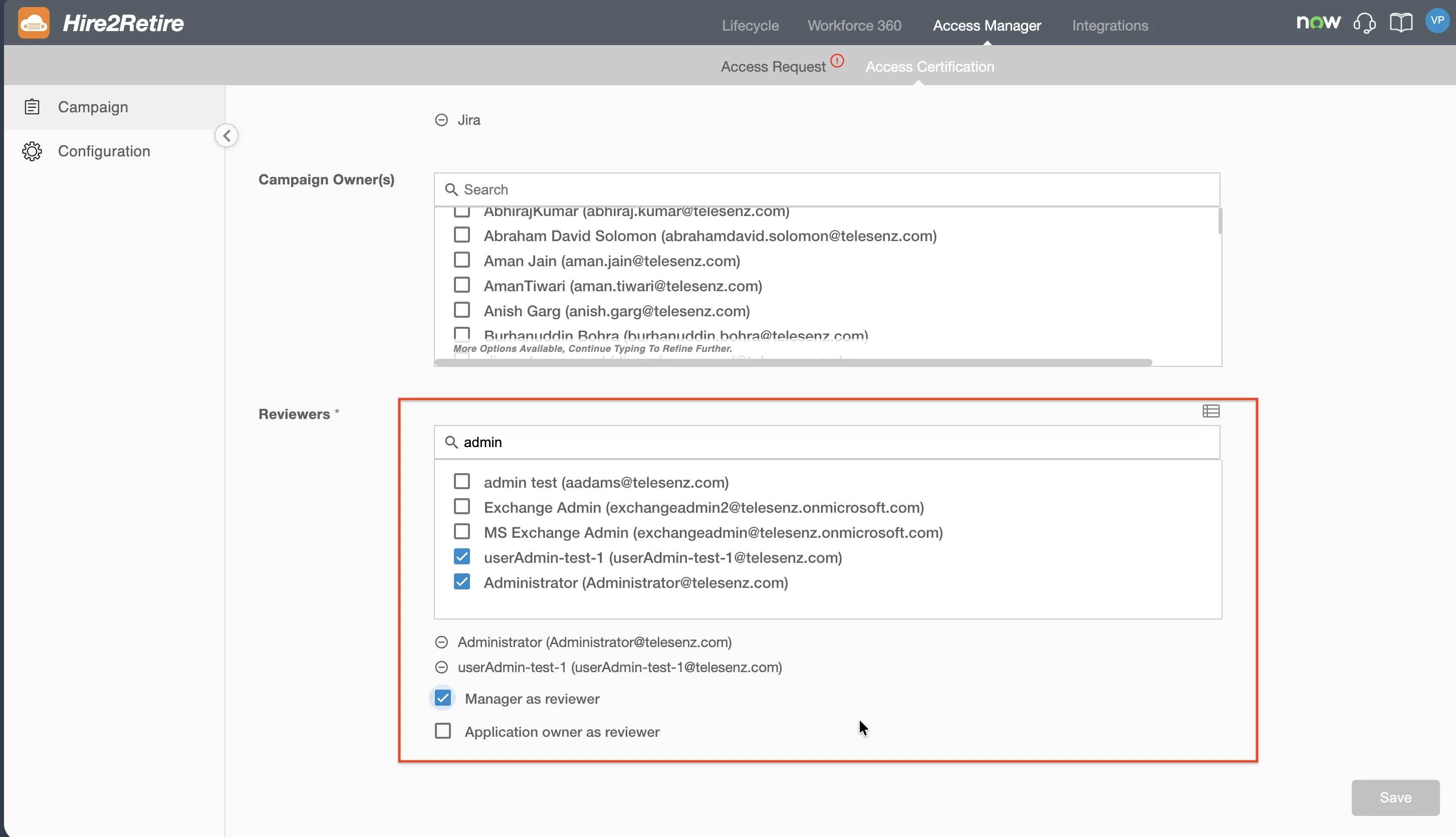
Define who will be responsible for reviewing the access items in this campaign. Multiple reviewer assignment methods can be configured together.
-
Named Reviewers: Select one or more specific users from the IDP system. These users will be assigned as reviewers for all review items in the campaign. Each entry displays the user’s display name and email address.
-
Manager as Reviewer: Check this option to automatically assign the manager of each employee as the reviewer for that employee's memberships. The manager value is resolved from the IDP system at runtime when the campaign data is generated. This means each review item may be assigned to a different reviewer based on the employee's reporting structure.
-
Group Owner as Reviewer (Group Audit only): Check this option to assign the owner of each group as the reviewer for all memberships within that group.
-
Application Owner as Reviewer (Application Audit only): Check this option to assign the owner of each application as the reviewer for all memberships within that application.
-
Attribute-Based Assignment: Create rules to assign reviewers based on employee attributes such as department, location, or job title. For example, all Finance department users can be assigned to a designated compliance reviewer.
Start Date
Select the date and time when the campaign becomes available for review.
- The start date cannot be earlier than the current date.
- At midnight of the start date, the campaign status will automatically transition from Not Started to In Review.
- For Group Audit campaigns, the review data is refreshed from the IDP system at midnight on the start date.
- For Application Audit campaigns, the file upload option will be disabled at midnight of the start date, and the uploaded data will be frozen.
Due Date
Specify the deadline for completing the review.
- The due date must be later than the start date.
- If all review items are resolved before the due date, the campaign status will transition to Completed.
- If any review items remain unresolved after the due date, the campaign status will transition to Past Due, and the campaign will be locked.
Saving the Campaign
After completing all required fields, click the Save button to create the campaign. Upon saving:
- The campaign is created with a Not Started status.
- For Group Audit campaigns,
Hire2Retireimmediately generates the initial review data by fetching group membership information from the IDP system. A second data refresh will occur at midnight of the start date. - For Application Audit campaigns, the campaign is created without review data. The campaign owners must upload application user data using file extracts from the Campaign Review page before the start date.
- The campaign appears on the Campaign Home page and becomes visible to all assigned owners and reviewers.
Editing a Campaign
Campaigns can be edited while they are in the Not Started status. Once the campaign transitions to In Review, the configuration is frozen and cannot be modified.
During the Not Started stage, owners and admins can edit the following fields:
- Campaign name and description
- Scope (groups or applications)
- Owners
- Reviewers
- Start date and due date
For Application Audit campaigns, the applications included in the scope can be modified, and application user data can be uploaded or replaced during this stage. For Group Audit campaigns, the scope can be updated to add or remove groups.
Once the campaign reaches the start date, all configuration and data become read-only, and only review actions (approve, reject, mark as fixed) are allowed.