Configuration
Linking an Identity Provider
Before configuring access certification, you must link your Identity Provider. You can select any existing IdP connections configured in Hire2Retire.
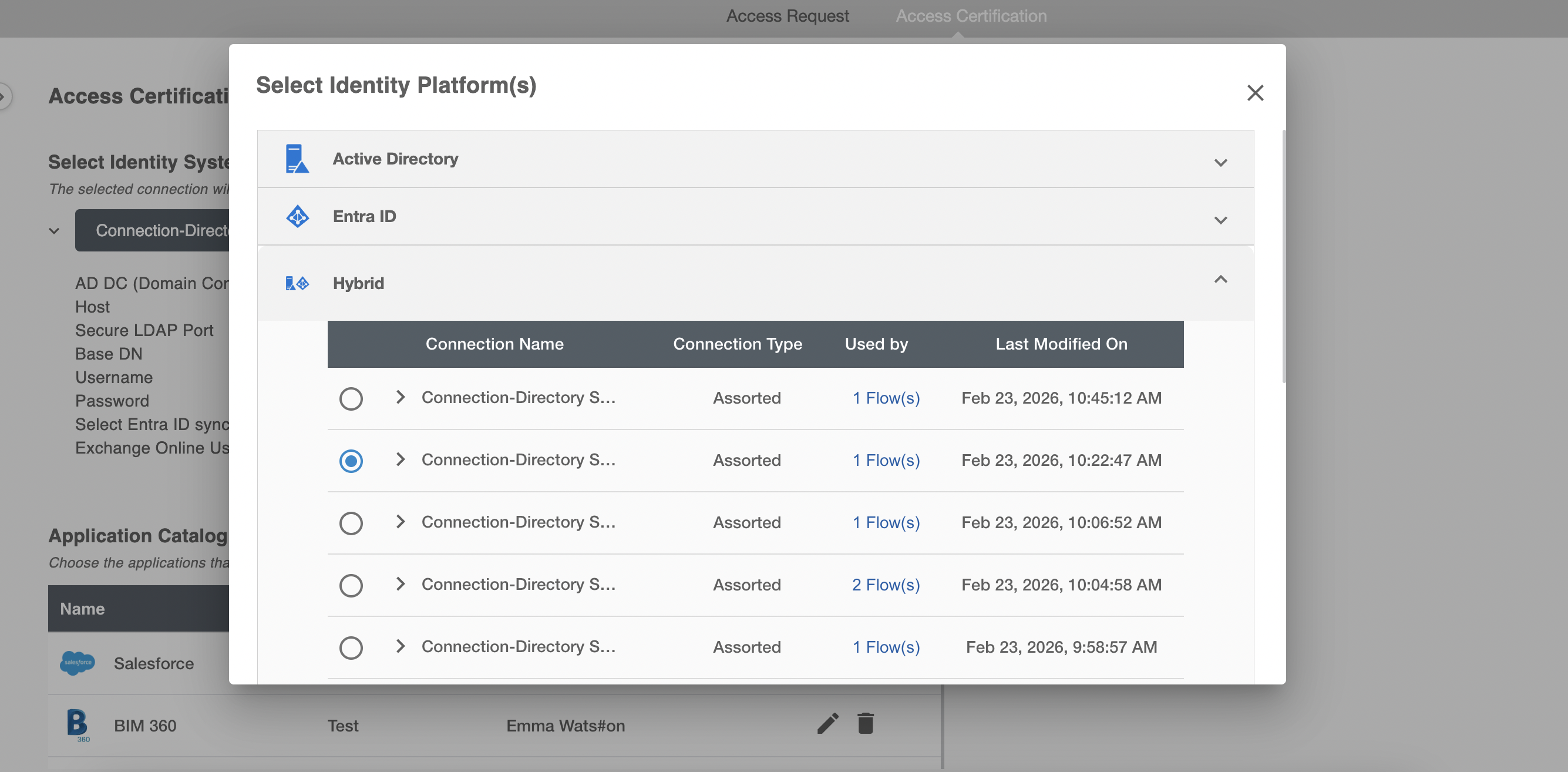
The selected IdP connection will be used to:
- Fetch available groups for certification
- Identify group owners
- Fetch Reviewers and user details for Recipients
Application Catalog
The Application Catalog allows Admins and Editors to configure and manage applications that are used in Application Audit campaigns. Applications defined here become available in the Application Audit Scope section during campaign creation and can be selected for one or more campaigns.
The catalog defines how application access data is structured, uploaded, validated, and interpreted by the system. Applications configured here are stored centrally and can be reused across future campaigns.
Application
The Application section is used to add, edit, or delete applications that will be included in Application Audit campaigns.
Adding a New Application
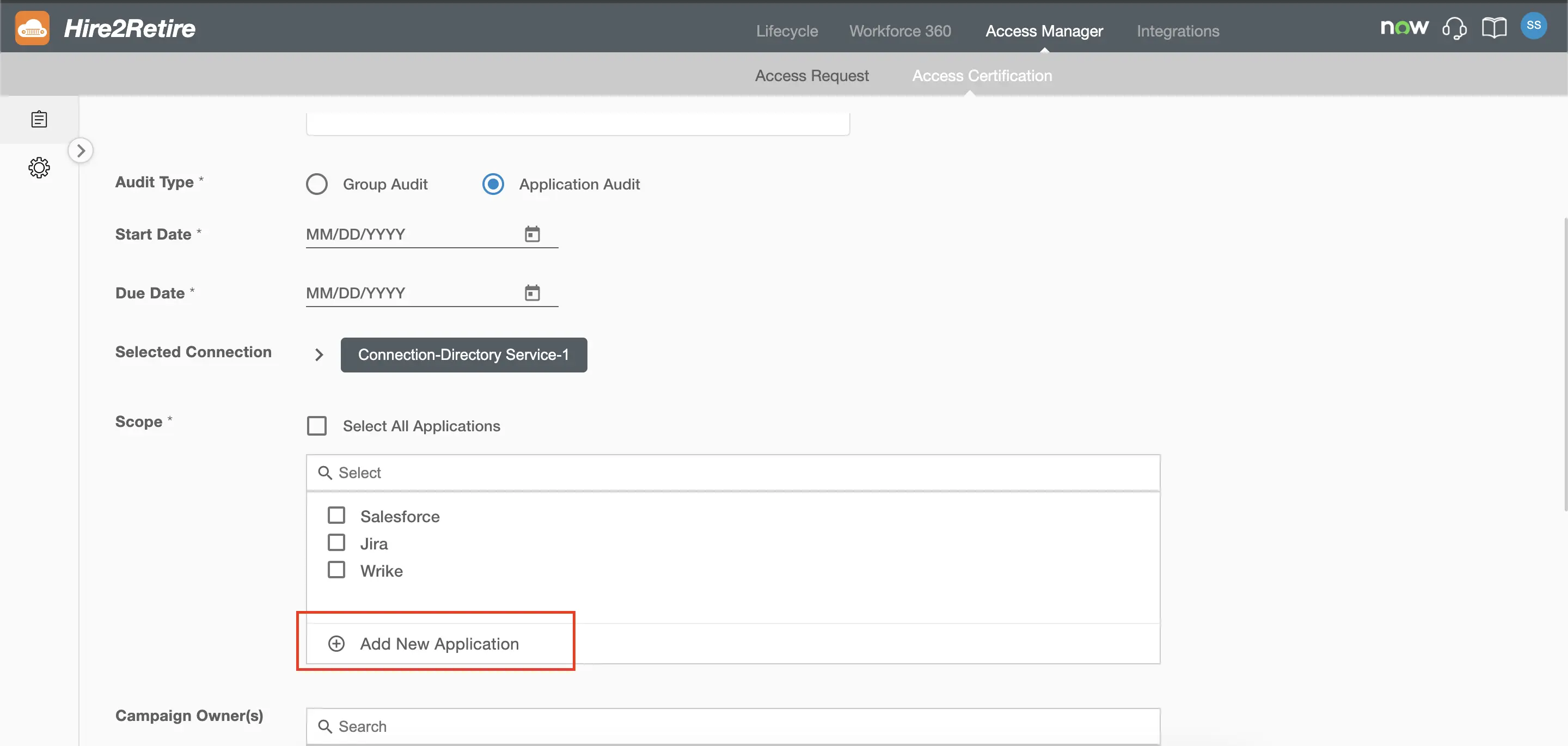
If the required application is not available in the Application Audit Scope list during campaign creation, you can create a new one using either of the following methods:
- From the global Application configuration page
- By clicking the Add New Application button within the Application Audit scope list during campaign creation
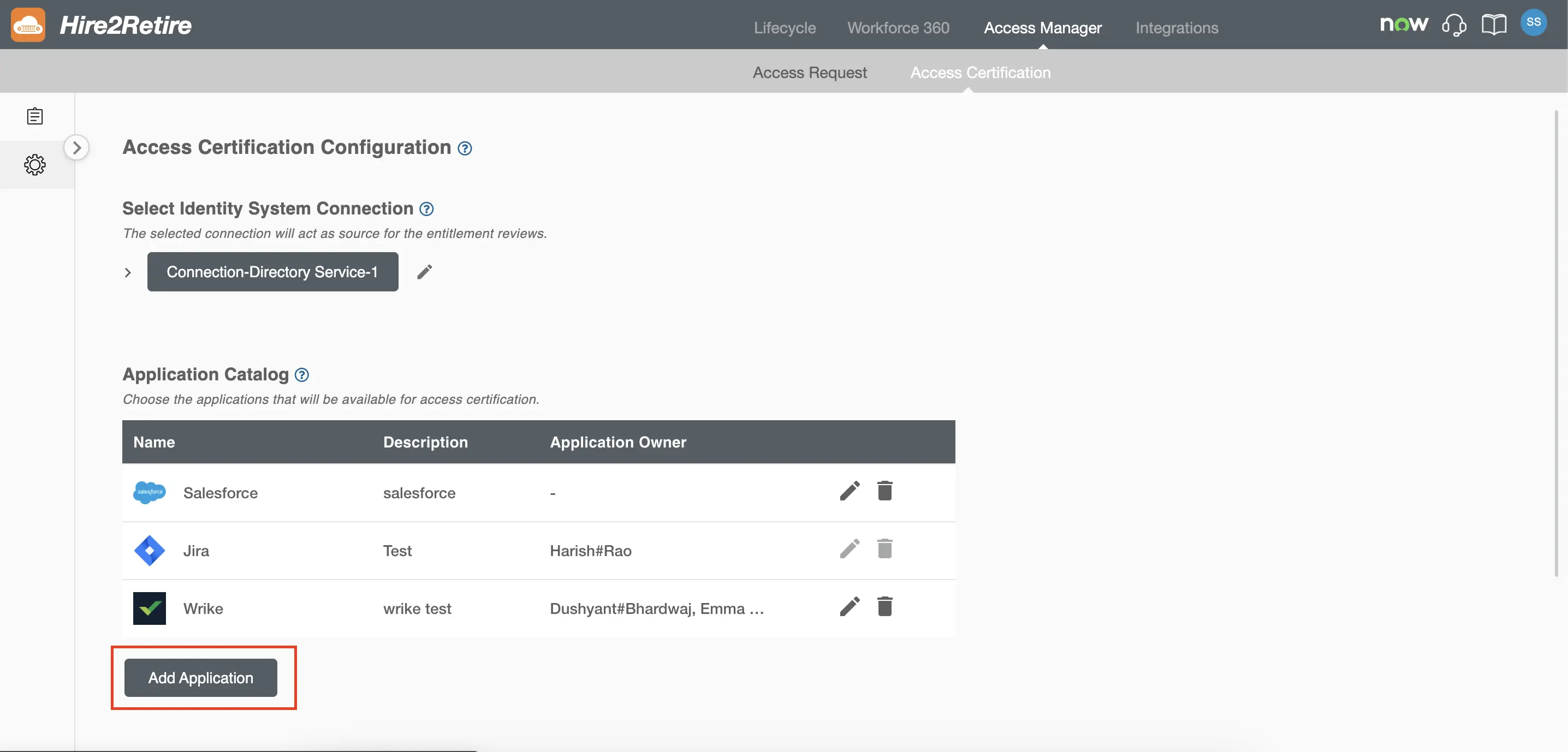
Click Add Application to open the Application Configuration form.
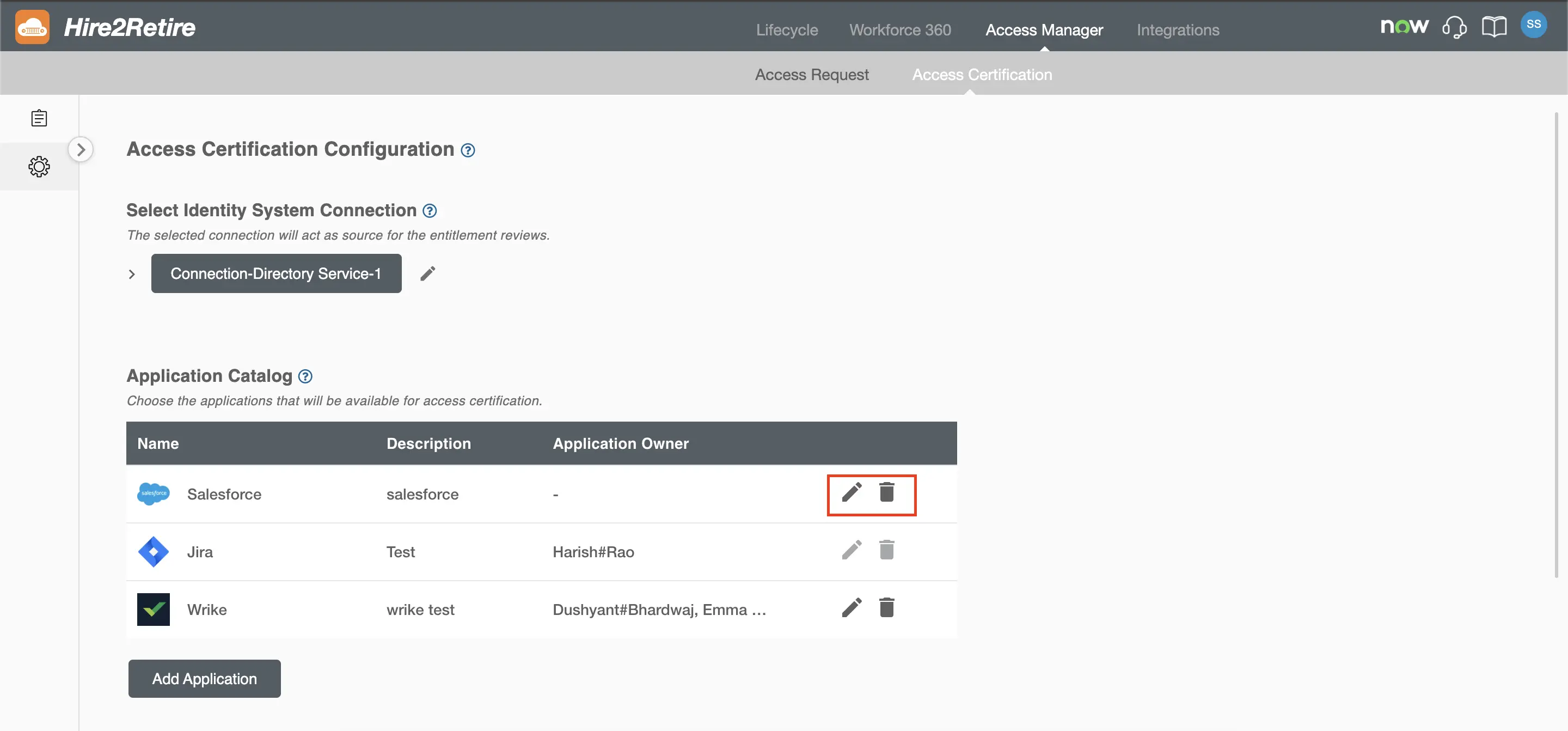
Editing or Deleting an Application
Existing applications can be modified or removed from:
- The global Application configuration page
- The campaign creation page (via the hover options menu)
To modify an application, click Edit.
To remove an application, click Delete.
When editing, the same Application Configuration form opens with pre-populated values.
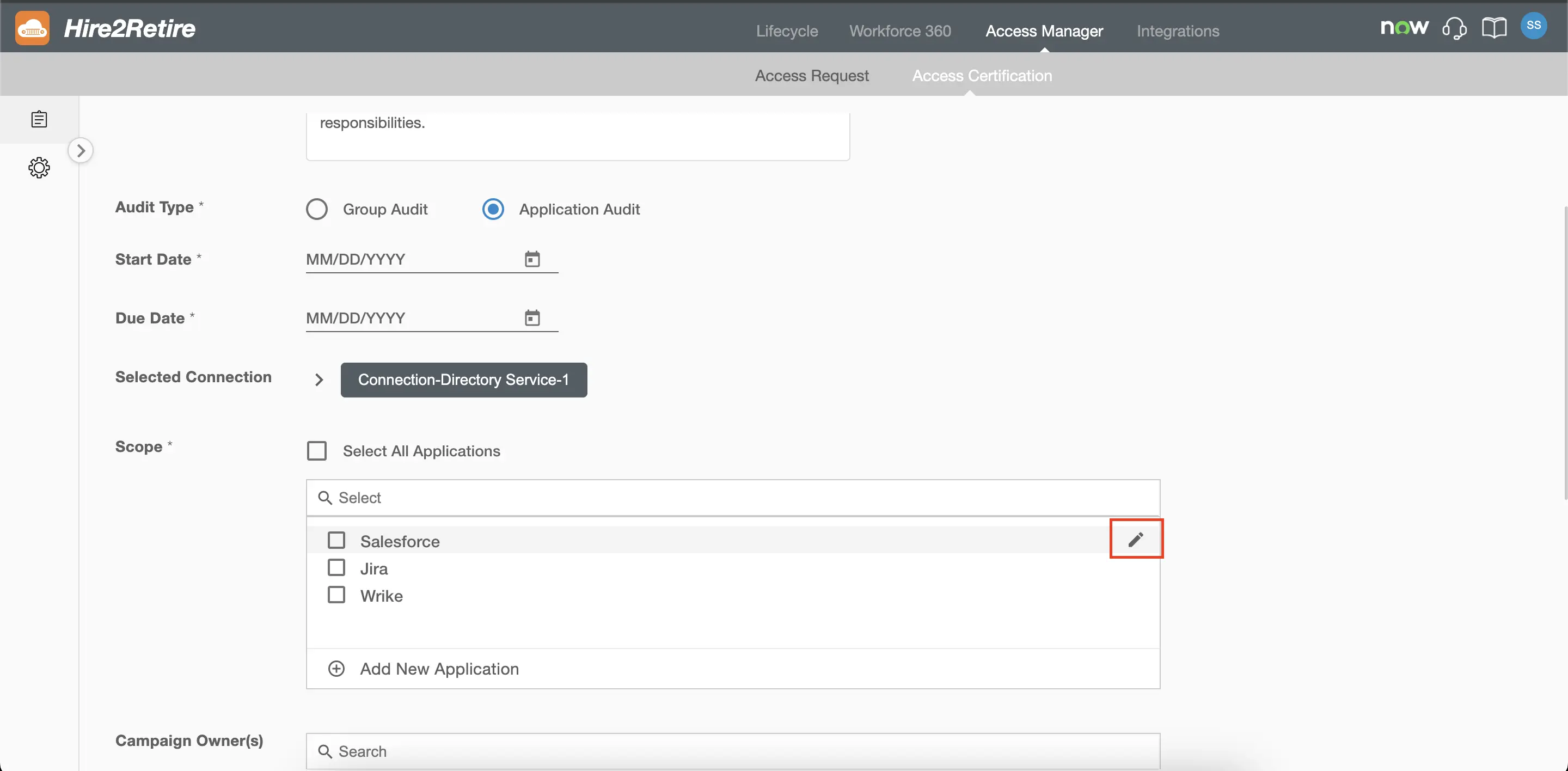
Application Configuration Form
The Application Configuration form defines the metadata, file structure, and data mapping required to review access to a third-party application.
All fields in this form are required unless explicitly stated otherwise.
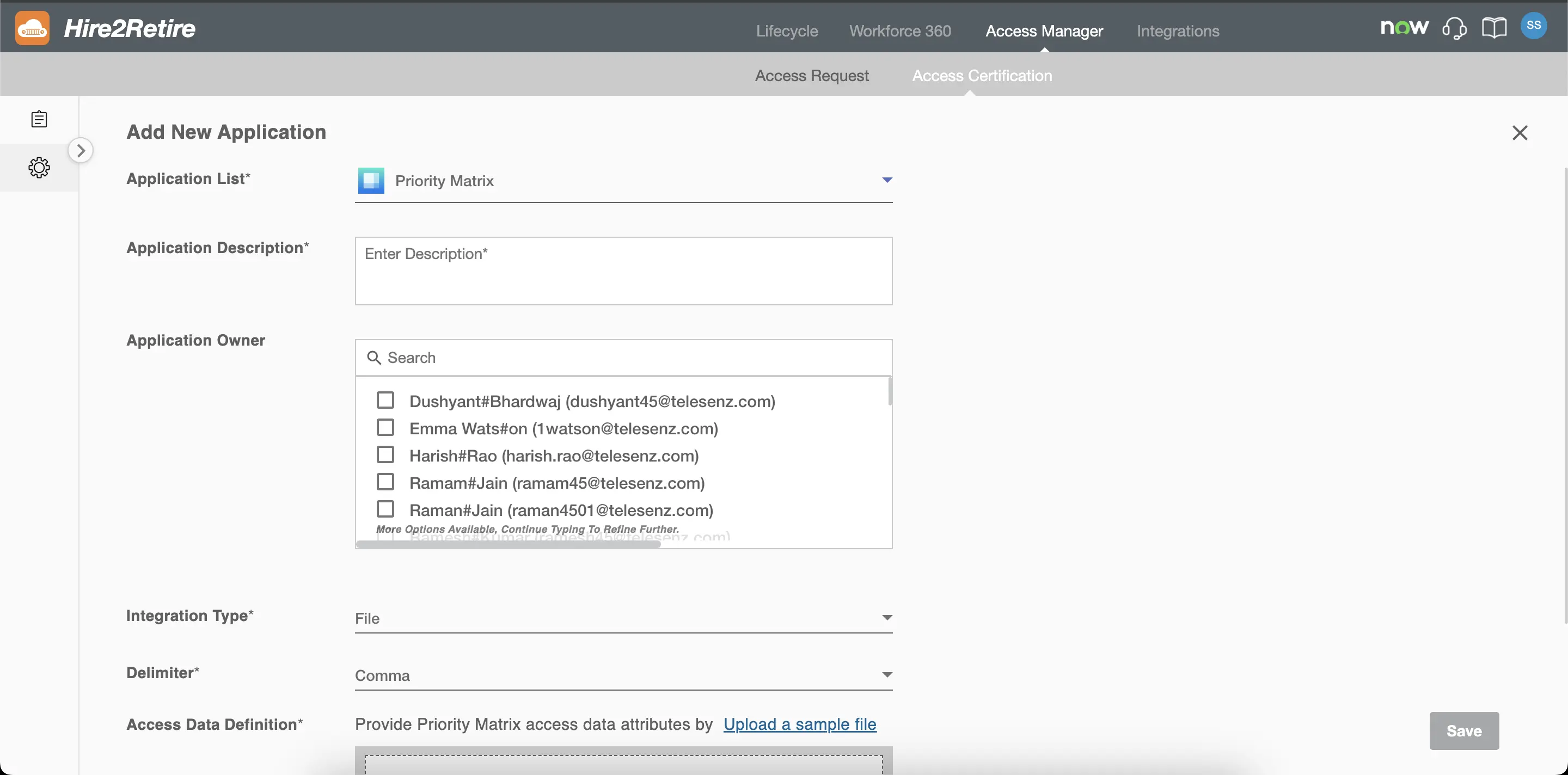
Application Configuration Fields
Application Name
Select the application name from a predefined list of supported applications.
Using predefined values ensures standardized naming across campaigns and prevents duplicate or inconsistent entries.
Once saved, the application becomes available in the Application Audit Scope selection list during campaign creation.
Description
Provide a description of the application.
Use this field to provide context, such as:
- Purpose of the application
- Type of users who typically have access
- Environment details (Production, Sandbox, etc.)
- Compliance or audit considerations
This description helps campaign owners and reviewers understand the nature of the access being certified.
Application Owners
Select one or more users who will act as owners of this application.
This is a multi-select list of users populated from the linked Identity Provider. Each item displays the user's display name along with their email address in brackets.
Application Owners can be assigned as reviewers when configuring an Application Audit campaign using the Application Owner as Reviewer option.
Input Type
Select how application access data will be provided.
Currently supported value:
- File — Access data is uploaded using a CSV file extract.
This setting determines the data ingestion method used by the system.
Delimiter
Select the delimiter used in the uploaded CSV file.
Supported values:
- Comma
- Semicolon
- Space
- Tab
The selected delimiter must match the structure of the uploaded file to ensure accurate parsing.
Access Data Definition
Upload the CSV file that contains the application user access extract.
This file defines the structure of the access data and is used to:
- Detect column headers
- Enable semantic data mapping
- Configure the unique identifier for review items
File Requirements
- Must be in CSV format
- Must use the selected delimiter
- Must include a header row
- Must contain all required access-related attributes as columns
After a successful upload, the system reads the header row and displays all detected column names.
Date Format
Select the date format used in the uploaded file for any date-related columns.
Multiple standard date formats are supported (for example, YYYY-MM-DD, MM/DD/YYYY, DD-MM-YYYY, etc.).
Selecting the correct format ensures accurate interpretation of date values during review processing and reporting.
Dynamic Configuration After File Upload
Once a file is uploaded in the Access Data Definition field, additional configuration sections become available. These sections are mandatory and ensure that uploaded data is correctly mapped to system-defined attributes.
Detected CSV Headers
All column headers from the uploaded CSV file are displayed in a dedicated section.
These headers are used in:
- Semantic Data Mapping
- Unique Identifier selection
Only detected headers can be selected for mapping.
Semantic Data Mapping
The Semantic Data Mapping section defines how uploaded CSV columns map to system-defined access review attributes.
This section contains two columns:
Semantic Name
Represents standardized system-defined fields required for access certification.
Examples include:
- User Identifier
- User Name
- Role
- Access Level
- Last Login Date
These fields are predefined by the system and cannot be modified.
Priority Matrix Attribute
A select box populated with the detected CSV headers.
For each Semantic Name, select the corresponding column from the uploaded file.
This mapping ensures that:
- Access data is structured correctly
- Review items are generated accurately
- Filtering and reporting function as expected
Each Semantic Name must be mapped to a valid CSV header before saving.
Unique Identifier
Select one column from the detected CSV headers that uniquely identifies each access record.
This field is mandatory.
The Unique Identifier is used to:
- Prevent duplicate records
- Track review decisions
- Ensure consistent record matching during updates
Common examples include:
- Employee ID
- Email Address
- Username
- System User ID
The selected column must contain unique values for each row in the uploaded file.
Saving the Application
After completing all required fields and mappings, click Save.
Upon saving:
- The application is added to the centralized Application Catalog.
- It becomes available in the Application Audit Scope section during campaign creation.
- Application Owners are added for review assignments.
If editing an existing application:
- Updated configurations apply to future campaigns.
- Campaigns that are already In Review or Completed remain unaffected.
Relationship to Campaign Creation
During Application Audit campaign creation:
- Applications defined in the Application Catalog appear in the Application Audit Scope list.
- One or more applications can be selected for inclusion in a campaign.
- Access data for each selected application must be uploaded before the campaign start date.
Proper configuration ensures:
- Accurate file parsing
- Correct reviewer assignment
- Reliable audit traceability
- Consistent reporting
The Application Catalog ensures that application access data is standardized, validated, and ready for certification review within the campaign lifecycle.
Notification Settings
Access Certification uses automated email notifications to keep campaign owners and reviewers informed about important campaign events and required actions. These notifications help ensure timely reviews and support compliance requirements.
Notifications are automatically sent by the Hire2Retire and cannot be disabled.
Who Receives Notifications
Campaign email notifications are sent to:
- The campaign owner
- Assigned reviewers, including managers and group owners acting as reviewers
Managers and group owners receive notifications only when they are selected as reviewers during campaign configuration.
When Notifications Are Sent
Access Certification sends notifications at key stages during the campaign lifecycle.
Campaign Creation
A notification is sent when a campaign is successfully created, and the review data is available for preview. This email confirms that the campaign is ready and provides a link to view campaign details.
Campaign Start
A notification is sent on the campaign start date, indicating that the review period has begun and actions can now be taken. This notification is sent to the campaign owners and all reviewers assigned at the time the campaign starts.
Review Reminder (Due Soon)
A reminder notification is sent exactly three days before the campaign due date. The reminder is not sent if all reviews are already completed or if the campaign duration is three days or less.
Campaign Completion
A completion notification is sent on the campaign due date. This email provides a summary of the campaign, including completed and pending review items.
This notification is sent even if some reviews remain incomplete. Afterward, the campaign status changes to Past Due.
Configure an Email Sender
Access Certification email notifications are sent using an email sender configured at the organization level.
By default, notifications are sent using the Hire2Retire sender. Organizations can optionally configure a custom email sender to control the “From” address used for all Access Certification notifications. SMTP connections are created to their Mail servers on the configuration page.
Create a SMTP connection
-
To create a new connection or view the list of available connections, open the dropdown under Notification Settings on the Configuration page.
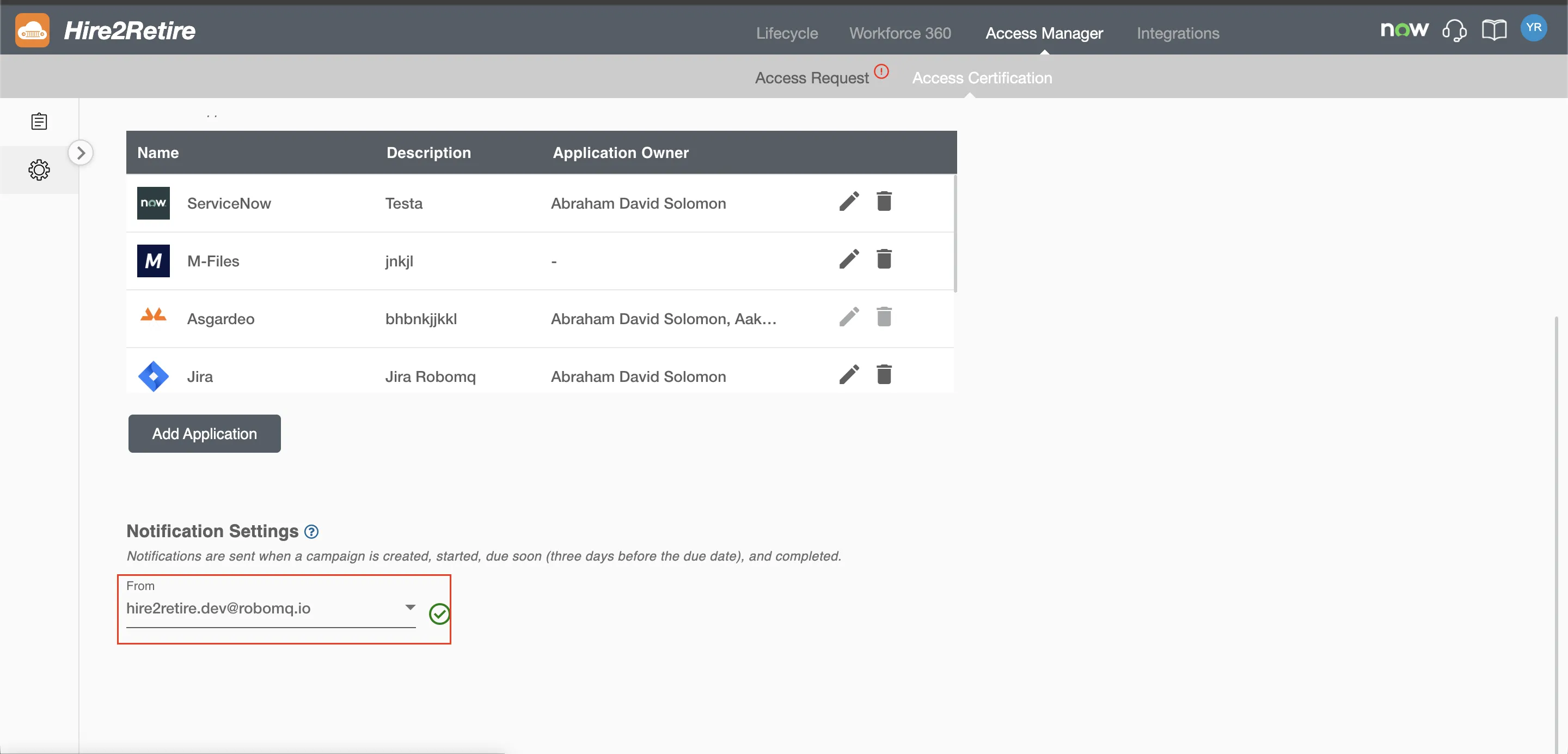 Fig.1 List of connections
-
To add a new connection, click on
Add New Sender, or the user can select an available connection.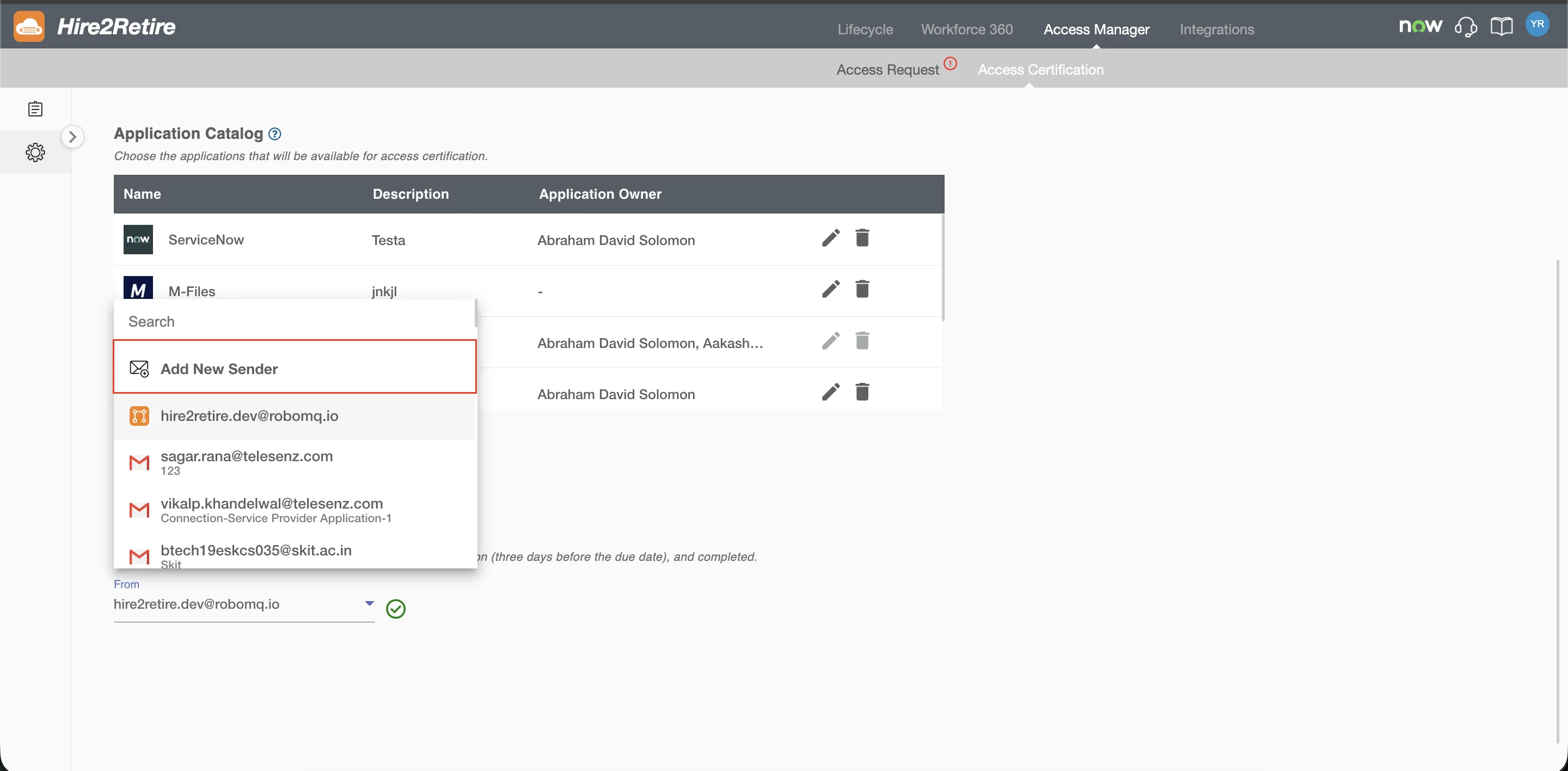 Fig.2 Add connection from mail template
Hire2Retire Access Certification supports two mailing ecosystems: Outlook and Gmail.
To create an Outlook connection, refer to send mail through outlook.
To create a Gmail connection, refer to send mail through gmail.