Campaign Review
The Campaign Review page is where reviewers evaluate employee access and take action on individual review items. You can reach this page by clicking on the campaign tile from the Campaign Home page. The review page displays a summary of the campaign followed by the review items, grouped by group (for Group Audit campaigns) or by application (for Application Audit campaigns).
Campaign Summary
The summary provides a quick overview of the campaign configuration.
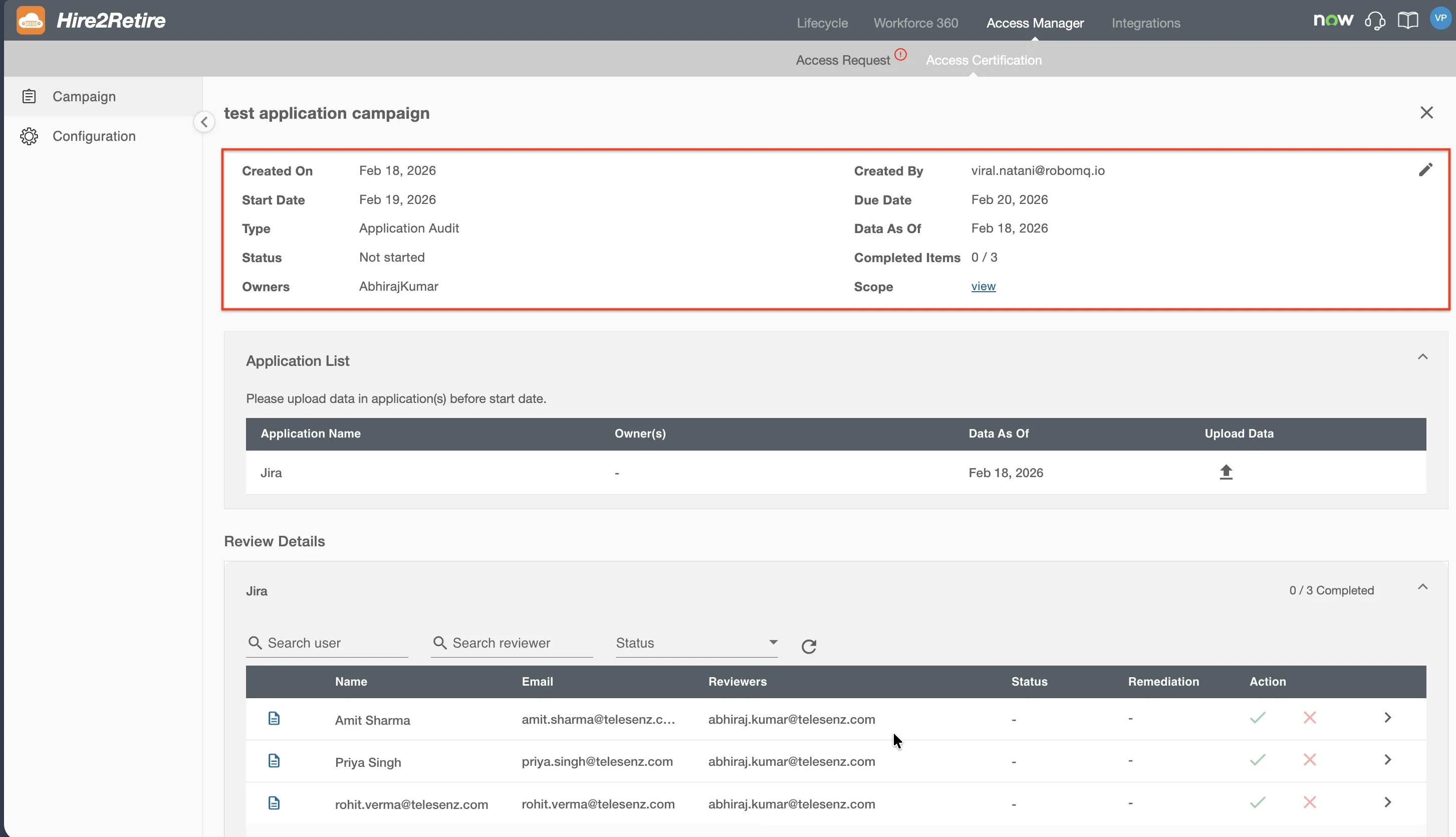
The summary panel contains the following fields:
- Name: The display name of the campaign.
- Description: A brief description of the campaign.
- Created On: The date the campaign was created.
- Created By: The display name of the user who created the campaign.
- Start Date: The start date of the campaign.
- Due Date: The due date of the campaign.
- Type: The audit type of the campaign (Group Audit or Application Audit).
- Reviewers: A comma-separated list of display names of users assigned as reviewers.
- Owners: A comma-separated list of display names of users assigned as owners.
- Scope: A list of groups or applications included in the campaign. Only a few items are shown initially, with a "view more" option to expand the full list.
- Data as of: The date and time when the campaign review data was last generated. For Group Audit campaigns, this indicates when group data was last fetched from the IDP system. For Application Audit campaigns, this indicates when application user data was last uploaded.
Application List (Application Audit Only)
For Application Audit campaigns, the review page includes an Application List section below the summary. This section displays all applications configured for the campaign in a tabular format.
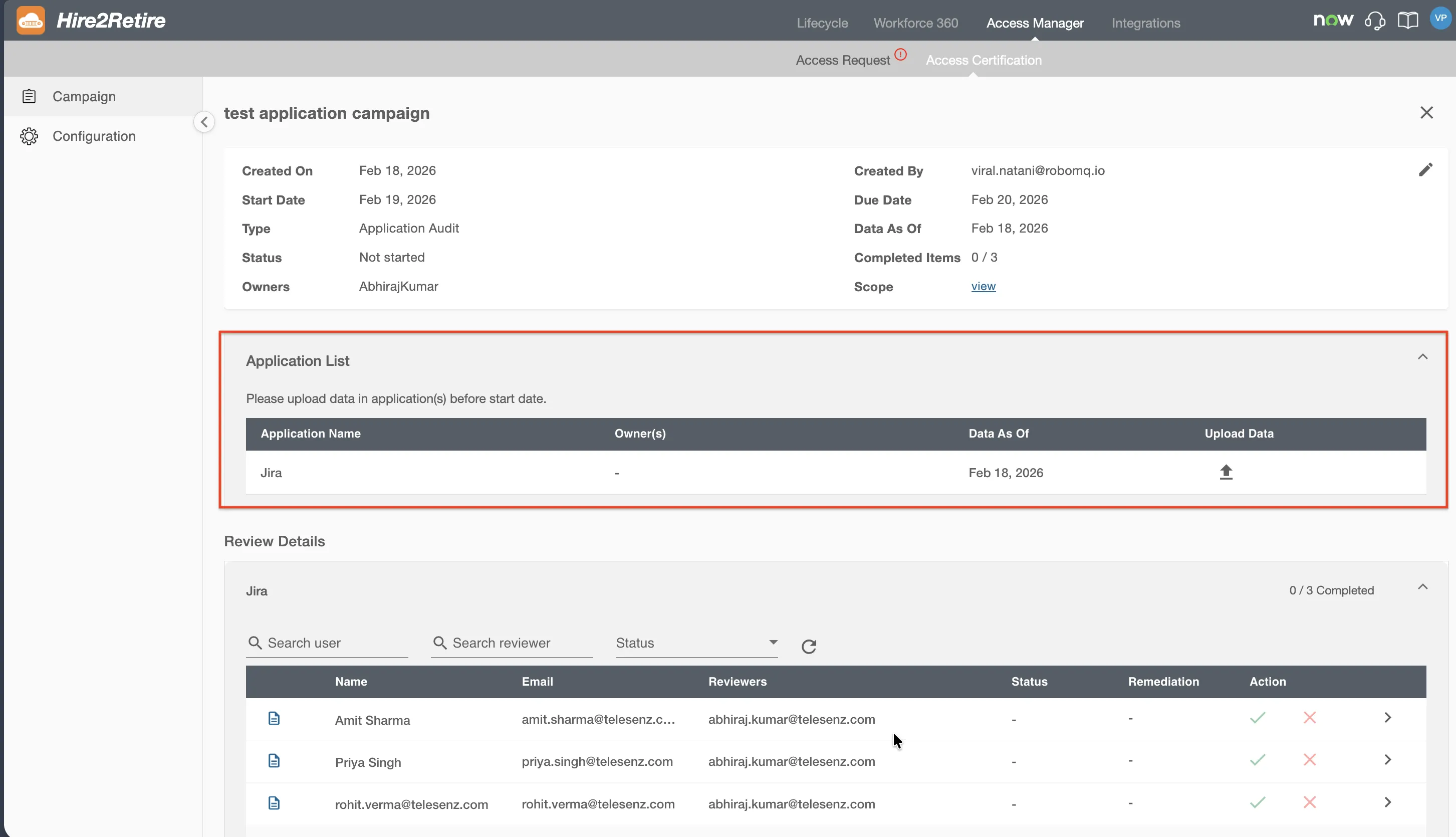
Each application row contains the following columns:
- Application Name: The name of the application.
- Owner: The owner of this application in
Hire2Retire. - Last Updated On: The timestamp when the application data was last modified.
- Last Updated By: The user who last updated the application data.
- Upload data: An upload button that allows the campaign owner to upload application user data using a file extract.
Uploading Application Data
For Application Audit campaigns, review data is uploaded manually using file extracts. To upload data for an application:
- Click the upload icon in the Action column next to the application.
- Drop or select the data file containing the application's user information.
- The uploaded data will be processed, and the review items will be populated under the application.
The upload icon is only available when the campaign is in Not Started status. At midnight of the start date, the upload option is disabled to prevent any changes to the application data once the review period begins.
If a file needs to be replaced before the start date, you can upload a new file. It will overwrite the previously uploaded data for that application.
Data Updates and Snapshots
Hire2Retire handles campaign data differently depending on the audit type. Understanding when data is generated and frozen is important for campaign planning.
Group Audit
For Group Audit campaigns, Hire2Retire automatically generates review data by fetching group membership information from the connected IDP system. Data is generated at two points:
- At campaign creation: When the campaign is saved,
Hire2Retireimmediately fetches the current group membership data from the IDP system and populates review items. - At midnight of the start date: The data is refreshed one final time to ensure the review is based on the most up-to-date membership information.
After the start date, the review data is frozen, and no further updates occur. The campaign review page displays a Data as of field indicating when the data was last generated.
For campaigns in Not Started status, a help text is displayed to inform users that the data will be refreshed at midnight on the start date in their timezone.
Application Audit
For Application Audit campaigns, data is uploaded manually by the campaign owner using file extracts. Files can be uploaded only while the campaign is in Not Started status. At midnight of the start date, the upload button is removed, and the data is frozen for the review period.
Review Details
Below the summary (and the Application List for Application Audit campaigns), the Review Details section displays the actual review items that require action.
Groups or Applications List
Review items are organized into expandable panels — one for each group (Group Audit) or application (Application Audit) included in the campaign scope. Select a panel to expand it and view the members listed under that group or application.
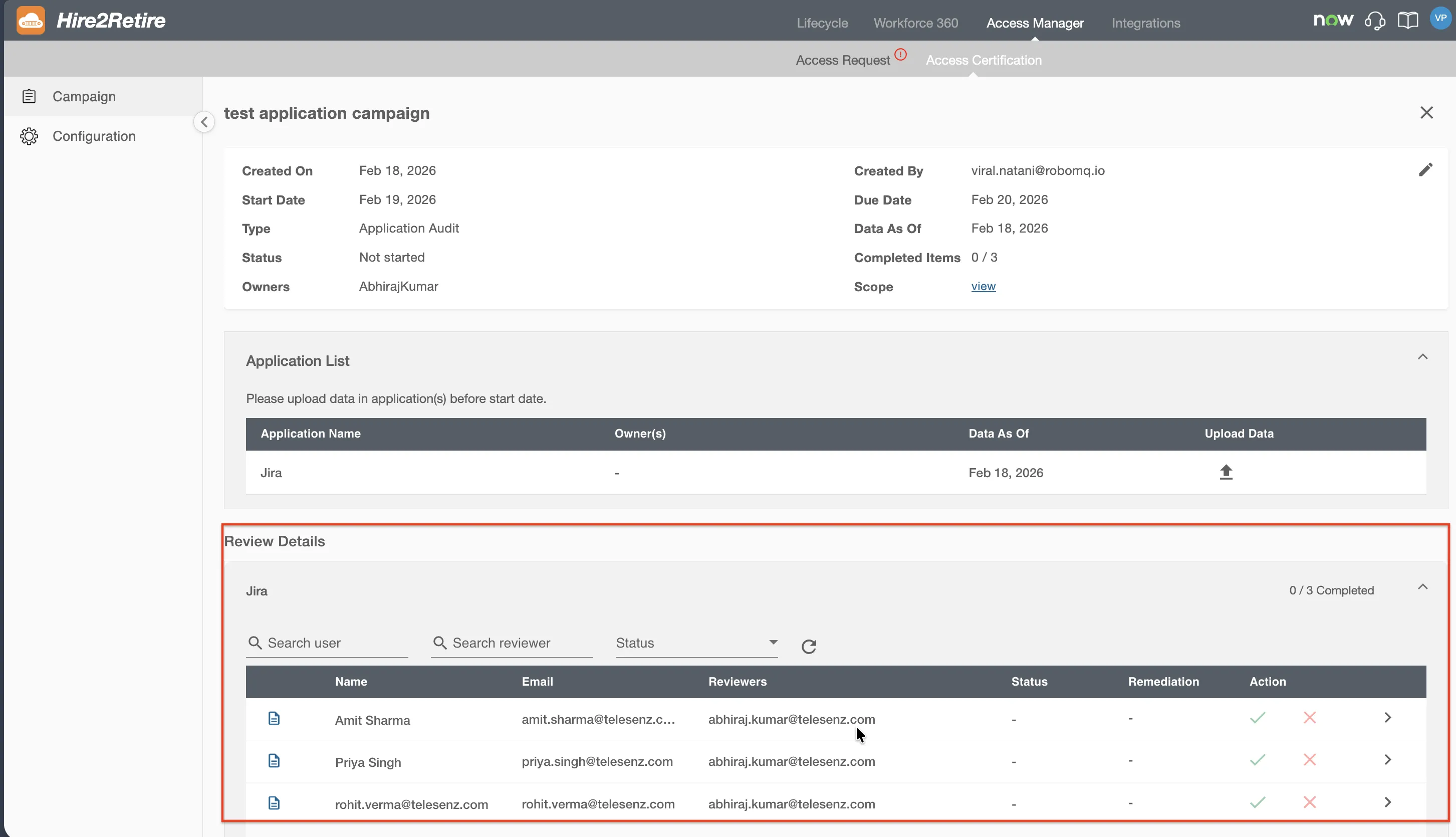
Each review item within an expanded panel shows the following information:
- Display Name: The display name of the employee.
- Email: The primary email address of the employee.
- Reviewer: The campaign reviewer(s) assigned to certify this item (Group Audit only, visible to owners and admins).
- Actions: Quick action buttons for approving or rejecting the item.
- Remediation: The remediation status of the item (shown after a review decision is made).
Searching and Filtering Review Items
Within each expanded panel, the following search and filter options are available to help locate specific review items:
-
Search by Display Name: A search bar to find a specific employee by name within the current group or application.
-
Filter by Status: A dropdown to filter review items by their review status. You can filter by All Status, Approved, or Rejected to focus on items that need attention.
-
Filter by Assignee: A dropdown to filter review items by the assigned reviewer. This filter is visible only to Campaign Owners,
Hire2RetireReviewers, andHire2RetireAdmins. It is useful when multiple reviewers are assigned to a campaign and the campaign owner needs to view items assigned to a specific reviewer.
Taking Review Actions
When a campaign is in In Review status, reviewers can take action on review items assigned to them. Reviewers can either approve or reject each review item.
Approving a Review Item
To approve a review item, click the approve icon (checkmark) in the Actions column. The item will be immediately marked as approved, confirming that the employee's access to the group or application is appropriate and should be retained.
For Group Audit campaigns, approving an item indicates that the employee should remain a member of the group. For Application Audit campaigns, approving indicates that the employee should retain access to the application.
Rejecting a Review Item
To reject a review item, click the reject icon (cross) in the Actions column. This will open the Review Detail Panel where you must provide a reason for rejection before saving.
In the Group Audit process, when a review item is rejected, remediation is automatically triggered and processed within five minutes.
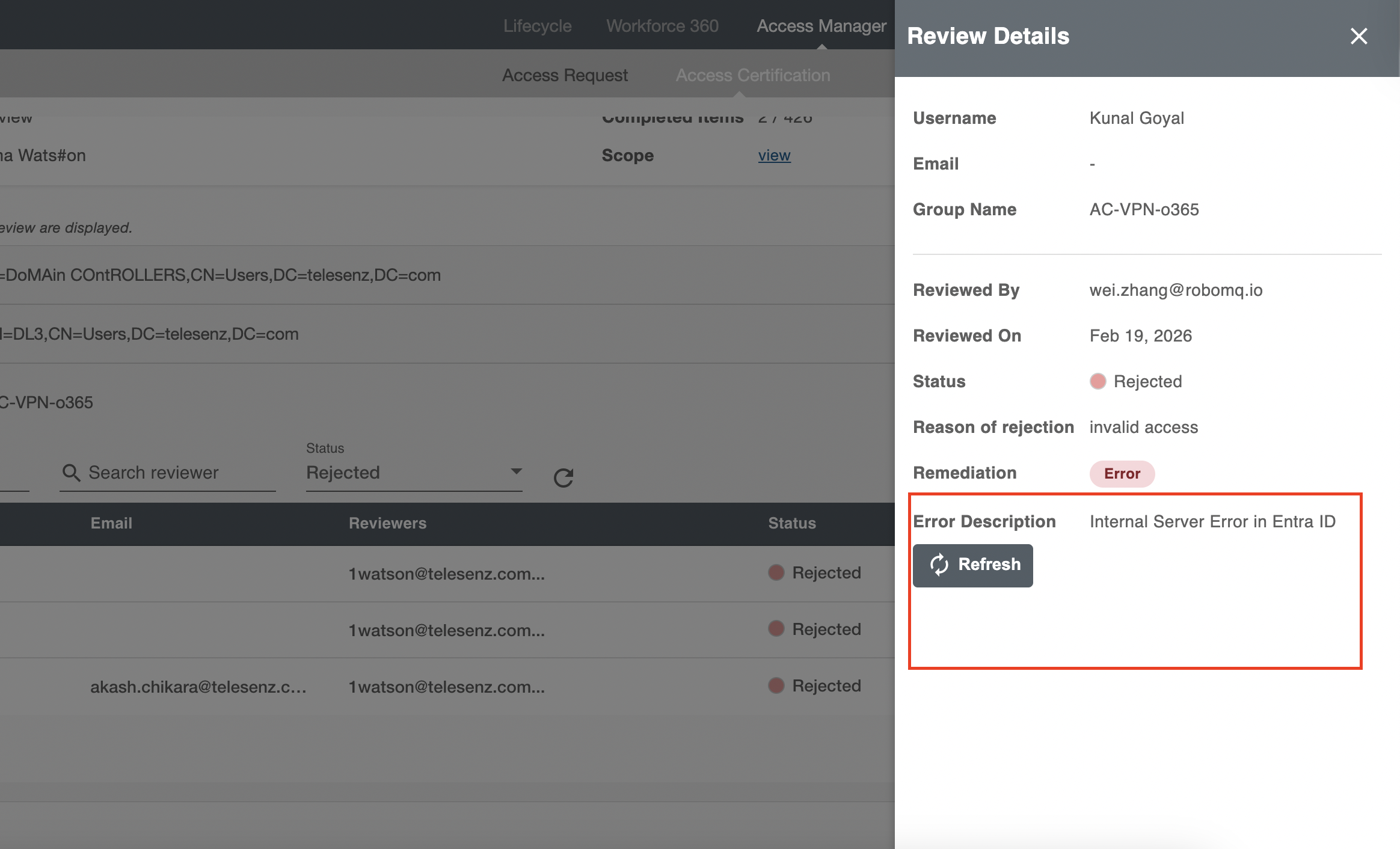
If an error occurs while removing the user’s group membership, the remediation will fail. In such cases, the user must be manually removed from the group, and the Refresh button can be used to fix the remediation.
When an error occurs, the review item status will be marked as Error. A detailed error message will be displayed in the review panel. Use the Refresh button after resolving the issue manually( for example, removing the user from the group manually) to retry remediation.
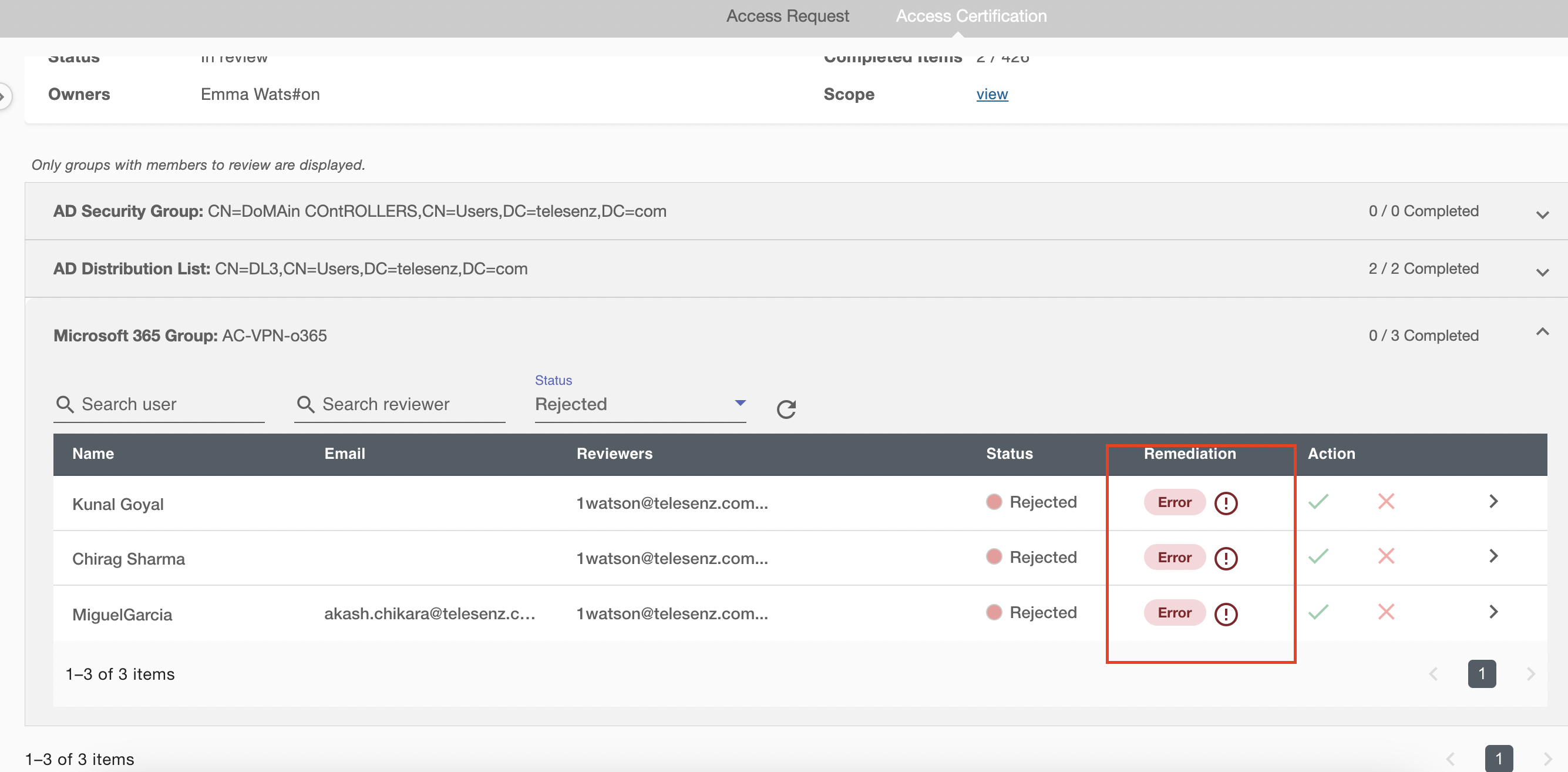
For Application audit, rejecting an item flags the employee's access as inappropriate. After rejection, the item enters the remediation workflow, where the issue must be resolved and marked as fixed.
Remediation Status
After a review decision is made, the Remediation column displays the current state:
- No value: The item has been approved. No remediation is needed.
- Pending: The item has been rejected but has not yet been remediated. The access issue is still outstanding.
- Fixed: The item has been rejected and subsequently marked as fixed, the remediation was completed.
A campaign is considered Completed only when all review items are either approved or rejected and marked as fixed.
Review Detail Panel
The Review Detail panel provides detailed information about a specific review item. It opens when a reviewer rejects an item or when a user clicks the detail button at the end of a review item row.
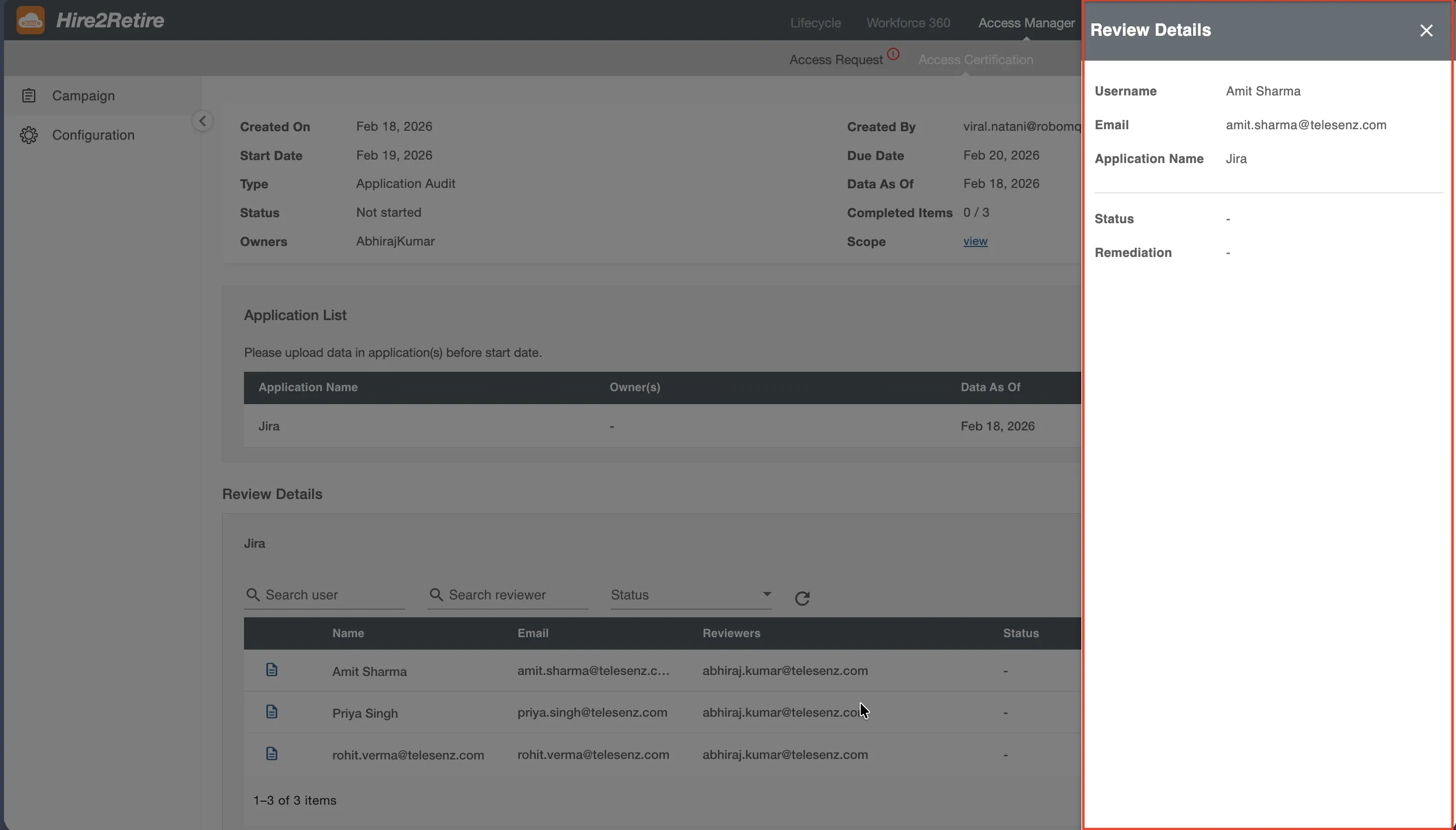
The panel contains the following sections:
Employee Summary
Basic information about the employee whose access is being reviewed:
- Display Name: The employee's full name.
- Primary Email: The employee's primary email address.
- User Principal Name: The employee's user principal name from the IDP system.
- Manager: The display name of the employee's manager.
- Group Name (Group Audit) or Application Name (Application Audit) — The group or application associated with the review item.
User Details Pop-up (Application Audit Only)
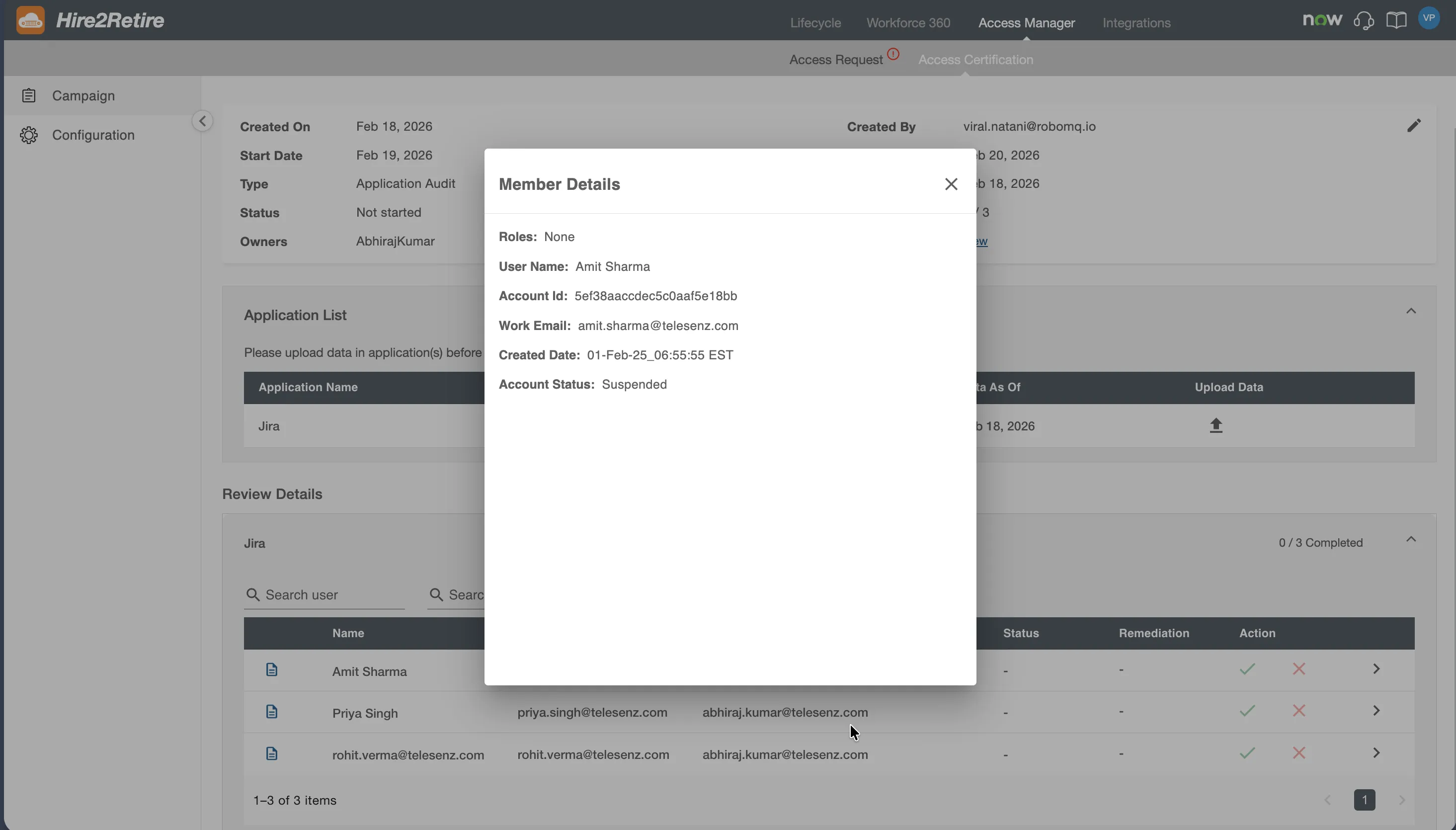
For Application Audit campaigns, an option next to the employee’s username opens a pop-up displaying all available user attributes from the application data source. This allows reviewers to examine the complete user profile from the application data file, including attributes such as role, last activity, and any other custom fields that were uploaded.
Review Status
The current review status of the item can be either pending review, approved, or rejected.
Remediation Status
It displays the current remediation status for rejected items. It can be either Pending (rejected but not yet fixed) or Fixed (rejected and resolved). This field is shown only for rejected items.
Review Actions in the Panel
From the detail panel, you can take the following actions:
-
Approve: Approves the review item. An optional notes field is available to provide additional context for the approval.
-
Reject: Reject the review item. When rejecting, you must provide a reason for rejection in the notes field. The notes field is mandatory for rejections to ensure that there is a documented rationale for flagging the access.
-
Mark as Fixed: After a review item has been rejected and the remediation is complete (for example, the employee's access has been removed), check the Mark as fixed checkbox to indicate that the issue has been resolved. This transitions the remediation status from Pending to Fixed.
After completing an action, the panel can be closed. To update a previously rejected item, reopen the detail panel using the detail button in the review item row.
Campaign Locking
Available review actions depend on the campaign status:
- Not Started: No review actions are available. The campaign is in its configuration and data preparation stage.
- In Review: All review actions (approve, reject, mark as fixed) are available. This is the active review period.
- Completed: The campaign is complete. No further actions are allowed.
- Past Due: The campaign is locked. Further actions (approve, reject, or mark as fixed) are disabled. The campaign remains accessible only for viewing and reporting purposes.
Visibility Rules
The review items visible on the Campaign Review page depend on the user's role and campaign assignment:
-
Campaign Owners and
Hire2RetireAdmins: Can view all review items and all assignees within the campaign. They can use the assignee filter to view items by specific reviewers. -
Hire2RetireReviewers (account-level role) — Can view all review items within campaigns they have access to and can use the assignee filter. -
Campaign Reviewers (campaign-level assignment) — Can only view review items assigned to them. Items assigned to other reviewers within the same campaign are not visible.