Campaign Home
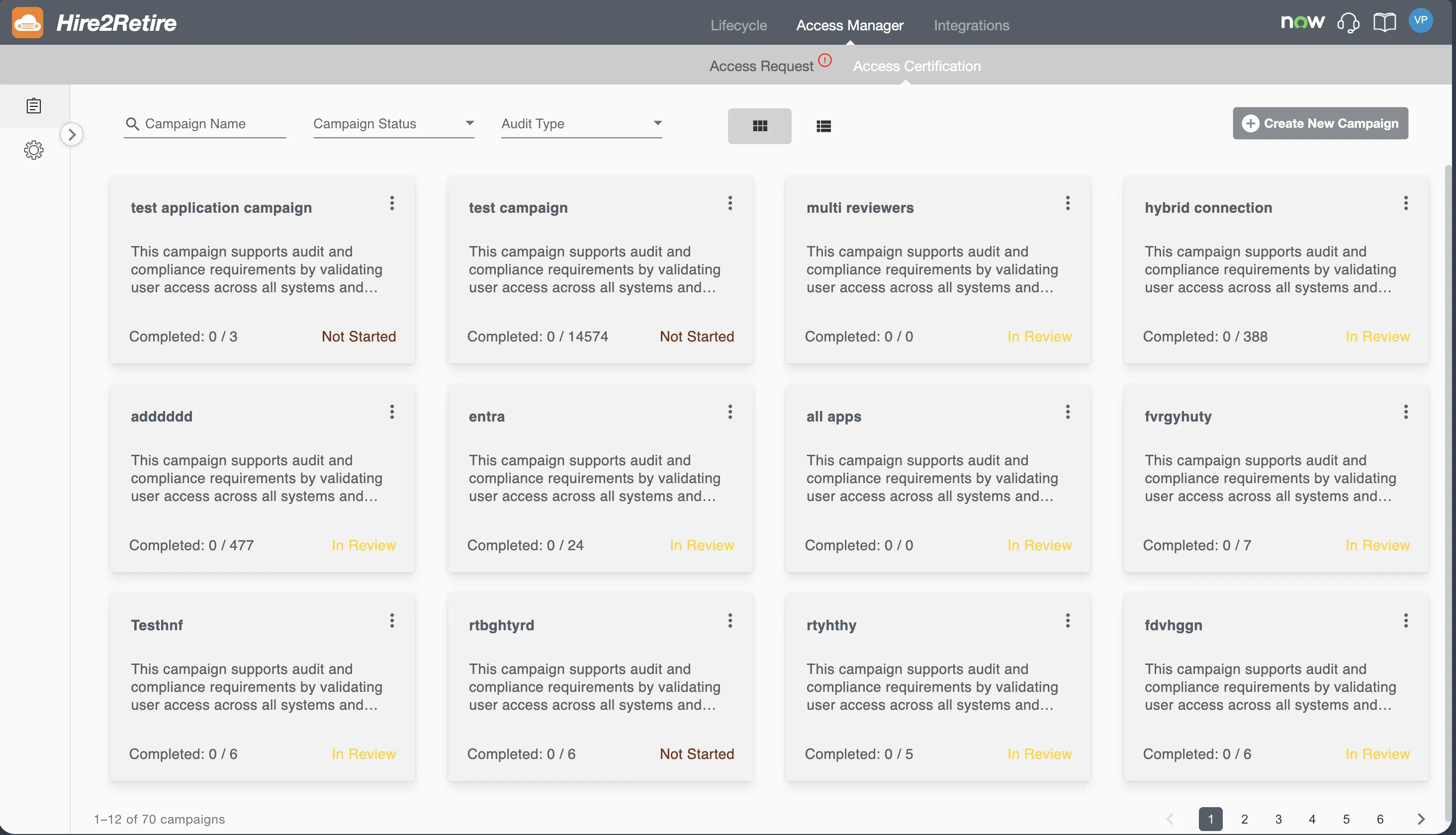
The Campaign Home page is the central hub for viewing, tracking, and managing all access certification campaigns within your organization. From this page, you can view existing campaigns, track their progress, and navigate to individual campaigns for review. Admins and Editors can also create new campaigns or delete existing ones directly from this page.
To access the Campaign Home page, navigate to Access Manager > Access Certification in the Hire2Retire navigation menu.
Viewing Campaigns
The home page displays all campaigns that the current user has access to based on their role and campaign assignment. Campaigns are sorted by creation date, with the most recently created campaigns appearing first.
Each campaign is displayed as an individual card or list item showing the following information:
- Campaign Name: The display name of the campaign.
- Completed Items: The number of review items completed out of the total (for example, "5 out of 20").
- Status: The current status of the campaign, displayed as a colored badge. Possible statuses include Not Started, In Review, Completed, and Past Due.
Card View and List View
The home page supports two display modes that you can toggle between using the view icons at the top of the page:
-
Card View: Campaigns are displayed as individual cards arranged in a grid layout. Each card shows the campaign name, completion count, and status badge. This view provides a visual overview of all campaigns at a glance.
-
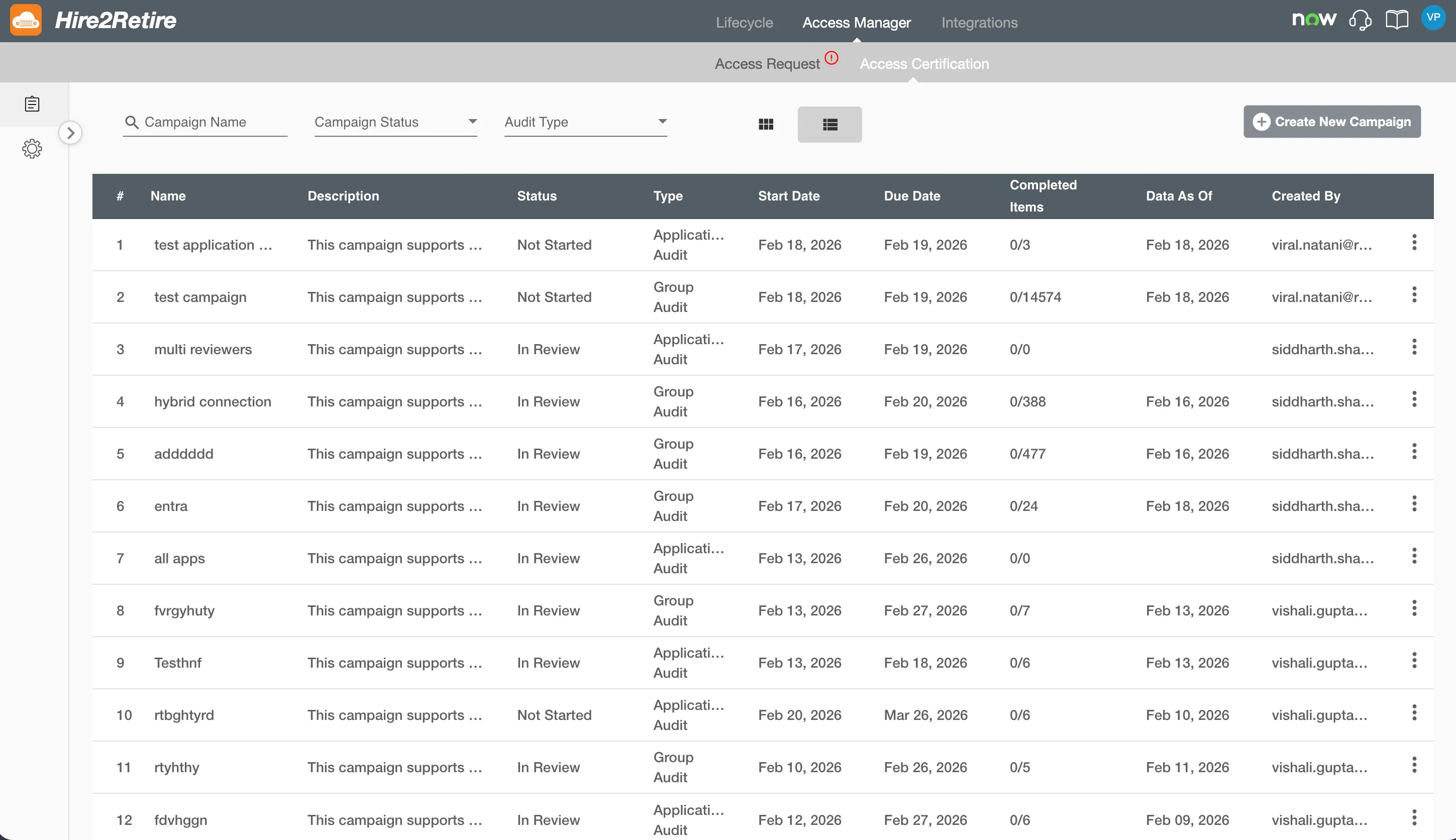
List View: Campaigns are displayed in a tabular format with columns for Campaign Name, Status, Type, Start Date, End Date, Completed Items, Data as of, and Created By. This view is useful when you need to compare campaign details side by side or when managing a large number of campaigns.
Searching and Filtering
The home page provides search and filtering options to help you quickly locate specific campaigns.
Search
A search bar is available at the top of the page. You can search for campaigns by typing part or all of the campaign name. The campaign list updates dynamically as you type to display matching results.
Status Filter
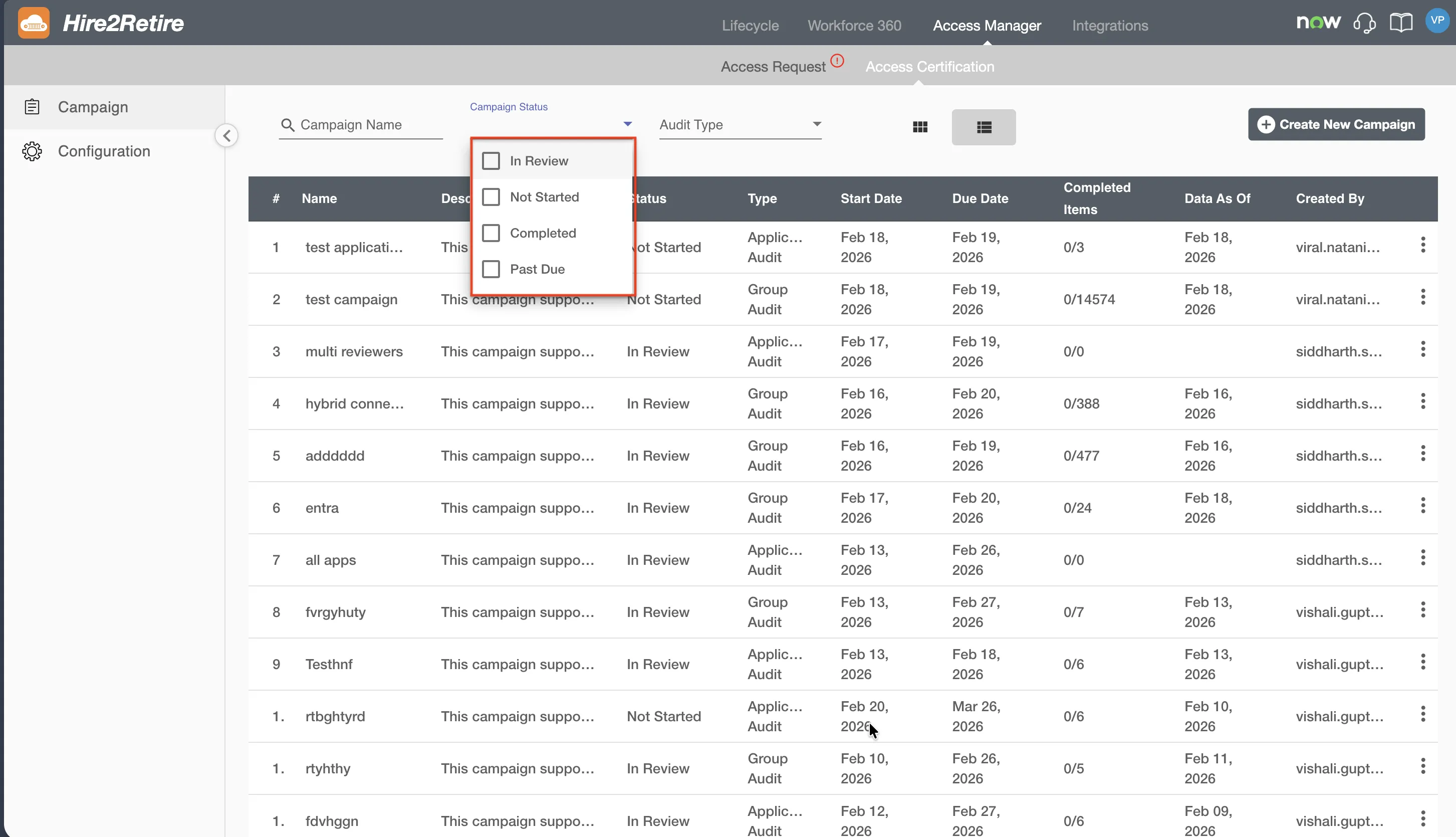
A multi-select Status dropdown is available next to the search bar. You can select one or more statuses to filter the campaign list. The available status options are:
- Not Started: Campaigns that have been created but have not yet reached their start date.
- In Review: Campaigns that are currently active and open for review.
- Completed: Campaigns where all review items have been resolved.
- Past Due: Campaigns where the due date has passed with unresolved review items.
You can select multiple statuses simultaneously. For example, selecting both "In Review" and "Past Due" will show all campaigns that currently require attention.
Campaign Visibility
The campaigns visible on the home page depend on your role and campaign assignments:
-
Admins: Can view all campaigns across the organization, regardless of whether they are assigned as an owner or reviewer of those campaigns. This provides full visibility for governance and oversight purposes.
-
Editors: Can view all campaigns to which they are assigned.
-
Owners: Can view all campaigns where they are assigned as an owner. If a user is an owner of one campaign and a reviewer of another, both campaigns will appear on their home page.
-
Reviewers: Can only see campaigns to which they are assigned as a reviewer. Campaigns not assigned to them will not appear on their home page.
Campaign Actions
Each campaign card or list item includes an ellipsis (three-dot) action menu. This menu is visible only to Admins and Campaign Owners and provides the following options:
-
View: Opens the campaign detail page where you can view the campaign configuration and, if applicable, the review items.
-
Edit: Opens the campaign configuration for editing. This option is available only when the campaign is in the Not Started status.
-
Delete: Permanently deletes the campaign. A confirmation dialog will appear before the campaign is permanently removed. Deleting a campaign removes all associated review items, status history, and reviewer assignments. This option is only available when no data has been uploaded to the campaign. Once user data has been uploaded, the campaign can no longer be deleted.
Opening a Campaign
To open a campaign and view its review items, click on the campaign card or list item. This navigates you to the Campaign Review page, where you can view the campaign summary, review items grouped by group or application, and take review actions.