SolarWinds Connection
SolarWinds on Hire2Retire uses Token-Based Authentication. Please refer to the SolarWinds API documentation to know more about token-based authentication.
We at RoboMQ, pay utmost attention to keep your account secure. See our Security and Privacy Policies to learn more about how RoboMQ handles your account access.
Link SolarWinds Account
In this step, you can view all SolarWinds connections created during the Lifecycle step for your tenant and select the one you want to use. If needed, you can also create a new SolarWinds account from here.
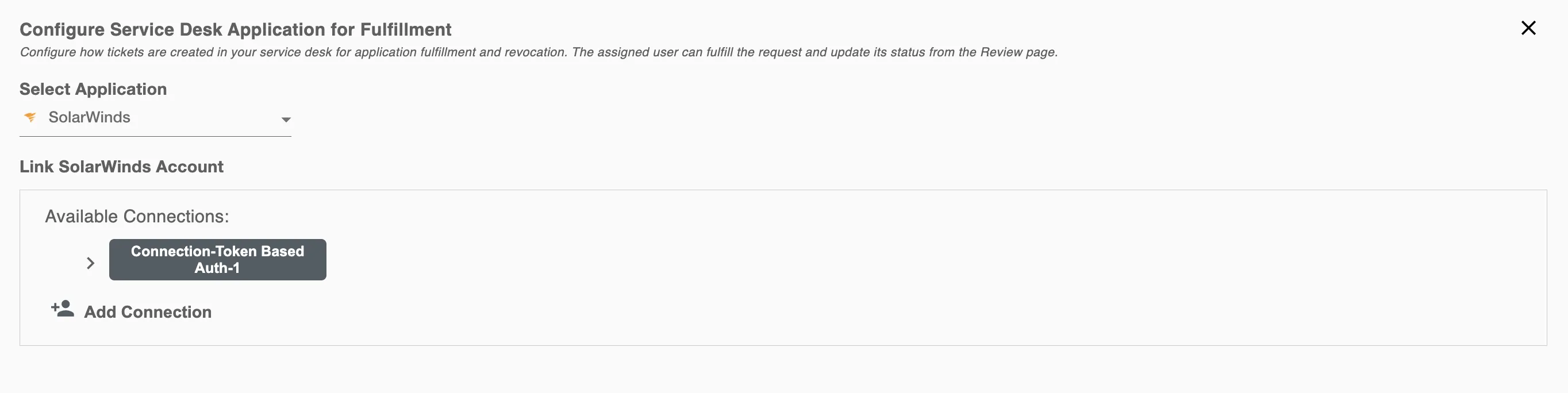
Add Connection
Step 1. Specify your SolarWinds Instance URL. WWhen you log in to your SolarWinds account in the browser, you will see the Instance URL in the format https://YourDomain.samanage.com.
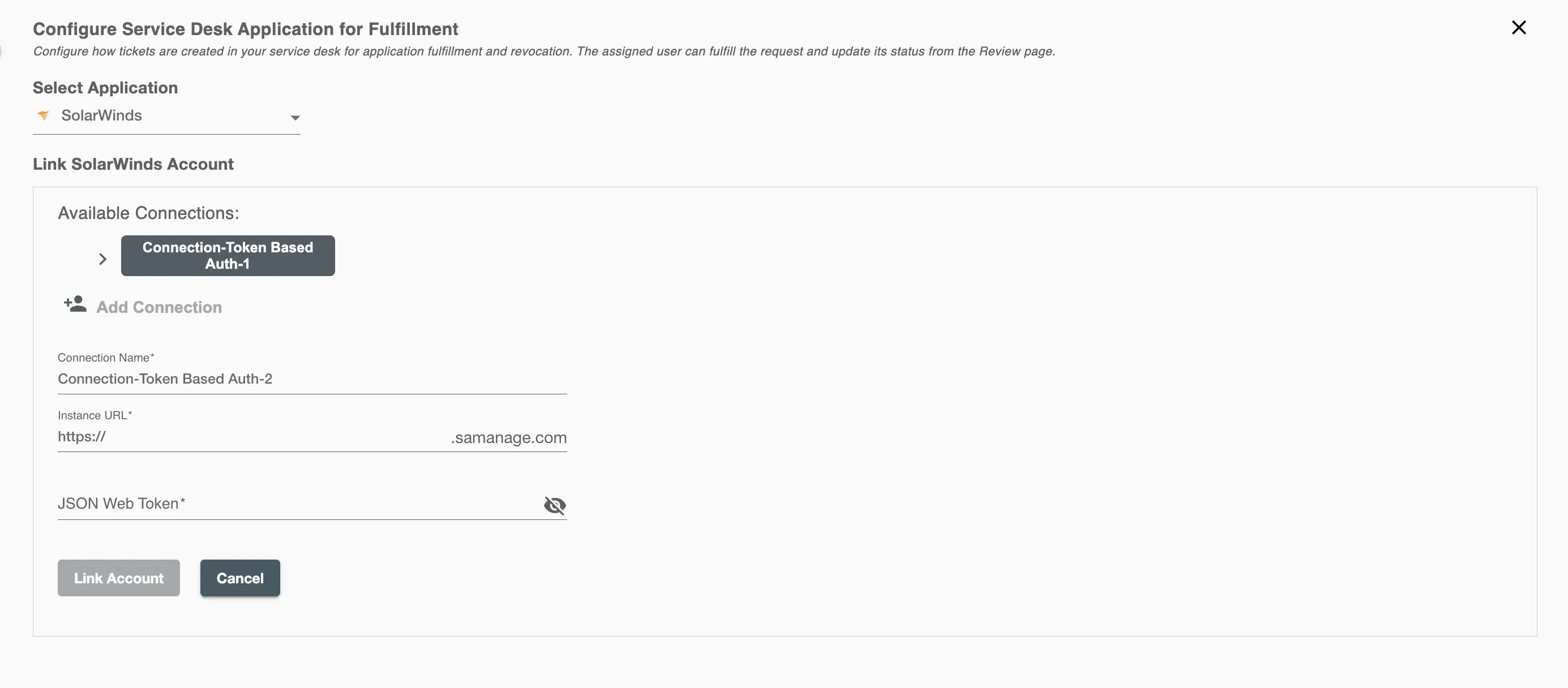
Step 2. Enter your SolarWinds JSON Web Token.
How to Generate JSON Web Token?
-
Log in to your SolarWinds Console
-
Click the
Setupicon in the bottom-left corner of your portal.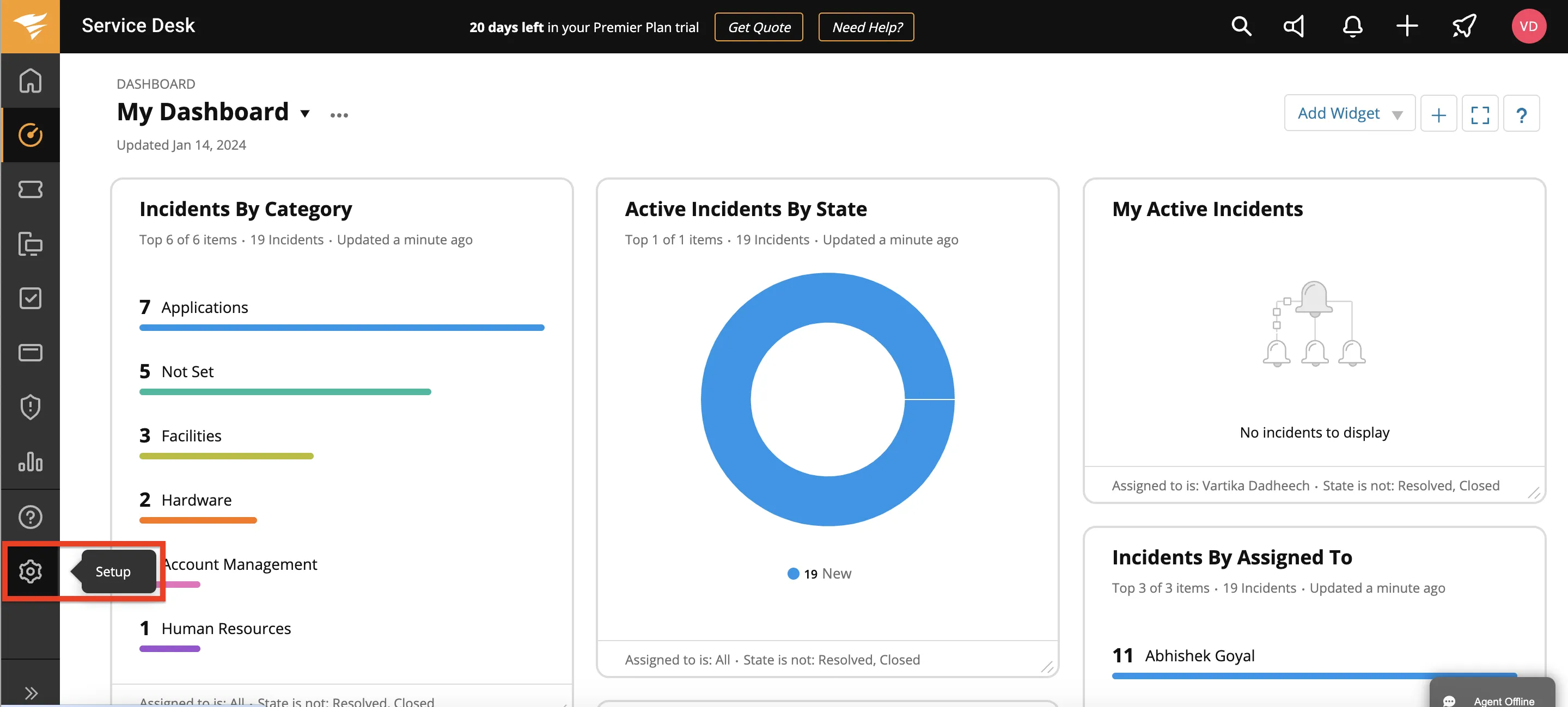
-
Click on the 'Users and Groups' option.
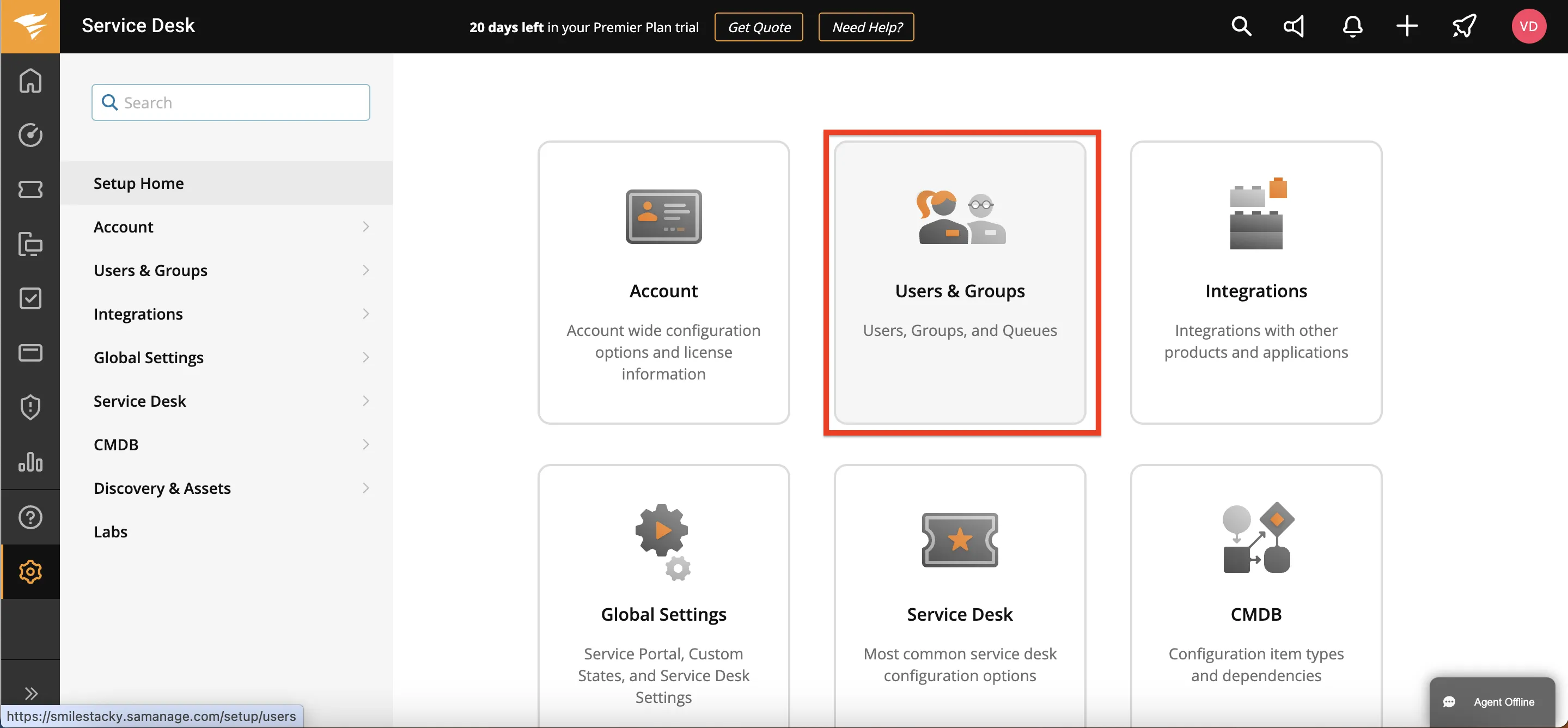
-
Under the
Allowed Domainstab in the Users section, select your service account username from the list of displayed users.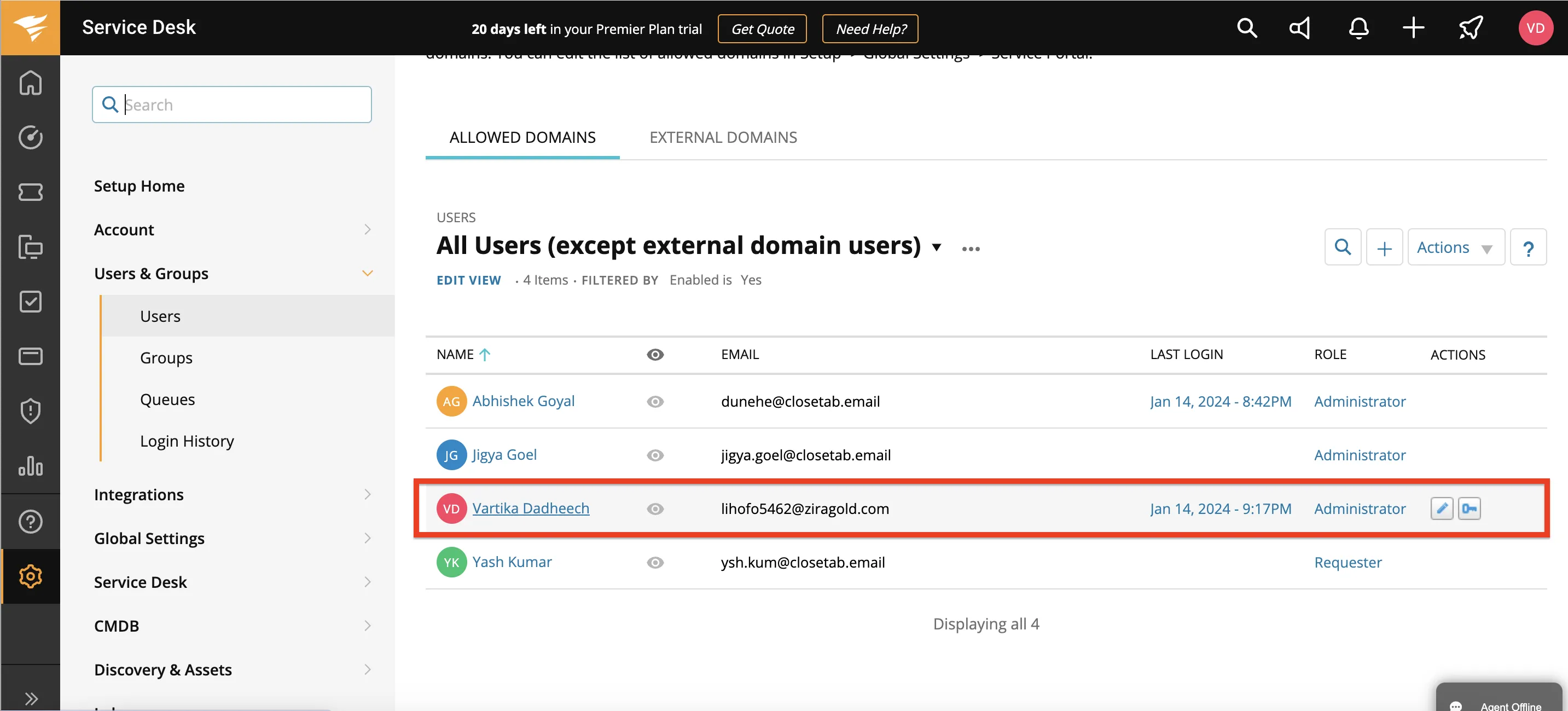
-
Click the
Actionsdropdown next to your username and select the 'Generate JSON Web Token' option.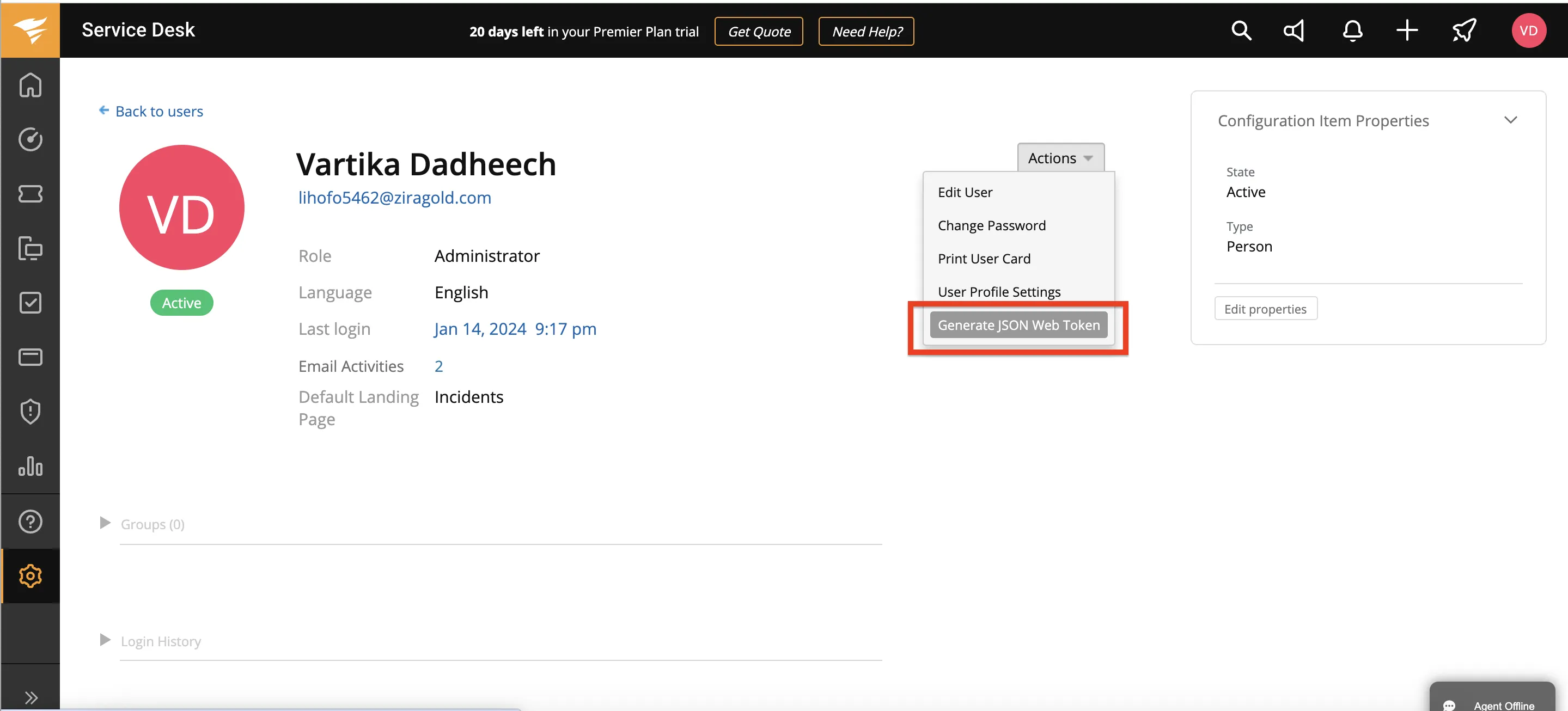
-
After the JSON Web Token is generated, click the copy option and paste it into the Hire2Retire platform on the Access page.
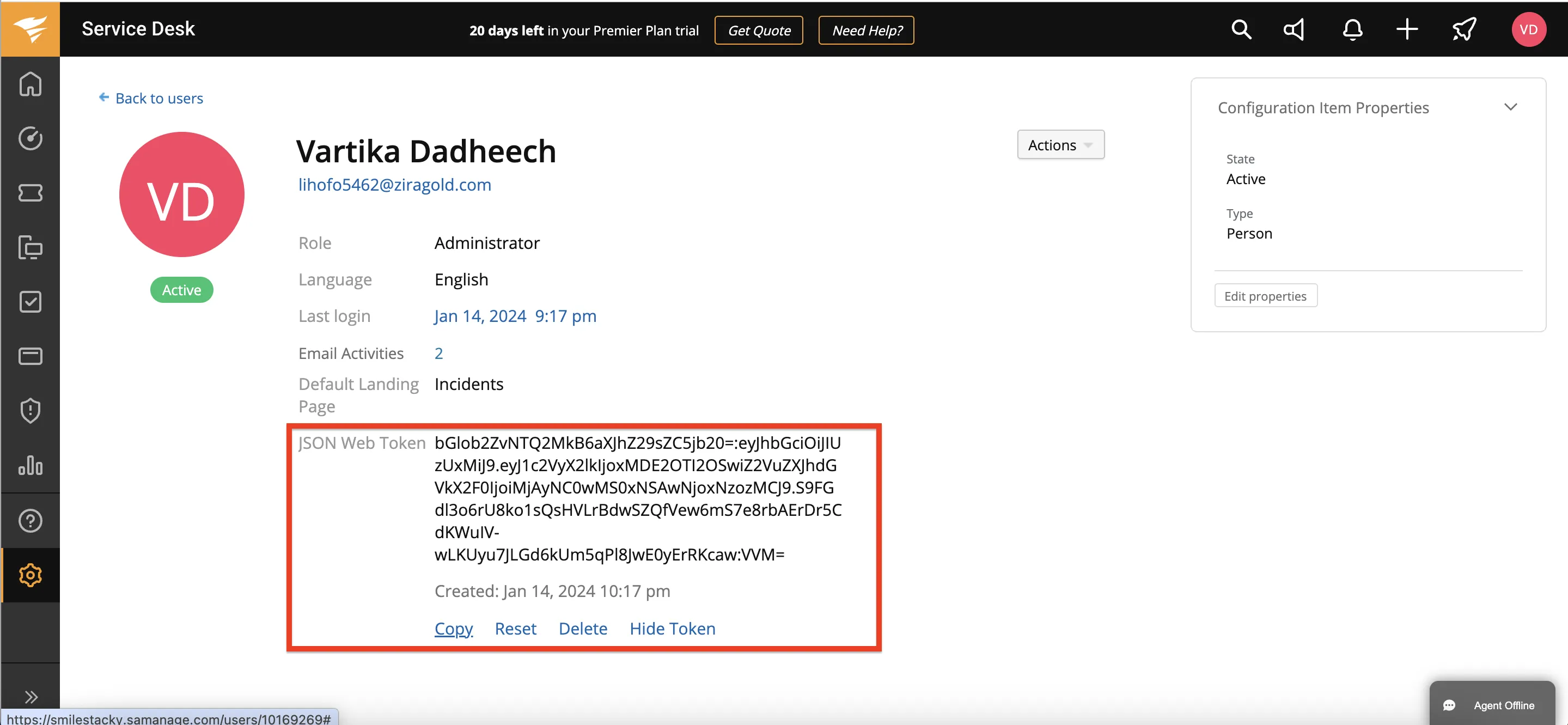 Figure 3. JSON Web Token generation for SolarWinds
Note: If the
ResetorDeleteoption is selected, the existing connection with Hire2Retire Access will expire. You will need to establish a new connection using a newly generated JSON Web Token. -
After entering the required details, click the 'Link Account' button on the Access page to successfully establish the connection.
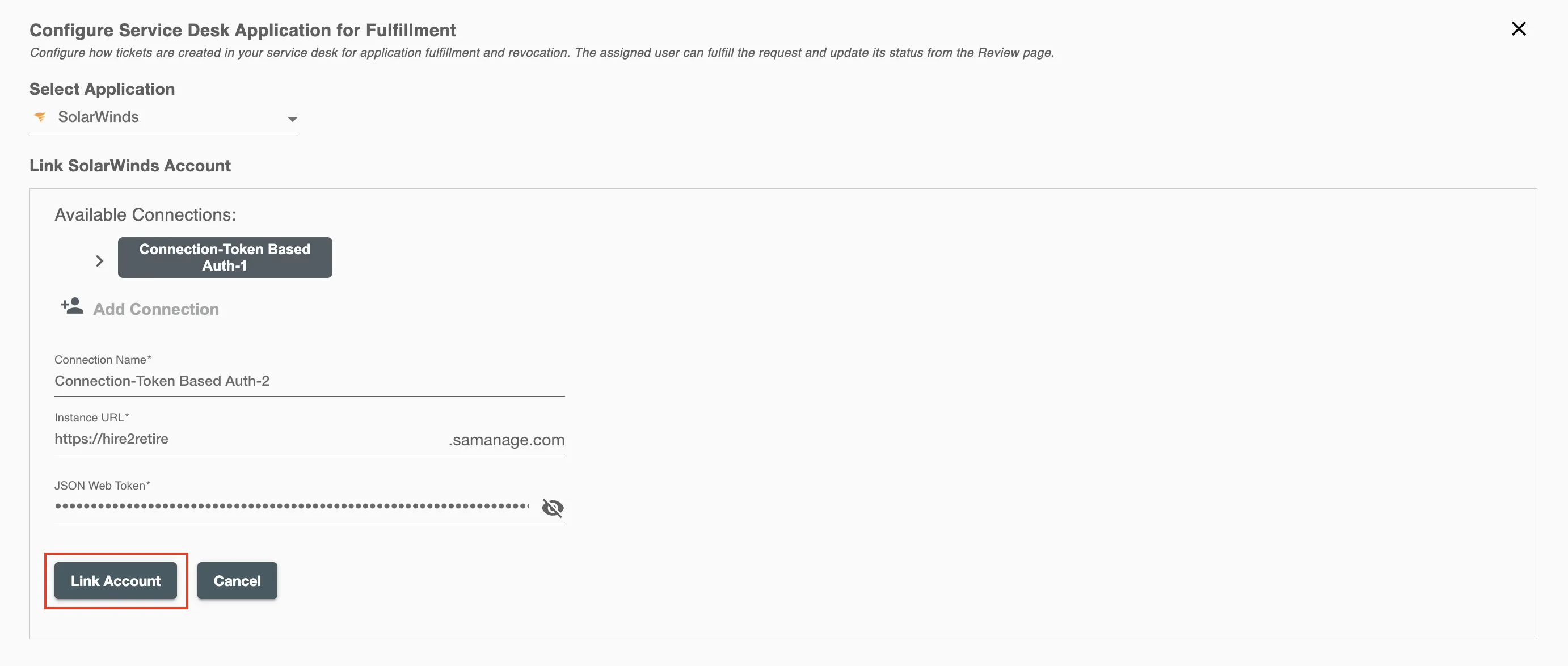 Figure 4. Establishing the Connection for SolarWinds on Access Manager