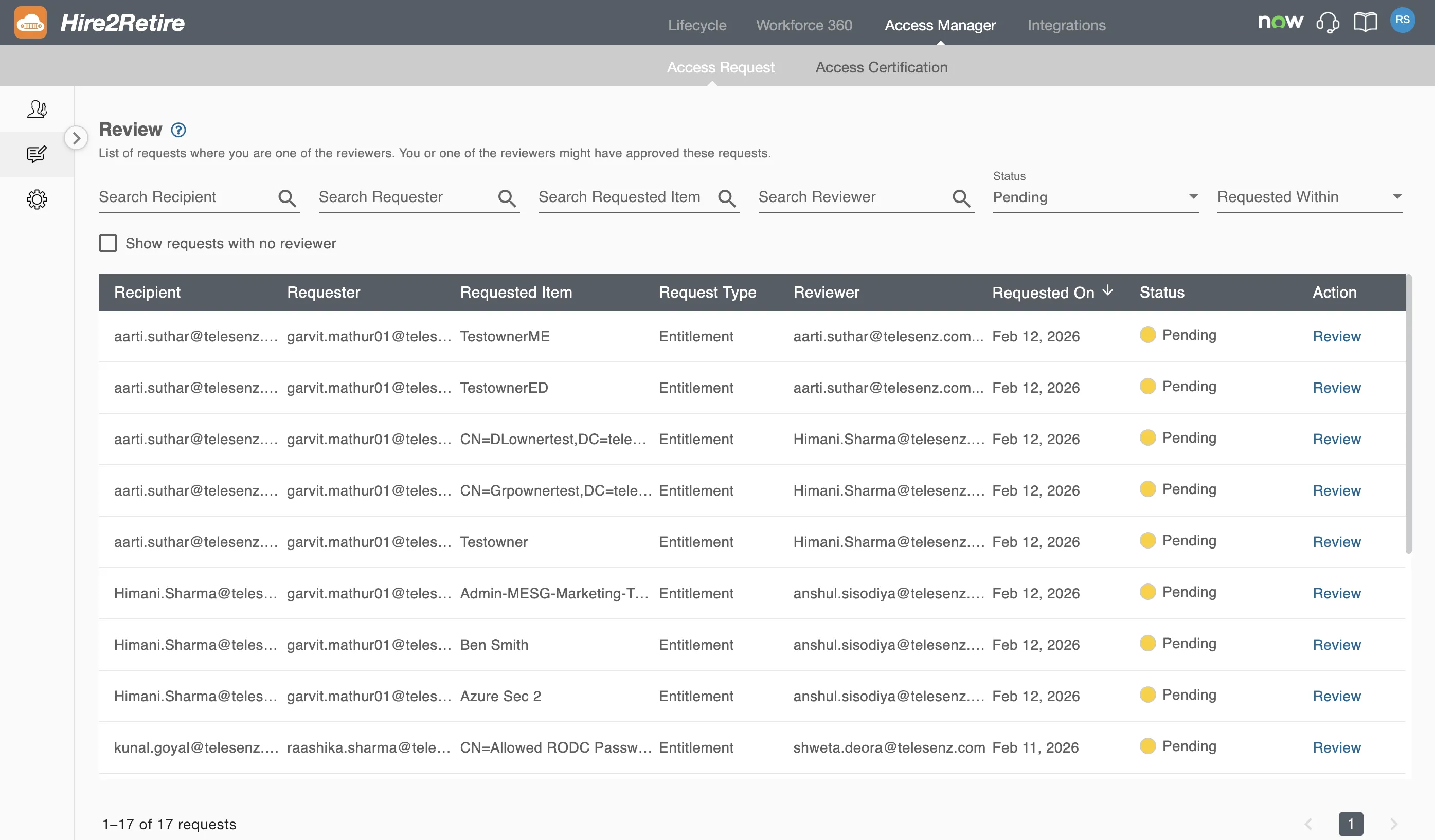
Access Request - Review
The Review page enables you to approve pending access requests assigned to you. for approval. It also allows authorized users to mark a request as Fulfilled or Revoked.
From this page, approvers can review request details and perform the required actions..
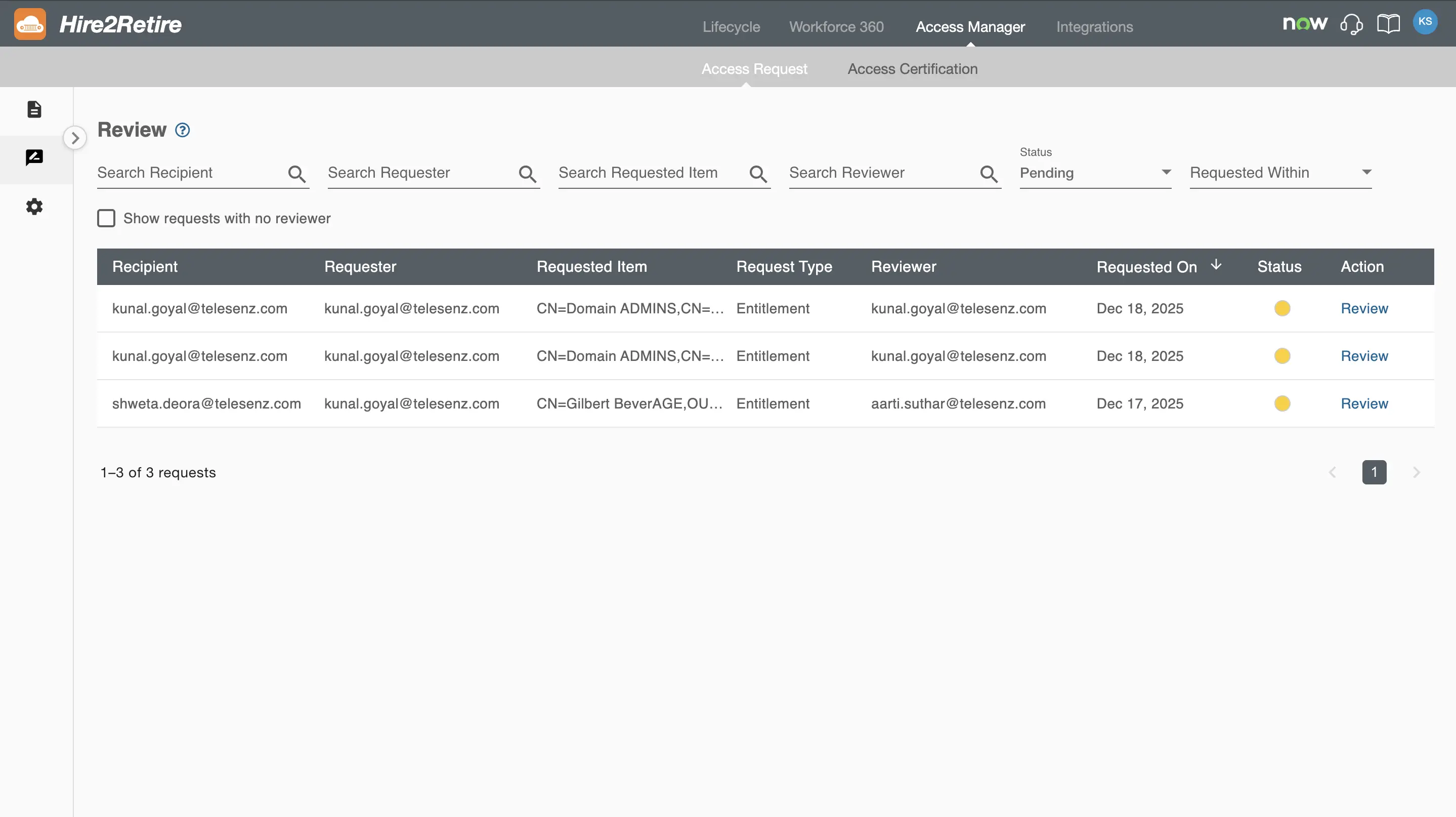
A request can have one of the following statuses:
- Processing – Hire2Retire has received the request and is assigning reviewers.
- Pending – The request is awaiting review.
- Rejected – The request has been rejected by an approver.
- Approved – The request has been approved by an approver.
- Awaiting Fulfillment – The request has been approved and is waiting to be fulfilled.
- Fulfillment Failed – The request could not be fulfilled due to some error.
- Fulfilled – Access has been successfully granted to the recipient
- Awaiting Revocation – The request is waiting for access to be revoked
- Revocation Failed – The access could not be revoked due to some error.
- Revoked – The access has been successfully removed
You can also filter and search for requests using the following criteria:
- Recipient
- Requester
- Requested Item
- Reviewer
- Status
- Requested Within (using a predefined or custom date range)
Reviewing a Request
To view or review a request, click the View or Review button in the Action column.
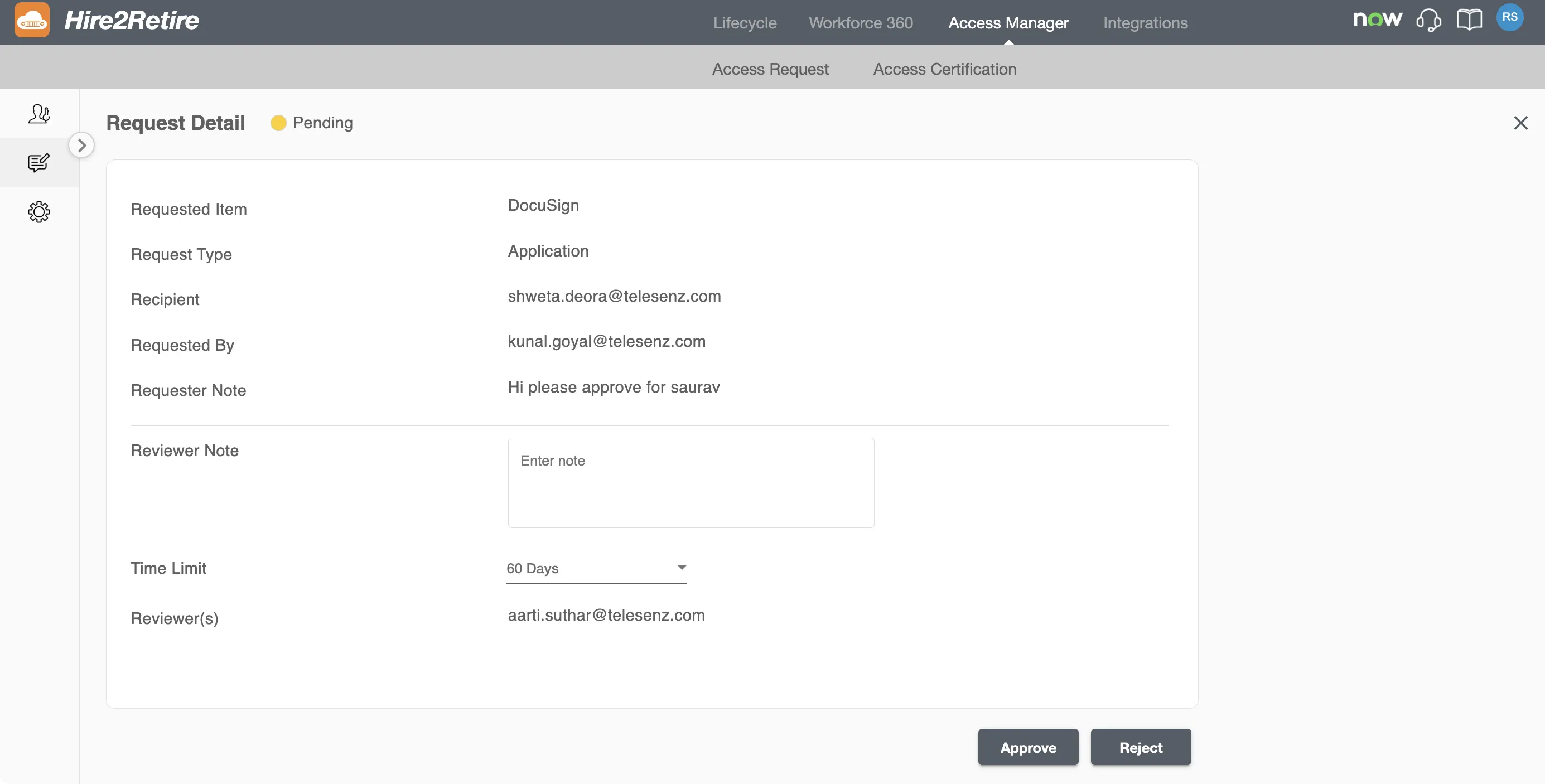
You can view the following information:
- Requested Item
- Request Type
- Recipient
- Requester
- Requester Note
- Reviewer Note
- Time Limit
- Reviewer(s) (This field is visible only to users with the Admin or Reviewer role)
You can override the time limit selected by the requester before approving the request. As an approver, you can choose a predefined duration or specify a custom date. The selected time limit determines how long the recipient will retain access.
Approving or Rejecting Requests
From the review details page, you can view the request and approve or reject it.
In the case of an entitlement request, once approved, it is automatically fulfilled by Hire2Retire, and the recipient is added to the requested group. After the time limit expires, the recipient is also automatically removed from the group.
In the case of an application request, the request moves to the Awaiting Fulfillment or Awaiting Revocation state. The application request tracks the corresponding ServiceDesk ticket until it is marked Fulfilled or Revoked. Users with the required privileges can also explicitly mark the request as Fulfilled or Revoked.
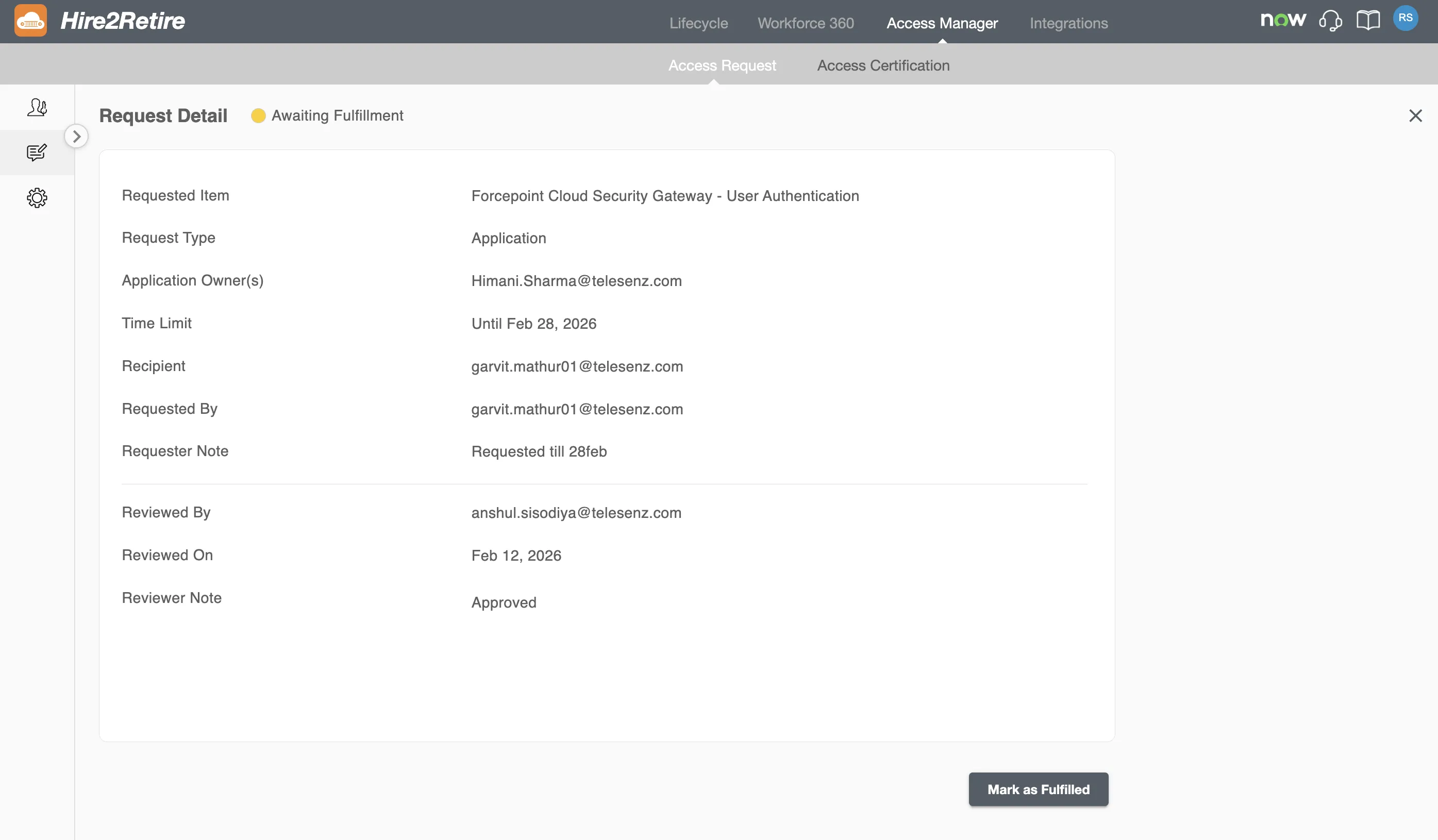
The requester and recipient are notified on approval, rejection, fulfillment, and revocation.
For Admins and Reviewers
If you have an Admin or Reviewer role in your organization, you can review all requests across the organization. You can also mark any request as Fulfilled or Revoked.
You will also be able to see the designated approvers of all requests and filter requests based on approvers.
You will also be able to review the requests that have no designated approvers. Such requests appear when you select the Show requests with no approver checkbox.