Overview
Hire2Retire allows you to automatically create Halo tickets for key employee lifecycle events, helping IT teams streamline onboarding, role changes, and offboarding.
Configuring Tickets to be created on Halo
Create Tickets
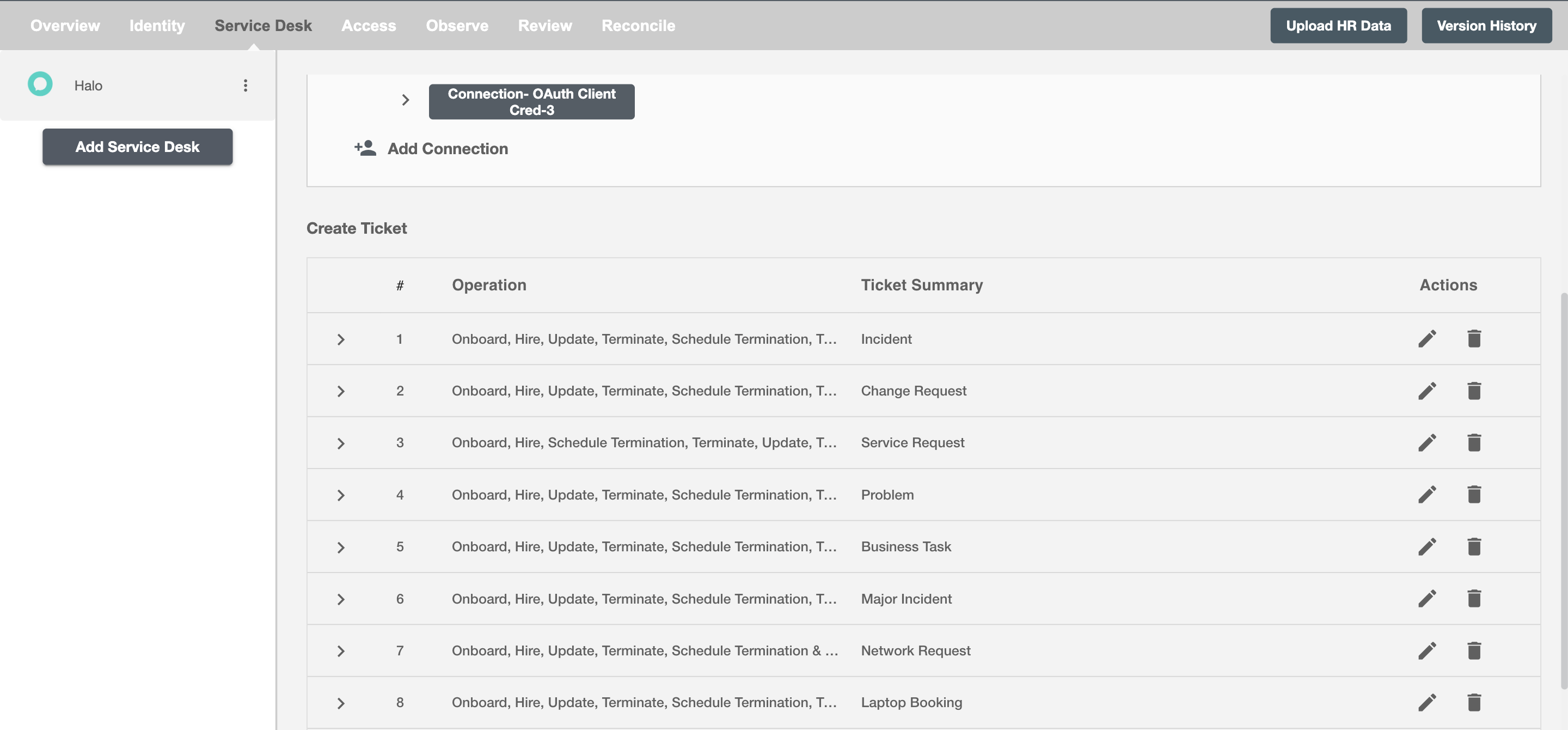
You can configure one or more tickets to be created for each employee lifecycle event. All configured tickets appear in the summary table along with their associated operations.
Conditional Service Desk
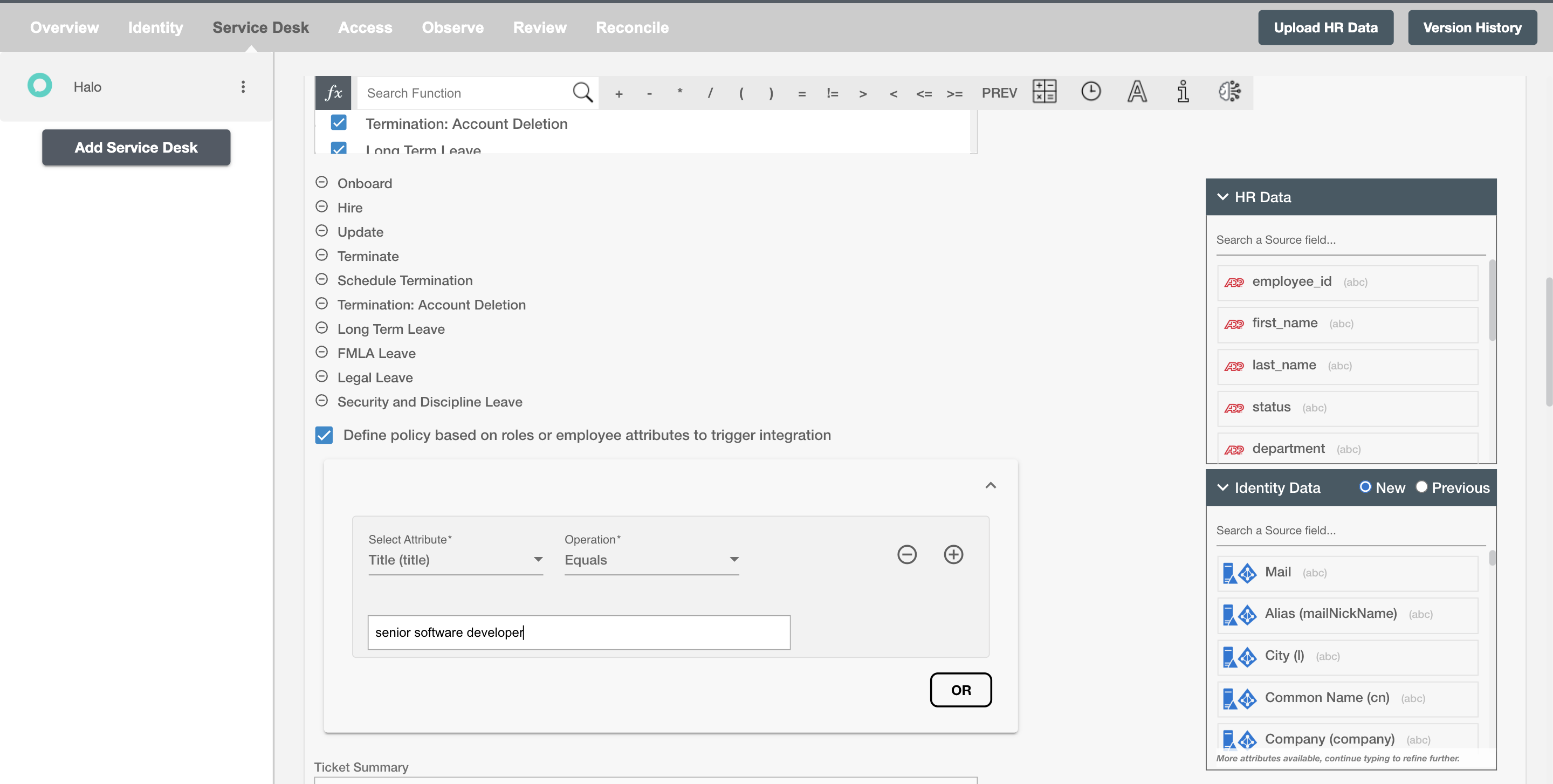
You can apply conditions based on employee attribute(s) or group membership(s). Tickets are created only when the specified conditions are met.
For example, when an employee is promoted to Senior Software Developer, a ticket can be created automatically to assign upgraded access or hardware.
Choose Operation(s)
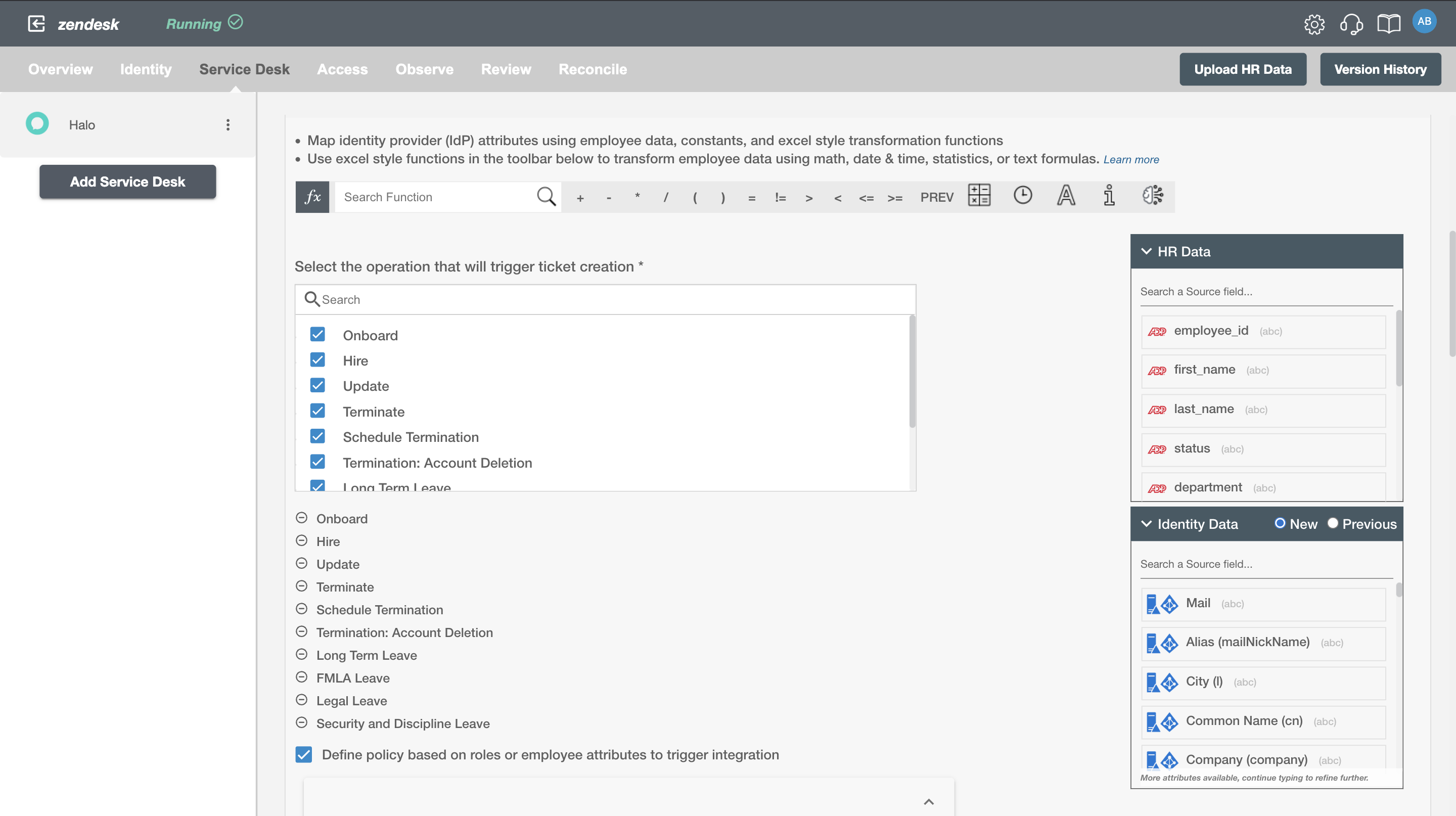
Hire2Retire can let you create tickets in Halo for the following Employee Lifecycle operations:
- Hire
- Onboard
- Update
- Termination
- Schedule Termination
- Termination: Account Deletion
- All type of Leaves ( Long Term, FMLA, Security Discipline, Legal )
Ticket Attributes
Ticket Summary
Ticket Summary serves as the primary headline or title of the Ticket, providing a snapshot of its content or issue. You can provide a summary for each Ticket you are configuring, the summary will be visible along with operations on the summary table. This field is not sent to Halo.
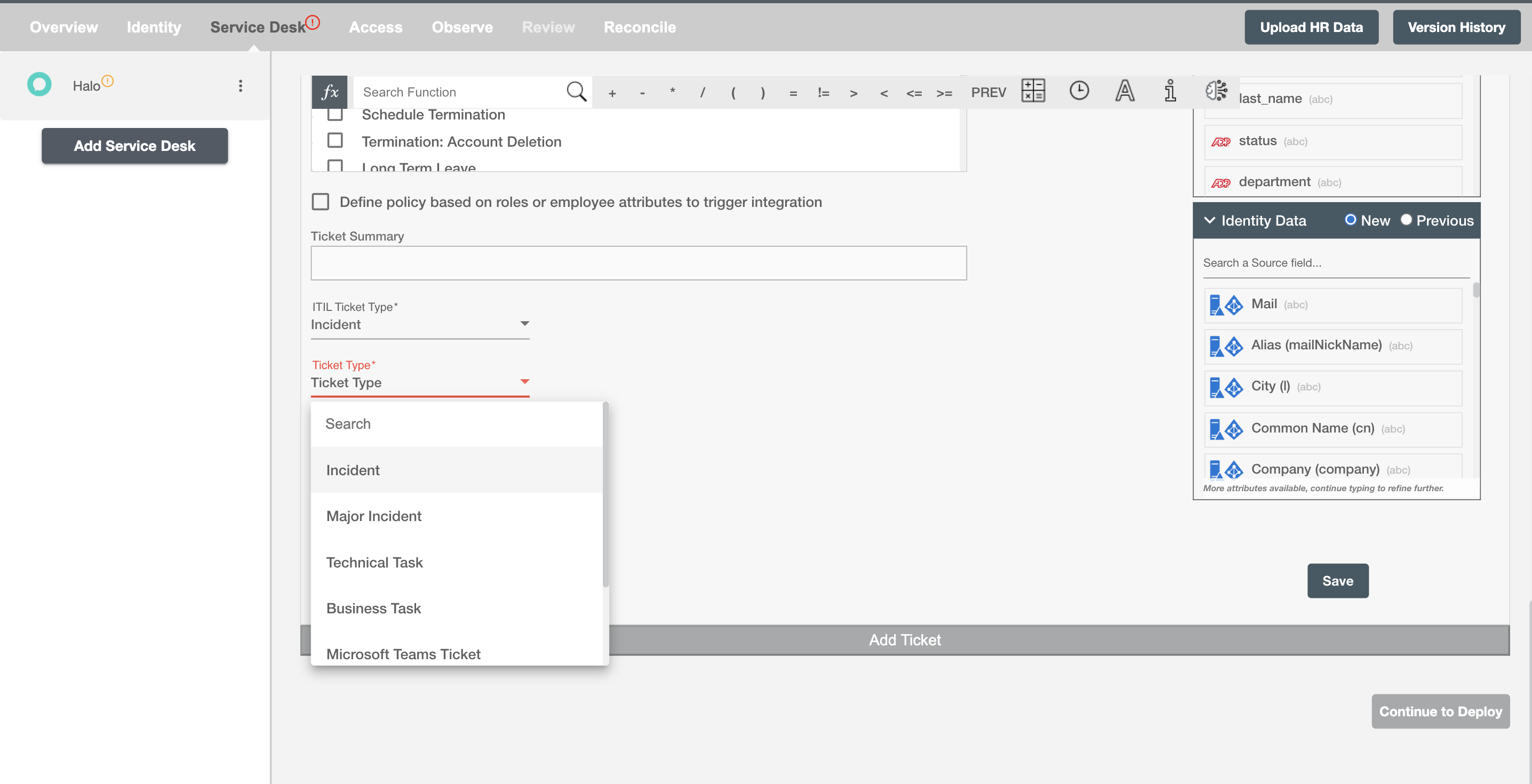
ITIL Ticket Type
In HaloITSM, an ITIL Ticket Type is a classification used to categorize tickets according to ITIL (Information Technology Infrastructure Library) standards, such as Incident, Problem, Change Request, or Service Request. They help organize and manage service requests and incidents based on their nature and required processes.
Ticket Type
The list contains all the Ticket types in the selected ITIL Ticket Type.
Select attributes
You can select the attributes of the ticket that you want to populate. You can map values from the AD data and HR data to populate these attributes. You can also use Hire2Retire's powerful data transformation capabilities using Excel Style functions. Apart from the default attributes visible on Hire2Retire, if you add any other custom attribute(s) on the Halo portal, it will be visible on the Hire2Retire and you can populate it accordingly.
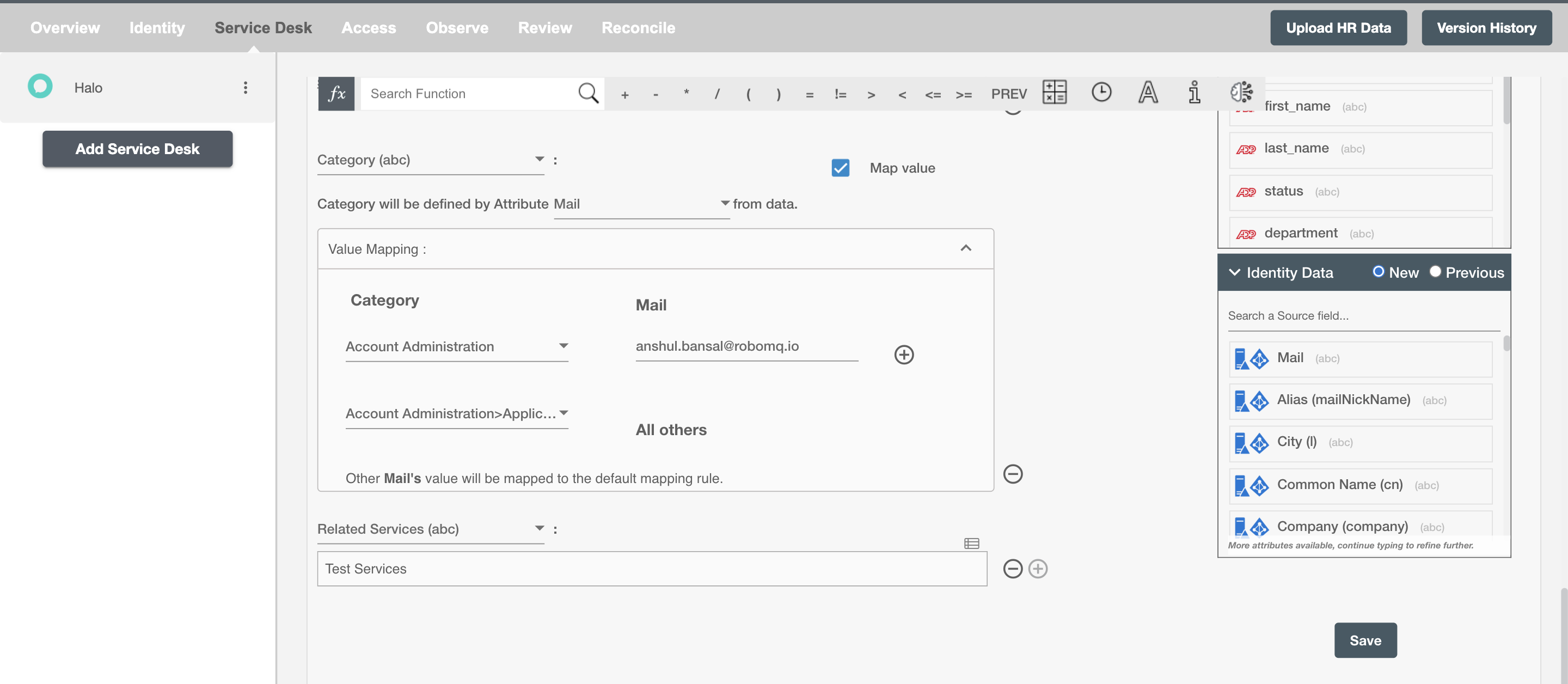
Map Value
You can select Map Value checkbox to map attributes from your Identity Management System to your Service Desk application.
Example
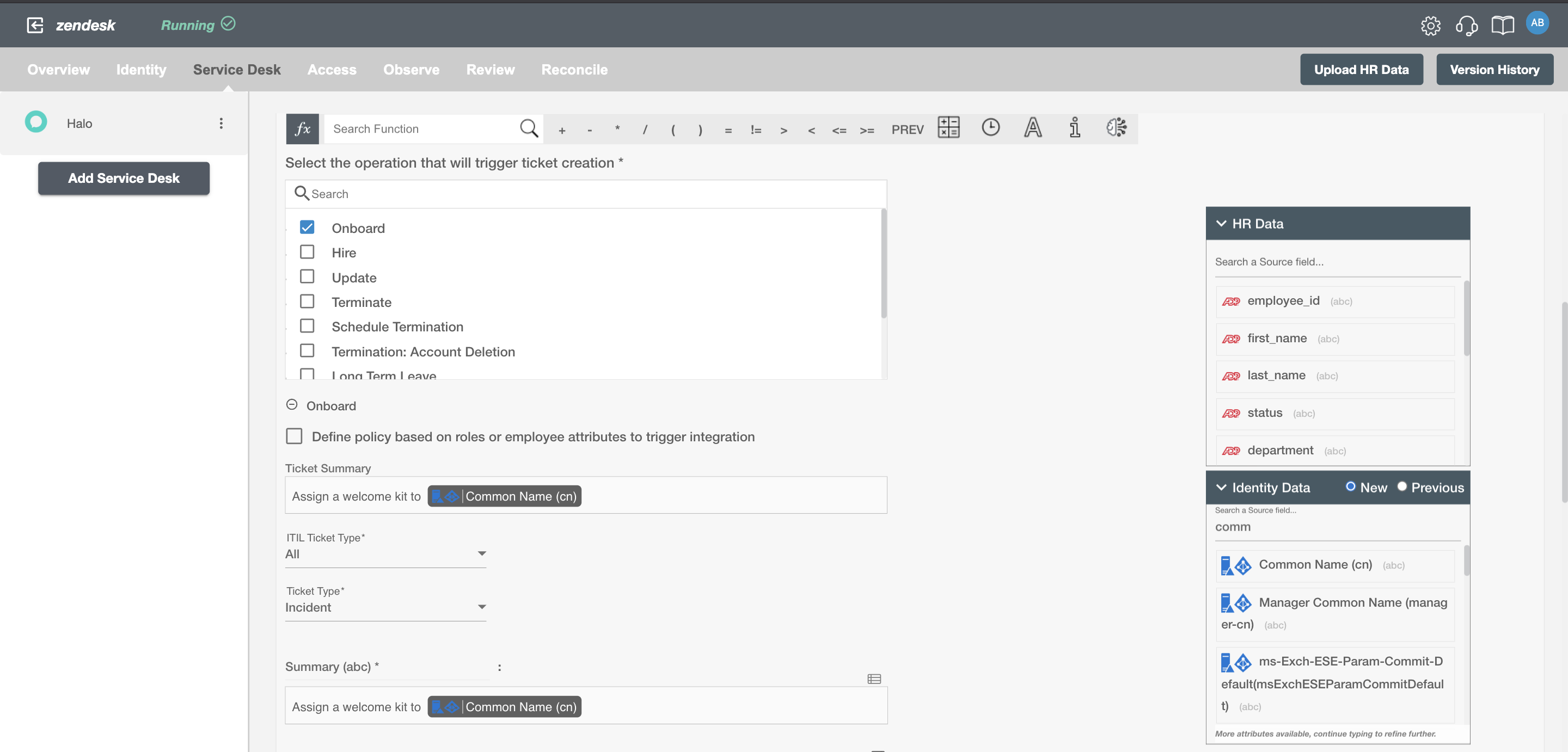
Given below is an example to create ticket on Halo using Hire2Retire. In this example, whenever a new employee is onboarded, a welcome kit is assigned to the user to provision them with the necessary hardware essentials to perform their job, hence the Hire operation is selected.
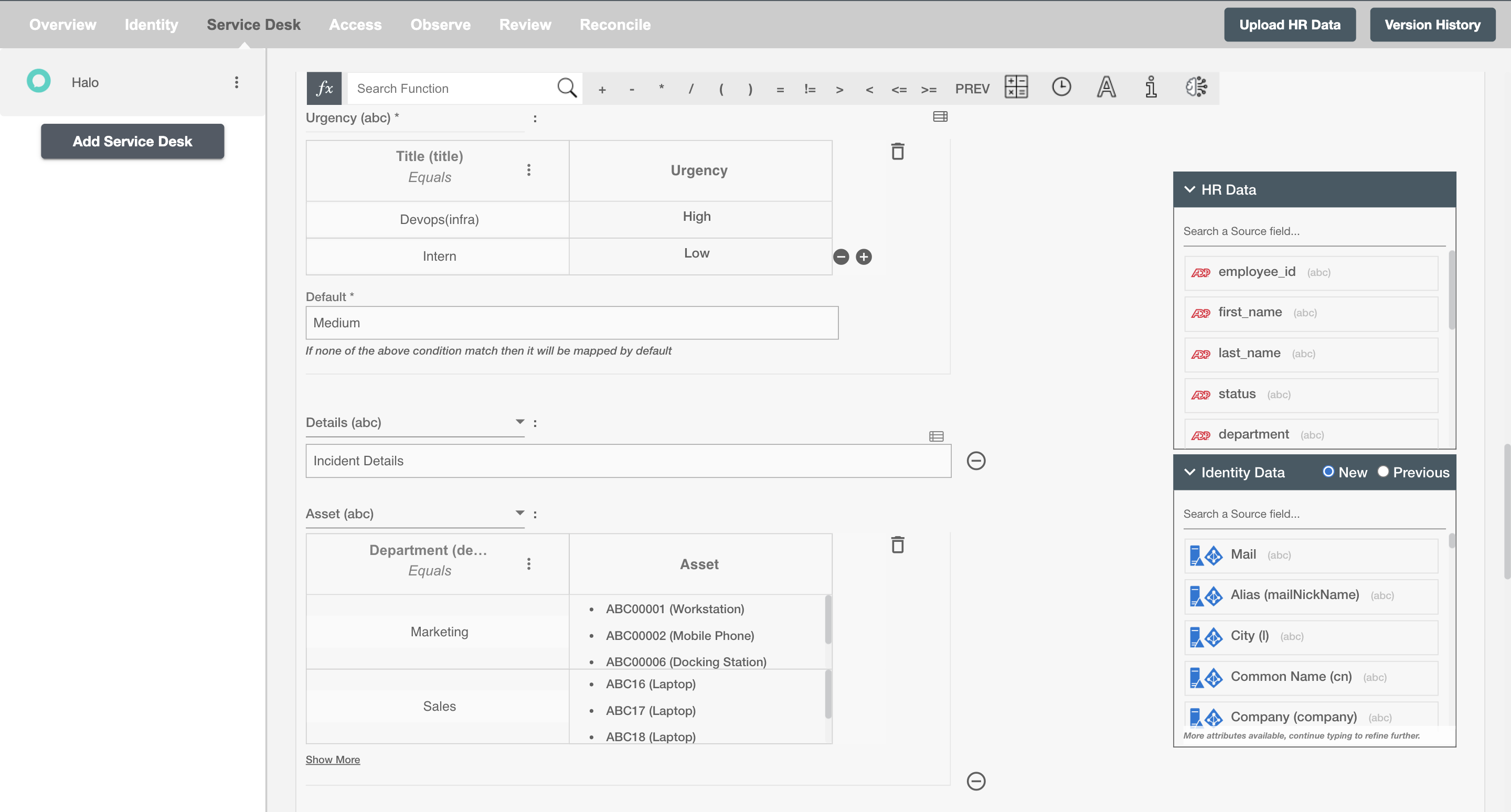
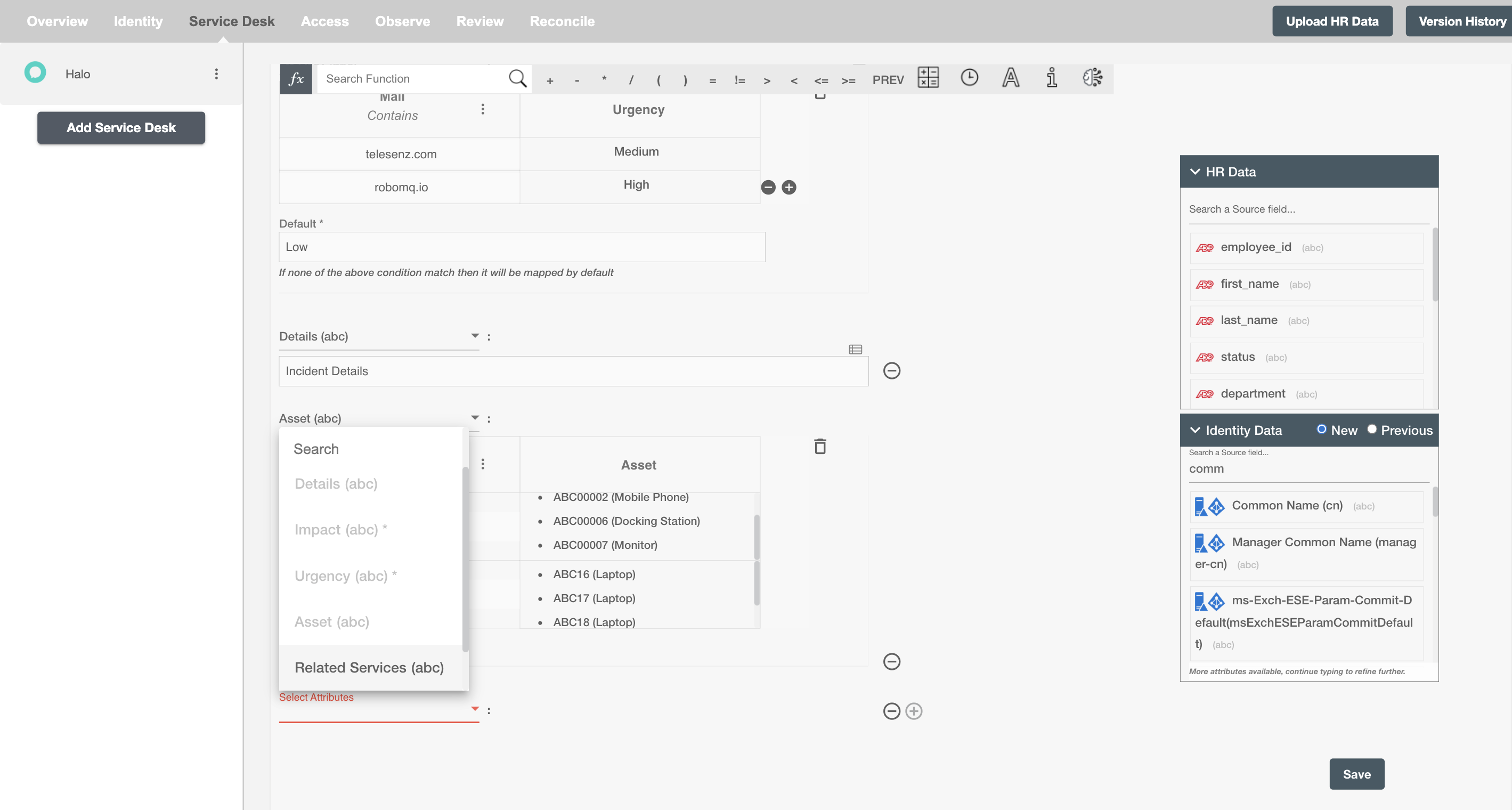
You can provide the ticket summary and select the available attributes. You can also add custom attribute on Halo portal and it will be available on Hire2Retire. Here, a custom dropdown attribute named Asset is added on the Halo portal and is populated on Hire2Retire.
You can also add any additional attributes apart from the default attributes using '+' sign. Refer to the example workflow images available below.