How to enable Reset MFA on Termination
This section explains how to enable Reset MFA functionality under Termination in Entra and Hybrid AD workflows.
- Required Roles and Permissions
- Configure Workflow to Enable Reset MFA on Termination
Required Roles and Permissions
The following are the roles and permissions required by Hire2Retire to successfully reset MFA on Termination.
Customer Owned Application
Application Permission
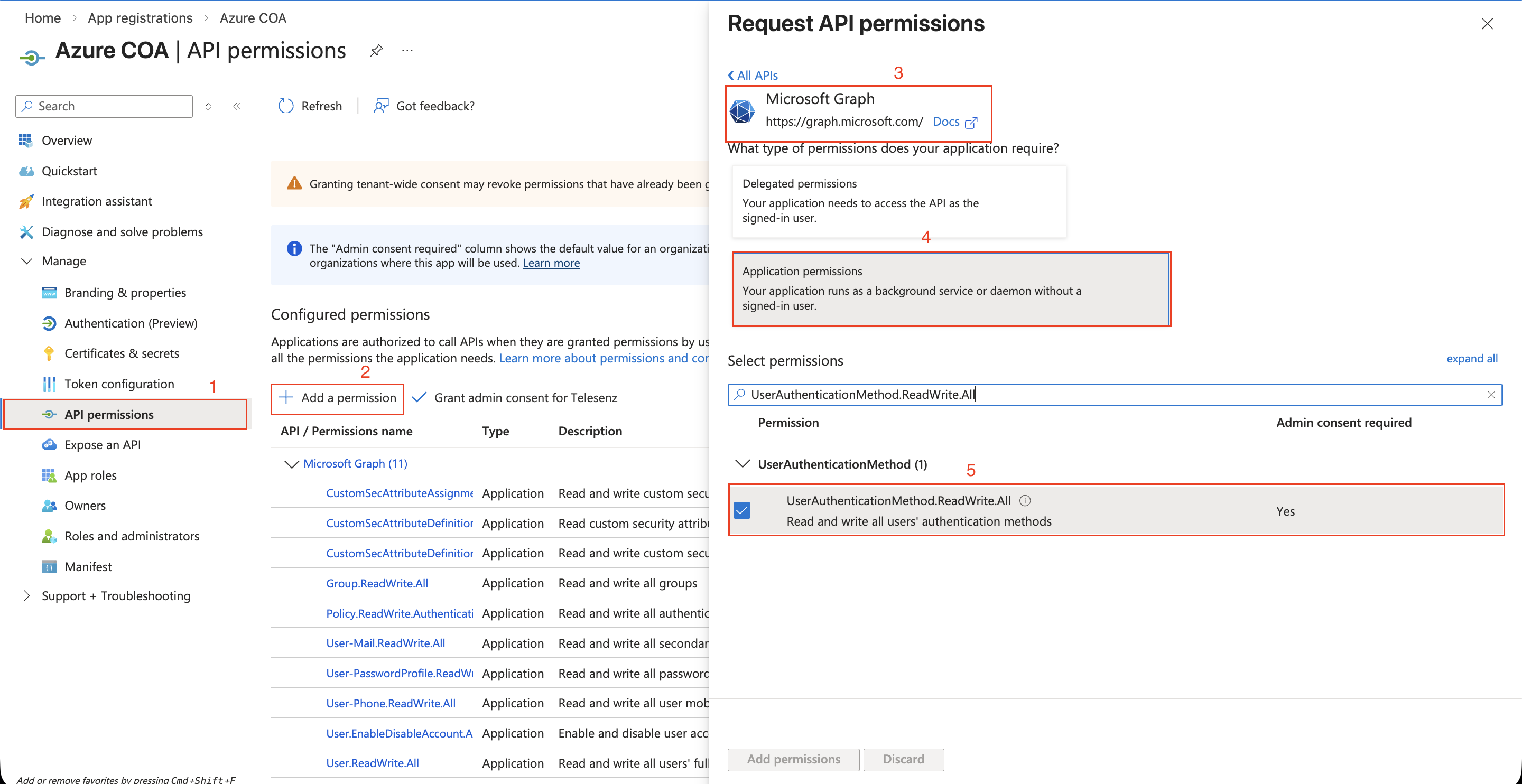
Set up application permissions for any application that needs to authenticate itself without the user's help or consent. To authorize a registered application to access the Microsoft Graph API, navigate to API permissions > Add a permission > Microsoft APIs > Microsoft Graph > Application permissions.
RoboMQ needs the following permissions on your registered application to provide a seamless integration experience:
| Scopes | Explanation |
|---|---|
| UserAuthenticationMethod.ReadWrite.All | Read and write all users' authentication methods |
Service Provider Application
Entra ID application on Hire2Retire uses OAuth authorization. By linking your Entra ID account with Hire2retire, you can authorise the RoboMQ application to have delegated access on your behalf. You will be provided with a consent window whenever new resource access permission is required by Hire2Retire. RoboMQ needs the following permissions on your account to provide a seamless integration experience:
| Scopes | Explanation |
|---|---|
| UserAuthenticationMethod.ReadWrite.All | Read and write all users' authentication methods |
Roles
Entra ID roles provide the privileges required for various Entra ID actions.
| Role | Description |
|---|---|
| Authentication Administrator | Can view, set, and reset authentication method information for any non-admin user. |
How to give Authentication Administrator Role
Following are the steps to assign the Authentication Administrator role:
-
Log in to the Entra ID portal and open the user to whom you want to assign the Authentication Administrator role. Click the Assigned Roles option on the left-hand side.
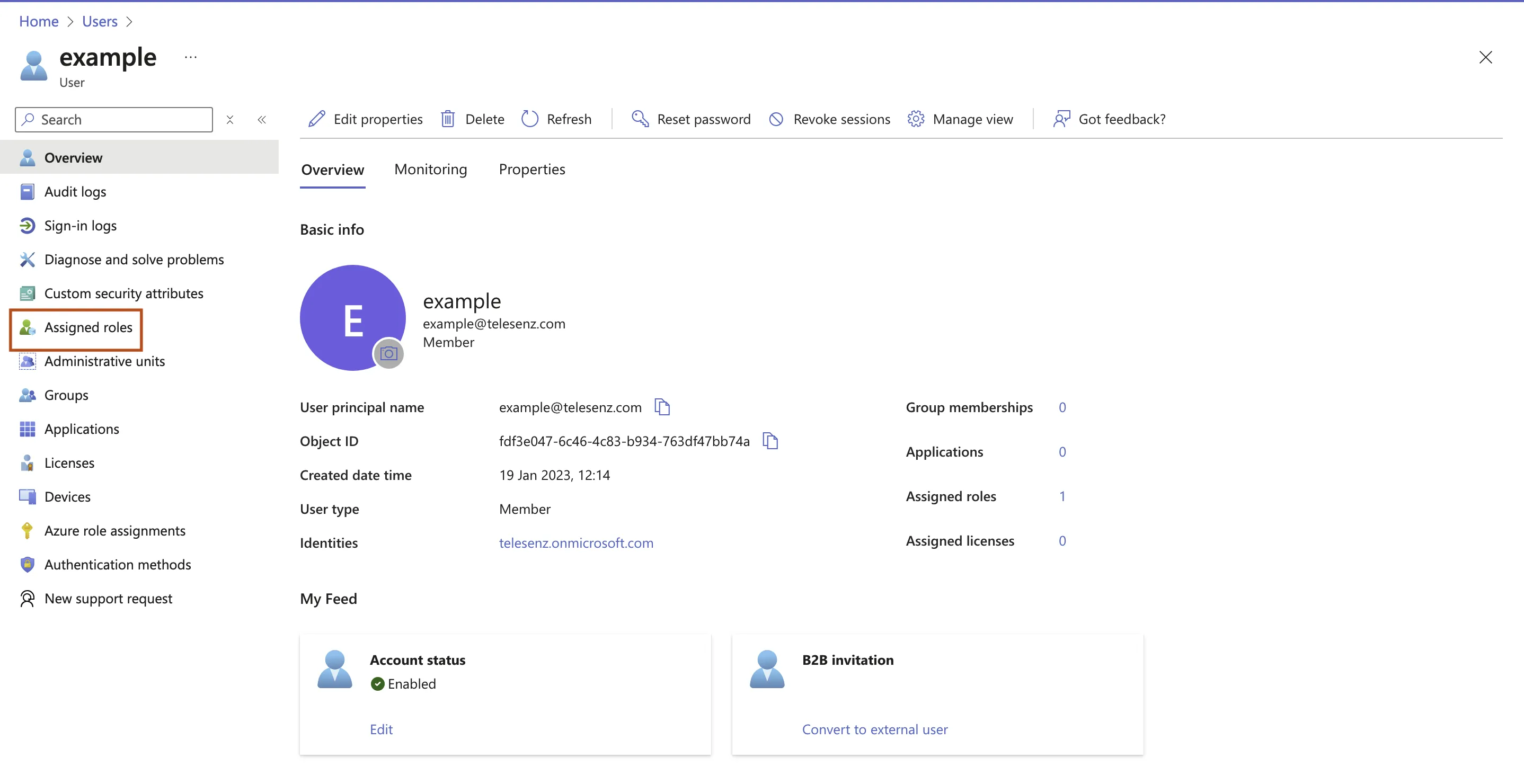 Figure 2. Shows Assigned Role option on Entra ID portal
 -
Click on the Add assignments option
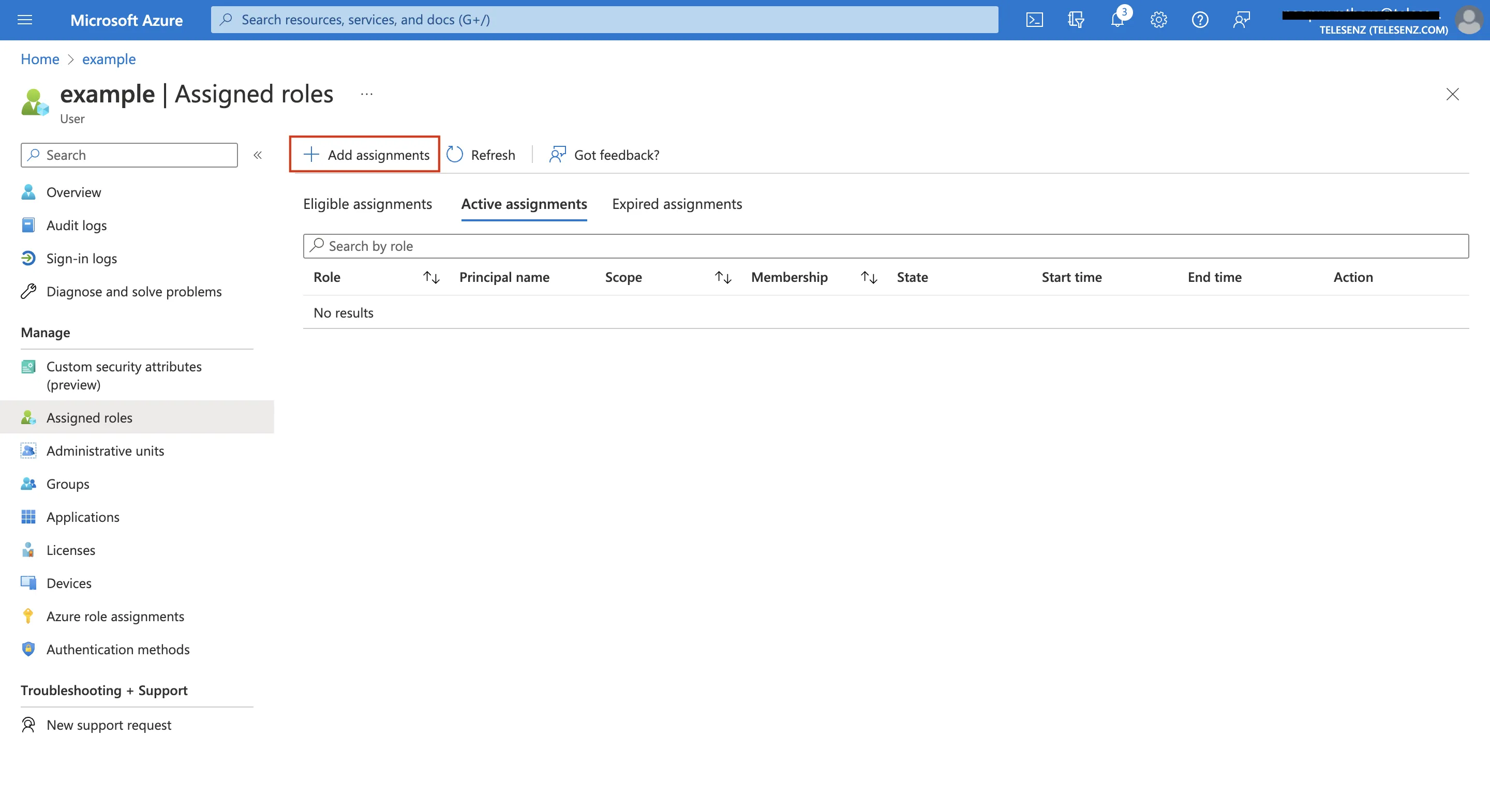 Figure 3. Shows Add Assignment option on Entra ID portal
 -
Search using filters or enter 'Authentication Administrator' in the search bar.
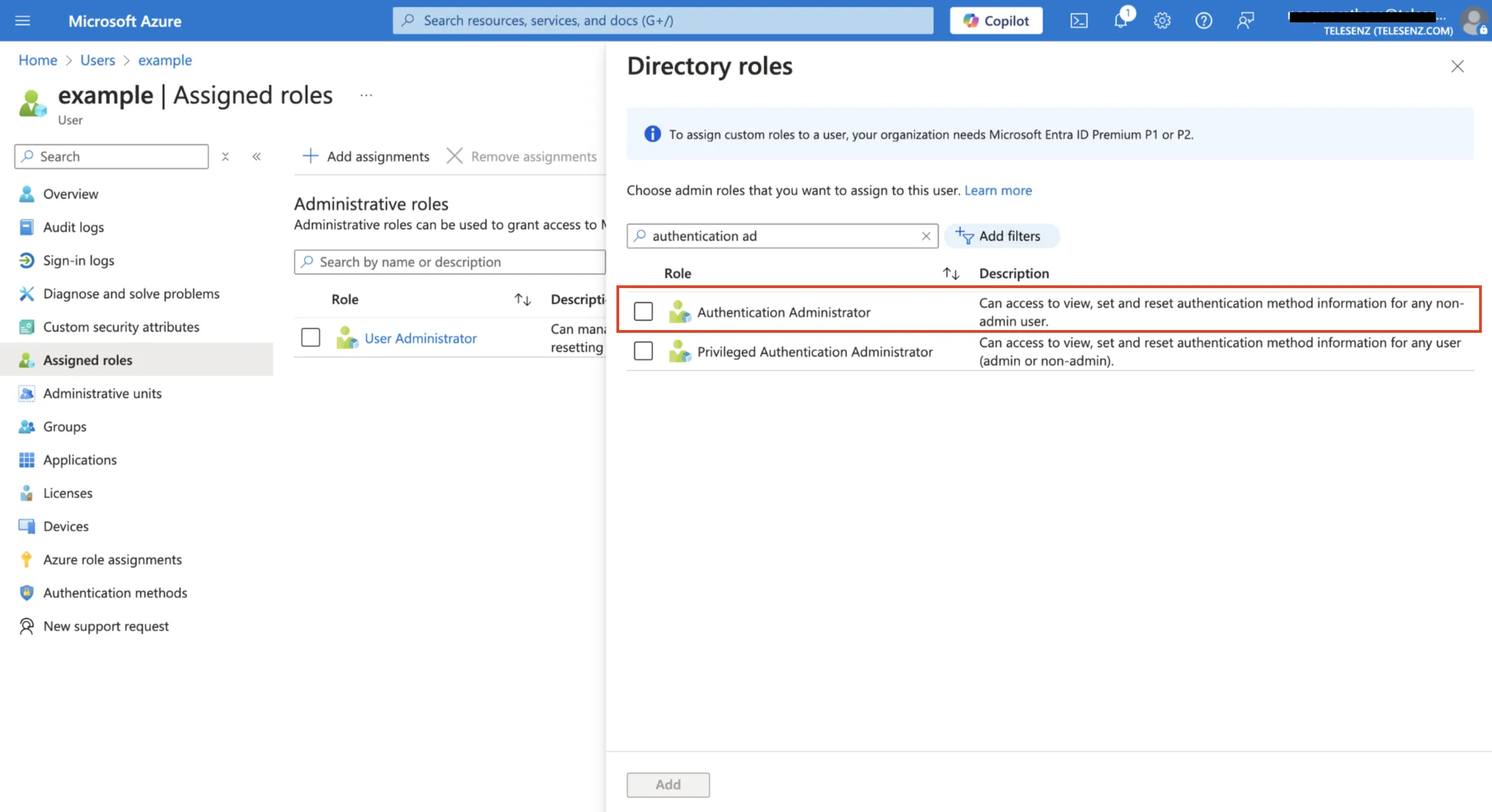 Figure 4. Shows Authentication Administrator Role on Entra ID portal
 -
Select 'Authentication Administrator' and click the 'Add' button.
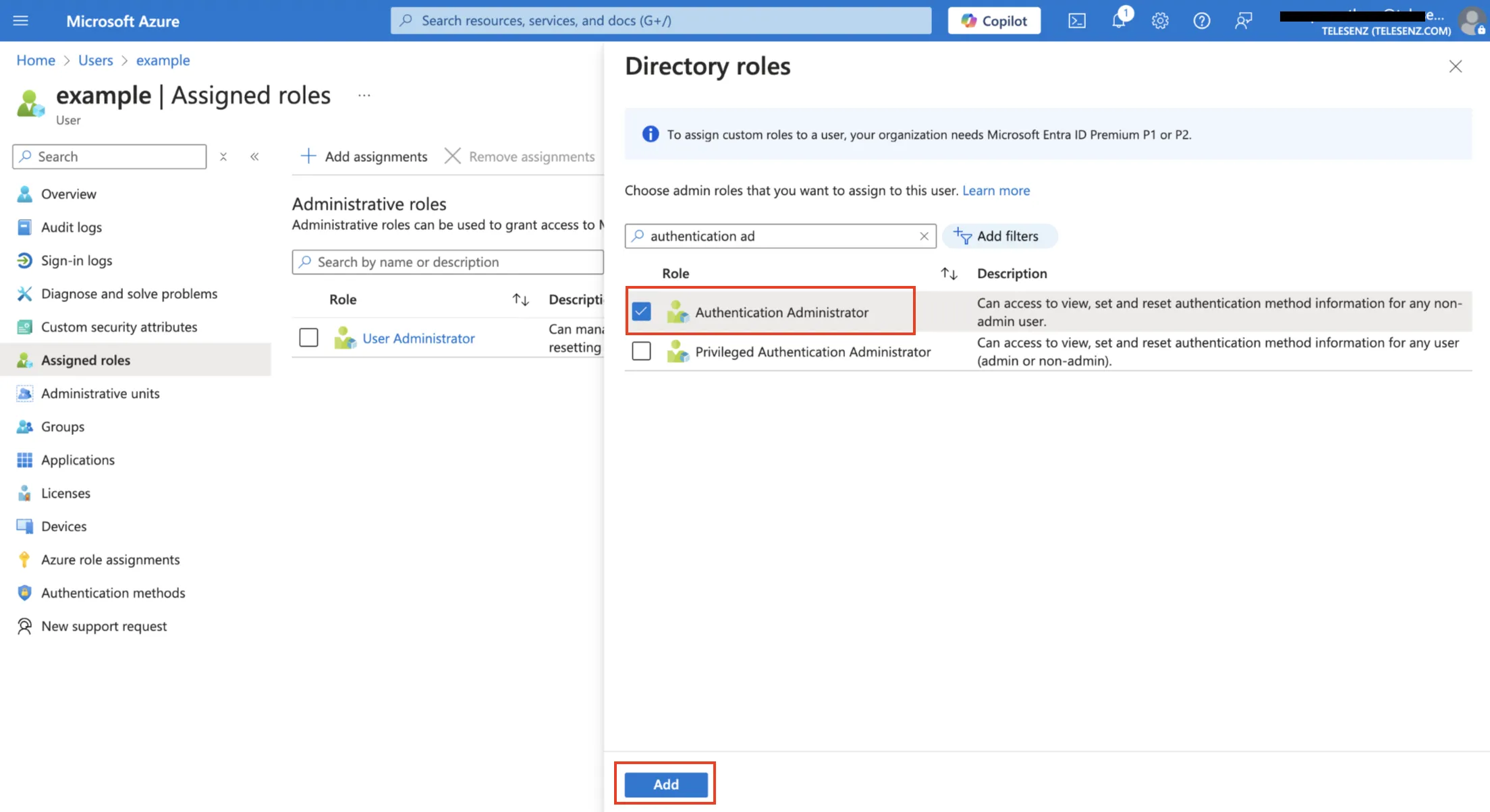 Figure 5. Add Authentication Administrator Role to the user
Configure Workflow to Enable Reset MFA on Termination
- Visit Hire2Retire and navigate to the workflow where you want to enable the Reset MFA functionality.
-
Click on the
Lifecycle Business Rulespage under theIdentityTab.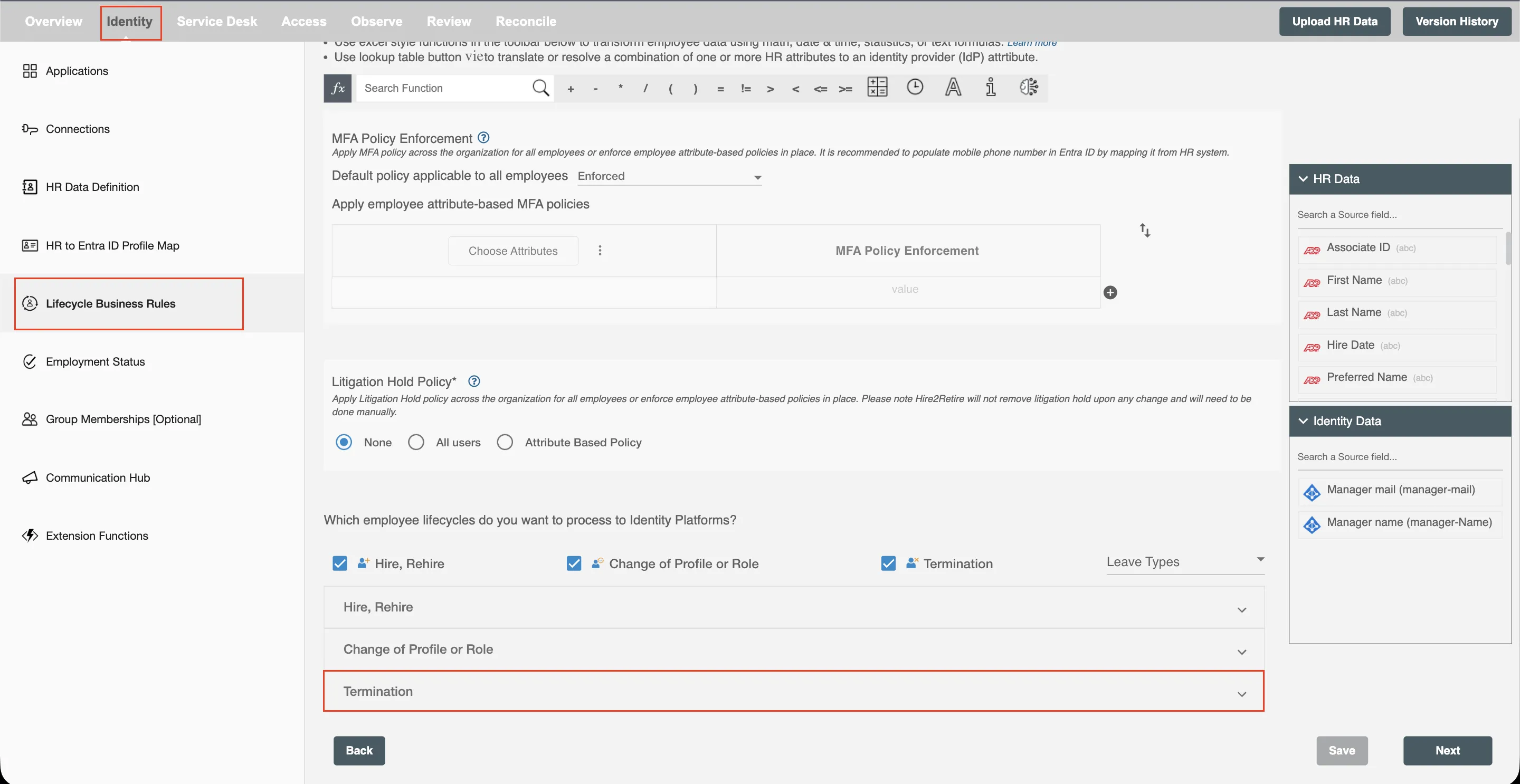 Figure 6. Lifecycle Business Rules.
 -
Under the Termination lifecycle, select the checkbox with label
Reset MFA on Termination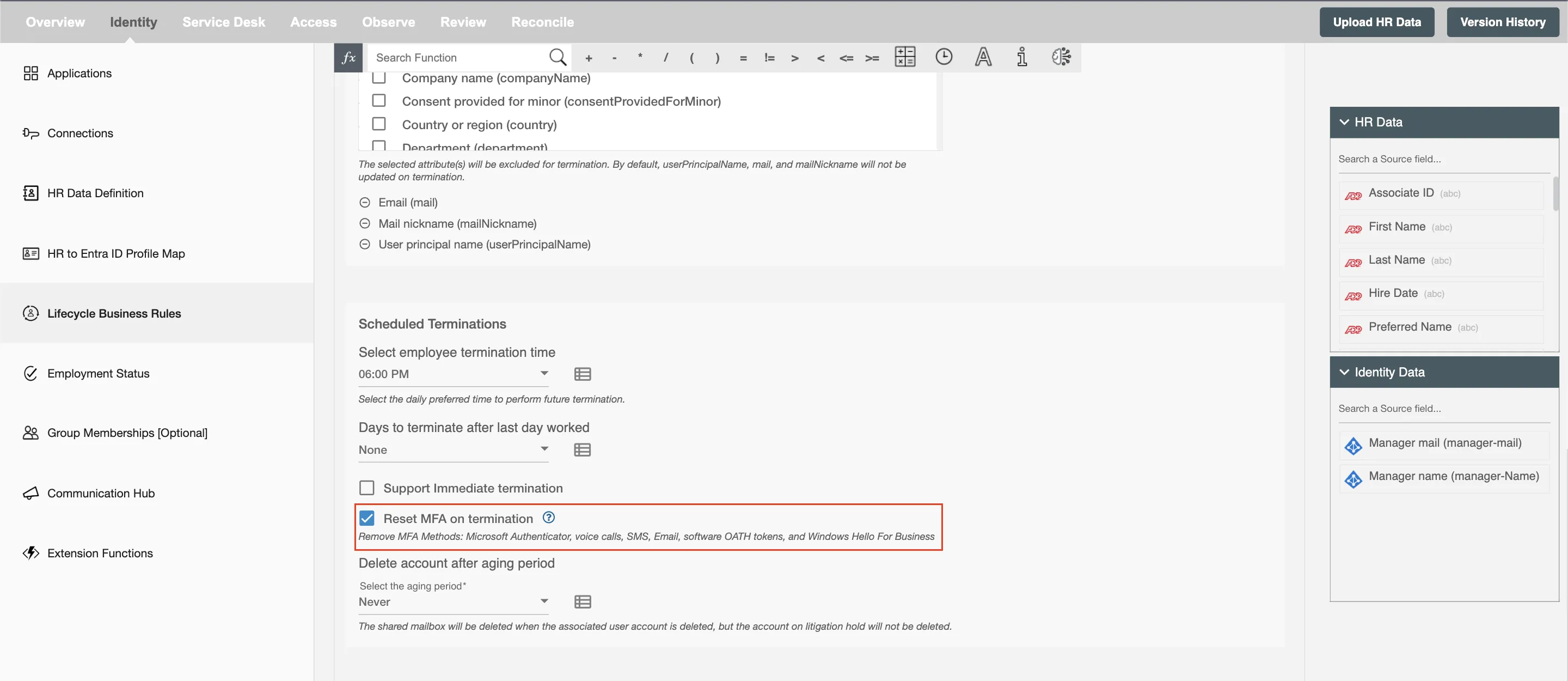 Figure 7. Select Reset MFA on Termination.
 -
If the service account or application does not have the required permissions, the checkbox will be disabled and Hire2Retire will display a warning indicating permissions or roles are missing.
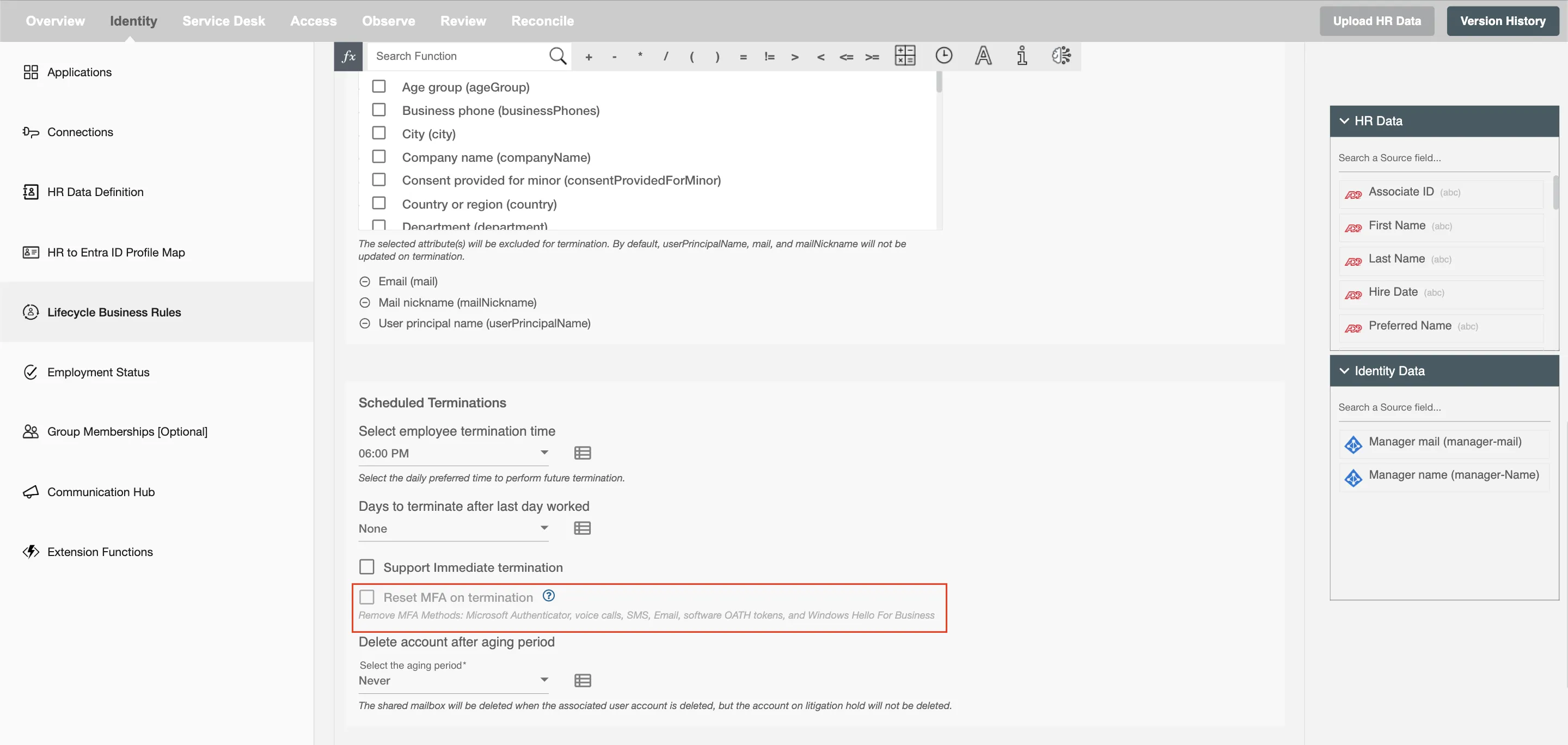 Figure 8. Required roles/permissions are not present.
 -
Once the required permissions or roles are assigned to the service account or application, refresh the page.