Peer Based Entitlements for Hire2Retire
Overview
The Peer Based Entitlements feature enables AI-assisted discovery and recommendation of group memberships for employees based on the entitlements held by their peers. When a new employee is onboarded or an existing employee undergoes a title change, Hire2Retire automatically identifies peer employees and predicts the appropriate group memberships, including Security Groups, Distribution Lists, Entra ID Security Groups, Microsoft 365 Groups, and Mail Enabled Security Groups.
The feature reduces manual group assignment effort, enforces a consistent security posture, and supports both supervised review and fully automated (Autopilot) provisioning workflows.
How It Works
The system identifies peers and generates predictions using the following process:
Peer Identification:
- A peer is defined as an employee who holds the same job title as the employee being processed and exists anywhere within the manager's organizational subtree
- The system searches this subtree recursively to identify matching peers
- If no peers are found within the manager's subtree, the search expands to the boundary attribute. The boundary attribute is a configurable AD attribute (e.g., Department, Location) that defines the wider scope for peer search when no peers are found under the employee's direct manager subtree.
Prediction Generation:
- Group memberships are predicted based on the selected Privilege Assignment Method
- Predictions are generated independently for each group type
- The system produces two outcomes per group type: Groups to be added, and Groups to be removed
Examples
New Hire — Same Manager Team
A new Account Manager, Rachel, joins the Sales team, reporting to the same manager as five existing Account Managers. All five peers are members of SG-CRM-Access and DL-Sales-Team, four out of five hold SG-Sales-Reports, and only two out of five hold SG-Enterprise-Deals.
With the threshold set to 70%, Hire2Retire predicts that Rachel should be added to SG-CRM-Access, DL-Sales-Team, and SG-Sales-Reports — all held by 80% or more of peers, exceeding the threshold. SG-Enterprise-Deals is held by only 40% of peers and is excluded from the prediction. The IT admin reviews the suggestion on the Review page and approves it. Rachel is provisioned with the correct entitlements on her first day without any manual intervention.
New Hire — No Peers in Manager's Team
A new Financial Analyst, Marcus, joins a newly formed team where his manager has no other Financial Analysts reporting to them. The primary peer search returns no results.
With the boundary attribute set to Department, the search expands to all Financial Analysts across the Finance department. Five peers are found, all holding SG-Finance-Systems and DL-Finance-Team. Under Least Privilege mode, both groups are recommended for Marcus since all peers hold them.
New Hire — Broad Access via Most Privilege
A new HR Business Partner, Elena, joins an HR team with four existing HR Business Partner peers. Their group memberships vary. Some hold SG-HRIS-Access, others hold SG-Compensation-Data, but all hold DL-HR-Team.
Under Most Privilege mode, Hire2Retire predicts that Elena should be added to all three groups since each is held by at least one peer. This ensures Elena has the broadest set of entitlements needed to cover all responsibilities her peers perform.
Role Change — Title Promotion
An existing employee, Daniel, is promoted from Associate Project Manager to Project Manager. His peers in the Project Manager role hold SG-Project-Portal and SG-Budget-Access, groups that his previous role did not require.
Hire2Retire detects the title change and generates a prediction to add SG-Project-Portal and SG-Budget-Access to Daniel's profile. Groups held only by Associate Project Managers are flagged for removal. The IT admin reviews and approves, ensuring Daniel's entitlements align with his new role.
Configuration
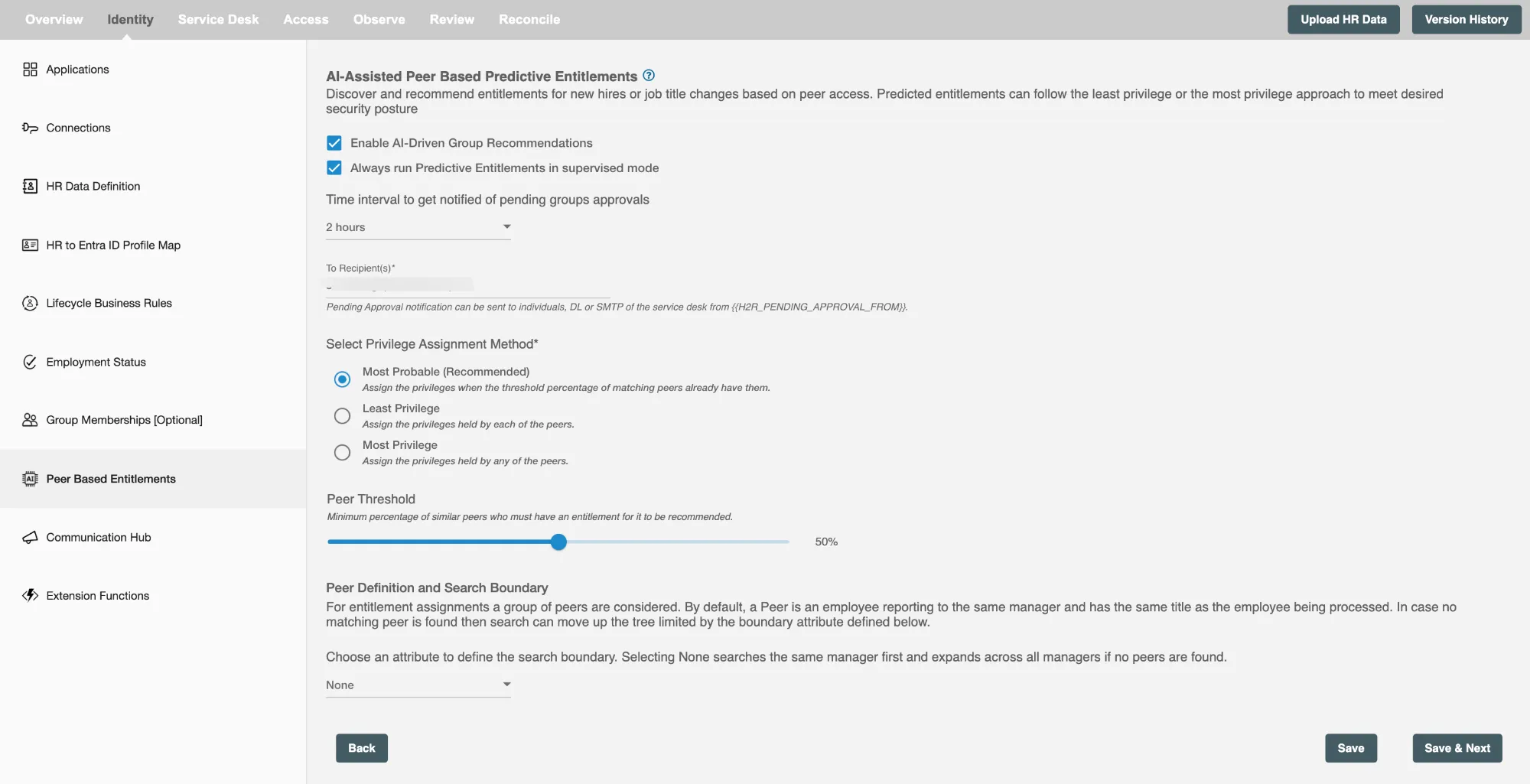
Peer Based Entitlements is configured under Identity → Peer Based Entitlements in the left navigation panel.
Enabling the Feature
- Enable AI-Driven Group Recommendations — Check this option to activate peer-based entitlement predictions. When unchecked, no predictions are generated.
Supervised Mode
- Always run Predictive Entitlements in Supervised Mode — When enabled, all predictions are held for manual review and approval before being applied to the employee's AD profile. When disabled, the system operates in Autopilot mode and applies the predictions automatically.
Privilege Assignment Method
Three methods are available to control how group memberships are predicted from the peer set:
| Method | Description |
|---|---|
| Most Probable (Recommended) | Assigns the entitlements when a threshold percentage of matching peers already have them |
| Least Privilege | Assigns only the entitlements held by every peer |
| Most Privilege | Assigns any entitlements held by at least one peer |
Peer Definition and Search Boundary
Boundary Attribute:
- The boundary attribute defines the scope of the expanded peer search when no peers are found in the manager's subtree.
- Select an attribute from the dropdown (e.g.,
Department) to restrict the expanded search to employees sharing the same attribute value, along with the title attribute. - Selecting None expands the search across all managers org-wide if no direct peers are found.
Reviewing Predicted Entitlements
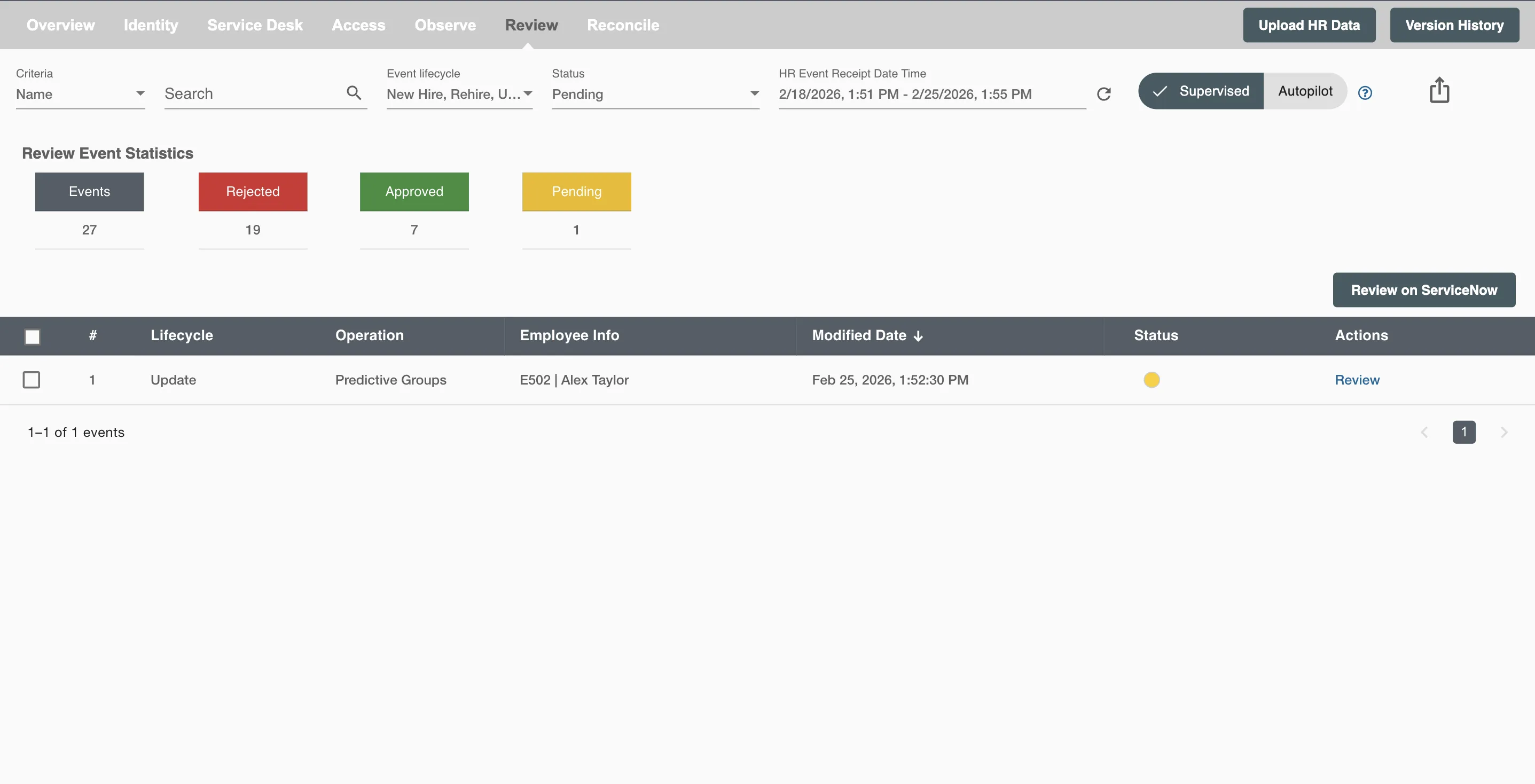
When Supervised mode is active, predicted group changes appear on the Review page for IT admin approval before being applied.
Navigating to the Review Page
- Select the Review tab from the top navigation
- Peer prediction events appear with lifecycle Update and operation Predictive Groups
Reviewing a Predicted Event
Click Review in the Actions column to open the event detail panel.
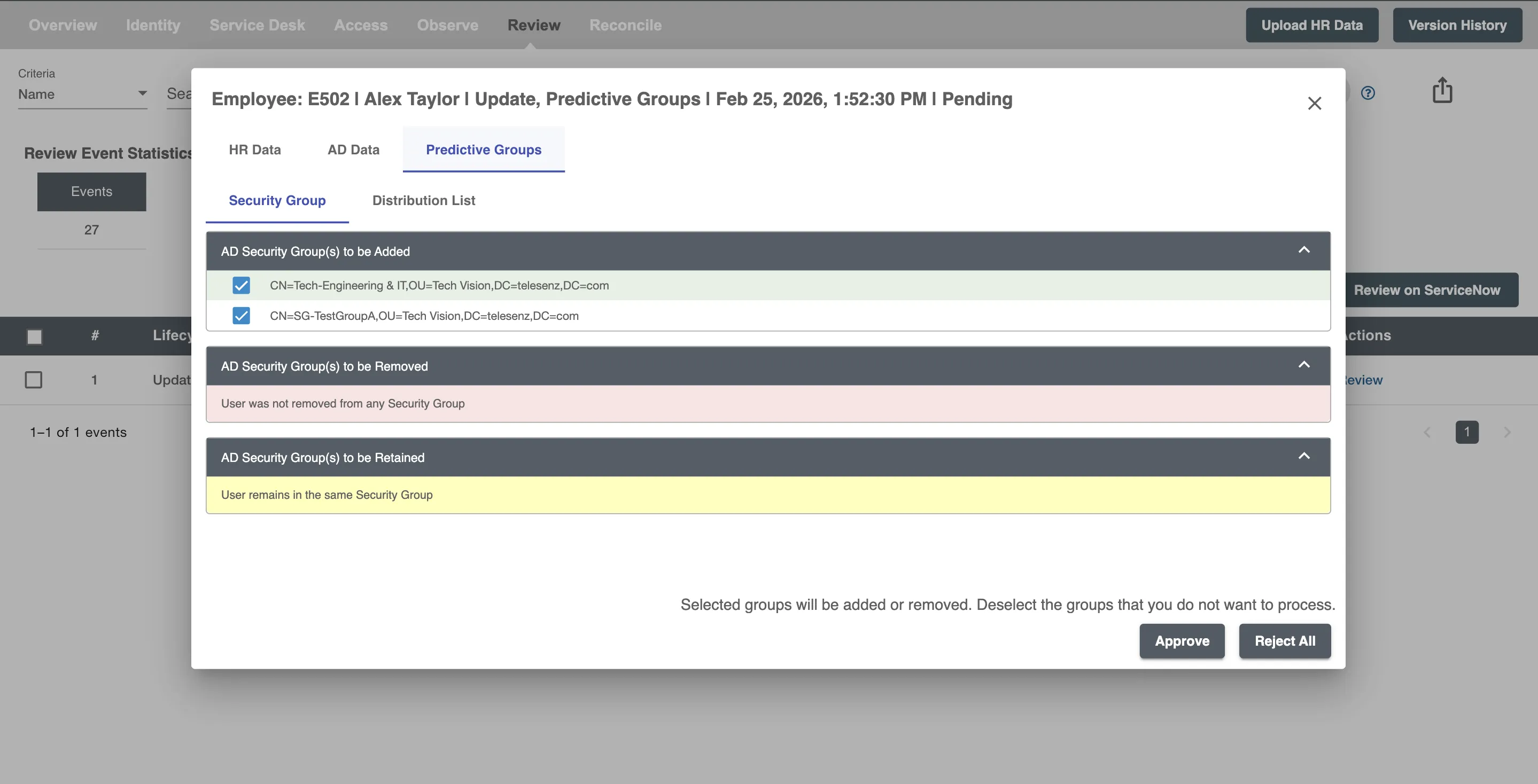
The panel contains three tabs:
- HR Data — HR record details for an employee
- AD Data — His current Active Directory profile attributes
- Predictive Groups — His predicted group membership changes
Approving or Rejecting Predicted Groups
Under the Predictive Groups tab, predictions are organized by group type:
- Security Group
- Distribution List
- Entra ID Security Group
- Microsoft 365 Group
- Mail Enabled Security Group
Only group types that have at least one prediction are shown as tabs.
For each group type, three sections are displayed:
- Groups to be Added — Peer-predicted groups not currently assigned to the employee; pre-selected by default
- Groups to be Removed — Groups currently assigned to the employee that peers do not hold
- Groups to be Retained — Existing group memberships unaffected by the prediction
By default, all the group predictions are selected. The reviewer can deselect individual groups before approving to exclude specific changes from processing. Once selections are finalized:
- Click Approve to apply all selected group changes
- Click Reject All to dismiss all suggestions for the event without making any changes
Observability
Once predicted group changes are approved and processed, the applied events are visible on the Observe page. The Observe page provides a consolidated view of all lifecycle events, including group membership additions and removals, allowing IT admins to audit and verify if peer-predicted entitlements were correctly applied to the employee's Identity profile.
Refer to the Observability documentation for more details on filtering, monitoring, and archiving applied events.