Overview
Using the Provisioning on Hire2Retire you can provision and deprovision users on D365.
Read the official documentation of D365.
Define Provisioning Criteria
Provisioning Type
Provision a set of Employees
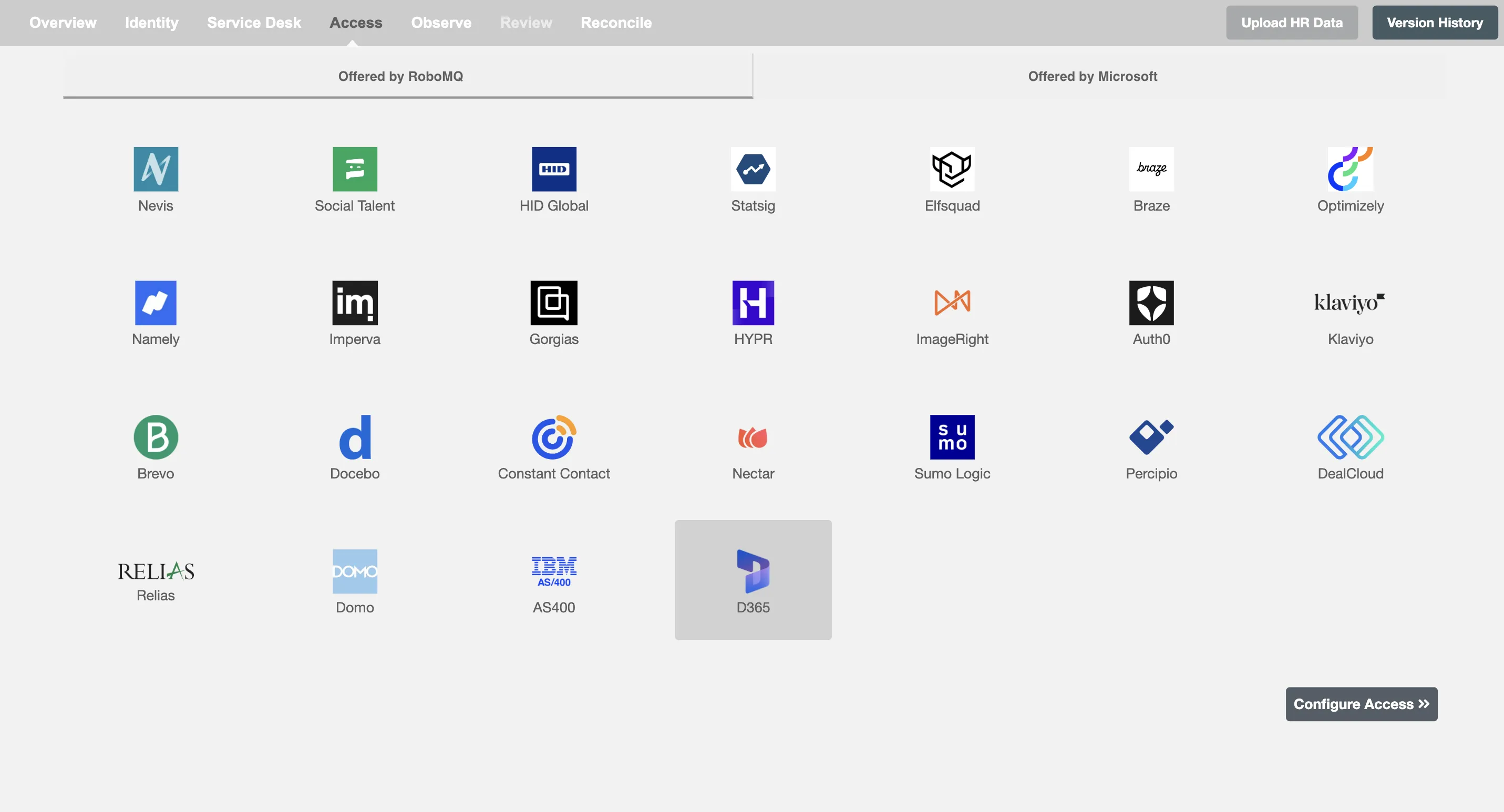
You can assign a Role to any user based on their AD and HRIS attributes. You can define complex conditions using AND and OR logic. You can also use the Group memberships in AD to define Roles. The Roles are used to assign specific privileges and licenses in D365. For Example: In Figure 2, the rules are defined on the basis of jobTitle (Equals). If the rules are passed, then only user(s) will get provisioned. If no rule passes and the user(s) is present in D365, then deprovisioning is performed for the user(s).
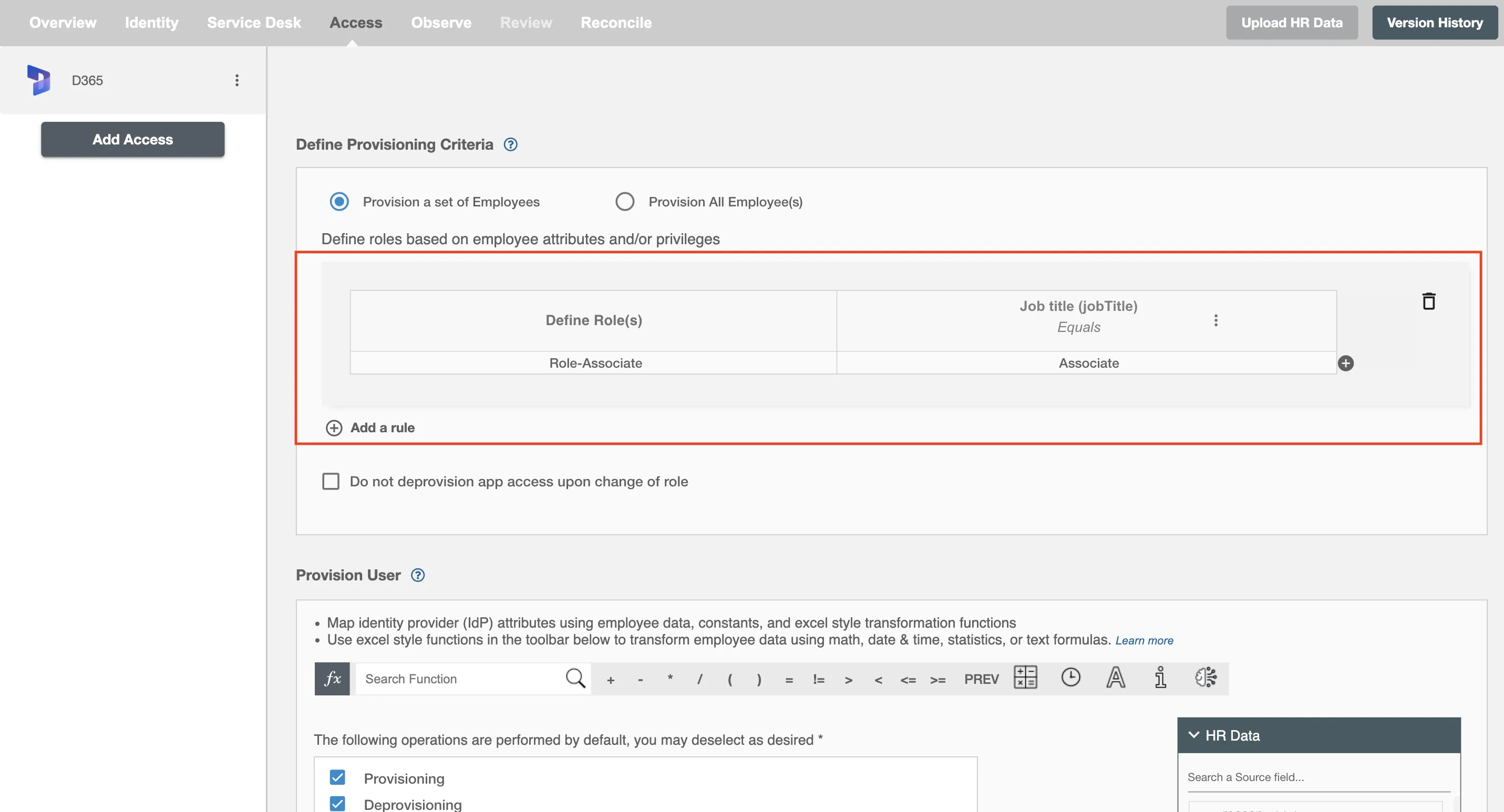
You can enable the "Do not deprovision app access upon change of role" checkbox to prevent users from being deprovisioned on D365 due to a role mismatch.
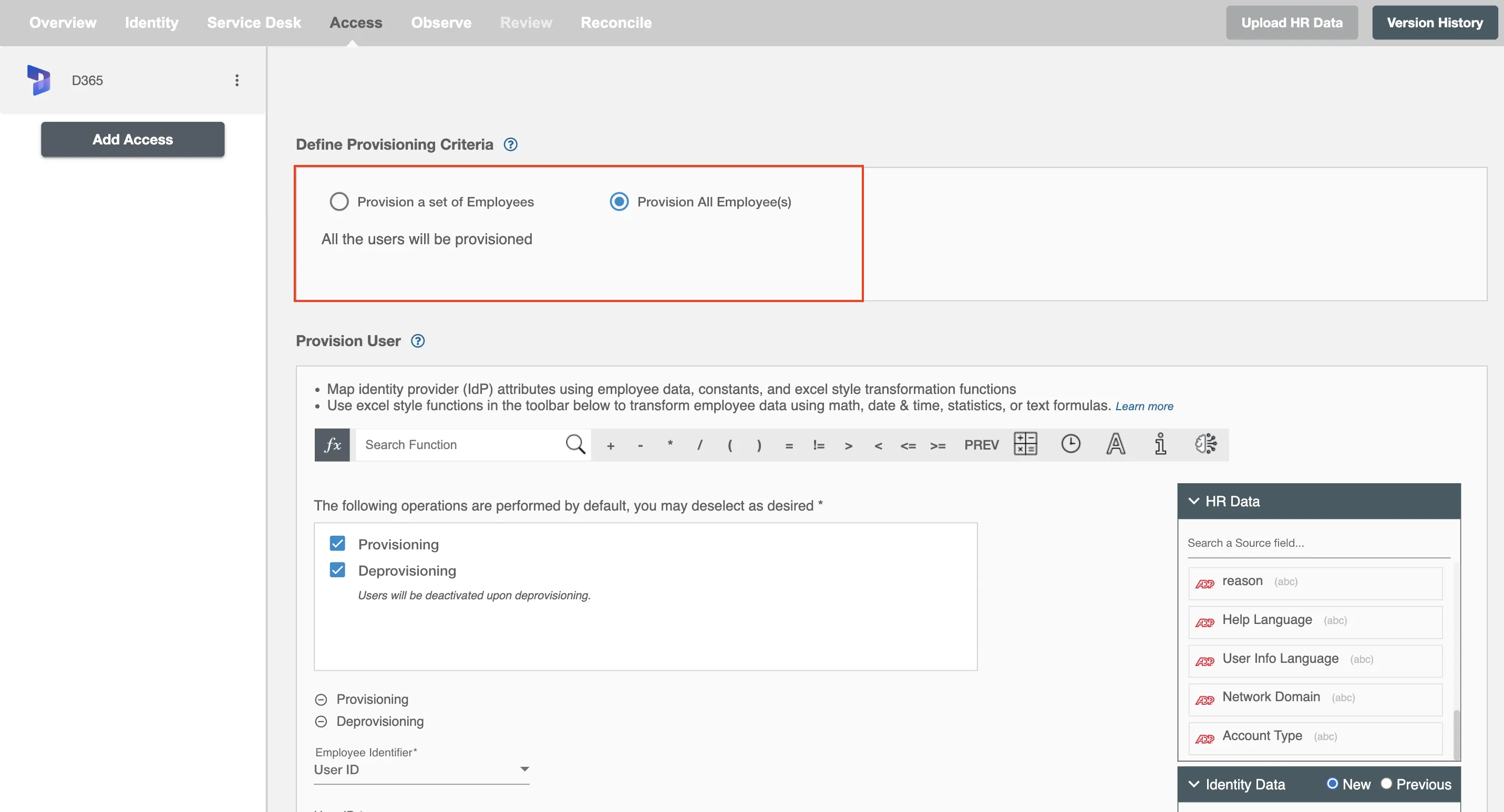
Process All Employees
All user(s) will be provisioned on D365.
Provision User
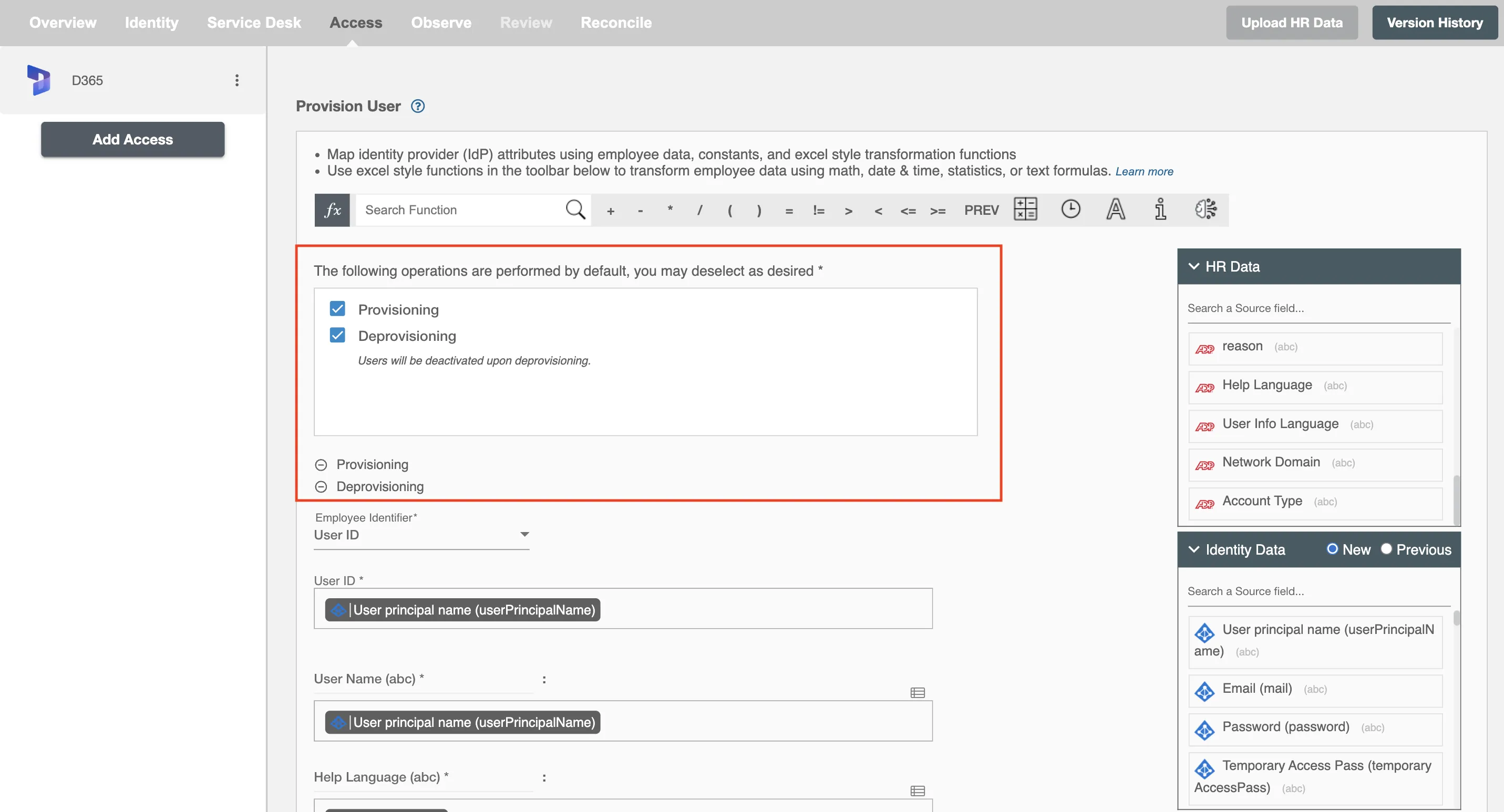
You can decide to either provision or deprovision user(s) using Access.
-
Provisioning - You can provision one or more user(s) to the D365 according to the requirement. User(s) can be created, updated or reactivated in provisioning operation.
-
Deprovisioning - You can deprovision one or more user(s) according to the requirement. User accounts will be deactivated on D365 upon deprovisioning.
Map attributes on D365
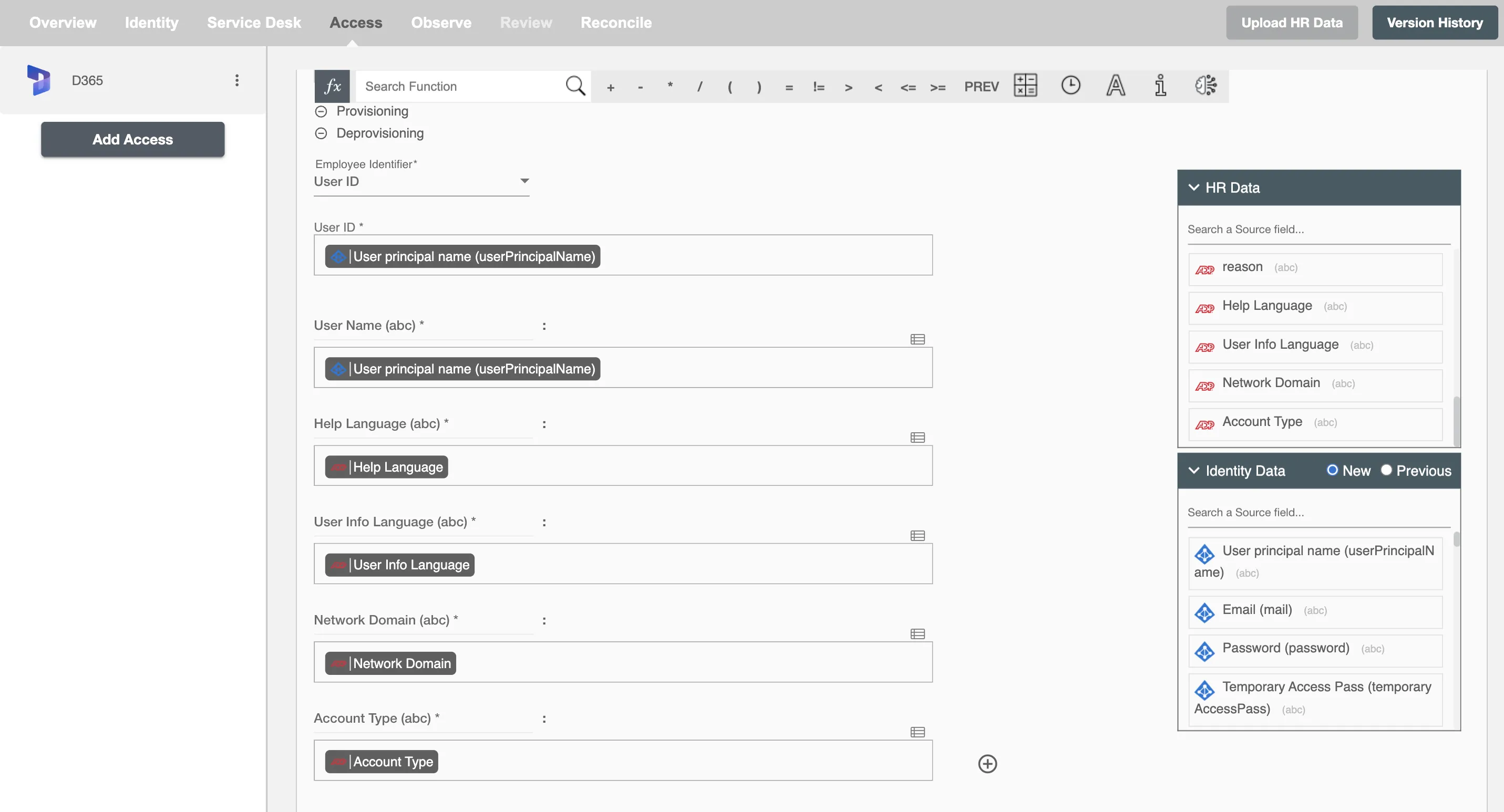
You can select the attributes provided by D365 that you want to populate. You can map values from AD/Entra ID/Hybrid/HRIS to populate these attributes. You can also use Hire2Retire's powerful data transformation capabilities using Excel Style functions.
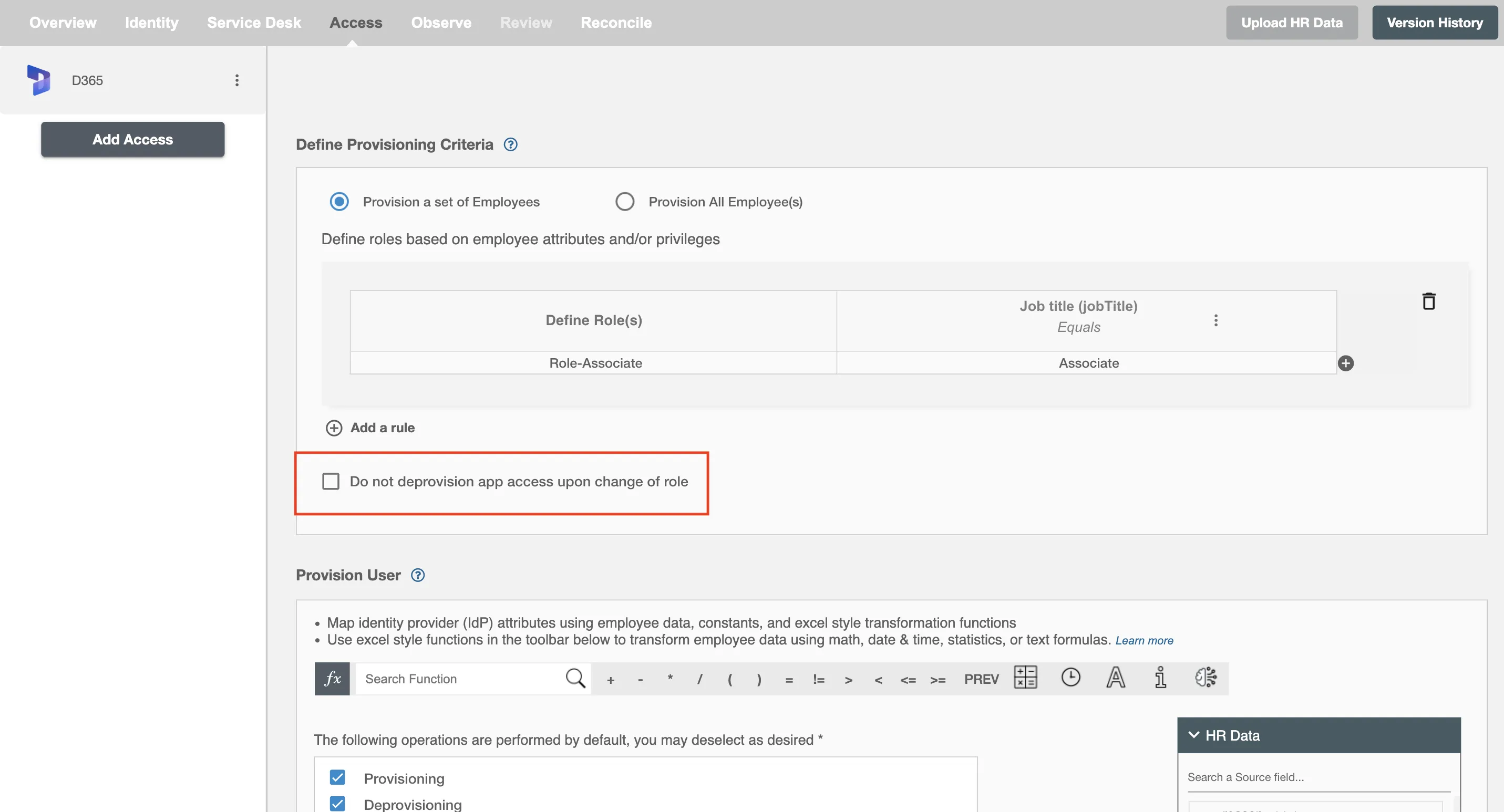
Exclude employee attribute(s) from update
Use this option to exclude specific attributes from being updated in D365. These fields retain their existing values even if the source attribute changes in AD or HRIS.